Google Tag Manager Integration with Cookie Banner and Consent Mode
Comprehensive Guide to Integrating GDPR-Compliant Cookie Banner with Google Tag Manager
Introduction
The "Google Tag Manager Integration with Cookie Banner" feature lets you manage cookie consent in line with GDPR. This guide explains how the feature works, how to integrate it with your system, and what it changes for privacy management and user tracking.
This setup requires a running Google Tag Manager instance. If this is not provided, the Cookie Banner on the Guest App is disabled by default.
LIKE MAGIC integrates your Google Tag Manager. Send us your GTM ID via a Support Ticket.
Migration required for customers that have contracted with LIKE MAGIC before December 2024. Read the migration section and follow it.
1. Migration
This migration only concerns customers that have contracted with LIKE MAGIC before December 2024.
Migration required
The introduction of the new cookie banner includes changes in how and when the Google Tag Manager (GTM) container is loaded. Please review these updates carefully to ensure your integration remains compliant and functional.
Old Behavior
- The GTM container was only loaded after the user provided general consent to be tracked.
- No further consents (e.g., category-specific) were pushed to GTM.
- Events were triggered only if the cookie banner was fully accepted.
New Behavior
- The GTM container is now loaded immediately with default consent settings. For details about these settings, refer to the Handling Consent Categories section.
- Events are now triggered immediately upon page load, even before the user interacts with the cookie banner.
Actions Required
- Ensure any additional tracking tags, such as LinkedIn Pixel or Facebook Pixel, are configured to load only after obtaining the respective user consent.
- Verify all GTM configurations to ensure they align with GDPR compliance requirements.
2. Feature Overview
This feature integrates our cookie banner with Google Tag Manager (GTM) to manage consent data, so cookies are handled according to user preferences. It uses Google's Consent Mode for dynamic tag management under GDPR.
Key benefits
- Blocks non-essential cookies until user consent is provided.
- Handles consent per category.
- Supports eCommerce tracking events.
3. End-User Experience
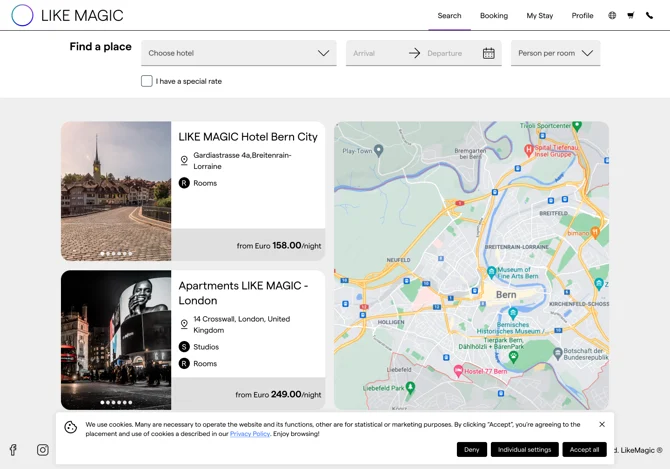
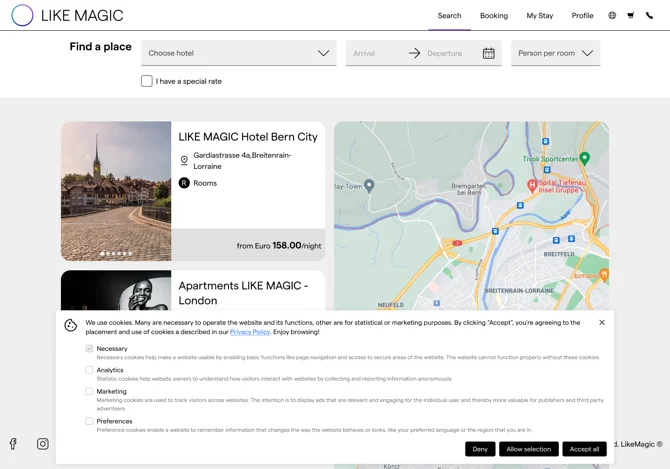
The cookie banner lets the end user select cookie preferences and updates the consent state on each selection.
- Consent Options: Users can enable or disable cookies by category (e.g., Marketing, Analytics, Statistics, Preferences).
- Transparency: Each cookie category carries its own description.
- Default Settings: Non-essential cookies are disabled until the user grants consent.
Sample
4. Setup Guide
Activate Consent Mode in GTM
- Navigate to GTM > Accounts > Container Settings > Additional Settings.
- Enable the "Consent Mode" option.
Connecting Tags in GTM with Consent Categories
Steps to link tracking tags with consent categories:
- Open an existing tag or create a new one.
- Go to Tag Configuration > Advanced > Consent Settings.
- Edit the option > Additional Consent Checks.
- Select the appropriate consent category (see Handling Consent Categories).
- Add a corresponding trigger, e.g., Consent Initialization: All pages.
- Save the tag.
Events
Our booking engine also supports eCommerce events using a Data Layer:
- PATHNAME_CHANGE = "PATHNAME_CHANGE"
- ADD_TO_CART = "add_to_cart"
- REMOVE_FROM_CART = "remove_from_cart"
- PURCHASE = "purchase"
These can be used in GTM to set up tracking for your advertising goals.
Data Layer Details
Add to Cart Event:
Array items: Contains information about the individual booking items/products in the cart
| Key | Explanation of Value |
|---|---|
| item_id | ID of the selected rate plan |
| item_category | ID of the unit group/room category |
| location_id | ID of the property/accommodation |
| price | Total price of the booking (formatted as string) |
| quantity | Number of units booked (fixed at 1) |
| cartUUID | Unique identifier of the shopping cart |
| arrival | Check-in date (ISO date with time component removed) |
| departure | Check-out date (ISO date with time component removed) |
| nights | Number of nights (calculated from calendar day difference) |
| adults | Number of adult guests |
| children | Array containing the ages of children guests |
| promoCodePMS | Entered promotion code for the Property Management System |
Additional ecommerce properties outside the items array:
| Key | Explanation of Value |
|---|---|
| currency | Currency of the total price |
| value | Total amount of the booking (formatted as string) |
Remove from Cart Event:
Array items: Contains information about the individual booking items/products being removed from the cart
| Key | Explanation of Value |
|---|---|
| item_id | ID of the rate plan being removed |
| item_category | ID of the unit group/room category |
| location_id | ID of the property/accommodation |
| price | Total price (formatted as string) |
| quantity | Number of units (fixed at 1) |
| cartUUID | Unique identifier of the shopping cart item being removed |
| arrival | Check-in date (ISO date with time component removed) |
| departure | Check-out date (ISO date with time component removed) |
| nights | Number of nights (calculated from the difference between departure and arrival dates) |
| adults | Number of adult guests |
| children | Array of children ages (null if undefined) |
| promoCodePMS | Standard promotion code for the Property Management System |
| promoCodeMagicPMS | Special/Magic promotion code for the Property Management System |
Additional ecommerce properties outside the items array:
| Key | Explanation of Value |
|---|---|
| currency | Currency of the total price |
| value | Total amount (formatted as string) |
Purchase Event:
Root Level Properties:
| Key | Explanation of Value |
|---|---|
| transaction_id | Unique identifier of the booking |
| currency | Currency from the first reservation's total payments |
| value | String representing the sum of all reservation prices in the booking (converted from cents to main currency unit) |
Array items: Contains ReservationItem objects for each reservation in the booking
| Key | Explanation of Value |
|---|---|
| item_id | ID of the rate plan |
| item_category | ID of the unit group/room category |
| location_id | ID of the property/accommodation |
| price | Sum of all breakdown items prices |
| quantity | Number of units booked (fixed at 1) |
| reservationId | Unique identifier of the individual reservation |
| arrival | Check-in date (ISO date with time component removed) |
| departure | Check-out date (ISO date with time component removed) |
| nights | Calculated number of nights between arrival and departure dates |
| adults | Number of adult guests |
| children | Array containing the ages of children guests |
| bookedWithUserAccount | Boolean indicating if the booking was made by an authenticated user (defaults to false) |
| cartUUID | Optional: Unique identifier of the cart item (not used in this context) |
| promoCodePMS | Optional: Standard promotion code (not used in this context) |
| promoCodeMagicPMS | Optional: Special promotion code (not used in this context) |
5. Handling Consent Categories
The cookie banner manages consent preferences across the following categories:
- Marketing (
ad_storage): Handles advertising and tracking cookies. - Analytics (
analytics_storage): Manages cookies for statistical purposes. - Functionality (
functionality_storage): Includes cookies for site functionality, like language preferences. - Personalization (
personalization_storage): Allows customization of content. - Security (
security_storage): Essential cookies required for safety and security.
Each category is processed based on user preferences and communicated to GTM for tag configuration.
By default, our feature applies this status:
- ad_storage: denied
- analytics_storage: denied
- functionality_storage: denied
- personalization_storage: denied
- security_storage: granted
The official documentation of Google Tag Manager consent handling is available in Google’s Tag Manager help.
6. Common Issues and Troubleshooting
- Tags not triggering or triggering without or wrong consent: Ensure tags are linked to the correct consent categories in GTM.
Important: Incorrect configuration of consent settings or tag settings in your Google Tag Manager can lead to your tags not triggering correctly, resulting in non-compliance with GDPR. Our cookie banner only enables you to leverage GTM consent mode, but you still need to configure your GTM container properly.
7. Conclusion
The cookie banner collects consent per category and hands it to GTM, so your tags fire according to the visitor’s choice. Configuring the tags and their consent settings in your GTM container stays your part of the job.