IBE Promo Codes
IBE Promo Codes are discount codes that guests enter while booking. Each code carries its own validity window, stay window, discount type, visibility and property scope.
This feature is only available with the Apaleo PMS.
1. Positioning
You can access the Promo Codes feature by navigating to:
- Settings
- Account
- Promo Codes
This opens the Promo Codes Configuration table, which lists all promo codes of your Account.
Promo codes are an account-level setting. The Account Administrator role (account-admin) can create, edit and delete a code; Account Viewer (account-viewer) sees the table read-only.
2. Table Overview
Each row in the table represents a promo code and includes the following columns:
| Column | Description |
|---|---|
| Promo Code | The code entered by the guest during booking |
| Single Usage | Whether the code can be used only once (True/False) |
| Used | Whether the code has already been used (True/False) |
| Discount type | Type of discount: Absolute (fixed value) or Percentage |
| Discount Amount | The value of the discount, shown with % or exact currency (CHF/EUR etc.) |
| Discount Hidden | Whether the code stays invisible to guests (True/False) |
| Active | The window in which the code can be used (Date & Time) |
| Booking | The stay window the code applies to: arrival on or after the start, departure on or before the end (Date & Time) |
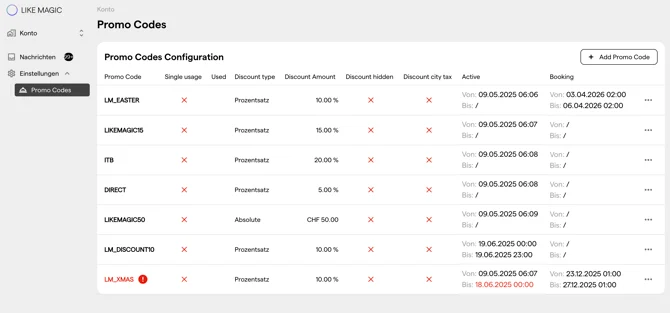
Table overview. Codes shown in red are expired or invalid.
3. Creating a Promo Code
Select Add Promo Code to open the Create Promo Code modal:
| Field | Description |
|---|---|
| Promo Code (required) | The code guests will enter. The icon in the field generates a random code. |
| Percentage / Absolute | A percentage discount (e.g. 10%) or a fixed amount (e.g. EUR 20) |
| Discount Amount (required) | Value of the discount |
| Active From (required) / Active To | Date and time range in which the code can be used |
| Booking From / Booking To | Date and time range for the stay the code applies to |
| Apply to the Following Properties | Select one or more Properties to limit the code to them. Left empty, the code applies to all current and future Properties. |
| Discount Hidden | If checked, the code is not shown to guests and only works if they know it |
| Single Usage | If checked, the code can be used only once |
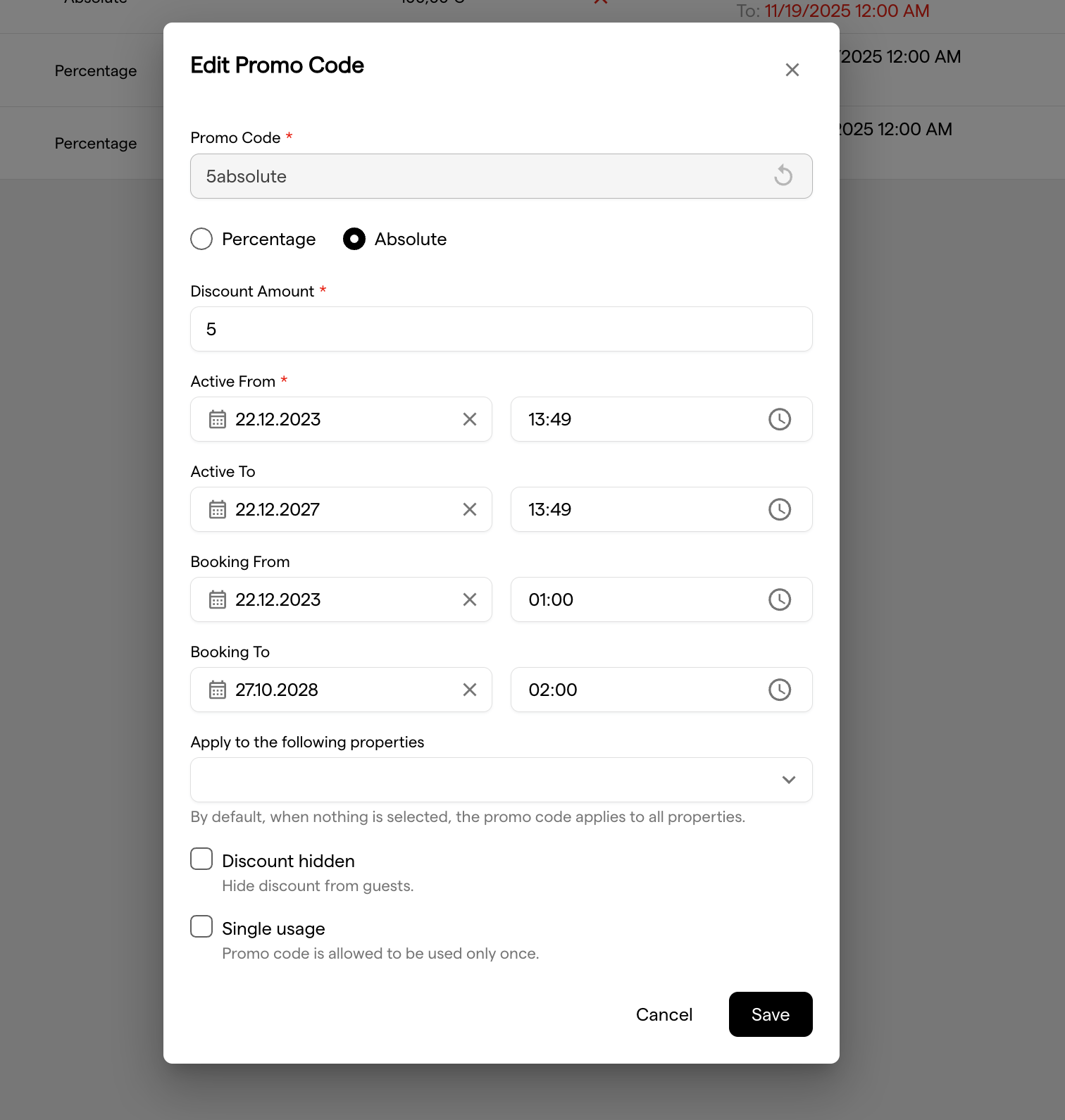
Note: If a Promo Code is exactly the same in your PMS, the Promo Code on LIKE MAGIC gets prioritized.
4. Actions
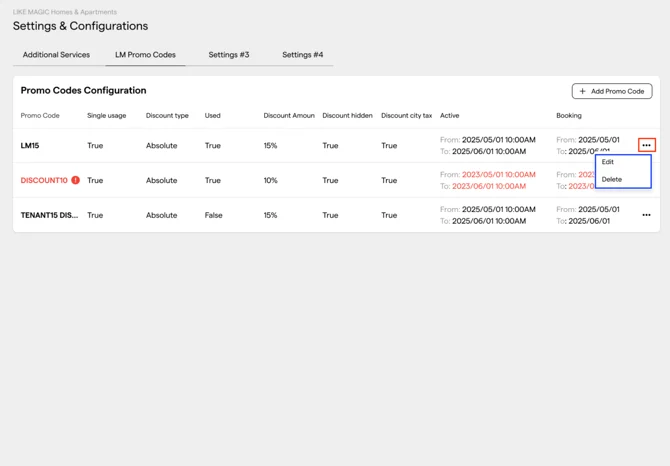
Each code in the list has a context menu "..." with the following actions:
- Edit: Opens the promo code in a modal to change its configuration
- Delete: Removes the code from the system
5. Editing a Promo Code
To edit an existing code:
- Click the ... button on the right side of the code row
- Select Edit
- The Edit Promo Code modal appears, pre-filled with the code’s details
- Make changes and select Save to apply them
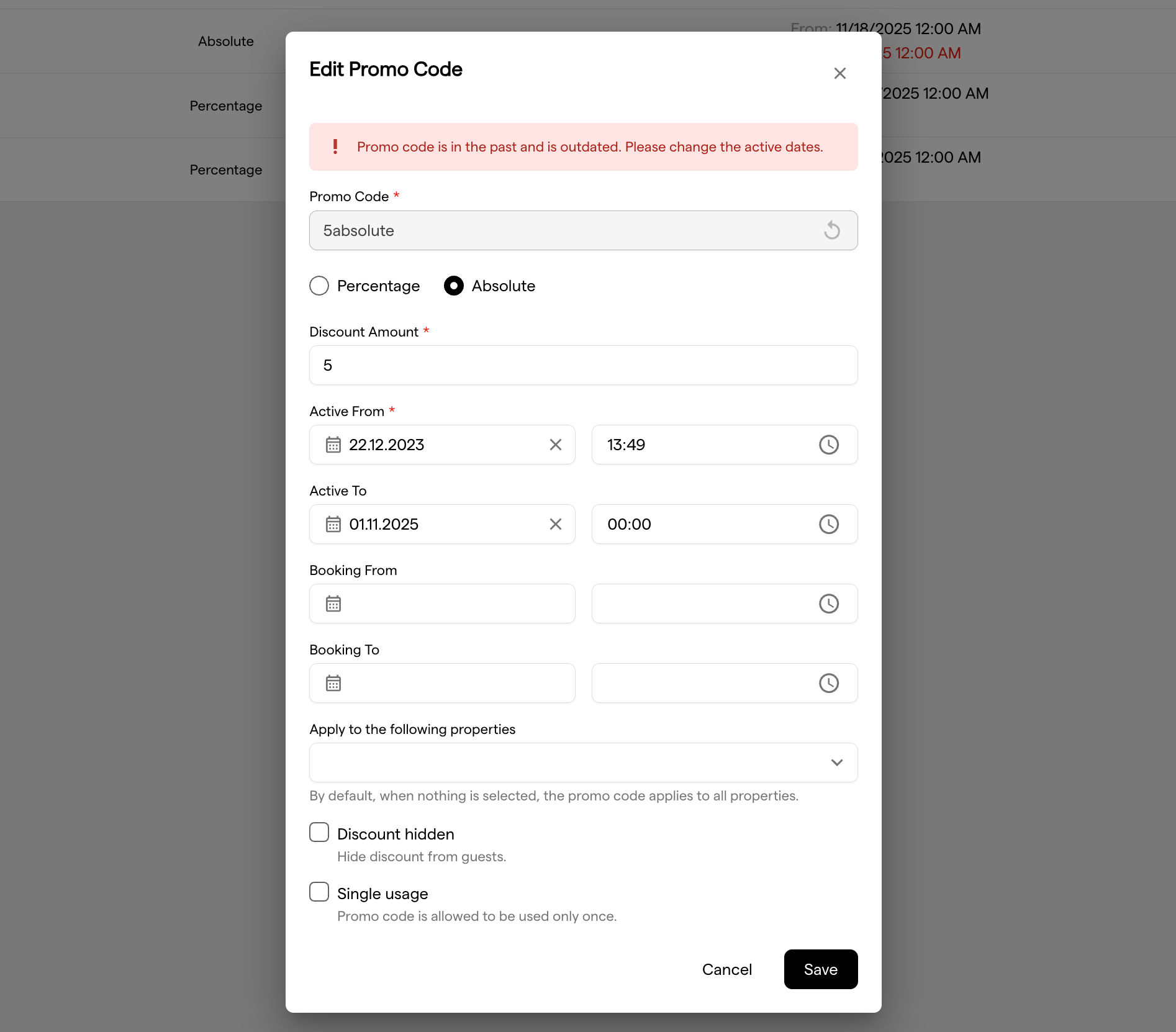
A code whose active window lies in the past shows the error "Promo code is in the past and is outdated. Please change the active dates."
6. Deleting a Promo Code
To remove a promo code:
- Click the ... button on the right side of the code row
- Select Delete
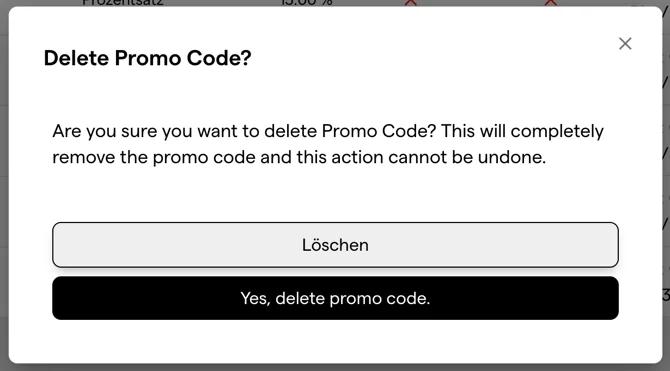
- Confirm in the Delete Promo Code? dialog with Yes, delete promo code.
Once deleted, the code can no longer be used or recovered.
7. Conclusion & Notes
- A guest must enter the promo code manually during the booking process
- A code only applies if the stay falls inside the Booking From / Booking To window and the code is used inside the Active From / Active To window
- Expired codes are flagged in red in the table
- Percentage-based and fixed-amount discounts cannot be combined on a single code