Communication Hub (The Inbox)
The Communication Hub brings two-way guest conversations from every channel into the Messages screen. This article walks through the screen function by function.
1. Feature Introduction
The Communication Hub is the capability behind the Messages screen, a single host-facing surface that consolidates two-way guest conversations from multiple channels into one interface. Whichever channel a guest writes on, the reply stays in the same conversation.
Messages is fed by the messaging channels connected behind it: WhatsApp, SMS and email, the last of which also carries the threads Booking.com forwards. You do not set these up in Messages itself; how they are connected is described in Messaging Channels.
Key functionalities include
- Messages overview: a table of all conversations, categorized and sorted by status.
- Conversation thread: the full message history with timestamps, delivery status and the channel each message used.
- Guest information panel: the guest profile, their linked reservations and any assigned tasks, next to the thread.
- Quick actions in the input island: attach a file, insert a predefined response, assign the conversation and resolve it.
- Real-time updates: conversations update without reloading the page.
2. Messages Overview
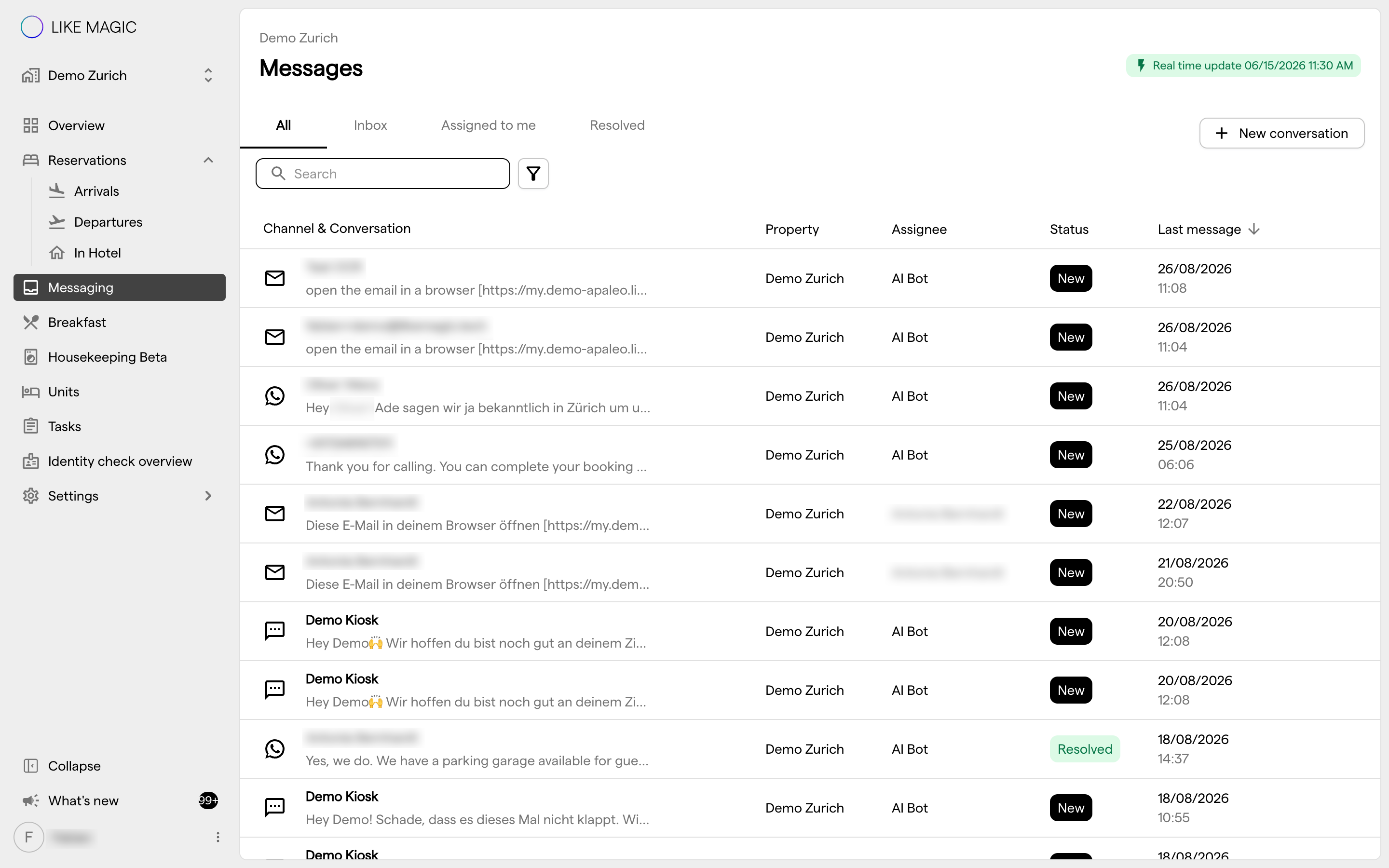
Conversation Categories
- All: every conversation, whatever its status.
- Inbox: conversations with status New or In progress.
- Assigned to me: In progress conversations assigned to the logged-in user.
- Resolved: conversations that have been closed.
Conversation Statuses
- New: an unread incoming message. The unread count appears in front of the browser tab title and as a badge in the navigation.
- In progress: a conversation that is currently open. A conversation moves to this status when a team member picks it up or replies to the guest.
- Resolved: a conversation that is closed. The message input is disabled in a resolved conversation, so to continue you assign it to a team member again.
Table columns
- Property Column: Displays the property associated with the conversation. The assignment is based on specific attributes such as a dedicated phone number or email (if configured per property) or by referencing the last existing conversation with the guest.
- Last Message Column: Shows the timestamp of the last incoming message within a conversation. This timestamp also influences the status of a conversation.
Automatic Assignment Rules
- A conversation is automatically assigned to the responding team member when they reply to a new message.
- Status changes appear in real time, so it stays clear which conversations still need action.
Search and Filter Options
- Search conversations by guest name or message text.
- Filter by status (New, In progress, Resolved) and by channel (for example WhatsApp or Email).
- Conversations update in real time, without reloading the page.
3. Conversation Tab
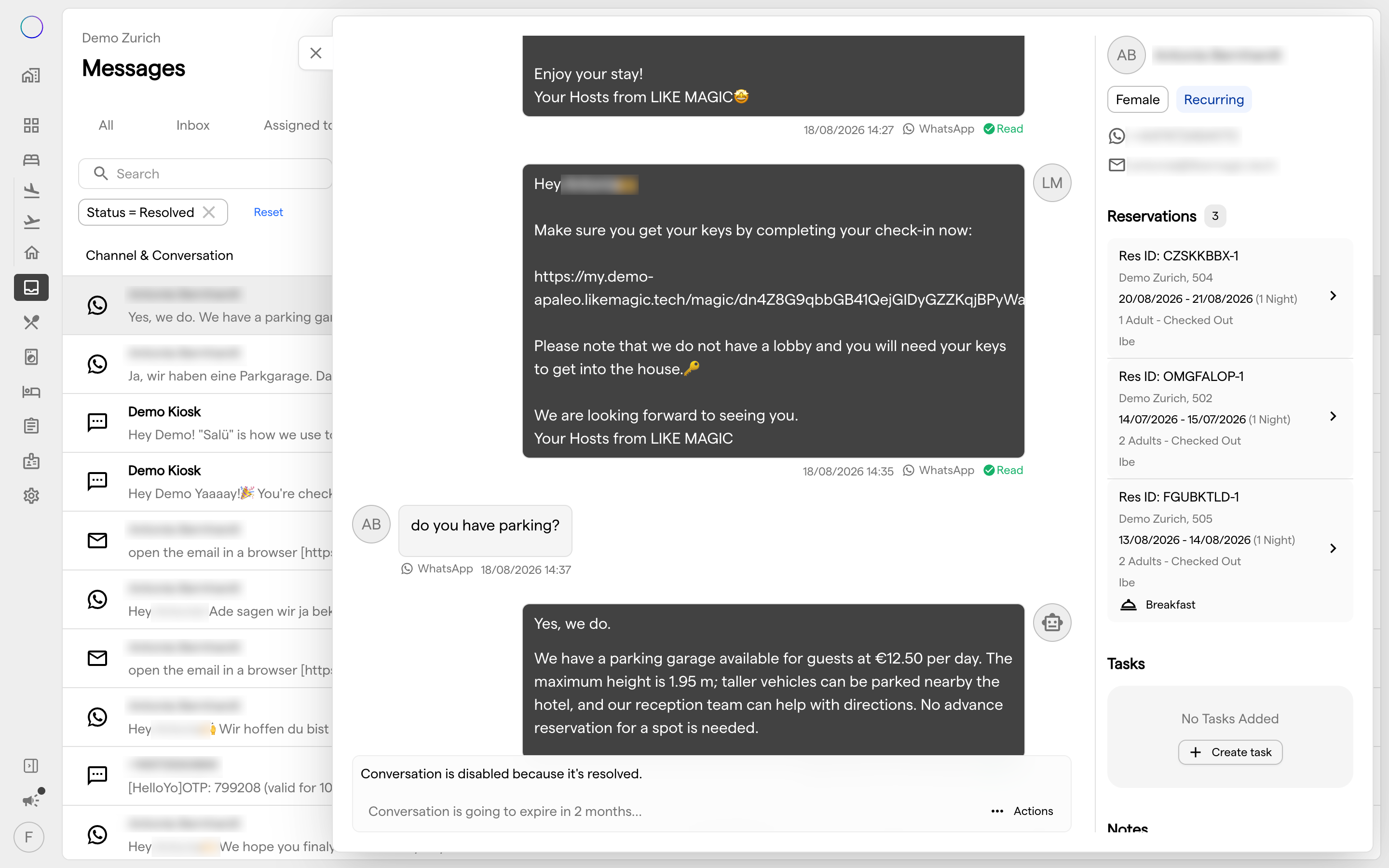
Conversations Overview
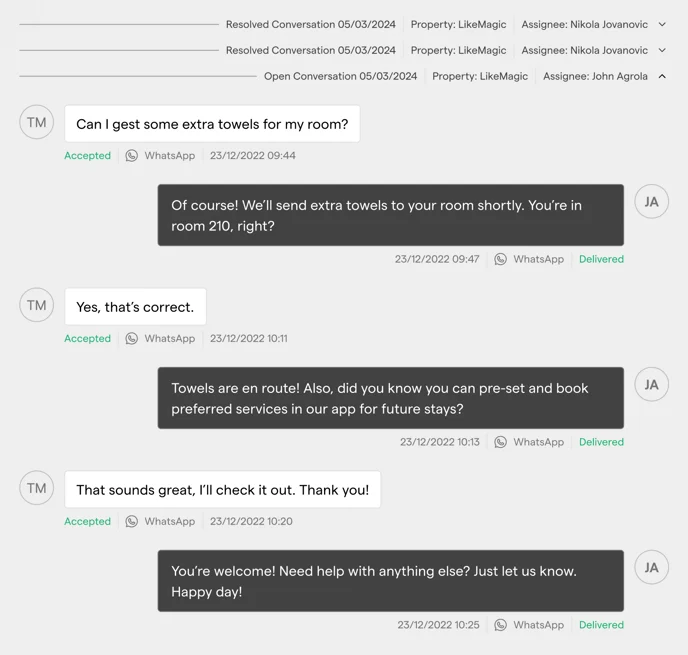
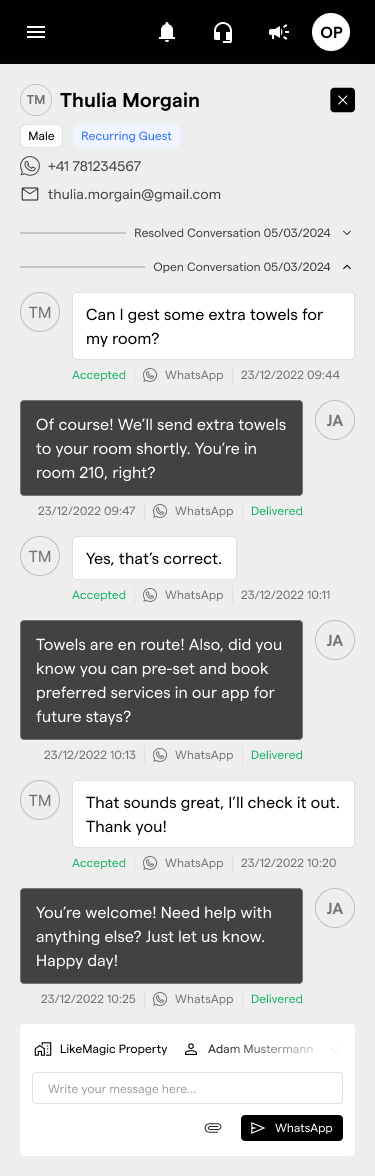
- Displays the conversation thread with timestamps, delivery statuses (for example "Accepted" or "Delivered") and an indicator of the channel each message used (WhatsApp, Email, SMS, Booking).
- Clear distinction between guest messages and staff responses.
Guest Information Panel
- Quick Profile Preview: The header section offers a quick preview of the guest's profile, contact information and essential details.
- Guest Identification: Identifies recurring guests for personalized interactions, displays gender and crucial messaging information.
- Reservation insights: Provides detailed information about the guest's booked reservations, including purchased services, date, property in which they are staying and any assigned tasks.
- Reservation Deep Link: Provides a direct link to the guest’s reservation, so booking details are one click away without leaving the conversation.
- Task Creation: Enables staff to create and assign tasks related to the guest’s stay directly from the conversation panel.
4. Task Management Integration
- Links to active tasks, such as "Towel change in room 602", with their status (for example In Progress or Done).

5. Conversation history
-
Full Message Log: Displays the entire history of interactions between the guest and staff. Earlier conversations with the same guest open with a single click.
-
Timestamps & Status Updates: Each message carries a timestamp and a status indicator.
-
Channel Identification: Indicates the platform used for each message (WhatsApp, Email, SMS, Booking.com).
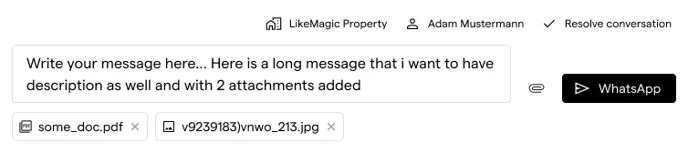
6. Input Island Quick Actions
- Resolve the conversation, with a confirmation prompt before it closes.
- Attach files or images directly within the message thread.
- Insert a Predefined Response instead of typing a recurring answer.
- Assign or reassign conversations to team members.
- Once a conversation is resolved, assigning it to a team member sets it back to In progress.
7. Multi-Device Compatibility
- Works on both desktop and mobile devices.
- On mobile devices, some elements such as the reservation and task panels are reduced compared to the desktop layout.
8. Who Can Access Messages
Messages is a host-facing operational surface. Whether it is usable at a property comes down to three things:
- Messages itself: it is available on every pricing tier, Core included.
- A linked channel: channels (WhatsApp, SMS or email) are linked per property by LIKE MAGIC. Without one, nothing reaches Messages. If a channel you expect is missing, request it via a Support Ticket.
- The Host role: the Messages entry in the navigation is shown to staff with the
hostrole. Without it, the screen does not appear in the menu.
ℹ️ Note: Channel setup itself (WhatsApp, SMS and email) is a separate administrator task. See Messaging Channels.
9. Conclusion
Messages keeps every guest conversation, its context and the resulting tasks together: the conversation list, the message thread, the guest information panel and the quick actions in the input island.
To connect the channels behind it, see Messaging Channels. To get notified about incoming messages, see Notifications for incoming messages.