Messaging Channels
The Communication Hub runs two-way conversations with your guests. Those conversations travel over one or more channels: the transport that actually carries a message between the guest and your team. LIKE MAGIC supports three:
- WhatsApp: the WhatsApp Business channel,
- SMS: text messages to the guest's mobile number,
- Email: guest email, carried in and out by the email relay (section 5).
Booking.com is not a channel of its own. Where a property sets up message forwarding in the Booking.com extranet, the extranet thread of a reservation is delivered as email and arrives over the same relay. Messages marks those conversations Booking.com so your team can tell them apart. See The Communication Hub & Booking.com.
This article is written for the administrator who enables and configures these channels. It explains what each channel is, who can use messaging, and which parts you set up yourself versus which the LIKE MAGIC team wires for you.
1. Who Can Use This
Channel setup lives under Settings → Integrations → WhatsApp Channel in the Operations Platform and is an administrator responsibility.
- Account Administrator and Property Admin can connect and configure the WhatsApp channel. Those are the only two roles the page is shown to, viewer roles included.
- Staff who work the conversations use the Messages screen instead, see Communication Hub (The Inbox).
A few technical fields (the channel linking for Email, SMS and WhatsApp, and the WhatsApp template wiring) are managed by the LIKE MAGIC team. You do not configure these yourself. If a change is needed there, request it via a Support Ticket.
2. The Channels at a Glance
| Channel | What it carries | Who sets it up |
|---|---|---|
| WhatsApp Business conversations, used by both Messages and guest notifications | You connect it (admin); LIKE MAGIC completes the technical linking | |
| SMS | Text messages to and from the guest's mobile number | Managed by LIKE MAGIC |
| Guest email routed into Messages, including the threads Booking.com forwards | Managed by LIKE MAGIC |
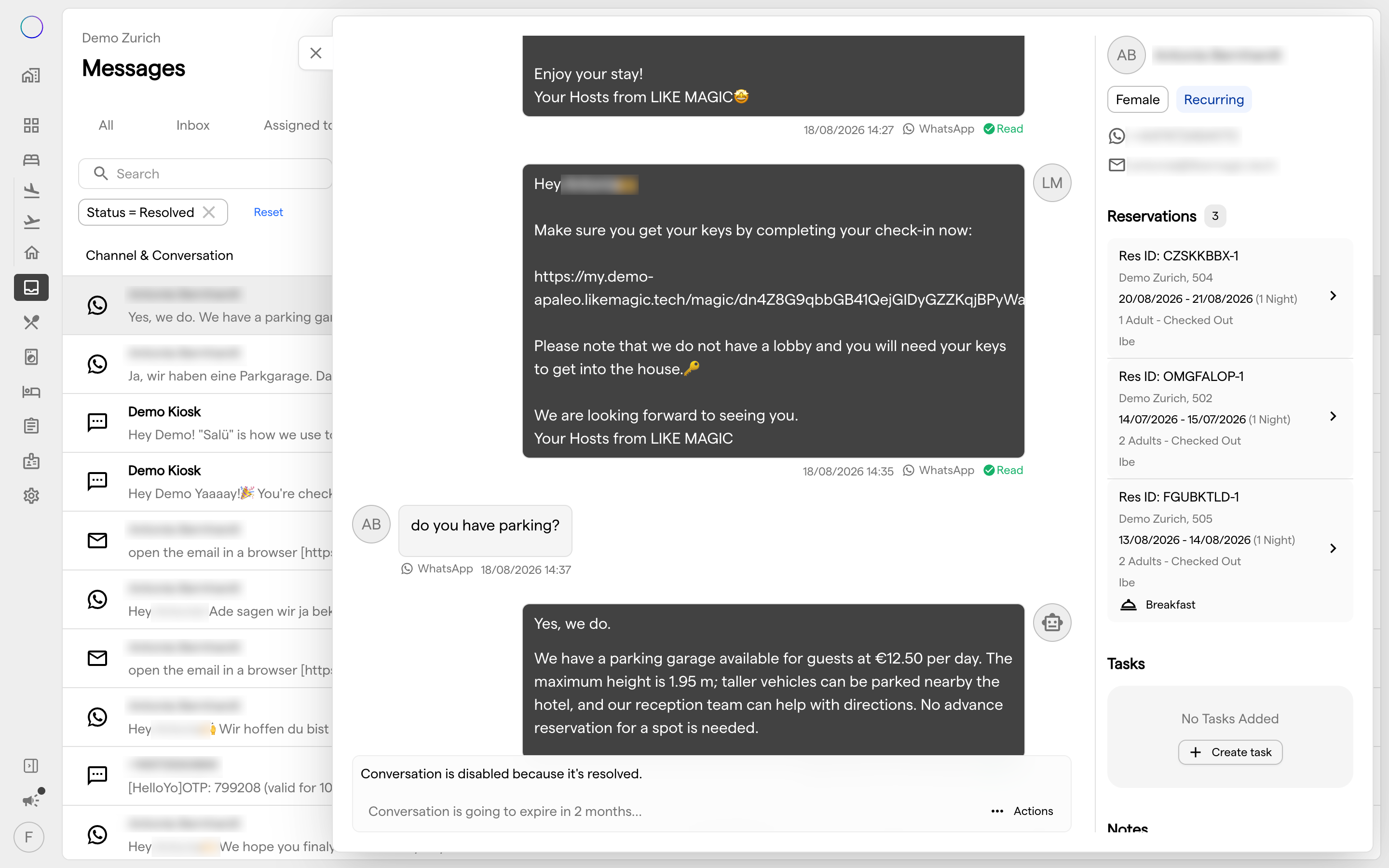
All three feed the same screen. A guest reply arrives in one conversation thread no matter which channel it came in on, and Predefined Responses are available in every conversation regardless of channel. When a WhatsApp conversation has expired, you restart it by picking one of the approved WhatsApp templates.
The channel filter in Messages lists WhatsApp, SMS, Email and Booking.com. The Booking.com entry filters the forwarded extranet threads out of the email traffic, which is why it sits next to the three channels rather than being one of them.
3. Who Can Use Messaging
- Every pricing tier includes Messages. The screen is available on Core as well as on the full tiers.
- Roles. Connecting or editing the WhatsApp channel requires the
account-adminorproperty-adminrole. The Messages entry in the navigation is shown to staff with thehostrole. - Channels are linked per property by LIKE MAGIC. A property only has something to send over once at least one channel (WhatsApp, SMS or email) has been linked for it. See section 1 and section 4. If a channel you expect is missing, request it via a Support Ticket.
4. Connecting the WhatsApp Channel
The WhatsApp Channel page (Settings → Integrations) is where you connect and configure the WhatsApp Business channel used by both Messages and guest notifications. You connect your WhatsApp Business Account there and either select a pre-verified number or bring your own number. Once the channel is live, the page shows it as Connected together with its phone number.
Setup is a shared effort:
- You initiate the connection and configure the channel for your account or property.
- The LIKE MAGIC team completes the technical channel linking and the WhatsApp message-template wiring, the fields noted in section 1.
Once connected, WhatsApp is available to Messages and can be selected as a delivery channel in Guest Notification Settings.
5. The Email Relay
The email relay carries email in both directions. An email a guest sends shows up as part of that guest's conversation thread rather than in a separate mailbox, and the reply your team writes in Messages leaves as an email again. The relay is managed by the LIKE MAGIC team and has no self-service screen. It exists so that email is not a dead end. It joins the same two-way conversation as WhatsApp and SMS.
Booking.com is the use case the relay is most often set up for. Booking.com does not hand its extranet thread to LIKE MAGIC directly. Instead the property registers a forwarding address in the extranet, Booking.com sends the guest's extranet messages to it, and the relay places them in the guest's conversation. Your reply travels back the same way. Because these messages are email underneath, Messages recognizes them by the Booking.com chat address they come from and shows them as Booking.com. What to register and approve on the Booking.com side is described in The Communication Hub & Booking.com.
6. Conclusion
Connect the WhatsApp channel from Settings → Integrations, and let LIKE MAGIC link SMS and the email relay into the same screen. Booking.com messages reach you over that relay. Messages is included on every pricing tier; what you need is the right role and at least one linked channel.
For the conversation surface itself, see Communication Hub (The Inbox). For channel selection per notification, see Guest Notification Settings.