META Business Support (Appealing Recategorization)
1. Template Categories
Utility
Goal: Facilitate a specific, agreed-upon request or transaction. These messages are functional and confirming.
Utility templates are the category LIKE MAGIC guest notifications belong in, because every one of them relates to an existing booking.
All templates must be categorised as Utility and remain free of marketing content. Utility wording without marketing content keeps delivery reliable and prevents META from re-categorising or blocking messages.
Utility messages go out from a verified number and carry the updates a guest needs for a booking they already made.
Marketing
Goal: Drive sales, awareness, or re-engagement. This is the broadest category.
If a message does not fit strictly into Utility or Auth, it is defaulted to Marketing.
These are messages that contain promotions, offers, information updates or invitations for customers to respond or take action.
| Avoid (Triggers Marketing) | Use Instead (Likely Utility) |
|---|---|
| "Download the app to discover our spa offers." | "Download the app to retrieve your mobile key." |
| "Join our loyalty program for free benefits." | "View your guest profile and stay details." |
| "Don't forget to book a table at our restaurant." | "Review dining hours and facility information." |
| "We have a special gift waiting for you." | "Your arrival amenities have been prepared." |
| "Enjoy your stay! Let us know if we can help." | "Your check-in process is now open." |
Authentication
Goal: Verify a user's identity securely. This category is strictly regulated and has the most rigid templating requirements.
Wording such as “confirmation number” combined with “Login” is problematic.
These are messages that authenticate users with one-time passcodes (OTPs), usually at the login, account recovery or verification stage.
| Avoid (Triggers Auth) | Use Instead (Likely Utility) |
|---|---|
| "Use code 1234 to verify your account." | "Here is your booking reference: 1234." |
| "Login to the guest app to continue." | "Complete your check-in in the guest app." |
| "Here is your password for the app." | "Access your guest portal here." |
| "Enter this pin to unlock your profile." | "Tap below to view your reservation details." |
2. Instructions (Appealing Process)
If a template has been recategorized or rejected, appealing the decision from META is necessary.
Template appeals must be performed directly in Meta’s WhatsApp Manager. Access requires “Manage WhatsApp Account” permissions, which must be assigned by a Business Admin via Meta Business Settings. Appeals can be submitted via the 'Message Templates' tab or the “Business Support Home” for category disputes.
- Navigate to Business Support Home: https://business.facebook.com/business-support-home/
How to find Business Support Home / Business Support Center
If the link doesn't work directly, you can find this section in the Meta Business Suite menu as follows:
- Log in to Meta Business Suite (
business.facebook.com). - Click on "All Tools" in the left menu (the hamburger menu icon ≡).
- Scroll down to the "Help & Support" section (sometimes listed under "Manage").
- Click on "Business Support Home" (sometimes also called "Account Quality").
- Select your Meta Business Account.
- You will now see an overview of all warnings, rejections (Rejected Templates), and restrictions. Click on the affected asset (e.g. the WhatsApp account) to start the appeal ("Request Review").
- Template Category Updates: category changes Meta applied automatically are listed as the following screenshot shows. Select the messages and click “Request Review”.
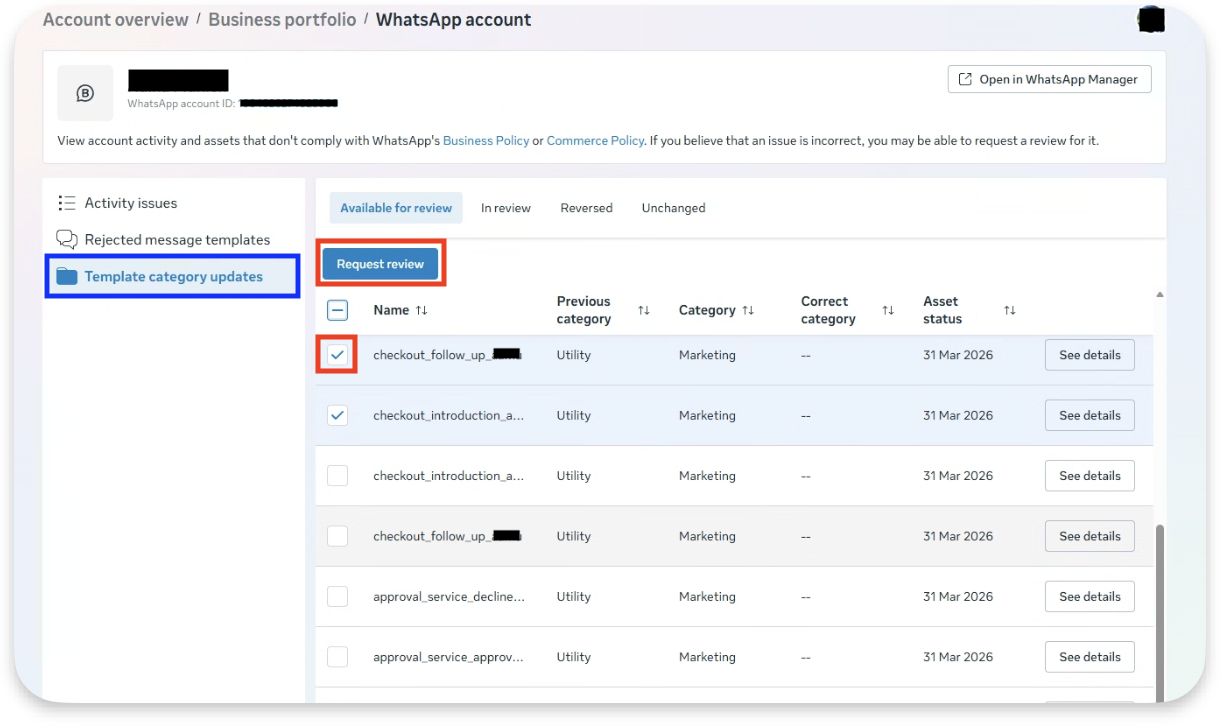
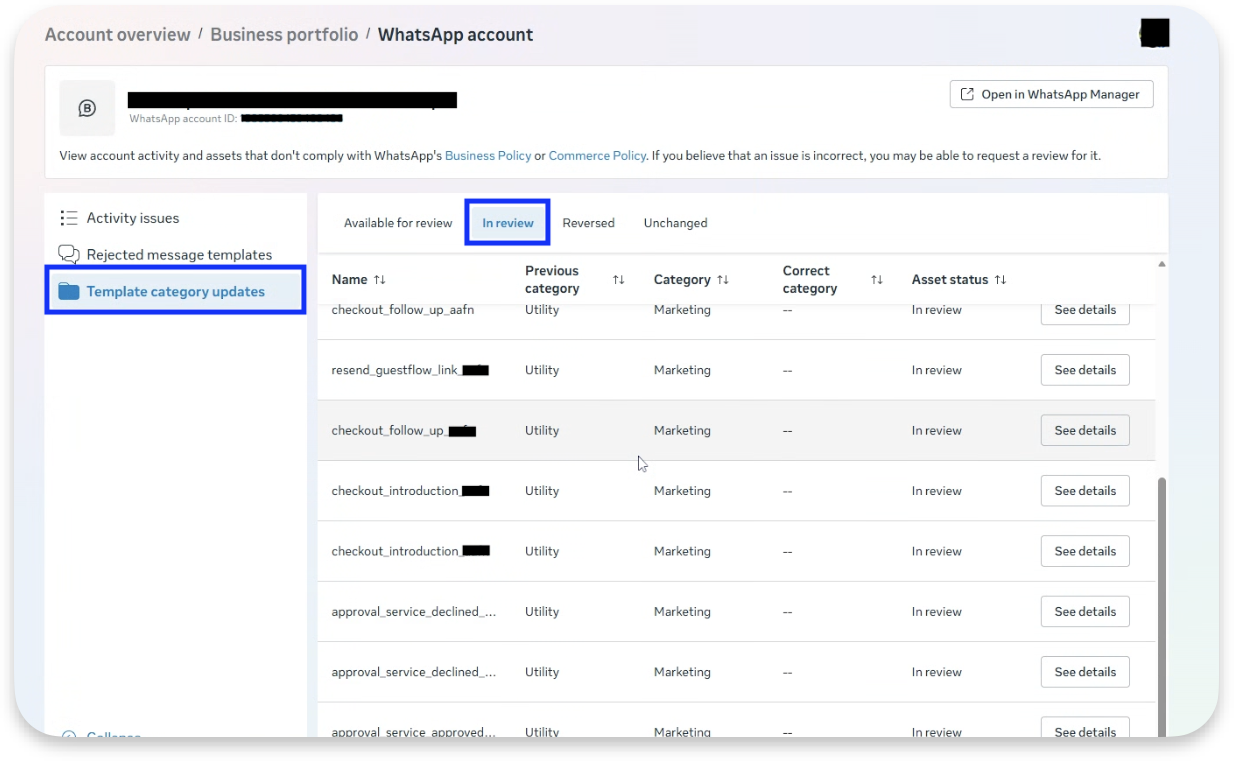
After this action, the templates are “in review” and after that, ideally “reversed” into Utility. If it’s not reversed back to Utility and “Unchanged”, change the template (wording) to fit into category Utility.
- Rejected Message Templates: View the templates which were rejected and are ready for another review in this view:
- click on “See Details” to view why it was rejected
- click on the numbered red boxes in order to request another review by Meta
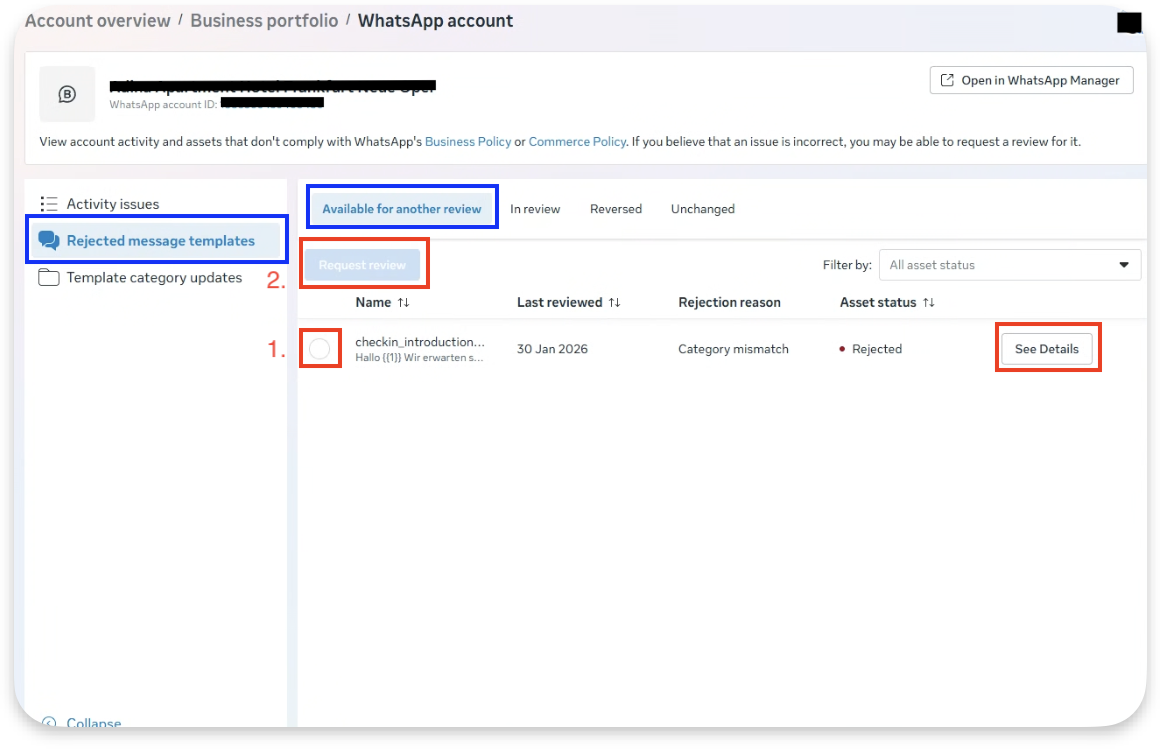
This is the screen after reviewing the rejection details:
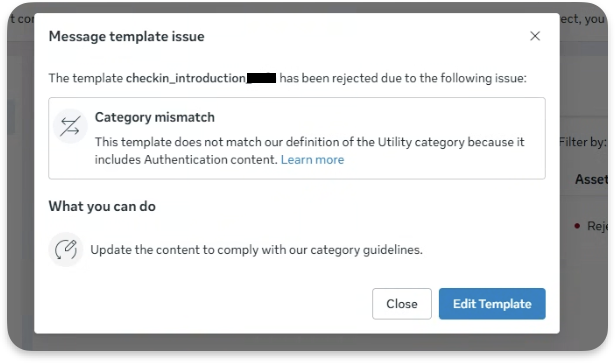
This is the window to request another review of metas rejection decision:
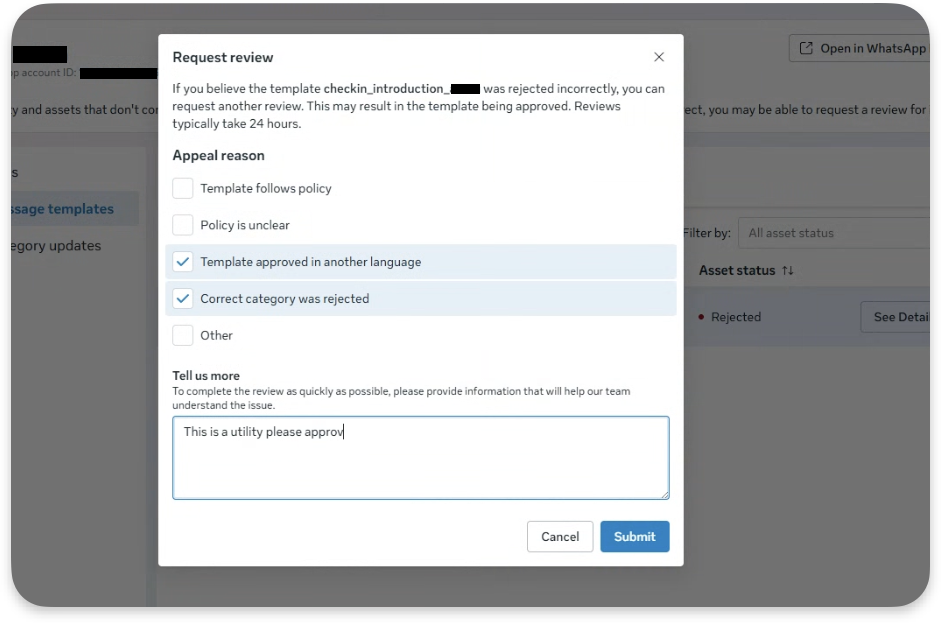
Kindness does no harm to the human or AI behind the rejection process.
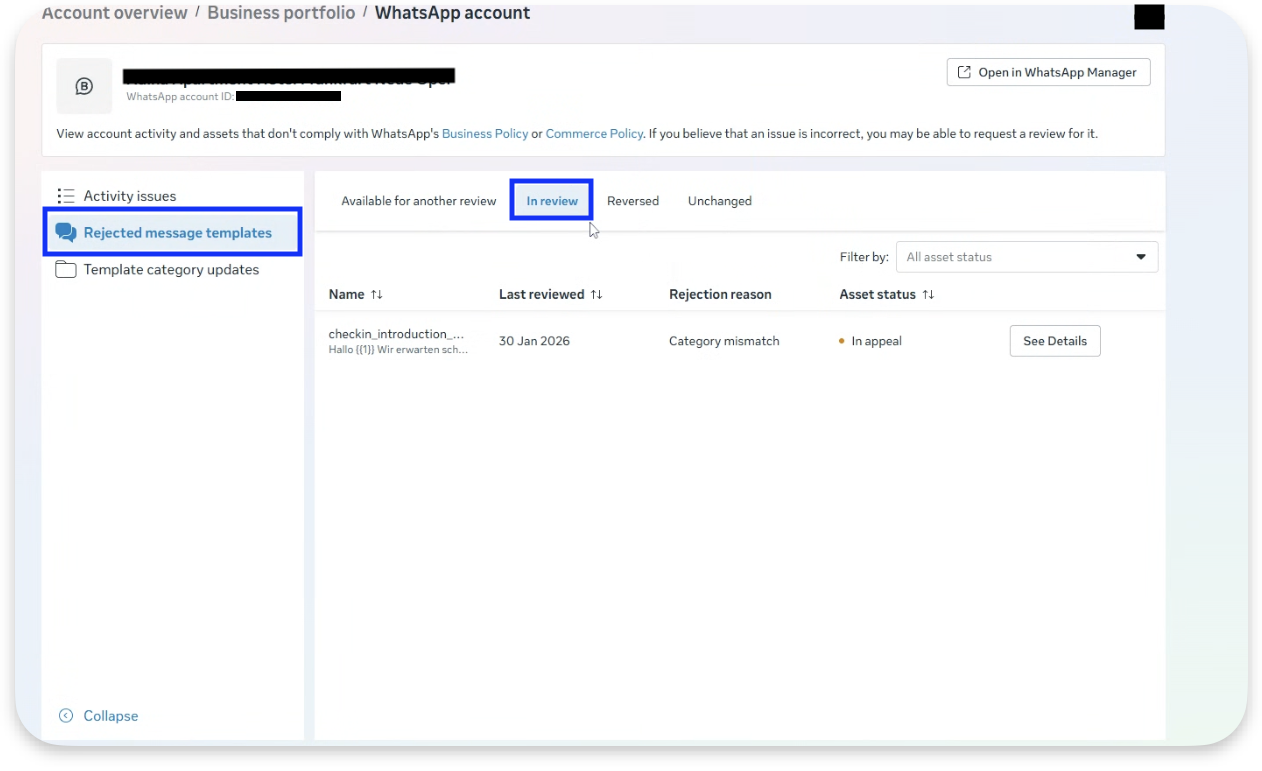
- Provide Feedback: report the results of the appeal via a Support Ticket.
Your task: Monitor the process while templates are "in review" and see whether they get accepted or stay unchanged. If a template is not accepted and stays unchanged or rejected, open a Support Ticket with:
- Indication of the rejection by META and a request for re-creation
- Template name & language
- New text that takes the utility category into account
3. Conclusion
Reliable WhatsApp delivery depends on template management. Keeping all templates categorised as Utility and free of marketing content prevents re-categorisation and blocking by META.
If a template is rejected or re-categorised, follow the appeal process outlined above and monitor the review status. Should the appeal be unsuccessful, adjust the template wording to meet Utility requirements and request the re-creation via a Support Ticket.