Notifications for incoming messages
This guide explains how to enable notifications for incoming messages and install the web app on your mobile device.
1. Unread Notifications
Unread message notifications reach you whether the Operations Platform is open in front of you or not.
Key functionalities include
- Real-Time Notifications: Instant alerts for new messages ensure quick response times.
- System-Wide Notifications: Alerts appear both within the app and as system notifications.
- PWA Integration: When installed as a Progressive Web App (PWA), the app icon displays the number of unread messages.
- Direct Access: Clicking a notification opens the Messages screen so you can reply straight away.
Unread Messages Notifications Appearance
Please note that for iOS the notifications functionalities are not available, because of certain technical restrictions.
WebApp Notifications
If you have installed the app as a PWA (Progressive Web App), the number of unread messages will appear as a badge on the app icon.

Desktop Notifications
When a new message arrives, a system notification appears, even if you are not actively using the app.
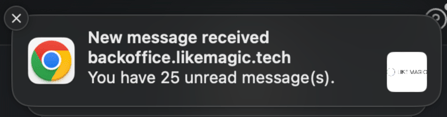
Clicking the notification opens the Messages screen, so you can reply immediately without checking the app yourself.
2. Notification Permission
Activating Browser Notifications
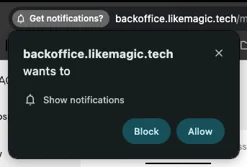
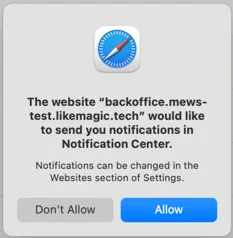
When logging into the Operations Platform for the first time, users are asked to allow browser notifications.
Chrome:
Safari:
Edit notification settings
Have you already denied these notifications? No problem, here’s how to enable them again:
Chrome
- On your computer, open Chrome.
- At the top right, select More “:” > Settings.
- Select Privacy and security > Site Settings > Notifications.
- Select the option that you want as your default setting.
- Block a site:
- Next to "Not allowed to send notifications," select Add.
- Enter the site's web address.
- Select Add.
- Allow a site:
- Next to "Allowed to send notifications," select Add.
- Enter the site's web address.
- Select Add.
- Allow quieter notification prompts:
- Allow sites to ask to send notifications.
- Select Use quieter messaging.
- This blocks notification prompts from interrupting you. A website can still ask you to allow notifications, but no pop-up prompt will show. Instead, you'll only find a bell icon next to the website's address. You can select the bell to allow access.
- Turn on flash notifications:
- To make your screen flash when you get a notification, select Accessibility Settings > Audio and Captions.
- Turn on Flash Notifications.
- Optional: choose the color your screen flashes. Next to "Flash screen color", select your preferred color from the dropdown menu.
- Block a site:
Note: A full settings guide for Chrome on all devices, including Android and iOS, is available in Google’s Chrome notifications guide.
Safari
Turn on/off notifications selectively for individual apps
- Go to Settings > Notifications > Siri Suggestions.
- Turn on Allow Notifications.
- Turn off any app.
Change the appearance of notifications
-
Go to Settings
 > Notifications.
 -
Choose how you want notifications displayed on the Lock Screen:
- View just the number of notifications: Tap Count.
- View the notifications grouped into stacks by app: Tap Stack.
- View the notifications in a list: Tap List.
When notifications arrive, you can change the layout by pinching the notifications on the Lock Screen.
Note: A full guide to Safari notification settings is available in Apple’s iPhone user guide.
Edit notifications exact process may vary depending on the browser, but in general it sits in the settings. You should be able to find any browsers guide very quickly by simply researching online.
3. Installing the Web App on the Home Screen
If you save the Operations Platform as an app on your home screen, you can open it faster. This is how it looks once added:

Guide for Chrome
- On your computer, open Chrome.
- Go to the website you want to create a shortcut for.
- At the top right, select More “:” > Cast, save, and share > Create shortcut....
- From the dialog that appears:
- Name: keep the suggested name for the shortcut or rename it.
- Select Create.
Note: Chrome’s official shortcut guide is available in Google’s Chrome help.
Guide for Safari
-
Go to the Safari app
 on your iPhone.
 -
Go to the website you want to add to your Home Screen.
-
Tap
 in the menu bar.
 -
Scroll down the list of options, then tap Add to Home Screen.
If you don’t see Add to Home Screen, you can add it. Scroll down to the bottom of the list, tap Edit Actions, then tap
 Add to Home Screen.
The icon appears only on the device where you add it.
Note: The detailed guide is available in Apple’s iPhone user guide.
4. Conclusion
Notifications and the installed web app tell you about a new guest message while you are working elsewhere: as a system notification, as a count in front of the browser tab title and as a badge on the app icon.
For the screen these messages land in, see Communication Hub (The Inbox).