The Communication Hub & Booking.com
Setup for communication with Booking.com guests.
Please be aware that we observe Booking.com applying its messaging security settings inconsistently across properties. In some cases the security settings can be disabled entirely and no links or messages are supported due to Booking.com's security guidelines. We have also observed cases where links are removed from guest messages even though they are correctly whitelisted, particularly for newly onboarded properties. See section 4 below for details.
Introduction
To ensure that your guests reliably receive messages from LIKE MAGIC and that you can communicate with them smoothly, you need to register and approve (whitelist) certain email addresses and web links in the Booking.com extranet.
1. Preparation
You will need the following to set up communication with LIKE MAGIC:
- Your hotel email address, which is responsible for sending emails and is used by LIKE MAGIC. → e.g. "reservations@hotelmustermann.ch"
- The forwarding email address (example: inbox@Hotelmuster293r520349ht0092ad0h…), only optional, if you want to reply to extranet messages within the LIKE MAGIC Communication Hub and set up forwarding.
- The sender email address (example: inbox@hotelmustermann.ch), only optional, this address is used as the sender address for messages to your guests if you want to reply to extranet messages within the LIKE MAGIC Communication Hub and set up forwarding.
- Patience: in our experience, changes can take 24 to 48 hours to apply on Booking.com's side. If we can no longer help, Booking.com Support needs to take over.
2. Security settings in the Booking.com extranet
For guest communication to take place and for emails from LIKE MAGIC to reach the Booking.com guest (the goal being to include clickable buttons & links to the digital guest journey), the permitted links must be registered in the Booking.com extranet.
Path in the extranet:
Note: this may change if Booking.com makes adjustments to the platform
Property → Messaging preferences → Security settings
a) Register email addresses for sending:
- Your hotel email address, which is responsible for sending emails.
- Email address for replies:
inbox@hotelmustermann.ch. This address is used as the sender address for messages to your guests if you use the forwarding of guest messages from Booking.com into the Communication Hub.
Important: Without this approval, emails cannot be delivered reliably.
b) Register permitted links (depending on the property):
To ensure that communication forwarding and links work flawlessly, you should approve the following links for the RESERVATION_CREATED message:
$model.getFlowLink()$model.getBookingOverviewReservationLink()my.hotelmustermann.ch/my.hotelmustermann.ch/?redirectTo=MY_STAY
Replace hotelmustermann.ch with your domain.
Permitted links, important to note: All links that may also be embedded in the footer, via email quote, or in other text passages of the RESERVATION_CREATED message must be registered here.
From our experience we have also found: in some cases, tracking links from DNS/DKIM entries may additionally be required.
3. Set up message forwarding
Path in the extranet:
Note: this may change if Booking.com makes adjustments to the platform
Property → Contacts → Primary contacts
- Register the forwarding email as the primary contact here.
As mentioned above in the preparation section, the email forwarding address is provided by LIKE MAGIC. Request it via a Support Ticket.
What is needed here can vary from customer to customer, since Booking.com is not entirely consistent on this. Two things that help make sure guest messages are forwarded:
- Tick all checkboxes (contracts, bookings, …) where selectable for the primary contact.
- Register the forwarding address provided by LIKE MAGIC as the sole primary contact.
Switch on email notifications for guest messages:
Booking.com forwards guest messages to the primary contact as email notifications. If these notifications are switched off, no guest messages reach the Communication Hub, even when the primary contact is set up correctly.
Property → Messaging preferences, then the notifications section on the first tab.
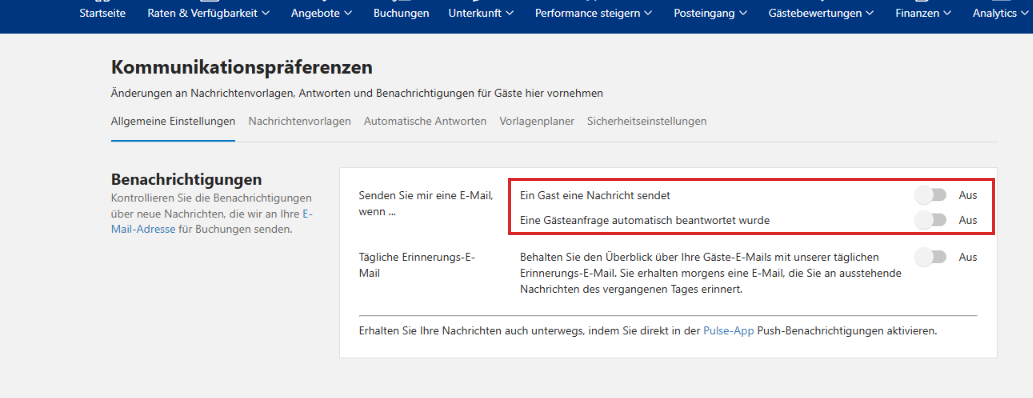
Switch on both email notifications in this section:
- the email for a new message from a guest
- the email for a guest request that was answered automatically
4. Known limitations and troubleshooting
Even with correct whitelisting in place, Booking.com may still remove links from guest messages and display [Link removed] to the guest. Based on our experience and consistent reports across the partner community (PMS vendor forums, public discussion threads, and consumer-protection investigations), this typically affects:
- Newly listed properties that have not yet built up a stay history on Booking.com.
- Properties without a long track record of completed, dispute-free stays. Booking.com's anti-phishing systems appear to weigh property reputation more heavily than the approved-links configuration.
- Specific link patterns (e.g. shortened URLs, certain query parameters, or tracking domains) that may trigger filters independently of the whitelist.
Important: Booking.com has not officially documented or confirmed this behaviour. The points above reflect our operational experience and consistent community reports, not an official policy.
What you can do:
- If no guest messages arrive in the Communication Hub, check the email notifications in the Booking.com extranet first (see section 3).
- Ensure all relevant domains (including DNS/DKIM tracking domains, if applicable) are added to the approved links list.
- Send a test booking and verify how the message arrives on the guest side.
- For new properties: expect reduced reliability in the first weeks of operation. Reliability typically improves once the property has accumulated successful stays.
- If the issue persists despite correct configuration, Booking.com Support is the final point of contact. We are unable to influence the filter on their side.
5. Summary
For LIKE MAGIC to communicate reliably with your guests via Booking.com, certain email addresses and links must be approved in the extranet. You, the host, are responsible for testing the configured communication channel. If it does not work as expected, open a Support Ticket. Ultimately, Booking.com Support is your final point of contact.