Guest Segmentation
Guest segmentation sorts a reservation into named groups so your Property can treat different guests differently. A group is called a segment and carries a short code such as LONG_STAY, WEEKEND_CHECKIN or RETURNING_GUEST. You write the rules per Property, and the platform then uses them to pick notification texts and timings, to show or hide services, shops and Guest Journey articles, and to mark the reservation for your team.
Guest Segmentation is in beta. LIKE MAGIC switches the feature on per Account. As long as your Account is not switched on, none of it is visible to you: the Guest Segmentation screen, the segment rows on the Guest Notification settings, the segment fields on services and the segment markers on reservations all stay hidden. Request activation via a Support Ticket, naming the Account and the Properties you want to start with.
1. Who Can Use This Feature?
👤 Access to the Guest Segmentation settings depends on the role of your staff user account:
- Property Admin: can view and edit the segment rules for their assigned Properties.
- Property Viewer: has read-only access. The rules are visible, all fields are locked.
- Account Administrator: has full access across all Properties.
⚙️ You find the screen in the Operations Platform under Settings → Guest Journey → Guest Segmentation.
Segment rules are configured per Property, because rate plan codes, booking channels and unit groups differ from Property to Property. If your Account has several Properties, switch to a specific Property to see the screen.
2. Feature Overview
A segment is a label the platform derives from the reservation whenever it needs it. Nothing is stored on the reservation itself, so a rate change, an added service or a room move counts immediately.
a) What a Segment Can Change
| Area | What a segment does | Example |
|---|---|---|
| Guest Notifications | Different wording, a different send time, or no message at all | Long-stay guests get their check-in reminder at 07:00, in their own wording |
| Services and Shops | Offer a bookable service, or a whole shop, to some guests and not to others | Weekly cleaning offered only to long-stay guests |
| Guest Journey content | Show or hide an article in the guest's My Stay | A long-stay information article that only long-stay guests see |
| Reservations Overview | An icon on the reservation so your team recognises the guest type | A marker for returning guests |
b) Two Rules That Decide Everything
Two rules explain nearly every outcome you will see:
- Within one rule, all criteria must match. A rule with a rate plan code and a minimum night count applies only to reservations that satisfy both. Criteria that cannot be true at the same time therefore leave the rule unreachable.
- Between rules, the order is the priority. A reservation can carry several segments at once. Where only one answer is possible, for example which notification text to send, the platform walks the list from the top and takes the first segment that has an answer.
3. Create and Publish Segment Rules
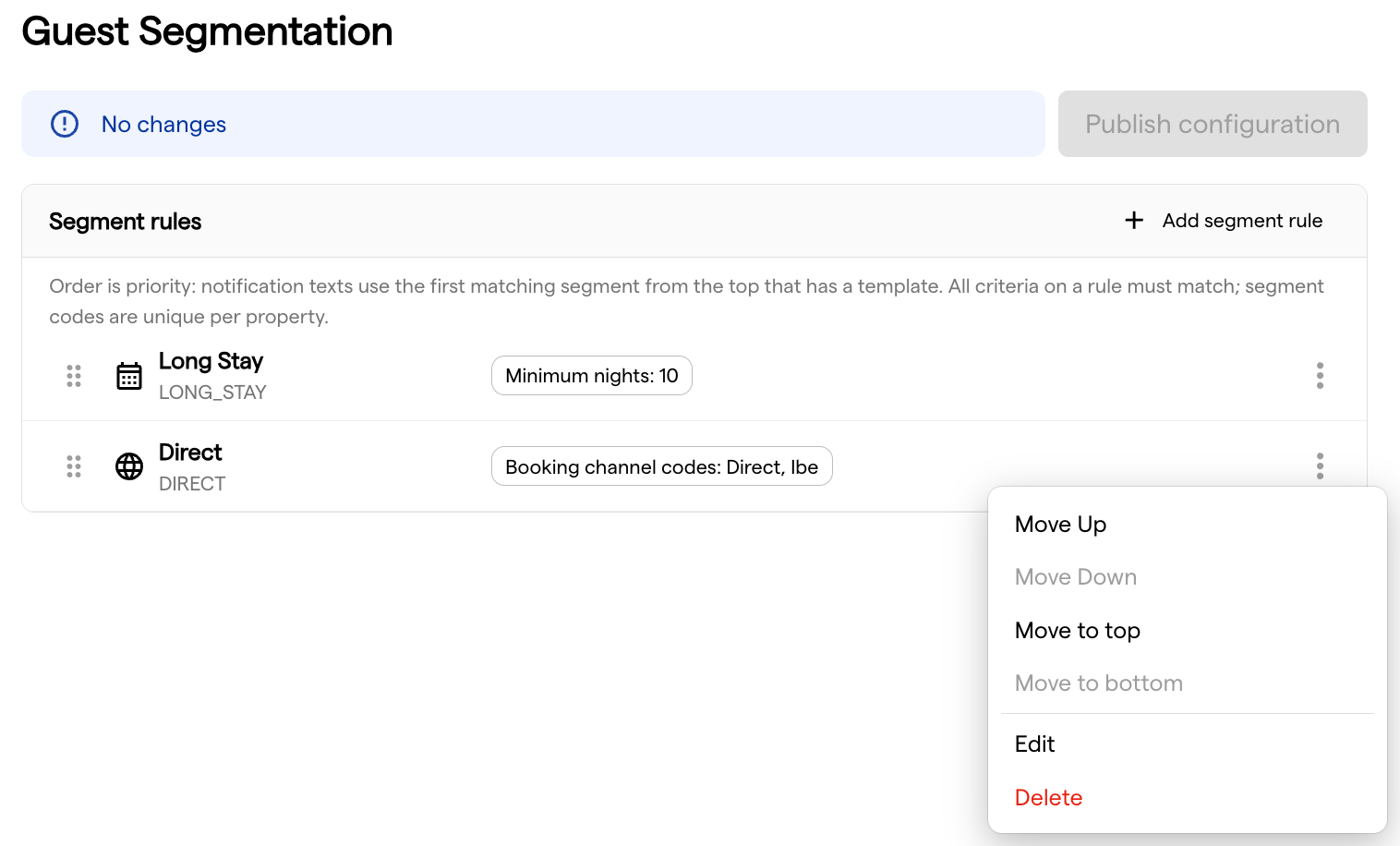
a) Add a Rule
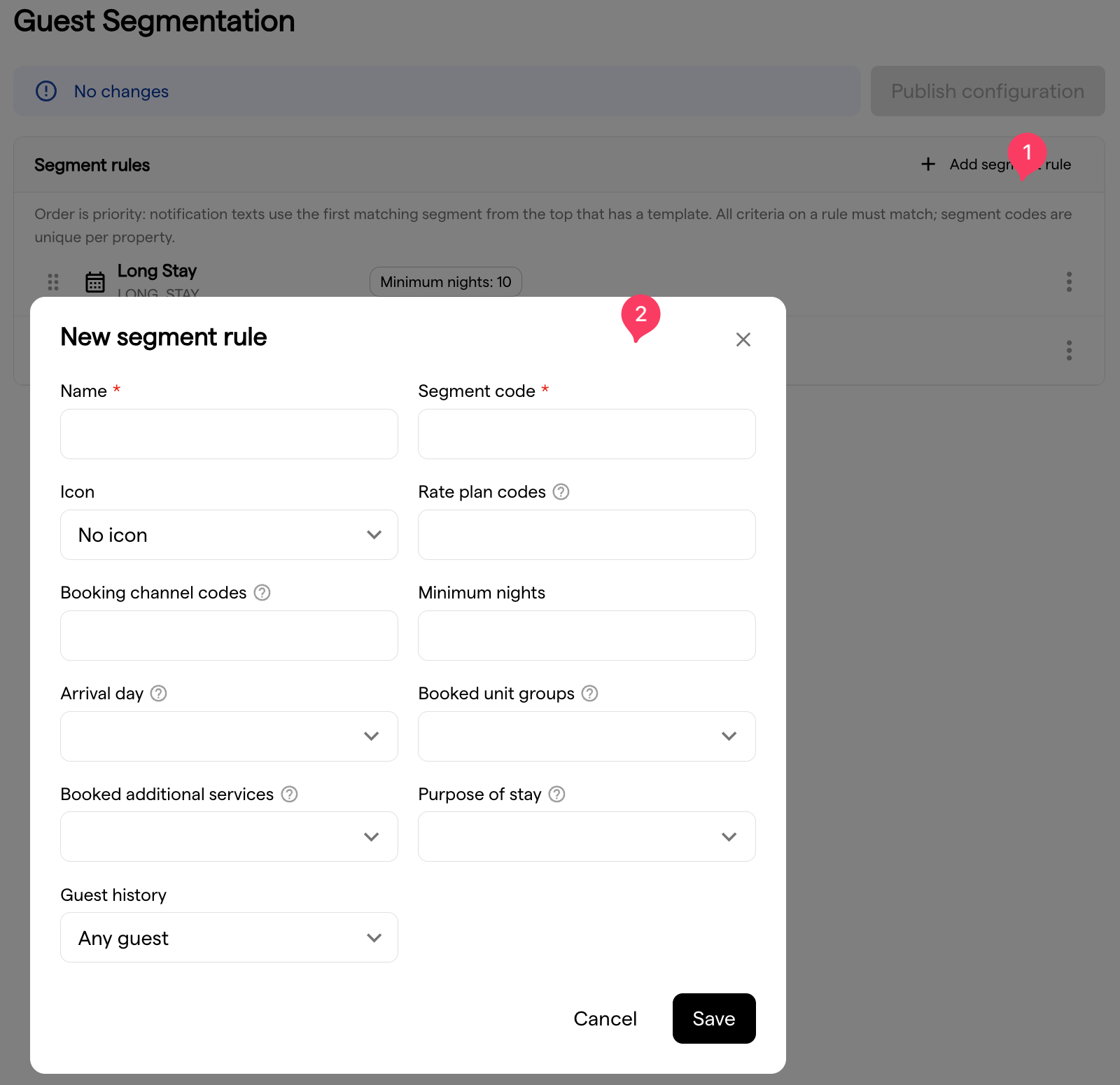
Open Settings → Guest Journey → Guest Segmentation. The Segment rules list holds the rules of the selected Property, in priority order. Choose Add segment rule and fill in the rule:
- Segment code: the identifier used everywhere else, for example in template file names and on services. Use uppercase letters, digits and underscores, starting with a letter, for example
LONG_STAY. Each code may be used only once per Property. - Name: a readable label for your team.
- Icon: the marker shown on the reservation row. Around thirty icons are available, from Long stay and Returning guest to Family, Business, VIP and Pets. Choose No icon to leave the row unmarked. No icon hides the marker, not the segment: the reservation details keep listing the segment by name under Guest Segments either way.
b) Choose the Criteria
Set at least one criterion. The form refuses to save a rule without one, because such a rule would match nothing.
| Criterion | Matches on |
|---|---|
| Rate plan codes | The rate plan codes from your PMS, exactly as they appear on the reservation |
| Booking channel codes | The booking channel, for example a specific OTA or direct bookings |
| Minimum nights | Stays of at least this many nights |
| Arrival day | The weekday of arrival, in the local time of the Property |
| Booked unit groups | The booked Unit Group, not the Unit later assigned to the guest |
| Guest history | Any guest, First-time guests only, or Returning guests only |
| Booked additional services | Services booked on the reservation |
| Purpose of stay | The purpose of stay captured in the Pre-Check-In Flow, for example business or leisure |
ℹ️ Booking channel codes refers to where the booking came from, not to the channel a notification goes out on.
c) Put the Rules in the Right Order
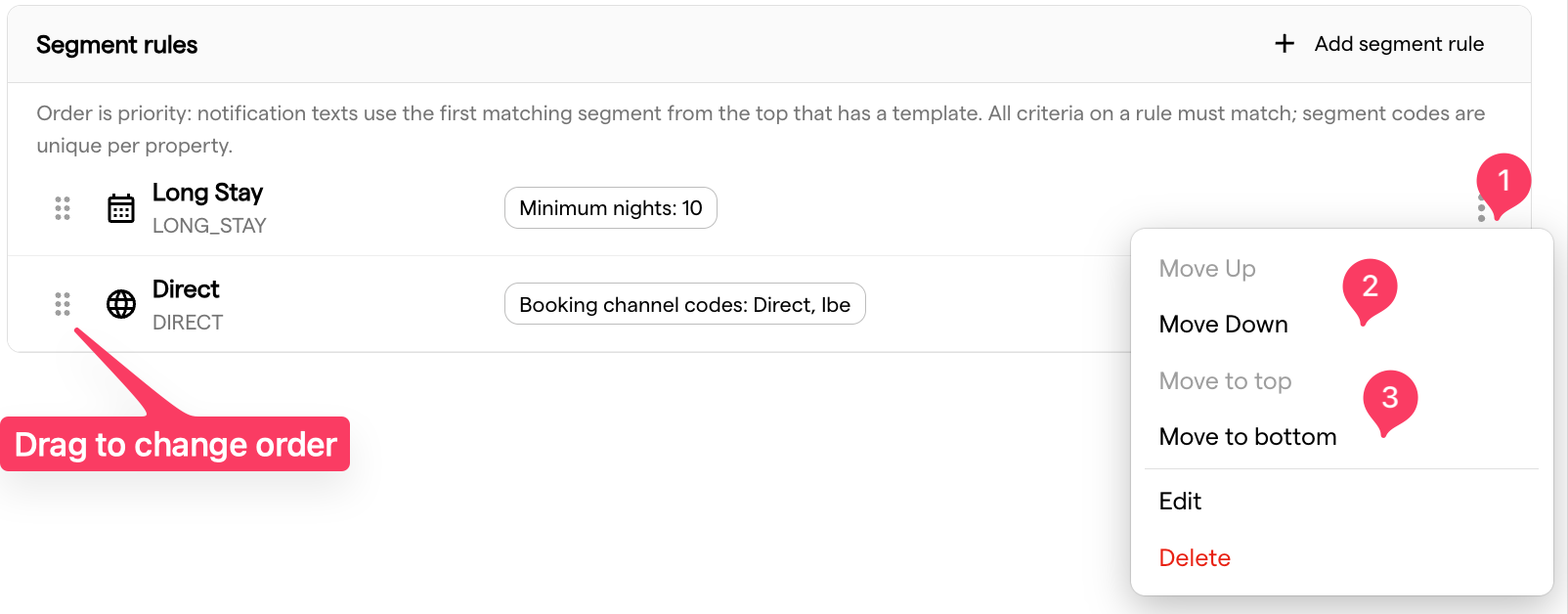
The order is the priority, so the rule at the top wins whenever a guest fits several. Use the reorder controls on each row (Move up, Move down, Move to top, Move to bottom) to arrange them.
💡 Put your most specific rules at the top and your broadest rules at the bottom. A guest who is both a returning guest and a long-stay guest should hit whichever of the two you would rather address.
d) Publish
Your edits are held as a draft until you publish them. While unpublished changes exist, the screen tells you that the configuration is ready to publish and not yet live. Publish to activate the rules, and the screen confirms that the configuration was published.
⚠️ Deleting a rule also takes effect on publishing. Notifications, texts and content that target the deleted segment stop matching from that moment, so check where the code is still in use before you publish the deletion.
4. Segment-Specific Guest Notifications
This is where most of the value sits. A segment can change the wording, the timing, or both, and the two are independent.
a) Different Wording
Write a notification text for the segment, and guests in that segment receive it at the usual time. Nothing else is needed: every notification already knows the reservation's segments, and if a text exists for one of them it is used. Otherwise the normal text goes out.
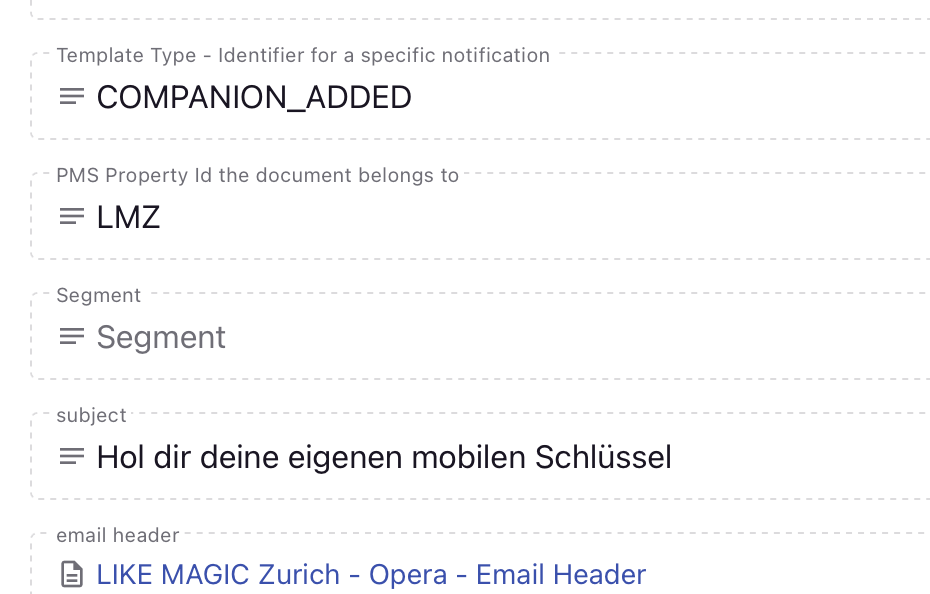
Email and SMS texts live in Prismic. A segment text is a second email or SMS document for the same notification, carrying the segment code in its Segment field, next to Template Type and PMS Property Id. Create the document, write the wording and publish it. See Prismic (E-Mails).
WhatsApp works differently. Every wording is a pre-approved template, so a segment variant needs its own approval from Meta. Request it via a Support Ticket, naming the Property, the language, the segment code and the notification.
b) Different Timing, or None
⚠️ A segment variant is for the timing, never for the wording. A different text needs nothing on this screen: write the segment text in Prismic (WhatsApp via support from LIKE MAGIC) as described above and it is used on its own. Add a segment row here only when the segment is to be sent at a different time, or not at all. This is the single most common mistake with the feature.
On Settings → Guest Journey → Guest Notification, open the row menu of a notification and choose Add Segment Variant. The segment gets its own row under the notification, and the switch in the dialog decides between its own schedule (on) and no message at all (off). A segment without a row follows the notification itself, and Delete on the row puts it back there. See Guest Notification Settings for the screen.
ℹ️ Segment rows exist in both tables of the page. In Time Based Notifications a segment can get its own timing. In Event Based Notifications the event itself decides the moment, so a segment row there only decides whether the notification goes out to that segment at all.
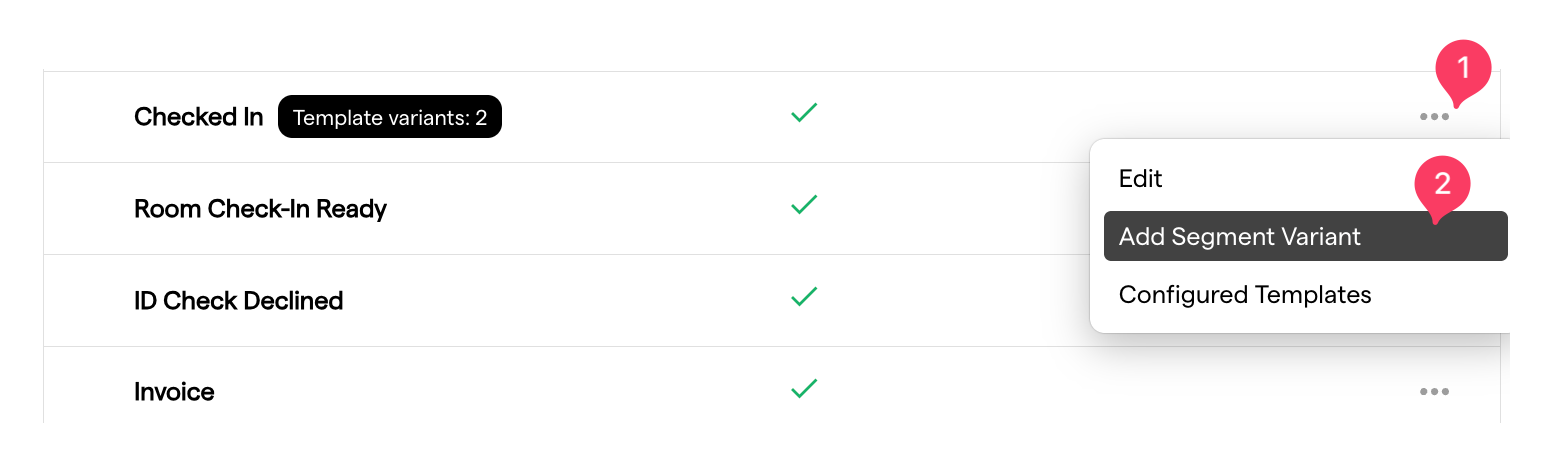
ℹ️ Add Segment Variant sits on the Property page of the Guest Notification settings and appears once at least one segment rule is published. The Account page carries no segment rows, because the rules themselves are written per Property.
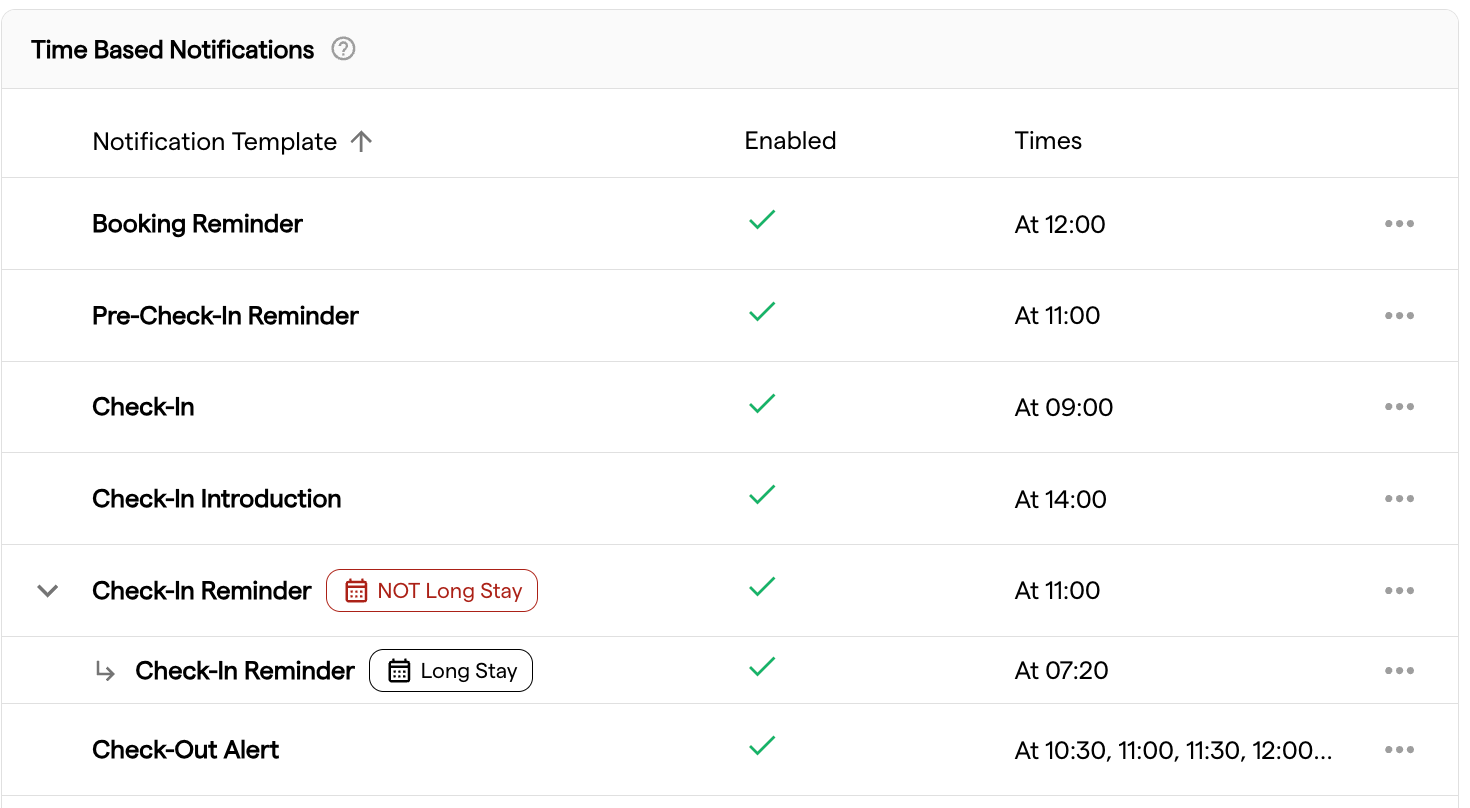
⚠️ Switching a segment off stops the whole notification for that segment, including anything else it does. Switching off the invoice notification for a segment means those guests receive no invoice.
⚠️ While a notification is disabled as a whole, a segment switched off is not stored. The segment is shown as following the default again once you re-enable the notification, so set the segment rows after you have switched the notification on.
Reading the NOT chips
Every entry shows the guests it actually reaches as chips, so the rows never overlap silently:
- The default entry carries a red NOT chip for each segment that has a row of its own. A notification labelled NOT Long Stay goes to every guest except long-stay guests, because those are served by the Long Stay row underneath it.
- A segment row carries its own segment as a plain chip, plus a red NOT chip for every higher-priority segment that also has a row. A guest in both segments is served by the higher-priority one, and the chips say so.
- An Off row carries only its own segment, because it sends nothing that could overlap.
The chips are derived from the rules and the rule order. You do not set them, they change when you add a row or reorder the segment rules.
c) Check Which Template Is Actually Used
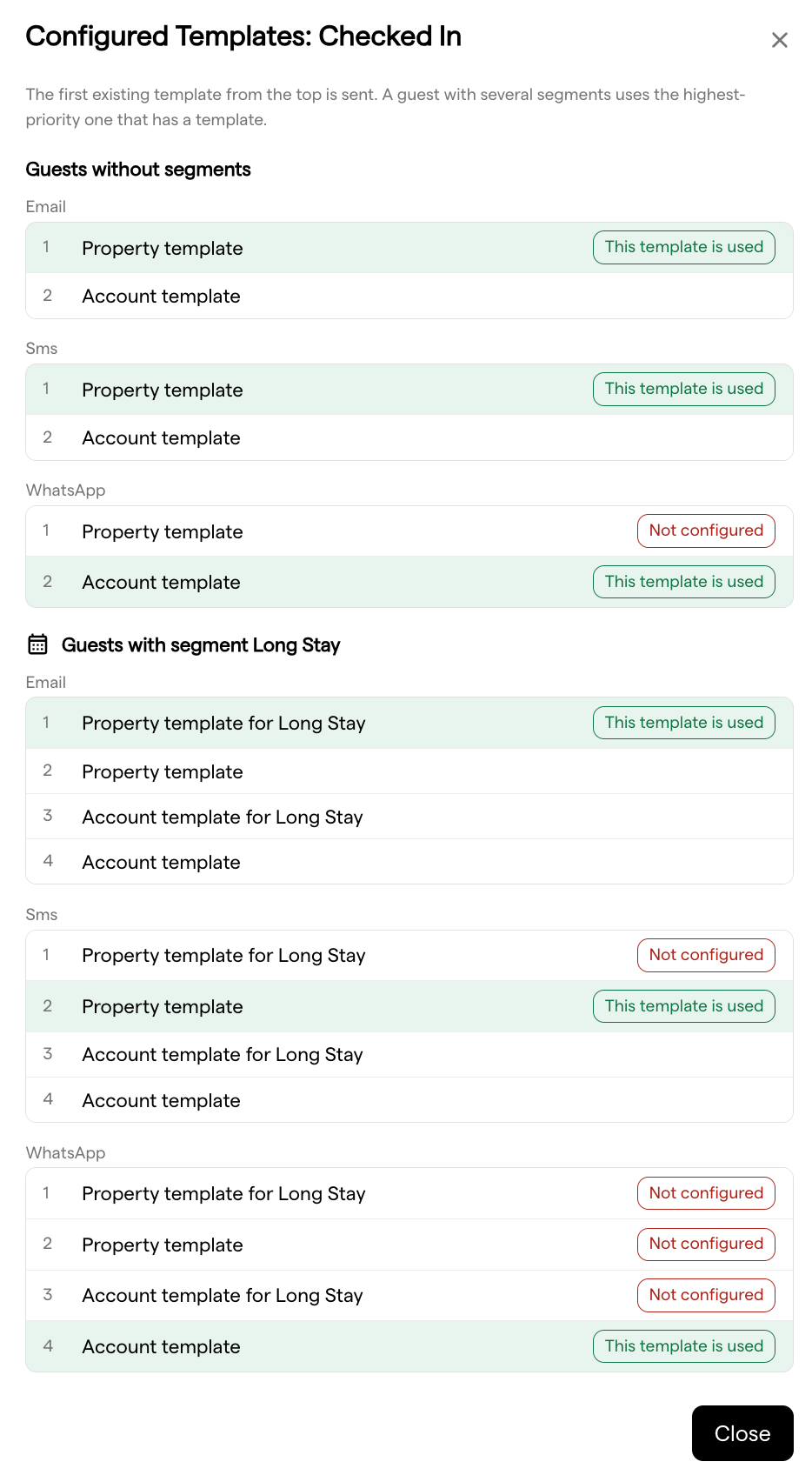
Open the row menu of a notification and choose Configured Templates. The dialog answers, without sending a test message, which text a guest really receives.
It is grouped by audience: Guests without segments first, then Guests with segment {code} for each published segment. Inside a group, each channel (Email, SMS, WhatsApp) lists the templates the platform looks for, numbered in the order it looks for them, and marks the one that wins with This template is used. A step with no document is marked Not configured, which is exactly how you spot a segment text that was never published.
The order is always the same: the Property template for the segment first, then the plain Property template, then the same pair at Account level. The first one that exists is sent. A guest with several segments uses the highest-priority segment that has a template, so the rule order decides here too. For guests without segments only the plain chain applies, exactly as before.
5. Limit Services and Shops to Segments
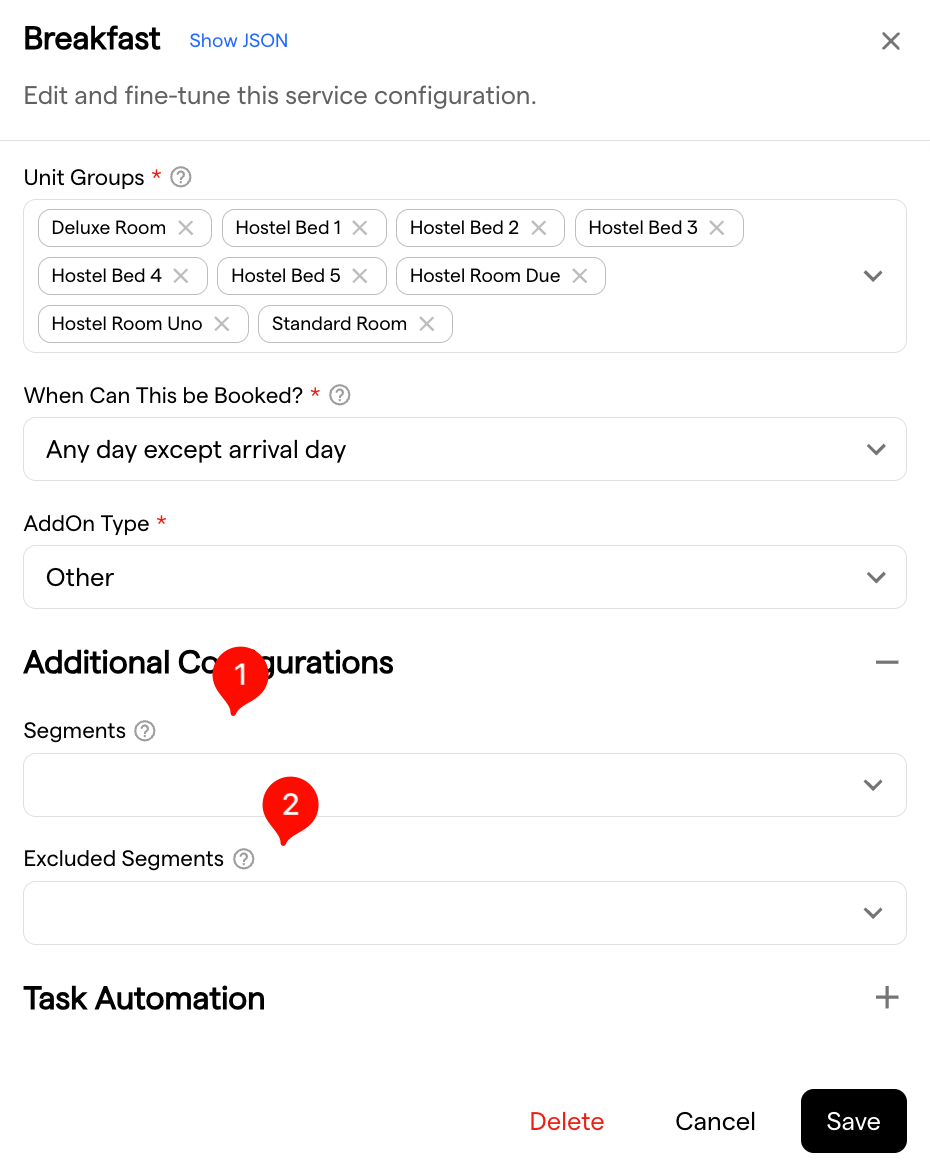
On a service configuration you find two fields:
- Segments: the service is offered only when the reservation carries at least one of these segments. Leave the field empty to offer it to everyone.
- Excluded Segments: the service is never offered when the reservation carries one of these segments.
The Services table shows the segments of each service as chips, so you can see the targeting without opening every entry. A code whose rule no longer exists is flagged rather than silently dropped, which is your signal to clean the service up after renaming or deleting a rule.
ℹ️ The limit applies to what the guest is offered and to what the guest can book. Bookings your team makes in the Operations Platform are exempt, so staff can always add a service on the guest's behalf.
A whole shop can be limited the same way. The same pair of lists exists per shop, for example the minibar, the amenities shop or the self-pouring station. Where a shop is limited to segments, a guest outside those segments is offered nothing from that shop, not even the services inside it that carry no segments of their own. The shop-level lists are set by LIKE MAGIC, so request them via a Support Ticket, naming the Property, the shop and the segment codes. See Shops Overview.
ℹ️ Limiting a whole shop works on Oracle Opera Cloud and Mews properties. It is not available on Apaleo properties, where only the per-service fields above apply.
6. Segments in the Guest Journey
Articles. Articles in the guest's My Stay can be limited to segments in the Content Management System, in two directions:
SEGMENTplus one or more segment codes: the article renders only for reservations carrying one of those codes.EXCLUDED_SEGMENTplus one or more segment codes: the article is hidden from reservations carrying one of those codes and shown to everyone else.
Untagged articles keep showing for everyone. See Prismic Article for how tags are set and how they behave next to the other article filters.
⚠️ Use one of the two, never both on the same article. The tags are a flat list, so nothing says which code belongs to which side. An article carrying SEGMENT and EXCLUDED_SEGMENT together is hidden from everyone.
Navigation items. Where the My Stay tiles are configured manually, each tile carries an Only displayed for segment field. Leave it empty and the tile is shown to everyone. Enter one or more segment codes, separated by commas, and only reservations carrying one of them see the tile. See Prismic (Navigation Items).
ℹ️ Segment targeting needs a reservation to match against. A segment-limited article or tile therefore never appears in Info Stay, where no reservation, and so no segment, is known.
7. Segments on the Reservation
Reservations Overview. A reservation carrying segments shows the icons of those segments next to the existing VIP, group booking and back-to-back markers, in the table on desktop and on mobile. Every segment that has an icon is shown, and each icon carries a tooltip naming the segment. A segment set to No icon adds nothing to the row.
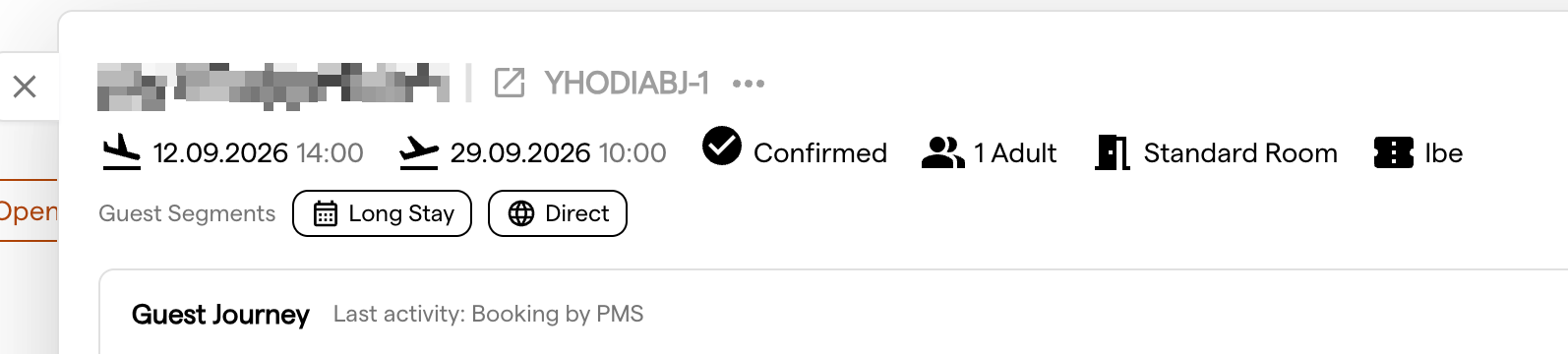
In the reservation details, the header lists Guest Segments as named chips, one per segment. That list is complete, so a segment without an icon still appears there by name. Reservations without segments look exactly as before.
8. Troubleshooting
| Symptom | Likely cause |
|---|---|
| A rule never matches any reservation | The criteria contradict each other. All criteria on a rule must match at once, so a rate plan code the unit group never sells leaves the rule unreachable. |
| A rate plan or channel rule does not match | The code differs from the PMS value. Codes are matched exactly as they appear on the reservation, including case. |
| The guest receives the wrong wording | Another segment sits higher in the list and also has a text for this notification. The first segment from the top with a text wins. |
| A segment text does not go out at all | No text exists for that segment and notification, so the normal text is sent. Open Configured Templates on the notification row to confirm. |
| Changes have no effect | The configuration was not published. Unpublished edits stay a draft. |
| Add Segment Variant is missing from the row menu | You are on the Account page of the Guest Notification settings, or no segment rule is published for this Property yet. |
| A segment shows no icon on the reservation row | The rule was saved with No icon, or the segment is there but unmarked by choice. The reservation details name every segment under Guest Segments. |
| A service shows a flagged segment | The rule behind the code was renamed or deleted. Update the service to a published code. |
| A returning guest is not recognised | The reservation is not linked to an existing Guest Profile. Guest history relies on that link. |
9. FAQs
Can a reservation be in several segments? Yes, and that is the normal case. Every rule that matches applies. Where only one outcome is possible, the rule order decides.
What happens to guests who match no rule? Nothing changes for them. They receive the standard texts at the standard times and see the standard offering.
Do I need a rule for every notification variant? No. A different wording needs only the segment text in Prismic. A different time, or no message at all, needs a segment variant on the Guest Notification screen. Both together need both.
Are past reservations reclassified? Segments are evaluated when they are needed rather than stored, so a published rule change applies to existing reservations immediately. Notifications already sent are not affected.
Can I reuse one segment code across Properties? Yes. Codes are unique within a Property, so the same code can exist in several Properties, each with its own rule.
10. Conclusion
Segment rules are the one place where you decide which guests count as a group, and everything else refers back to the codes you define there. Start with a single rule and one notification text, confirm it under Configured Templates, and extend from there.
📝 Related articles:
- Guest Notification Settings for the notification screen the segment rows live on
- Automated Guest Notifications for the notifications themselves
- Prismic (E-Mails) for writing the segment texts
- Prismic Article for tagging Guest Journey content
- Role and Access Management for the roles named above