Multi Language Support
Guests and staff pick the language they read the platform in, plus the country format that decides how dates, times, currencies and numbers appear.
Introduction
Every guest and staff member can use the LIKE MAGIC platform in their own language and regional format. The choice is available on the Guest Platform, in the Operations Platform and at the Self-Service Kiosk. It covers the interface translations as well as the date, time, currency and number formats.
1. Feature Overview
What can you customize?
- The Display Language: choose from the languages configured for your account or property
- The Display Format: choose a country format that controls how dates, times, currencies and numbers appear
Where can you change these settings?
- Guest Platform Web App
- Operations Platform
- Self-Service Kiosk
- During any guest journey process step
2. Available Languages
Guest Platform:
The languages configured for your account or property, in the order set under Settings → Language & Locale. Adding a language to that list is not self-service, so request it via a Support Ticket.
Operations Platform:
German, English, Spanish, Portuguese, Italian, Turkish, Serbian, Ukrainian and Danish.
Do you want more languages available to your team? The Operations Platform languages are self-service. An Account Administrator edits Available Operations Platform Languages under Settings → Language & Locale at account level, and the top entry of that list is the default for staff members who have not picked a language of their own.
Configure available languages and locale (for administrators)
Which languages a guest can choose from, and the default regional format they fall back to, is configured in the Operations Platform under Settings → Language & Locale. The guest languages and the default format resolve hierarchically. Set them once at account level, let every property inherit them, and override a single property where it has to differ. The Operations Platform languages are an account-level setting only.
From this screen an administrator controls:
- Available Guest Languages: the languages a guest can pick on the Guest Platform, the Self-Service Kiosk and the Second Screen. They are also the languages the automated guest notifications go out in. The order matters, because the top entry is the default for a guest who has expressed no preference and it is the order the guest sees in the language selector. Adding a language to the list, or taking one off it, is not self-service. Request it via a Support Ticket.
- Default Number & Date Format: the country format used for dates, times, currencies and numbers when the guest has not chosen one (see Formatting Examples below).
- Tone of Voice: whether guest-facing communication addresses the guest as Formal or Informal. This is an account-level field.
- Available Operations Platform Languages: the languages your team can choose from in the Operations Platform. You add, remove and reorder these yourself, at account level only. Changing the list does not change the language of your own Operations Platform.
Changes take effect once you publish your configuration with Publish configuration.
Account-level values are edited by the Account Administrator (account-admin), property-level values by the Property Admin (property-admin). Account Viewers and Property Viewers see the screen read-only.
3. Language Detection
The platform resolves the language from a fixed priority order.
Priority Order:
(most to least important)
- Language passed as URL parameter: a direct link with the language specified
- Your user profile language: if you are signed in
- Your saved preference: previously selected on this device
- Booking or reservation language: the language stored with the booking
- Device language: your device's system language
- Property default: the top entry of the property's guest language list
The system automatically selects the first available option from this list.
4. Changing Language and Format
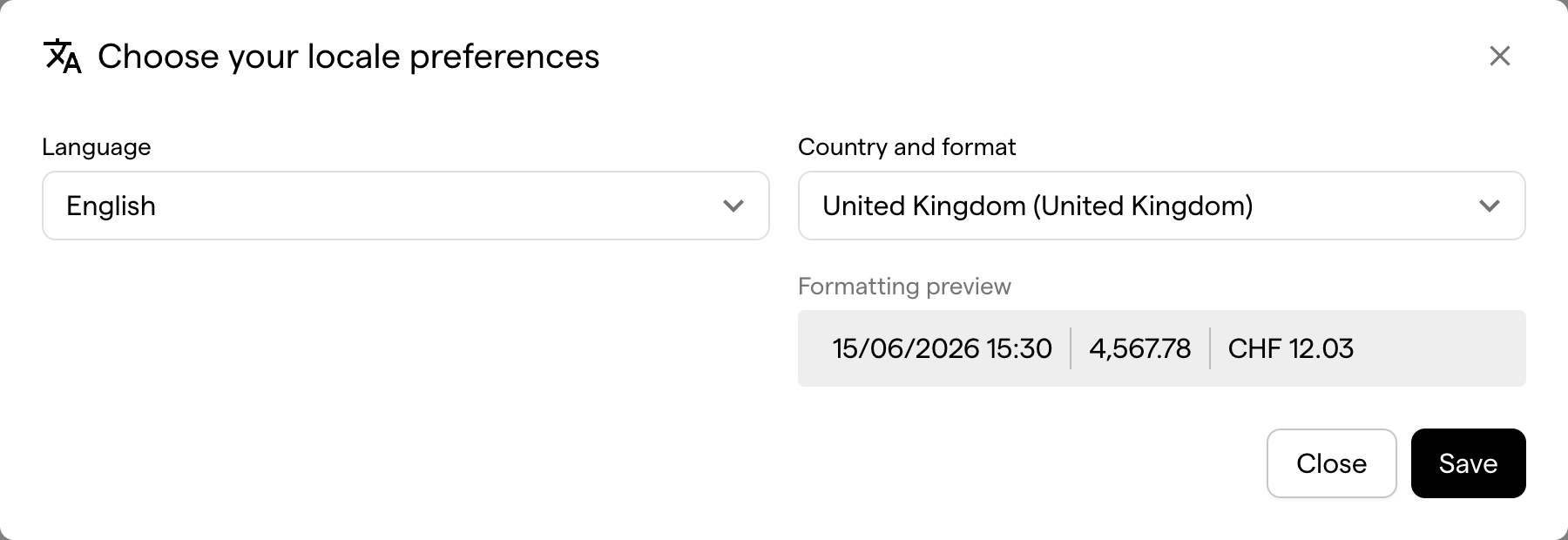
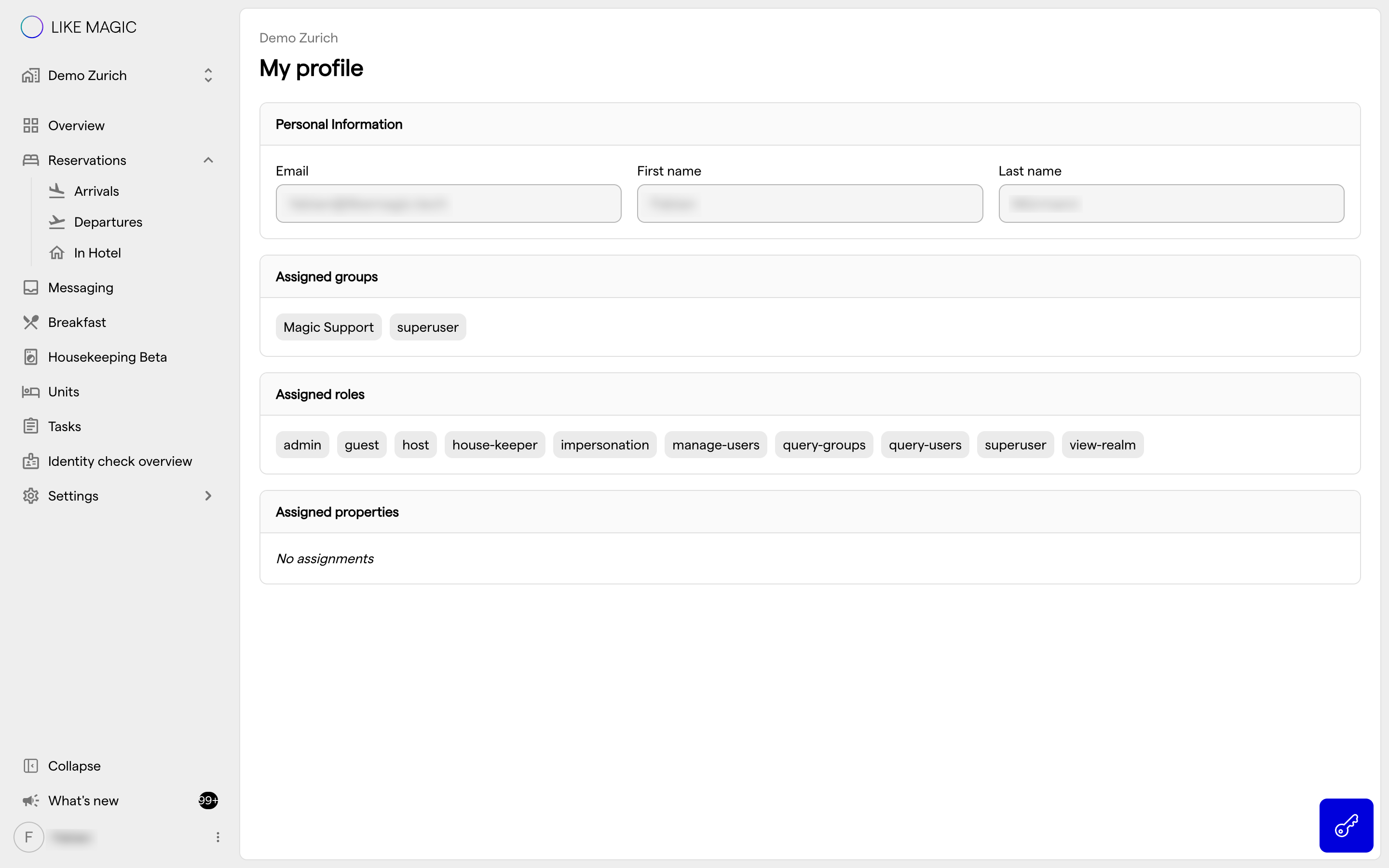
Quick Steps
- Locate the language selector: in the web app navigation or in the settings area
Desktop View:

Mobile View:

- Select your preferred language: choose from the available options

- Select your preferred format (optional). Choose a country to determine date, time, currency and number formatting
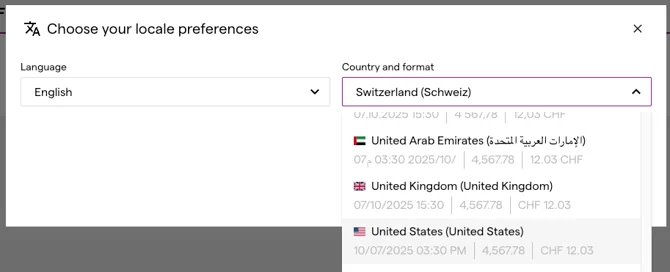
- Changes apply immediately: no need to reload or restart
What Happens When You Change Settings?
Immediate Changes
✅ The app updates instantly on your current device
✅ Your choice is remembered for your current session
✅ All content adapts to your selected language and format
a) If you are signed in (you have an account)
- Your user profile is updated automatically
- Your preferences follow you to other devices
- Future sessions use your saved preferences
b) If you are not signed in (guest mode)
- Preferences are saved only on this device
- No profile update occurs
- Each device maintains its own settings
5. Formatting Examples
When you select a country format, this is what changes:
| Format | English (US) | German (Germany) | German (Switzerland) |
|---|---|---|---|
| Date | 12/31/2025 (MM/DD/YYYY) | 31.12.2025 (DD.MM.YYYY) | 31.12.2025 (DD.MM.YYYY) |
| Time | 2:30 PM (12-hour) | 14:30 (24-hour) | 14:30 (24-hour) |
| Currency | $150.00 | 150,00 € | CHF 150.00 |
| Numbers | 1,234.56 | 1.234,56 | 1.234,56 |
6. Special Scenarios
Viewing a booking or reservation as a guest
- Your language/format selection applies to both:
- Your viewing experience in the app
- The booking/reservation record in the Property Management System (PMS)
- Your user profile is also updated (if signed in)
Viewing a booking or reservation as a hotel staff member
- The guest journey displays in your language/format
- The guest's PMS record is NOT changed
- This allows staff to view reservations in their working language without affecting guest data
7. Tips and Troubleshooting
a) Tips and Best Practices 🛎️ For Guests
- Set your language preference at the start of your journey, so every later step is shown in it
- Your preference will be saved if you create an account
- Use the format that matches your home country for familiar date and currency displays
b) Tips and Best Practices 👤 For Staff
- Your language choice doesn't affect guest data when viewing their reservations
- Use your working language for daily operations
- Language preferences are stored per user account
c) Troubleshooting
Here are some frequently asked questions and their answers.
Q: My language changed unexpectedly
A: The language persists per device and session. If using a shared device or kiosk, you may need to re-select your preference.
Q: I don't see my preferred language
A: The guest languages come from your account or property configuration under Settings → Language & Locale. Adding a language to that list is not self-service. Request it via a Support Ticket.
Q: The format doesn't match my selection
A: Check that you have selected both the language and the format. The format drives the display of dates, times and currencies independently from the language.
Q: Will changing language affect my booking details in the system?
A: Only if you're the booking owner and signed in. Staff members viewing guest data don't affect the guest's PMS records.
8. Conclusion
Guests and staff each read the platform in their own language and see dates, times, currencies and numbers in their own format. An administrator sets the available guest languages and the default format per account and property, and the Operations Platform languages once per account.