Operations Platform Settings
The Operations Platform settings page controls how your team's work screens behave: which reservations the arrival and departure lists show, whether reservation alerts are switched on, where the key button appears, and how the breakfast and housekeeping boards are set up. The page exists at account level and per property, so you set shared behaviour once and change it only where a property works differently.
1. Who Can Use This Feature?
The page exists twice, and each level has its own roles:
| Page | Where to find it | Edit | Read-only |
|---|---|---|---|
| Account | Settings → Account → Operations Platform | Account Administrator (account-admin) | Account Viewer (account-viewer) |
| Property | Settings → Operations → Operations Platform, with a property selected | Property Admin (property-admin) | Property Viewer (property-viewer) |
Viewers see every value but cannot change or publish anything. When you are working on a property and open the account page, the platform switches you to account level first. The Account section of the Settings menu shows the hint Switches to account level for this reason.
The Reservation Alerts Configuration, Breakfast View Configuration and Housekeeping View Configuration sections require Platform pricing. On Core pricing they are shown locked with an upgrade prompt. See Pricing Tiers.
2. What You Can Configure
| Section | Setting | LIKE MAGIC default | Account page | Property page |
|---|---|---|---|---|
| Reservation List Adjustments | Arrivals: Hide Checked-In Guests | Off | ✅ | ✅ |
| Reservation List Adjustments | Departures: Only In-House Guests | Off | ✅ | ✅ |
| Reservation Alerts Configuration | Reservation Alerts | On | ✅ | ✅ |
| Key Button Display (Speed Dial) | Speed Dial Pages | No pages selected | ✅ | ✅ |
| Breakfast View Configuration | Breakfast View Enabled, Breakfast Services | Off | ❌ | ✅ (properties running on Apaleo) |
| Housekeeping View Configuration | Housekeeping View V1 Enabled, Housekeeping Beta Enabled and the cleaning task | See section 9 | ❌ | ✅ |
Sections 5 to 9 describe each section. Breakfast View and Housekeeping View exist only per property, because they describe how one building runs its breakfast service and its cleaning.
3. Account Level and Property Level
The first three sections follow the usual order: a property value wins over the account value, and the account value wins over the LIKE MAGIC default. See Account and Property Scope for the general model.
a) The Account Page
Every setting on the account page shows where its value comes from, for example Using Disabled from LikeMagic default. Once you change a setting, the line reads Overrides LikeMagic default with the default value, and Reset returns the setting to the default.
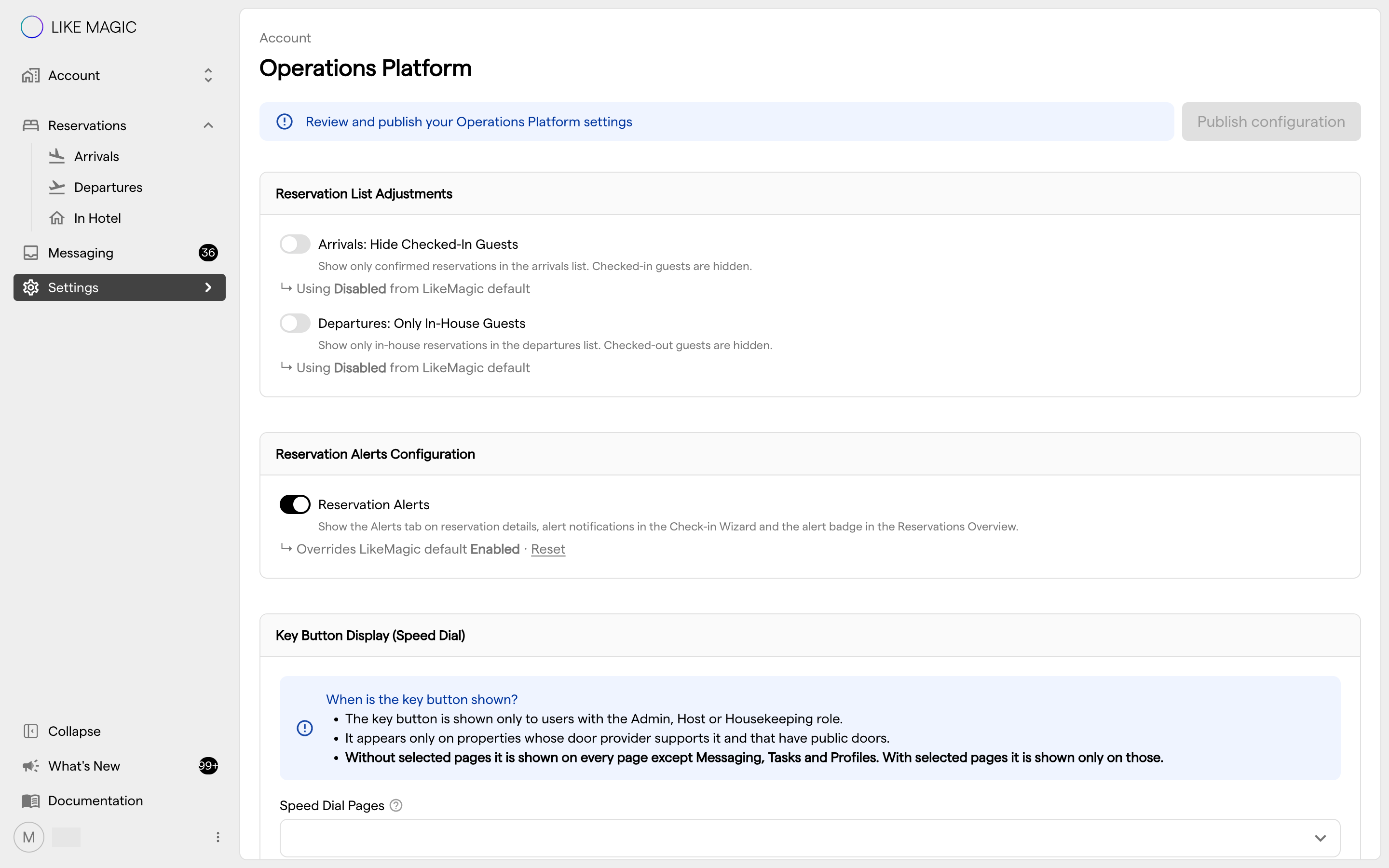
When properties use their own value, the setting shows a marker such as 3 properties override this. Open it to see which properties they are. A change on the account page does not reach those properties until they stop overriding.
b) The Property Page
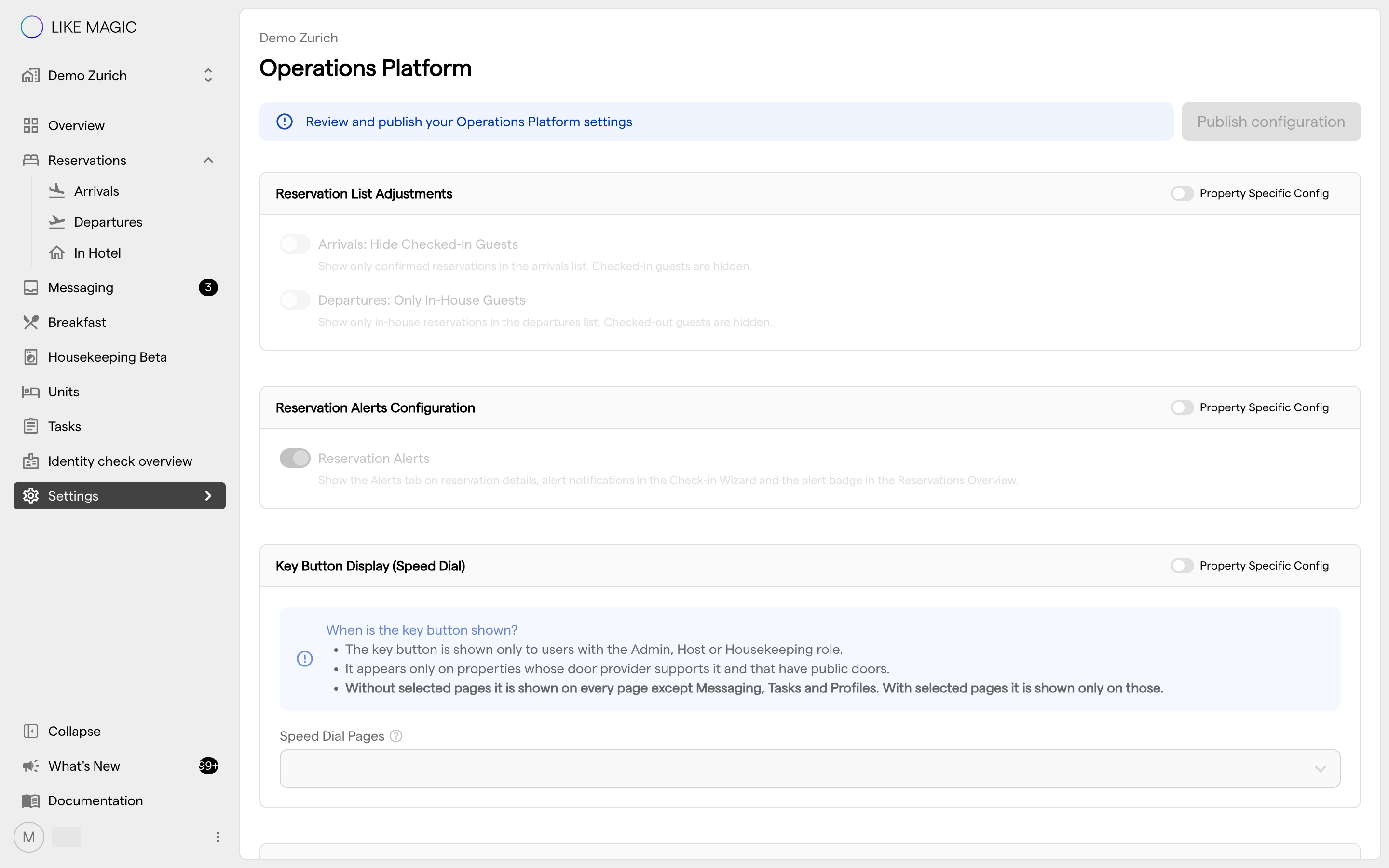
On the property page, the sections Reservation List Adjustments, Reservation Alerts Configuration and Key Button Display (Speed Dial) each carry a Property Specific Config switch:
- Off: the section is greyed out and read-only, and it shows the values the property takes from the account.
- On: the property gets its own values for the whole section. You can now change them.
The switch works per section, not per setting. Switching it off and publishing removes the property's own values again, and the section falls back to the account.
Breakfast View Configuration and Housekeeping View Configuration have no such switch. They are always the property's own configuration.
4. Publishing Changes
Changes on either page stay a draft until you publish them. The banner at the top of the page shows where you stand:
- Review and publish your Operations Platform settings: nothing has changed yet.
- You have unpublished changes: your draft is not live yet. Click Publish configuration to apply it.
- Operations Platform settings published: your changes are live.
Publish configuration is available only when there is something to publish and nothing blocks it. Two banners block it:
- Resolve n conflict(s) before publishing: the stored configuration conflicts with your property data, for example a breakfast service that no longer exists in your PMS. The affected entries are highlighted.
- Fix the highlighted fields in the Breakfast View and Housekeeping View sections before publishing: a required field is empty or holds a value that is not available.
5. Reservation List Adjustments
These two switches decide which reservations the Arrivals and Departures lists show:
- Arrivals: Hide Checked-In Guests: the arrivals list shows only confirmed reservations. Guests who have already checked in disappear from the list.
- Departures: Only In-House Guests: the departures list shows only in-house reservations. Guests who have already checked out disappear from the list.
Both are off by default, so the lists keep every arrival and departure of the day until you switch them on.
6. Reservation Alerts
The Reservation Alerts switch turns the alerts feature on or off. While it is on, staff see the Alerts tab in the reservation details, alert notifications in the Check-in Wizard and the alert badge in the Reservations Overview. When you switch it off, all three disappear.
The switch is on by default. How to write and manage alerts is described in Reservation Alerts.
7. Key Button Display (Speed Dial)
The key button is a floating button in the Operations Platform. It opens Public keys, the list of the property's public doors, so staff can open them without leaving the page they are working on.
The section explains under When is the key button shown? when the button appears:
- The key button is shown only to users with the Admin, Host or Housekeeping role (
admin,host,house-keeper). - It appears only on properties whose door provider supports it and that have public doors.
- Without selected pages it is shown on every page except Messaging, Tasks and Profiles. With selected pages it is shown only on those.
To limit the button to certain pages, select them in Speed Dial Pages. The list shows each Operations Platform page with its address, for example Arrivals (/arrival).
On the property page, the section appears only when the property has a door provider. If that door provider does not support the key button, a warning names the provider, and the setting has no effect for this property. Door providers and public doors are set up as described in Door Access.
8. Breakfast View
The Breakfast View Configuration section is shown on the property page of properties running on Apaleo. It has two settings:
- Breakfast View Enabled: whether the Breakfast board exists for this property.
- Breakfast Services: the PMS services that count as breakfast. Only guests with one of the selected services appear on the board.
How the board works and who uses it is described in Breakfast Management.
9. Housekeeping View
The Housekeeping View Configuration section is shown on the property page. It decides which housekeeping board your team works with:
- Housekeeping View V1 Enabled: the simple list of rooms to clean. This switch is shown on properties running on Apaleo.
- Housekeeping Beta Enabled: the task-based board. Switching it on adds the fields for the cleaning task: Target State, Assignee Group, Task Title and Task Description. All four are required before you can publish.
When you switch off Housekeeping Beta Enabled or change the Assignee Group, an information banner tells you how service configurations with a cleaning task are adjusted along with it.
The boards and every field are described in Housekeeping View.
10. Troubleshooting
- Publish configuration stays disabled. Either nothing has changed, or a banner reports a conflict or a field to fix (section 4).
- A section on the property page is greyed out. Its Property Specific Config switch is off, so the property uses the account values. Switch it on to set property values (section 3b).
- A change on the account page has no effect at one property. That property overrides the setting. Check the properties override this marker on the account page, or switch off Property Specific Config on the property page.
- The Key Button Display section is missing on the property page. The property has no door provider. See Door Access.
- Staff do not see the key button. Check the three rules in section 7: the user's role, a supported door provider with public doors, and the selected pages.
- The Breakfast View Configuration section is missing. It is shown only for properties running on Apaleo.
- A section shows a lock. It requires Platform pricing. See Pricing Tiers.
11. Conclusion
Set the shared behaviour of the Operations Platform once on the account page, then use Property Specific Config only where a property works differently. Configure the breakfast and housekeeping boards on each property page.
For more detail, see Account and Property Scope, Reservation Alerts, Breakfast Management and Housekeeping View.