Role and Access Management
Introduction
The Role and Access Management feature in the LIKE MAGIC Operations Platform lets account administrators manage staff user accounts and groups across your properties. From a single page, you control who has access to the platform, what they are allowed to do, and which properties they can see.
This feature is the primary way to manage staff accounts, assign permissions and organise users into groups, without needing direct access to the underlying identity system.
1. Who Can Use This Feature?
Access to Role and Access Management depends on the role assigned to your staff user account:
| Role identifier | Display name | Access level |
|---|---|---|
account-admin | Account Administrator | Full access. View, create, edit and manage users and groups |
account-viewer | Account Viewer | Read-only. Search and view users and groups, but make no changes |
ℹ️ Note: If you can see the page but receive errors when trying to make changes, your account does not hold
account-admin. Ask your Account Administrator to assign it, or request it via a Support Ticket.
2. How to Navigate to the Page
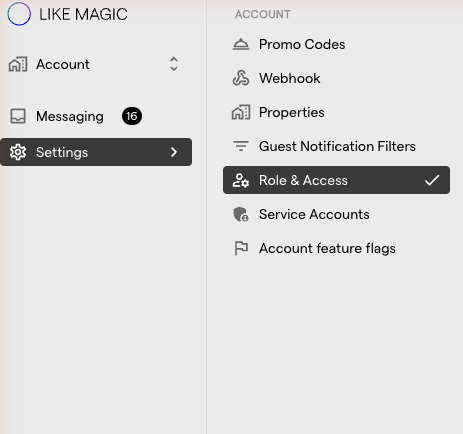
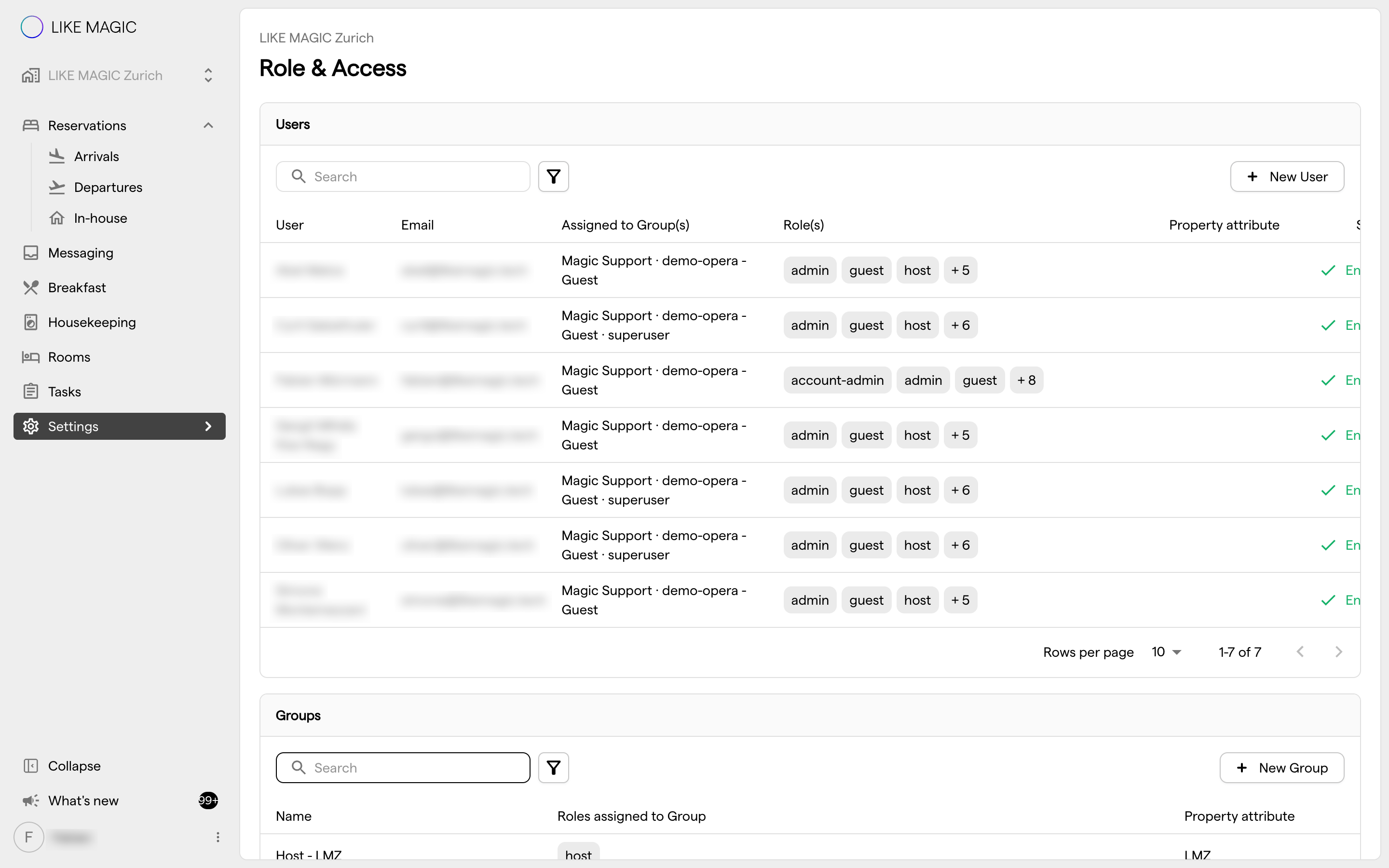
If your staff user account holds account-admin or account-viewer, you can reach the page in two ways:
- Via the sidebar: open the Settings section and select Role & Access.
- Via direct URL:
https://backoffice.<your-tenant-domain>/settings-role-and-access?propertyId=account
3. Key Concepts
a) Users
A user is any account that allows a person to log into a LIKE MAGIC application.
- Users can be assigned additional roles, added to groups, and linked to specific properties.
- A user can be disabled if they should no longer have access. User accounts cannot be permanently deleted via this tool. Request full account removal via a Support Ticket.
b) Groups
Groups let you manage common permissions for several users at once. Instead of assigning roles and properties to each user individually, you assign them to a group and every member of that group inherits those settings.
Groups are also used in Task Management and the Communication Hub, where a task or a conversation can be assigned to a group rather than to one person.
⚠️ Important limitations:
- Group names cannot be changed via the Operations Platform. To rename a group, request it via a Support Ticket.
- Groups cannot be deleted via the Operations Platform. Deletion is also requested via a Support Ticket.
c) Roles
Roles define what a user is authorised to do within the LIKE MAGIC platform. Each protected area or action in the system checks a user's roles before allowing access.
Roles can be assigned directly to a user or inherited through group membership.
ℹ️ Identifier or display name. The role identifier is the technical, lower-case, hyphenated name that the platform stores and that the Role(s) column shows as a chip, for example
host,house-keeper,account-admin. The display name is the readable form used in this article, for example Host, Housekeeping, Account Administrator. The table in section 4 shows both side by side. Use the identifier in a Support Ticket.
d) Property Assignments
Both users and groups can be assigned to one or more properties. In the tables this assignment appears in the Property attribute column, and in the user and group forms as Apply to the Following Properties.
- If no property is assigned, the user or group has access to all properties.
- Property assignments act as a filter, limiting which users and groups appear as options when assigning tasks or messages in Task Management and the Communication Hub.
4. User Roles and Module Access
Each role determines which areas of the Operations Platform a user can reach. The table below shows the high-level scope of each role. The detailed permission matrix further down lists the specific modules each operational role unlocks.
| Role identifier | Display name | Operational access | Settings access |
|---|---|---|---|
host | Host | Overview, Reservations (with Arrivals, Departures, In Hotel), Messages, Breakfast, Units, Tasks, Identity check overview, Profiles, Boxes | None |
house-keeper | Housekeeping | Housekeeping, Units, Tasks, Boxes | None |
breakfast-operator | Breakfast Operator | Breakfast | None |
property-admin | Property Admin | None | Property-scoped settings for the assigned properties (see below) |
property-viewer | Property Viewer | None | Same as Property Admin, view-only |
account-admin | Account Administrator | None | Account-wide settings (see below) |
account-viewer | Account Viewer | None | Same as Account Administrator, view-only |
Property-scoped settings reachable with property-admin or property-viewer: Property Settings, Pre-Check-In, Services, Guest Access, Guest Data & Retention, Guest Notification, Guest Segmentation, Registration Form, Kiosks, Second Screens, Housekeeping View, Breakfast View, Door Access (with Door Access Times and Door Access Encoders), RemoteLock, Prepayment, Theme, Language & Locale.
Task Management at Property level needs property-admin. A Property Viewer sees the menu entry but gets a no-access message when opening the page. At Account level the screen follows the usual pattern and is reachable with account-admin or account-viewer.
Account-wide settings reachable with account-admin or account-viewer: Role & Access, Service Accounts, Promo Codes, Webhook, Guest Notification, Guest Notification Filters, Second Screens, Task Management, Theme, Language & Locale.
Payment (property and account level), Booking Engine (account level) and Booking Engine Rates (property level, named Unit Group Order on properties running Apaleo) are reachable with the roles of their level as well, so property-admin or property-viewer at property level and account-admin or account-viewer at account level.
WhatsApp Channel is the one screen open to both an Account Administrator and a Property Admin.
ℹ️ Initial setup by LIKE MAGIC. The first
account-adminandaccount-viewerassignments for your account are set up by LIKE MAGIC during onboarding. Once your account has anaccount-admin, that user can assign these roles to other staff user accounts through this tool.
💡 Tip: Always use the role identifier (for example
house-keeperwith a hyphen) in a Support Ticket. It removes any ambiguity between similarly named roles.
Beyond the assignable roles (service accounts)
Two further roles are assignable here and change what a user may do in Tasks: task-creator allows creating a task, and task-reviewer allows approving or rejecting a task in review.
One kind of access sits outside the roles above and is not assigned from this page:
- Service accounts: machine credentials (a client ID and secret) for systems, not people. They are not roles and are not managed here. You create and scope them on their own screen. Use a service account whenever an integration or script needs API access, rather than reusing a staff login. See Service Accounts.
ℹ️ A role is not the only condition. Granting a role does not by itself make a capability visible. The capability also has to be included in your pricing tier, be enabled for the property by LIKE MAGIC, and be supported by the property's PMS. Door Access entries, for example, only appear when the property has a lock provider.
Details:
- Host has the broadest operational access, covering the reservation screens, Messages, Breakfast, Units, Tasks, Identity check overview, Profiles and Boxes. No settings access.
- Housekeeping is limited to Housekeeping, Units, Tasks and Boxes, which suits staff working exclusively in housekeeping operations.
- Breakfast Operator reaches Breakfast only, the most restricted operational role.
- Property Admin can edit all property-scoped settings within the assigned properties. No operational module access in the Operations Platform UI.
- Property Viewer can view the same property-scoped settings as a Property Admin, but cannot edit them.
- Account Administrator can edit all account-wide settings. No operational module access in the Operations Platform UI.
- Account Viewer can view the same account-wide settings as an Account Administrator, but cannot edit them.
ℹ️ About role inheritance. The matrix below reflects the direct permission checks in the Operations Platform UI. Your account's identity-system configuration may grant additional access to specific users through composite roles or group membership. If you observe access that does not match this matrix, it is most likely set up via groups or composite roles.
⚠️ A few advanced settings are configured by LIKE MAGIC. The Settings access column above describes what your staff roles reach. A small number of advanced configuration screens are not available to any customer role. Changes there are requested via a Support Ticket. Report access that does not match the table the same way.
Detailed Permission Matrix, operational staff
The matrix below covers the three operational staff roles. The remaining roles (property-admin, property-viewer, account-admin, account-viewer) are configuration-only roles. Their access scope is described in the main role table above.
| Module | host | house-keeper | breakfast-operator |
|---|---|---|---|
| Overview | ✅ | ||
| Reservations | ✅ | ||
| Messages | ✅ | ||
| Breakfast | ✅ | ✅ | |
| Housekeeping | ✅ | ||
| Units | ✅ | ✅ | |
| Tasks | ✅ | ✅ | |
| Identity check overview | ✅ | ||
| Profiles | ✅ | ||
| Boxes | ✅ | ✅ |
✅ = the module is in the navigation for this role · blank = not in the navigation for this role.
5. Managing Users
From the Users section of the Role & Access page, you can:
- View all existing users and their current roles, group memberships and property assignments
- Create new user accounts
- Edit a user's assigned roles, group memberships and property assignments
- Disable a user account via the action menu (⋮) on the user row, and Enable a disabled account again from the same menu
- Reset a user's password via the action menu (⋮) on the user row
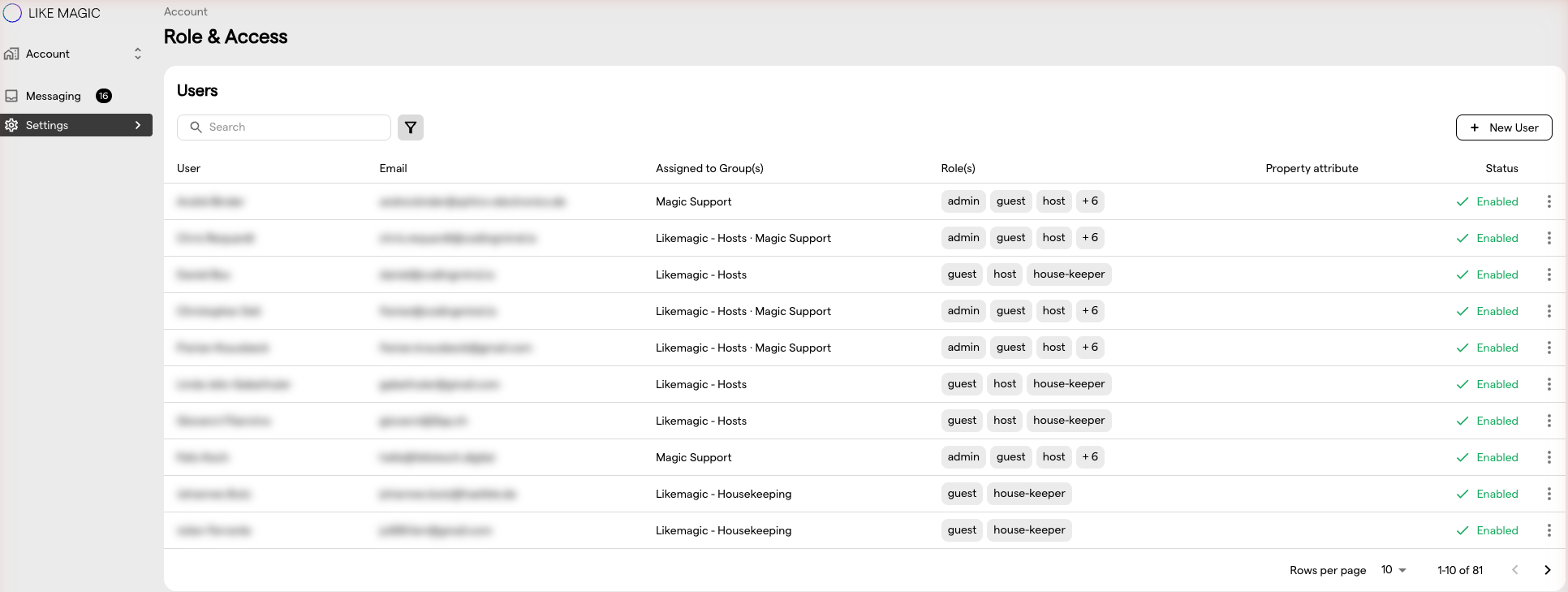
ℹ️ The first view of the Users table is curated. When you open the page, the table is pre-filled with the users this tool knows about: everyone created or edited here, plus the users who already held a role beyond the default
guestrole. Anyone you create or edit via this tool is automatically included in this view from then on. Use the search field to find any other user not shown by default.
Searching and Filtering
The Users table can be filtered by Group(s), Properties, Roles and Status. Understanding how the filters combine helps you find what you need quickly.
- Across filter sections (Group(s) + Properties + Roles + Status): results are combined additively, so a row must match the criteria of every section that has at least one filter applied.
- Within a single section (for example multiple roles selected): results match if any of the selected values applies.
Example: if you filter by Roles = host, house-keeper and Properties = Property A, you will see users who hold either the host or the house-keeper role and are assigned to Property A.
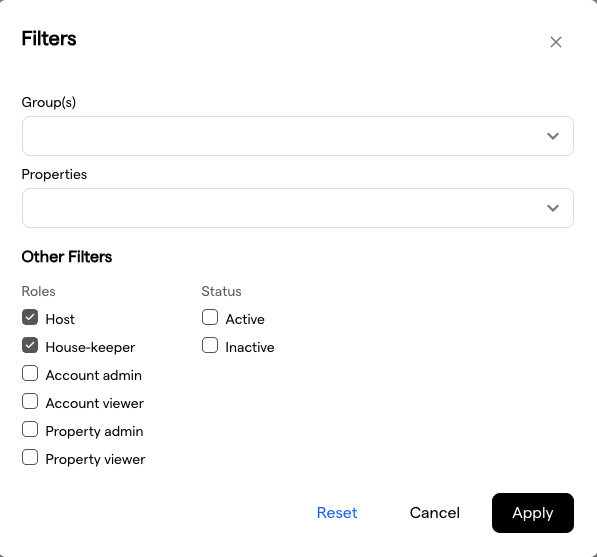
💡 Tip: Search and filter operations run against the full set of users in your account, including those not pre-filled in the curated default view.
Creating a New User
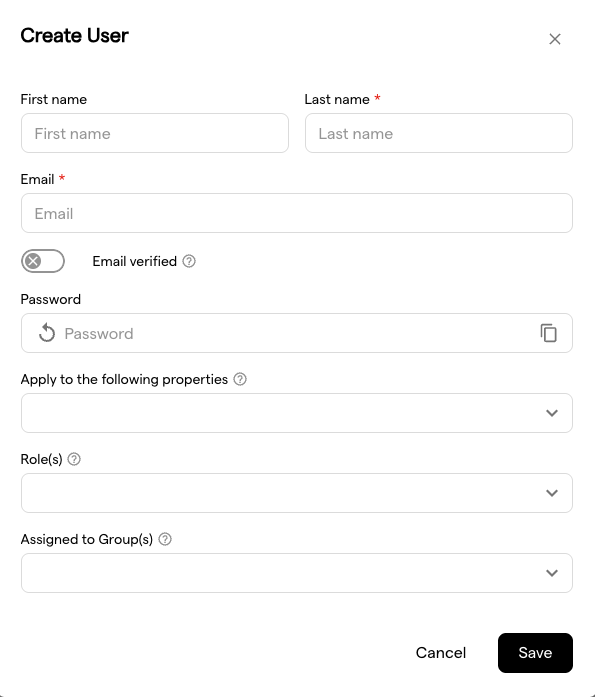
When creating a new user, you will set:
- First name, last name, email: basic profile information.
- Password: always treated as temporary. The user has to change it on first login, regardless of any other setting.
- Email Verified: a toggle that controls whether the new account is treated as already verified.
- Off (default): the platform automatically sends the user a "verify your email" message with a verification link. The user confirms their address by clicking the link.
- On: the account is marked as verified immediately. No verification email is sent. Use this only when you have confirmed the email address through another channel, for example when you created the account on behalf of the user and will share the credentials directly.
- Apply to the Following Properties, Role(s), Assigned to Group(s): see Key Concepts above.
6. Managing Groups
From the Groups section of the Role & Access page, you can:
- View all existing groups along with their members, roles and property assignments
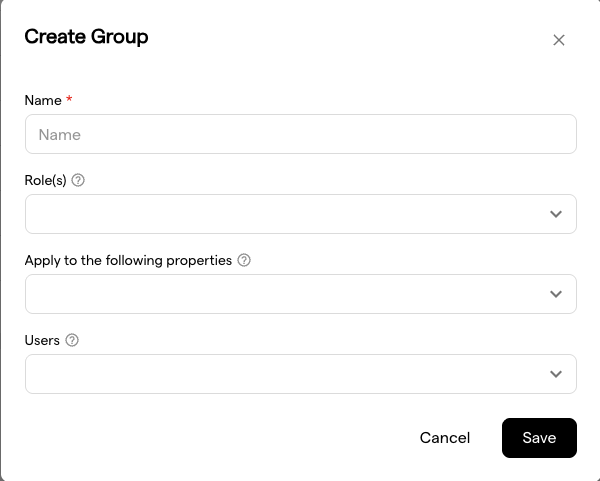
- Create new groups
- Edit a group's assigned roles, member users and property assignments
The Groups table supports the same search and filter behaviour as the Users table.

⚠️ Renaming or deleting a group requires a Support Ticket.
7. Automatic Sync with Task Management and Communication Hub
Any change you make to users, groups, roles or property assignments is automatically synchronised with Task Management and the Communication Hub. Actor lists and assignee options stay up to date without any manual steps.
8. Need Help?
If you need to:
- Permanently delete a user account
- Rename or delete a group
- Assign a restricted role (for example
adminoroperator) to a staff user account - Resolve any access issues not covered above
Request it via a Support Ticket. These actions are not available in the Operations Platform.