Theme Configuration
Theme configuration is how you make the guest-facing experience (the guest journey web app, the kiosk, the second screen and the booking engine) carry your property's brand: your colours, your fonts, your button and app-bar styling. It sits in the Operations Platform under Settings → Theme and is applied hierarchically, so an account-level theme can be inherited or overridden per property.
This article is written for the operator/administrator who configures the theme, not for guests.
1. Who Can Use This
The Theme screen exists at both account and property level. Editing the account-level theme requires the Account Administrator role (account-admin); editing a property-level theme requires the Property Admin role (property-admin). Account Viewers and Property Viewers see the theme read-only. If the screen is missing or read-only for you, your role does not allow it. Ask an administrator to make the change.
2. Where the Theme Applies
The theme drives the guest-facing surfaces, not the Operations Platform itself:
- the guest journey web app (pre-check-in, check-in, my-stay, checkout),
- the self-service kiosk,
- the second screen,
- the internet booking engine (IBE).
Because these surfaces read the same theme, a single change keeps every guest touchpoint visually consistent.
3. Account and Property Inheritance
The theme is part of the frontend configuration, which resolves hierarchically:
- Set a theme once at account level and every property inherits it.
- Override individual values at property level where a property needs to differ (for example a sub-brand with a different primary colour).
A property only carries the values you explicitly override; everything else keeps inheriting from the account.
4. What You Can Configure
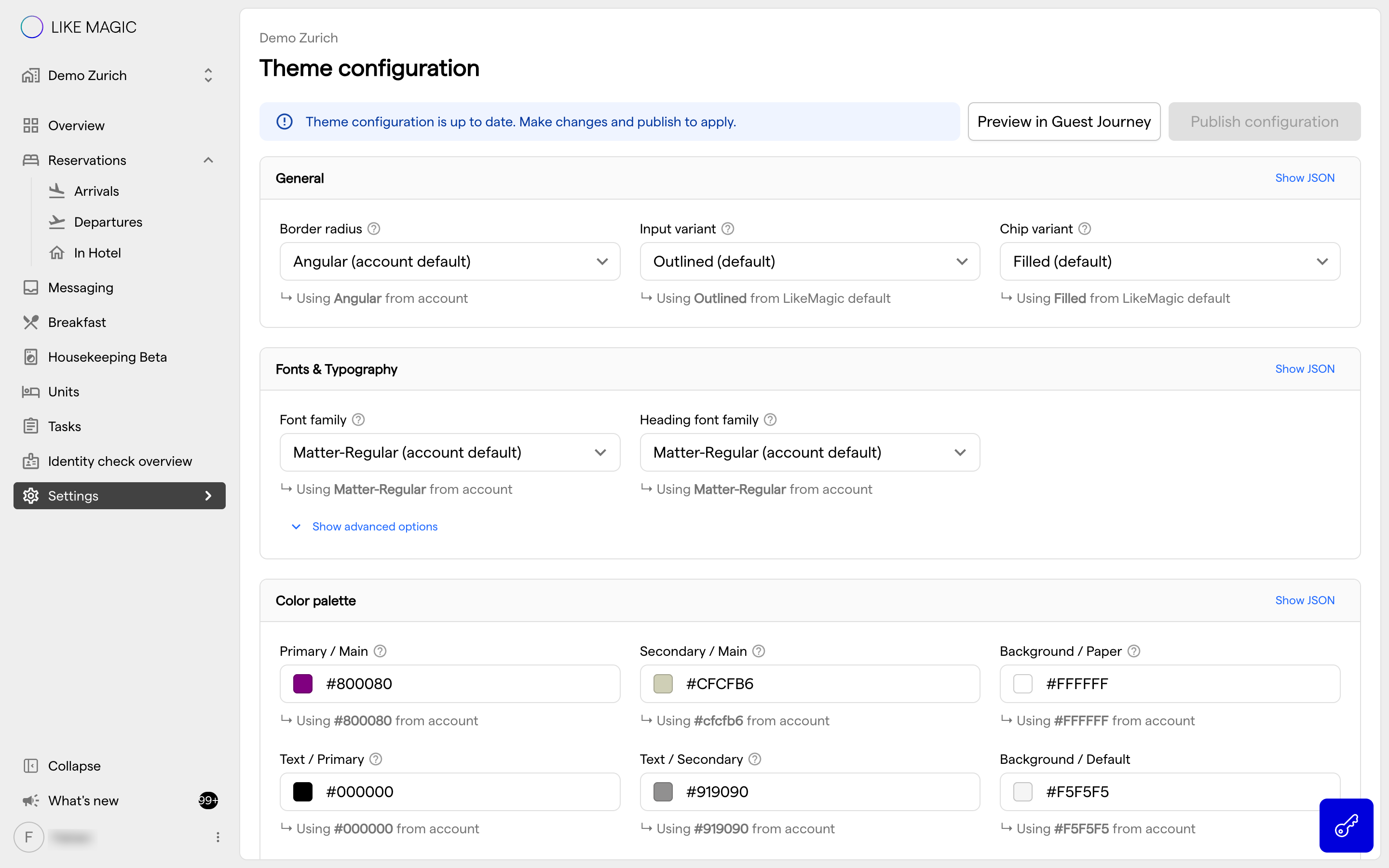
The screen is split into sections, each one a group of related values:
| Section | What it controls |
|---|---|
| General | The overall shape of the interface: rounded or angular corners, and whether inputs and chips are outlined or filled. |
| Fonts & Typography | The body font family and the heading font family for guest-facing text, plus size, weight, letter spacing and uppercasing per text style. |
| Color palette | The primary and secondary colours, the background and text colours, and the status colours (error, success, warning, info). |
| Buttons | Primary and secondary button colours, their border radius, and their font size, weight, letter spacing and uppercasing. |
| App bar | The top-bar colours on mobile and on desktop, its bottom border and its font size. |
| Bottom navigation | The icon colour of the mobile bottom navigation, its letter spacing and uppercasing. |
| My Stay surfaces | The colours of the My Stay navigation, events, hero and article surfaces. |
| PWA | The app name and short name a guest sees when they install the web app on a smartphone. |
Each section shows its everyday values first. Show advanced options reveals the rest, and Show JSON displays the section's stored configuration.
ℹ️ Note: Colours are applied by role (primary, secondary, error, success, warning, info), not pixel-by-pixel. Pick colours with enough contrast that guest-facing text and buttons stay legible on both light backgrounds and photography.
5. Publishing and Previewing
Theme changes are configuration changes: edit, review, publish. Preview in Guest Journey opens the guest journey with your unpublished values applied, so you can look at a change before it goes live. Until you publish with Publish configuration, guests keep seeing the current theme. After publishing, the new theme is picked up by the guest surfaces that read it.
🧩 Tip: Change one section at a time (for example the colour palette) and check it on the guest journey and the kiosk before moving on. That makes it easy to see exactly what each value changed.
6. Conclusion
Theme configuration lets you brand every guest-facing surface from one place, with account-level defaults and per-property overrides. Set your palette, typography, buttons and app bar, publish, and the guest journey, kiosk, second screen and booking engine all update together.