Two-Factor Authentication and Passkeys
A staff user account that signs in to the LIKE MAGIC Operations Platform with email and password can be protected by a second factor: a one-time code from an authenticator app on your phone. A passkey goes one step further and replaces the password and the code with a single confirmation on your device.
This article explains when a second factor is asked for, how you set up an authenticator app or a passkey, how you manage both on your profile, and how an Account Administrator makes the second factor mandatory for the whole team.
1. Who Can Use This Feature
| Who | What is available |
|---|---|
| Every staff user account that signs in with email and password | Set up a passkey, add an authenticator app, and manage both on My Profile |
account-admin (Account Administrator) | Additionally require two-factor authentication for the whole Account (section 6) and create users who sign in with a passkey only. See Role and Access Management |
| Staff user accounts linked to an external sign-in provider such as Google | The passkey and two-factor controls are not shown. These accounts sign in through their provider, and the provider's own protection applies |
ℹ️ Guests are never asked for a second factor. The requirement applies to accounts that hold a role in the Operations Platform.
2. Key Concepts
a) Two-Factor Authentication
With two-factor authentication, the password alone is not enough to sign in. After the password, the sign-in page asks for a one-time code that an authenticator app on your phone generates. The code changes every few seconds, so a stolen password does not open the account.
Any authenticator app that supports one-time codes works. The setup screen names FreeOTP, Microsoft Authenticator and Google Authenticator.
b) Passkeys
A passkey is a sign-in credential that is stored on your device or in your password manager. Instead of typing a password, you confirm the sign-in with your fingerprint, your face or the PIN of your device.
Because a passkey combines the device you hold with a confirmation only you can give, it counts as both factors. When two-factor authentication is required, a sign-in with a passkey fulfils the requirement on its own, and no one-time code is asked for.
c) When a Second Factor Is Asked For
Whether a second factor is required is decided for the whole Account by an Account Administrator (see section 6). When it is required, the way you sign in decides what is asked for.
| How you sign in | What is asked for |
|---|---|
| Email and password | A second factor after the password: the one-time code from your authenticator app, or your passkey. An account that has neither is led through the setup of an authenticator app at this sign-in |
| Passkey | Nothing further. The passkey counts as both factors |
| External provider such as Google | Nothing further. The protection of the provider applies |
When two-factor authentication is not required, you sign in without a second factor. If you added a two-factor device yourself, its code is still asked for after the password.
3. Sign In with an Authenticator App
a) Set Up the Authenticator App at Your First Sign-In
When two-factor authentication is required and your account has no second factor yet (neither an authenticator app nor a passkey), the setup starts by itself the next time you sign in with email and password.
- Sign in with your email and password as usual. The Mobile Authenticator Setup screen opens.
- Install an authenticator app on your phone if you do not have one yet.
- Open the app and scan the QR code shown on the screen. If scanning is not possible, select Unable to scan? and type the displayed key into the app.
- Enter the code the app now shows into One-time code.
- Optionally enter a Device Name, for example "Work phone". The name helps you recognise the device on your profile later.
- Select Submit. The Operations Platform opens.
⚠️ Keep the phone at hand. From now on, a sign-in with email and password asks for a code from this app. If your account also has a passkey, you can confirm with the passkey instead.
b) Sign In with a One-Time Code
- Sign in with your email and password.
- Open the authenticator app and enter the current code into One-time code.
- Confirm. The Operations Platform opens.
An account that has a passkey but no authenticator app is asked to confirm with the passkey at this point.
4. Set Up a Passkey
You can set up a passkey at any time, whether or not two-factor authentication is required for your Account. You need a device that can confirm your identity with a fingerprint, face recognition or a device PIN, or a password manager that stores passkeys.
The passkey controls are shown when passkey sign-in is available for your Account and your account is not linked to an external sign-in provider. As long as your account has no passkey, the sidebar then shows the entry Setup Passkey above your name.
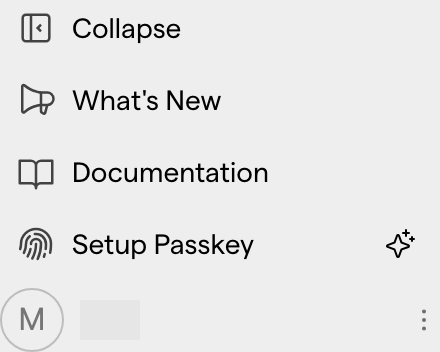
- Select Setup Passkey in the sidebar and confirm the dialog with Yes. Alternatively, open My Profile and select Add Passkey in the Passkeys section.
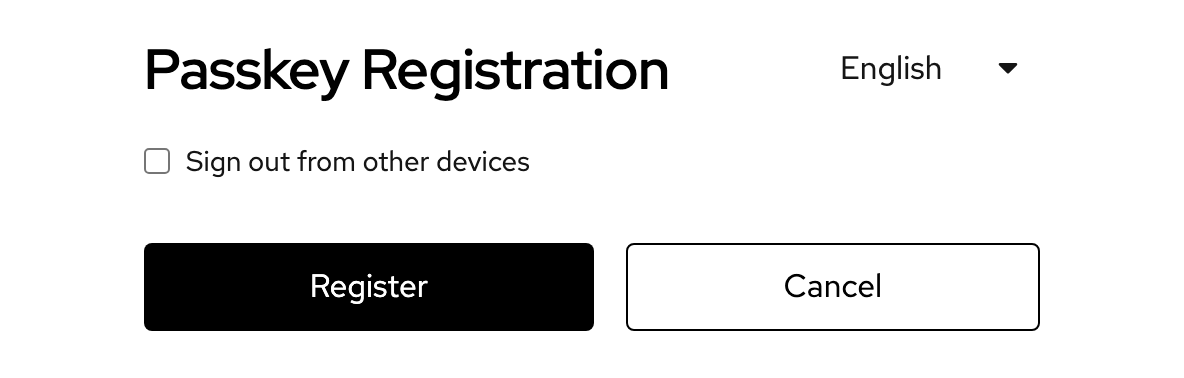
- The Passkey Registration screen opens. If your last sign-in was a while ago, you are asked to sign in again first.
- Select Register.
- Follow the dialog of your browser or device. Choose where the passkey is stored, and confirm with your fingerprint, your face or your device PIN.
- Give the passkey a name, for example "Front desk PC". You return to the Operations Platform.
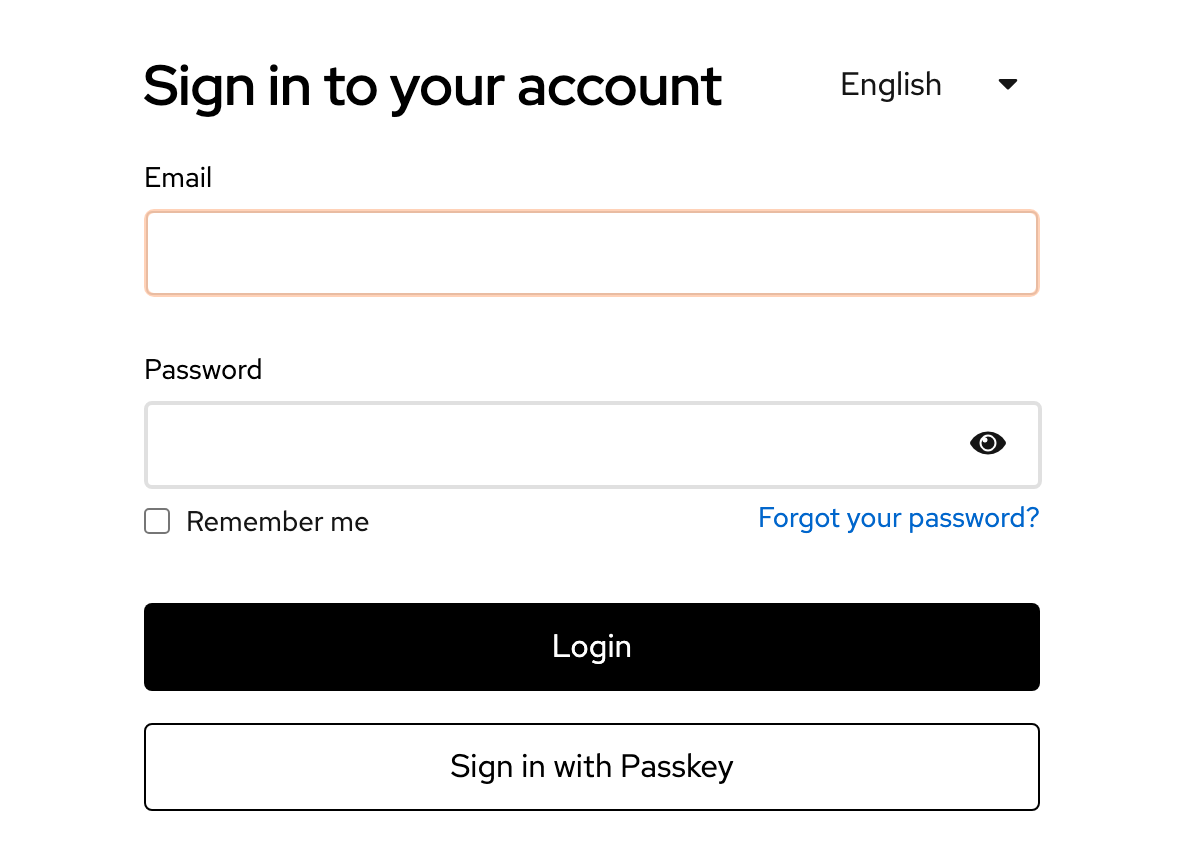
From now on, select Sign in with Passkey on the sign-in page instead of entering your password.
ℹ️ A passkey belongs to the place where you saved it. A passkey saved on one computer works on that computer. A passkey saved in a password manager works on every device where you use that password manager. To sign in on a further device, add a further passkey there.
💡 Shared workstations. For a login that several people use at one workstation, for example at the front desk, a passkey saved on that workstation works without anyone's personal phone.
5. Manage Passkeys and Two-Factor Devices
Your profile lists every passkey and every authenticator app registered for your account. The two sections appear under the same conditions as the Setup Passkey entry in section 4.
- Open the menu (⋮) next to your name at the bottom of the sidebar and choose My profile. With the sidebar collapsed, select your avatar instead.
- Scroll to the sections Passkeys and Two-Factor Devices.

| Section | Add | Remove |
|---|---|---|
| Passkeys | Add Passkey starts the passkey registration described in section 4 | The delete icon next to the passkey |
| Two-Factor Devices | Add two-factor device opens the Mobile Authenticator Setup screen described in section 3 | The delete icon next to the device |
Removing an entry takes you to the sign-in page, where you confirm the removal. If your last sign-in was a while ago, you are asked to sign in again first.
⚠️ Replace before you remove. When two-factor authentication is required and your account is left with neither a two-factor device nor a passkey, the setup starts again at your next sign-in with email and password. When you change your phone, add the new device first and remove the old one afterwards.
6. Require Two-Factor Authentication for Your Team
Whether a second factor is mandatory is not a personal setting. An Account Administrator (account-admin) decides it once for the whole Account, with the switch Two Factor Enforced in the section Two Factor Settings at the bottom of Settings → Role & Access. The setting applies to every property and to every staff user account, whatever its role. It cannot be set for a single property, group or user.

Once the switch is on, the requirement applies at each user's next sign-in. Users who are signed in at that moment stay signed in. An account without a second factor goes through the setup described in section 3 at its next sign-in with email and password, and the setup cannot be skipped. A new Account starts with the switch turned on.
The steps, what changes for each way of signing in, how to see who has already set up a second factor and what to do when someone loses it are described in Role and Access Management.
7. Troubleshooting
| What you see | Why | What to do |
|---|---|---|
| The sidebar has no Setup Passkey entry | Your account already has a passkey, it is linked to an external sign-in provider, or passkey sign-in is not available for your Account | With a passkey already set up, add further ones on My Profile. For the other two causes, see the next row |
| My Profile shows no Passkeys and no Two-Factor Devices section | Your account is linked to an external sign-in provider such as Google, or passkey sign-in is not available for your Account | With a linked provider, the protection of that provider applies and the two sections stay hidden. Otherwise passkey sign-in is enabled per Account by LIKE MAGIC. Request it via a Support Ticket |
| You no longer have the phone with the authenticator app | The one-time code cannot be generated | Sign in with your passkey if you have one, then replace the device on My Profile. Without a passkey, you cannot sign in. Request help with regaining access via a Support Ticket |
| Sign in with Passkey finds no passkey on this device | The passkey was saved on another device or in another password manager | If your account has a password, sign in with email, password and your second factor, then add a passkey on this device. An account that was created with a passkey only has no password. Use the device or password manager that holds the passkey |
| You no longer have the device with your only passkey, and your account has no password | No sign-in method is left | Request help with regaining access via a Support Ticket |
| The one-time code is rejected | The code has expired, or the clock of the phone is wrong | Enter the next code the app shows, and set the phone to automatic date and time |
💡 Set up both. On an account with a password, a passkey and an authenticator app together mean that losing one of them does not lock you out. On an account without a password, register a passkey on a second device.
8. Conclusion
Two-factor authentication and passkeys protect your staff user account even when a password becomes known to someone else. A passkey is the faster of the two. One confirmation on your device replaces the password and the one-time code.
How an Account Administrator requires two-factor authentication for the whole Account and creates users who sign in with a passkey is described in Role and Access Management.