Prismic (Article Ordering)
Arrange the display of Articles in your Digital Guest Portal
Introduction
The Articles within the Digital Guest Portal can be arranged specifically with the Prismic Type Article Ordering. Herewith we guide you through the process.
1. Create the Article Ordering
First you have to go to the main page of Prismic and click on the purple button on the right labeled “Create new”. You will then be able to select what exactly you want to create. There you select the type Article Ordering.
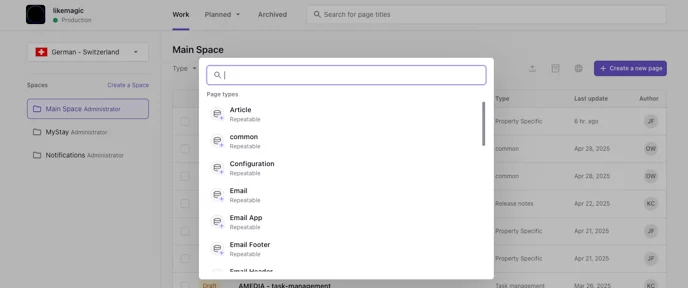
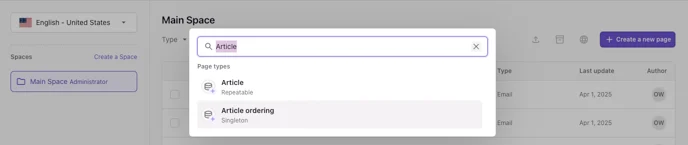
Note: This document is created only once and used for all locations in a multi-property setup. The entry of Property IDs controls at which locations the article is displayed in your Digital Guest Portal.
2. Arrange the Articles
Add Articles
Click on Link to Prismic page within the newly created document:
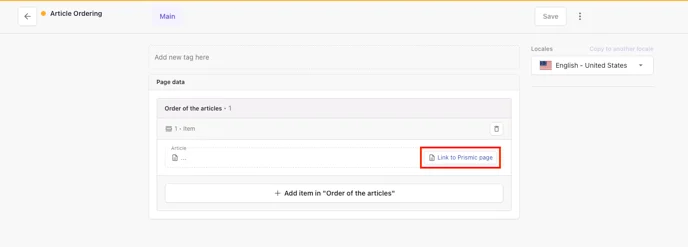
Then select the top-ranked article or link and click on the corresponding tile:
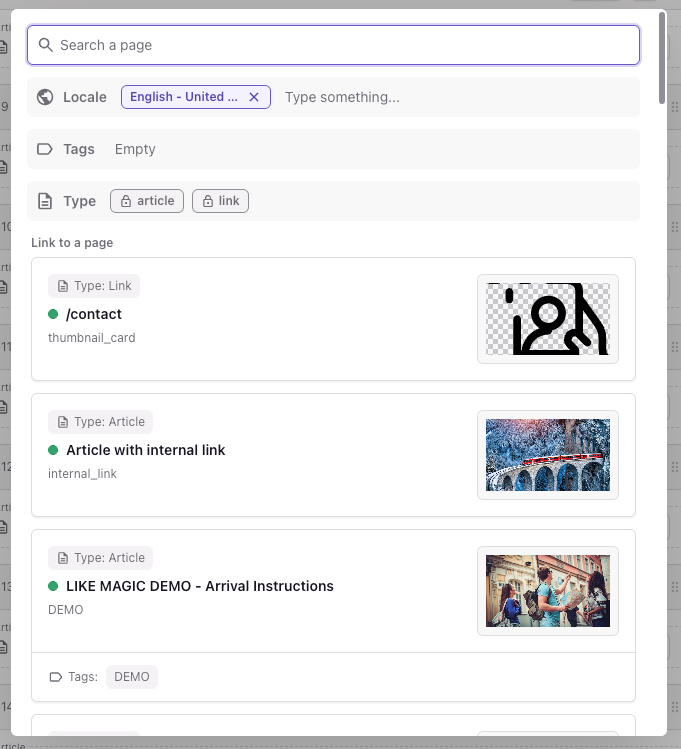
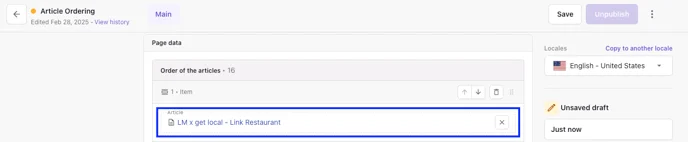
Keep repeating this step until you added all desired articles and links.
Order Articles
The display order of the articles in the Article Ordering document matches exactly how they appear in the Digital Guest Portal.
To change the order, you have two options:
- Use the arrows: Click the up or down arrow next to the article (see screenshot) to move it one position higher or lower.
- Drag & Drop: Click and hold the article row (grey space), drag it to the desired position, and release it
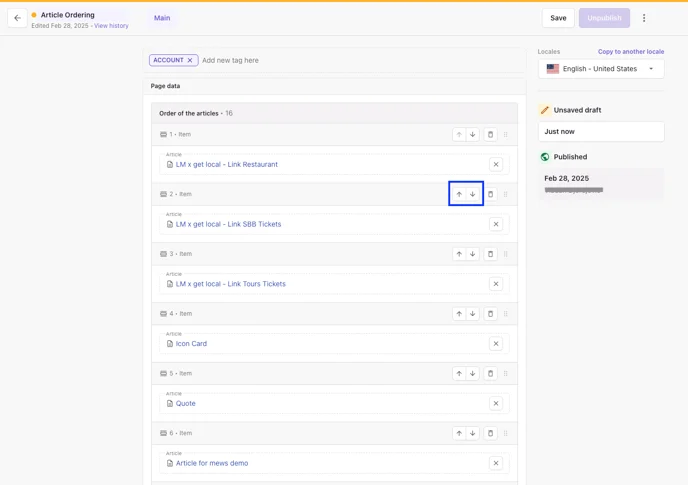
Don't forget to save (click on save in the top right corner) and publish your changes.
3. Future Changes
Newly created articles or links are not displayed automatically. They must first be manually added to the Article Ordering document in order to appear in the Guest Portal.
4. Conclusion
With Article Ordering, you control the order in which your articles appear in the Digital Guest Portal.
Remember to save and publish after every change so your updates become visible immediately. When you create new articles or links, make sure to manually add them to the Article Ordering document. Only then will they appear correctly in your portal.