Prismic (Navigation Items)
How to organize the navigation items in the Guest Portal.
1. Navigation Items
This article explains how to manage the navigation items in the Digital Guest Portal.
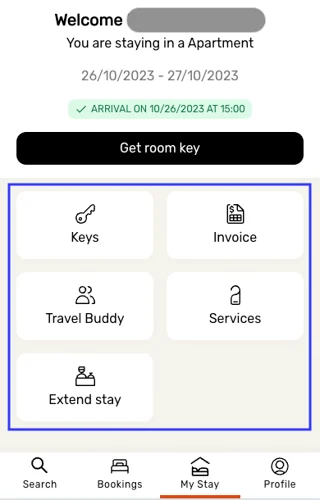
When referring to navigation items, we mean the following elements:
2. Default (Automatic)
If you do not create a Configuration document, the built-in LIKE MAGIC tiles are displayed automatically. A tile only appears when your property has the matching feature or content, so the set differs per property. The screenshot above shows:
- View room keys
- View invoice
- Add travel buddies
- Book services
- Extend stay
3. Configuration (Manual)
Create the Configuration Document
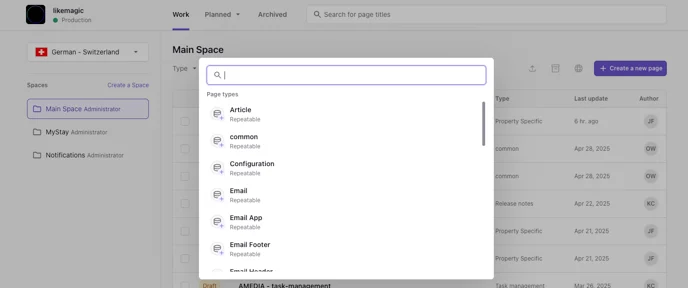
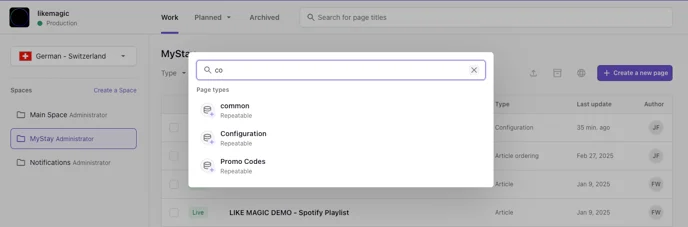
Using the Prismic document type Configuration, the navigation items can be managed manually. To do so, create a new Configuration document in Prismic by clicking the purple button on the right labeled "Create new". You will then be prompted to select the document type you wish to create.
Fill in the Configuration Document
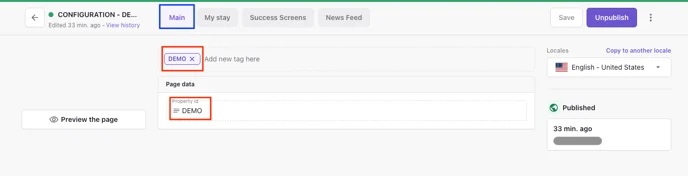
Page Main:
- Start by entering the PMS Property ID into the field labeled Property ID, located under the section "Page data". You will find this ID in your PMS (Property Management System).
- Optionally, add a location-specific tag (e.g., "DEMO").
Page My Stay:
On this page, you will define the icons, titles, and the linked landing pages for each tile.
The order of the items in the Prismic document determines the display order.
a) Custom Tiles
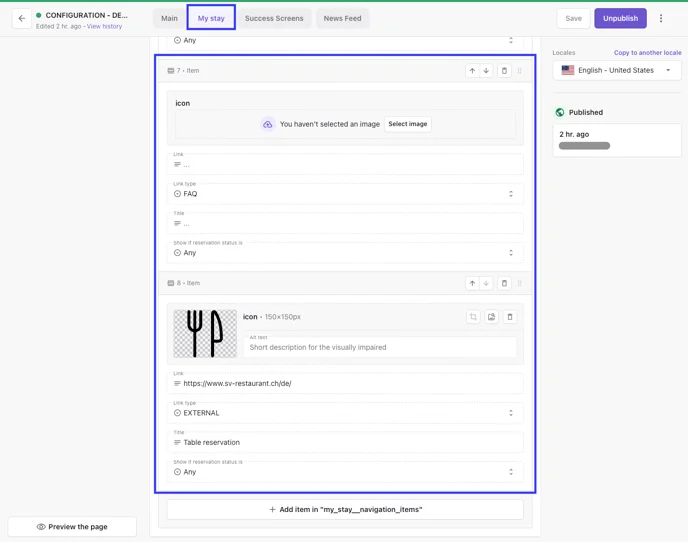
If you would like to add your own content, use the Link Types "FAQ" and "EXTERNAL", as shown in the following example:
b) LIKE MAGIC Tiles
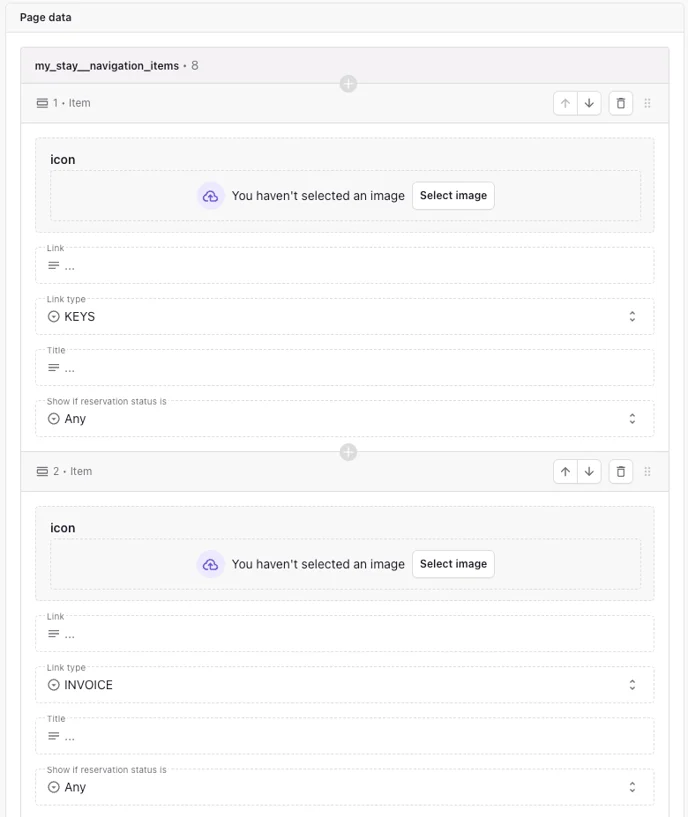
If you want to continue displaying built-in LIKE MAGIC functions, you must also define them explicitly in the document. If you do not want to override the icon or title, you may leave those fields empty.
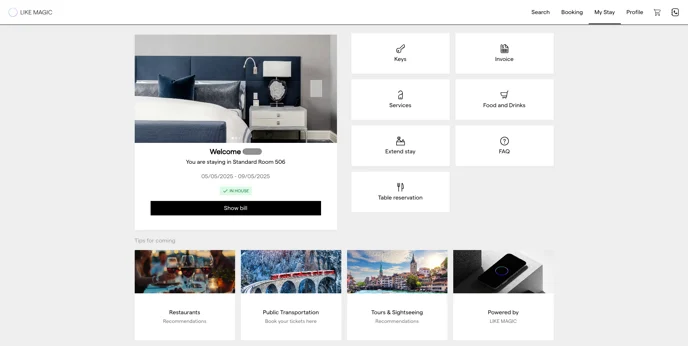
Here’s an example of a Digital Guest Portal screen in desktop mode with the added tiles "FAQ" and "Table Reservation", along with the activated feature "Honesty Shop" and its associated tile "Shop".
c) Hide tiles
You also have the option to exclude specific Navigation Item tiles.
Example: If your hotel does not support digital room keys, you may not need the "Room Key" tile and its associated landing page.
How to: Simply make sure that the Link Type "KEYS" is not included in the Configuration document.
d) Show a tile only to certain guest segments
Each navigation item carries the field Only displayed for segment.
- Leave the field empty and the tile is shown to every guest, as before.
- Enter one or more segment codes, separated by commas, and the tile is shown only to guests whose reservation carries one of those segments.
The codes are the ones from the segment rules of your property, see Guest Segmentation.
ℹ️ A tile limited to segments needs a reservation to match against, so it stays hidden wherever no reservation is known.
4. Conclusion
The navigation items can either be displayed automatically using the default features or managed manually through the Prismic Configuration document.
Manual configuration gives you full control over content, order, and display, including custom links and LIKE MAGIC features.
Tiles you do not enter in the Configuration document are not displayed.