Set Up the Mara Integration
Introduction
Mara (MARA Solutions GmbH) is an AI-powered guest review and feedback solution. By connecting Mara with LIKE MAGIC, Mara can read reservation, property, and guest profile data and create tasks in Task Management (for example, to follow up on guest feedback).
The connection is fully self-service. You create a Service Account in LIKE MAGIC, then enter four connection values in Mara.
1. Who Can Connect Mara?
👤 Creating and managing Service Accounts requires the Account Administrator role (account-admin) in the Operations Platform. If you don't have this role, contact your Account Administrator. On the Mara side, you need access to your Mara account's integration settings.
2. How the Integration Works
🧩 Mara connects to LIKE MAGIC through the public LIKE MAGIC API using a Service Account. A Service Account is a technical access (not a regular Staff User Account) that allows external software to securely exchange data with LIKE MAGIC. It provides two credentials: a ClientId and a Client Secret.
With the recommended scopes, Mara can:
- Read and update reservation data to match guest feedback to stays
- Read property, Unit, and Unit Group information
- Read and update Guest Profiles
- Create and update tasks in Task Management, including task templates
The setup is self-service. You don't need LIKE MAGIC to activate anything for you. All required values come from your Operations Platform and your API documentation.
3. Create a Service Account in LIKE MAGIC
- Log in to the Operations Platform and open Settings.
- Under Account, open Service Accounts.
- Click New service account.
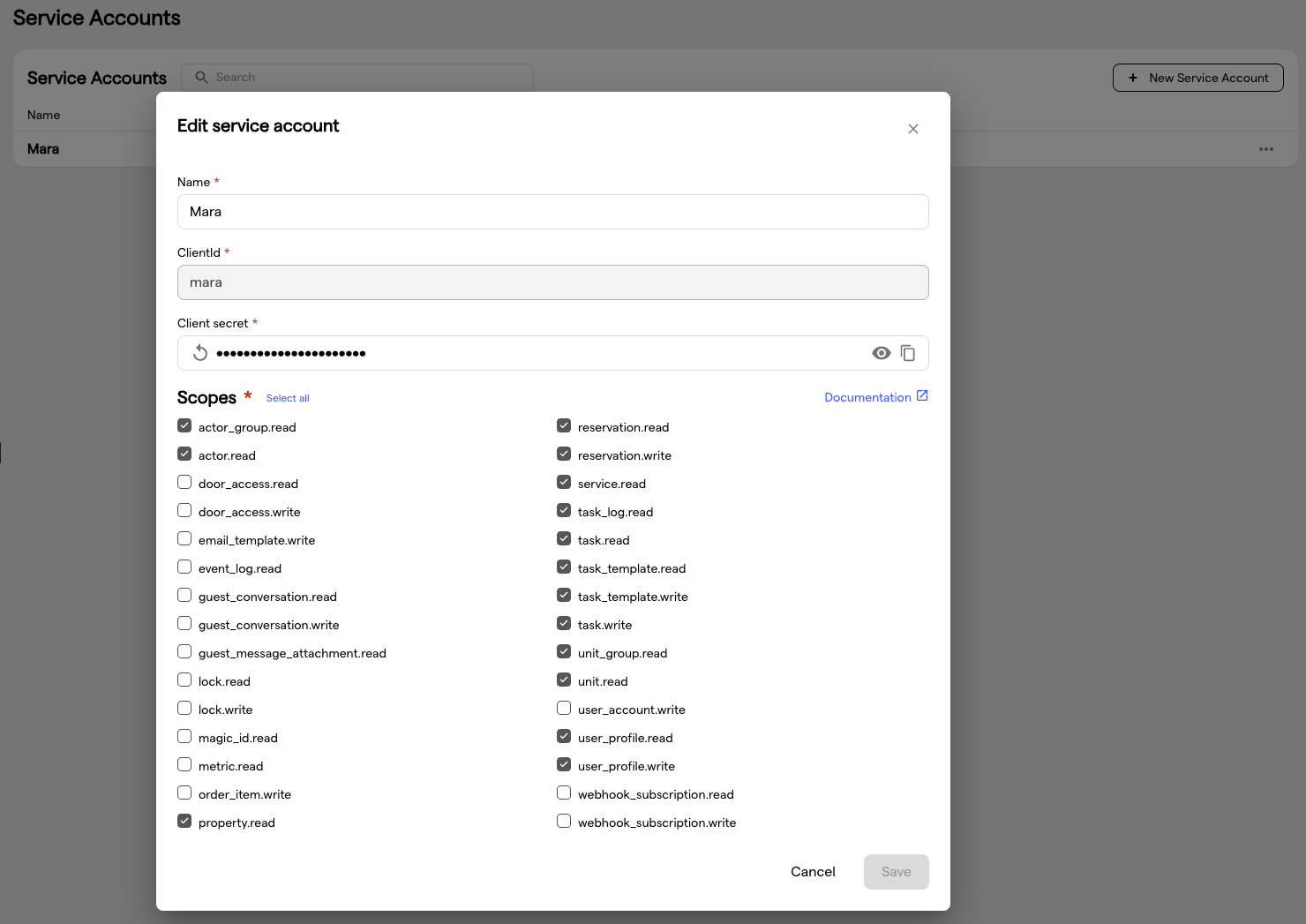
- Enter a Name to identify the integration (e.g.,
Mara). - Enter a ClientId (e.g.,
mara). Use lowercase without spaces or special characters. - Generate a Client Secret: treat it like a password.
The ClientId cannot be changed after the Service Account has been created. Choose it carefully.
📝 For full details, see the Manage Service Accounts guide in the LIKE MAGIC API documentation.
4. Select the Recommended Scopes
Scopes define what Mara is allowed to do with the Service Account. In the Scopes section of the Service Account, enable the following for the Mara integration:
| Area | Scopes |
|---|---|
| Reservations | reservation.read, reservation.write |
| Tasks | task.read, task.write, task_template.read, task_template.write, task_log.read |
| Property & Units | property.read, unit.read, unit_group.read |
| Guest Profiles | user_profile.read, user_profile.write |
| Staff & Teams | actor.read, actor_group.read |
| Services | service.read |
💡 Follow the principle of least privilege: only enable the scopes listed above. You can adjust the scopes later by editing the Service Account, but the ClientId stays fixed.
5. Collect Your Connection Values
Mara asks for four values to establish the connection:
| Field in Mara | What to enter |
|---|---|
| Base-URL | The monitoring address of your LIKE MAGIC environment, e.g. https://monitoring.<your-domain>. This is the same address that hosts your API documentation. |
| Client-ID | The ClientId of the Service Account you created in section 3 (e.g., mara). |
| Tenant-Name | The technical name of your LIKE MAGIC Account. The Service Accounts page shows it as Tenant under Connection details. |
| Client-Secret | The Client Secret of the Service Account you created in section 3. |
The Base-URL is not the address of your Operations Platform (backoffice.<your-domain>). Always use the monitoring address.
If you share these values with your Mara contact instead of entering them yourself, use a secure one-time link. Never send credentials in a plain email.
6. Connect in Mara
- In Mara, open the LIKE MAGIC integration dialog (Connect LikeMagic integration).
- Enter the Base-URL, Client-ID, Tenant-Name, and Client-Secret from section 5.
- Click Connect.
✅ Once connected, Mara starts exchanging data with LIKE MAGIC via the API. No further configuration is required in the Operations Platform.
7. Troubleshooting
The connection fails although all values look correct
❌ A common cause is entering the Operations Platform address as the Base-URL.
✅ Use the
monitoringaddress of your environment instead (see section 5).
Your property was previously connected to Mara through your PMS
Mara connects to one source system at a time. If your property was previously connected to Mara through your PMS (for example, Apaleo), ask the Mara team to disconnect that connection first before you connect via LIKE MAGIC.
You entered the wrong ClientId
The ClientId of a Service Account cannot be renamed. If you need a different one, create a new Service Account and delete the old one.
You don't know your Tenant-Name
Open Settings → Account → Service Accounts. The Connection details block on that page lists Tenant, alongside the Token Endpoint and the API Base URL.
8. Conclusion
The Mara integration takes only a few minutes to set up: create a Service Account with the recommended scopes, collect your four connection values, and connect in Mara.
Useful links:
- 🌐 Manage Service Accounts guide: creating Service Accounts and the full scope reference
- 🌐 Authentication guide: how Service Account credentials are used technically
- 🌐 LIKE MAGIC API documentation: full developer platform overview