Door Access
The Door Access configuration allows you to define which doors are visible and accessible to guests or staff.
Introduction
Before you can adjust door access in the Operations Platform, the property's door provider must be connected and its locks configured. This connection is set up by LIKE MAGIC during onboarding, not on a self-service page. Until then, the Settings within the Operations Platform offer no door-access adjustments; if they are missing for your property, request the setup via a Support Ticket.
This settings menu gives you an overview over your door configuration.
How Door Access Fits Together
Door access is configured through up to four related surfaces under Settings, and which of them your property shows depends on its door provider: Door Access Encoders appears only for providers that encode key cards, and RemoteLock only on a RemoteLock property. This overview covers the first; the others have their own sections below or their own guides:
| Surface | What it configures | Where |
|---|---|---|
| Door Access | The locks themselves (provider, accessibility, unit mapping, sort priority) | This page |
| Door Access Times | Access timing for public doors | Section 6 |
| Door Access Encoders | Key-card encoders for kiosk/desk card dispensing | Section 7 |
| RemoteLock | The RemoteLock account connection | RemoteLock |
Each property runs one door provider (its lock system). When you edit and publish the mapping, the platform validates it and reports any conflicts before the change takes effect. Door Access Checks (section 8) decide whether the platform monitors, per reservation, that private and public door access was actually provisioned.
Door state follows the property's PMS. Confirm a property's PMS before troubleshooting door behaviour.
Related guides. For what guests experience (the open-door quick action, Wallet keys, in-app unlock and kiosk cards), see Mobile Key & Door Access for Guests. For a specific lock system, see its guide under Door Access & Locks, for example Assa Abloy (Vostio).
1. Feature Overview
You can find Door Access under Settings in the left-hand menu. The black areas in the screenshot below are customer-specific details that we had to hide.
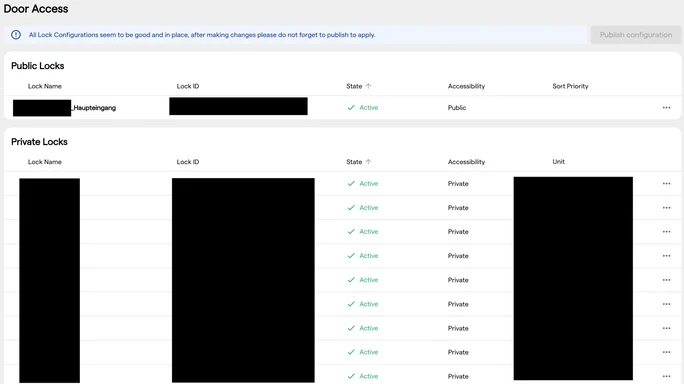
The locks are grouped by the accessibility options explained further below. Each list can be sorted by Lock Name, Lock ID, State, Accessibility and Sort Priority.
The categories explained:
- Lock Name is the name assigned to the lock in your locking provider’s system.
- Lock ID refers to the unique identifier (UUID) of the lock, provided by the door lock system.
- For Public Locks, you can define the Sort Priority, which determines the order in which the locks are displayed (more on that later).
- For Private Locks, you’ll see the assigned unit, indicating which room the lock is linked to.
2. Accessibility
Under Private Locks, you’ll find all door locks, which the guest can only open once the room is clean and the reservation is checked-in. If your property uses a special door-lock integration with its own access rules, those agreed rules apply instead.
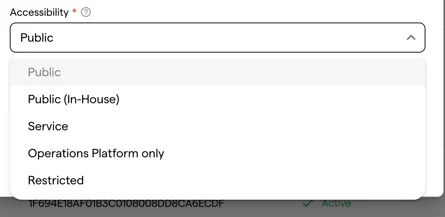
Next to the classic hotel room door locks, other doors can be integrated with other accessibility states:
- Public: All common doors that are accessible to multiple guests within the set timing frame.
- Public (In-House): All special doors which keep guests from entering "guests-only" areas. E.g. when guests are checked-in but the room isn't ready yet, they can use public In-House Doors for a lounge or other guest areas.
- Service: Every door which is only accessible through a booked service
- Operations Platform only: This is meant for "back of house" doors for staff.
- Restricted: All other doors which shouldn't be connected.
3. Set-Up & Mapping
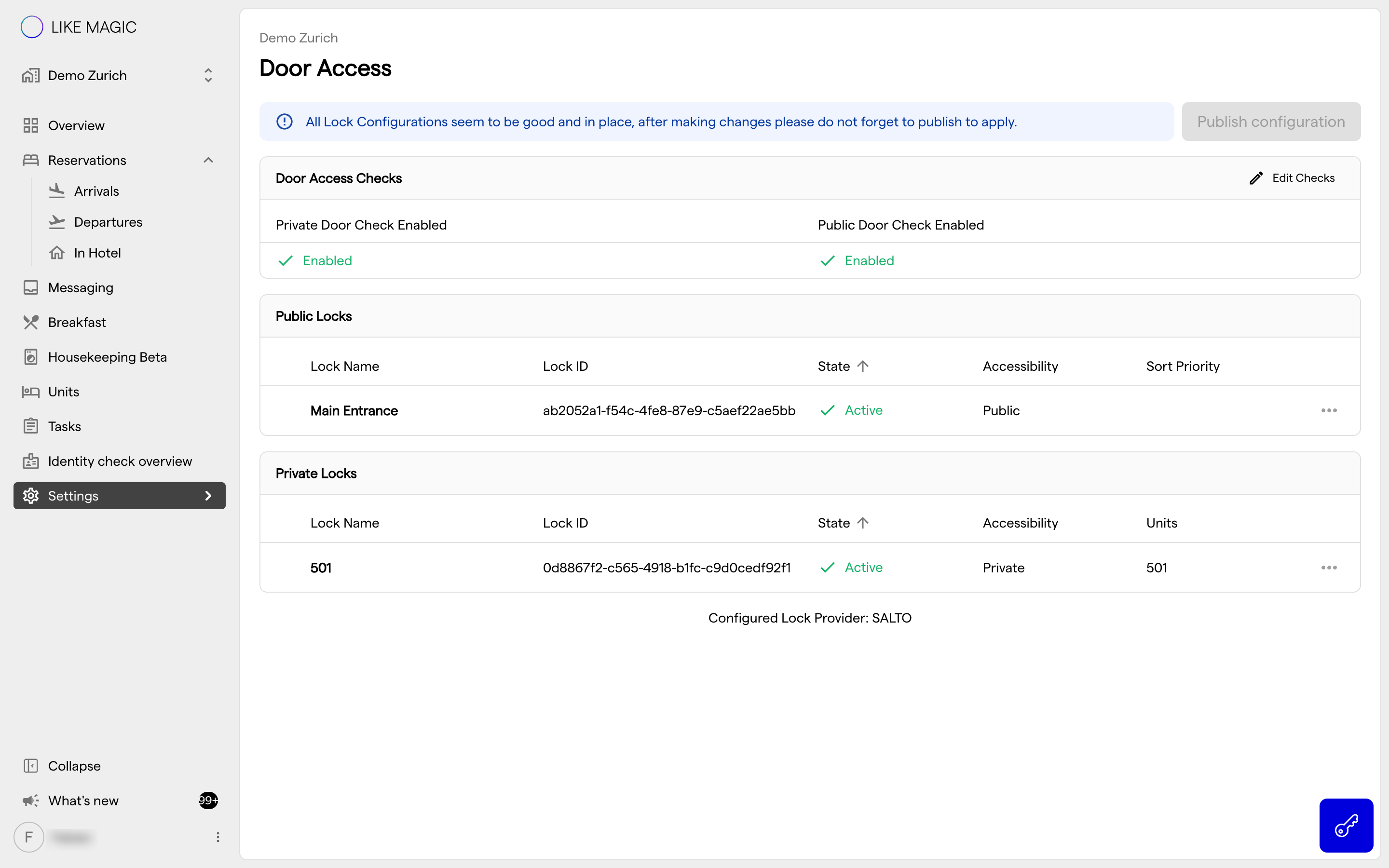
a) Set-Up
Technical guides for lock system integrations are collected under Door Access & Locks.
Caution: Be sure to clarify system requirements, expectations, and technical possibilities in detail in advance to avoid misunderstandings.
Once the technical connection has been completed, you can continue mapping the locks and their accessibility on the Operations Platform.
If Key Cards are used in combination with Salto Space
When using Salto Space, you will need to define lock groups in your Salto system to manage key card access to specific hotel areas. Access permissions for a guest’s key card are determined by these lock groups, rather than by individual public doors. This and the mapping ensures that each guest can enter only the areas assigned to their designated lock group.
b) Mapping
All locks are listed in one overview, ready to be mapped to the right accessibility and, for private doors, to the right PMS unit.
A lock whose name matches a PMS unit arrives already set to Private with the unit assigned. A lock the platform could not match arrives as Restricted and needs the correct accessibility, and for a room door the unit as well:
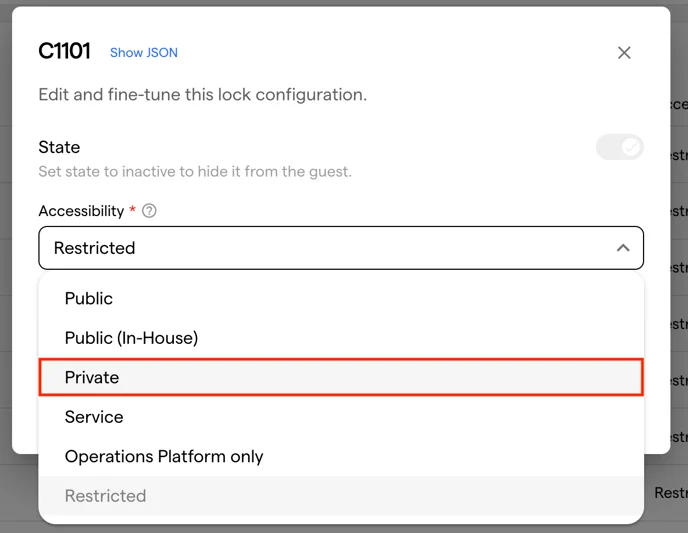
Then, assign the room from the drop-down menu to complete the mapping. Here is an example. The locks are set to the correct accessibility and the room is assigned as follows:
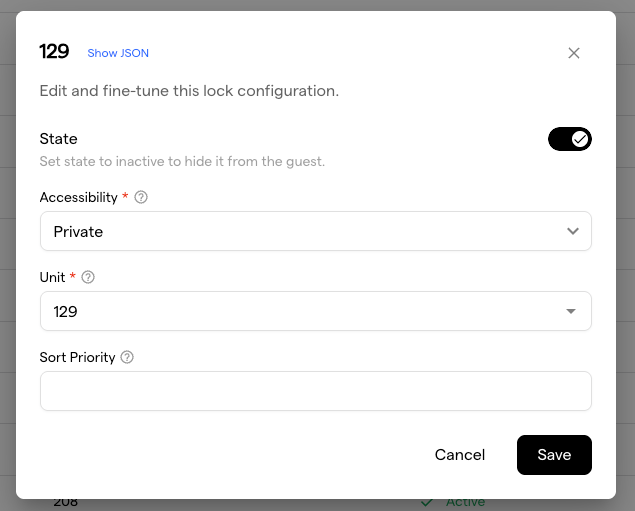
Important: Save and publish the configuration so that your changes take effect.

⚠️ Special Cases
Removed or wrong Doors: Error Messages shown
If a door was removed on the provider side, or was connected but is not needed, the door shows an error explaining that it must be removed. Change the mapping to Restricted so you can save and publish the configuration again.
Component Rooms
Supported by the Salto KS integration only.
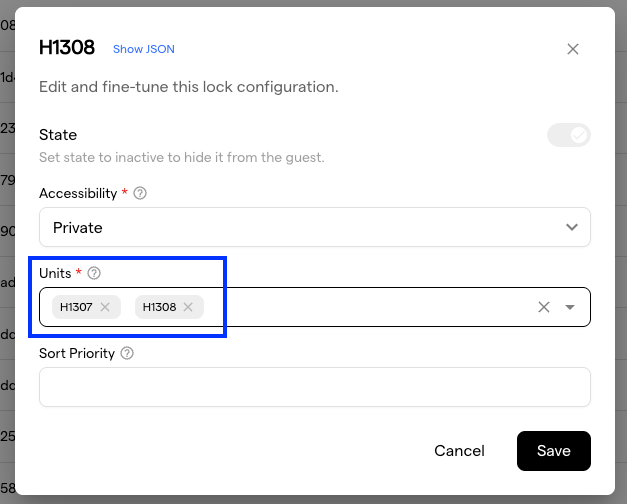
If a family-suite scenario has to be mapped and H1308 would be the family suite with two adjoint rooms, map the two rooms from the PMS (in this case H1307 and H1308) with the door lock which should be opened by guests of the rooms (Units) selected:
4. Edit Door Locks
a) Private Door Locks
When you click on the three dots on the right-hand side of a Private Lock, you have the option to edit the lock. In the edit view, you can:
-
Set the status to inactive so the lock is no longer visible
-
Change the accessibility, for example:
- Public: visible as public door within defined timing
- Public (In-House): visible and usable only for in-house guests
- Service: accessible only after buying a service
- Operations Platform only: visible only for staff
- Restricted: no access
These settings allow you to control who has access to each lock based on their role or stay.
The Sort Priority defines the order in which the keys will be shown to the guest. Note:
- Private keys will always appear at the top of the list.
- For other keys, a lower number means a higher position (they will appear first within their category).
b) Services
To sell services connected to a key, two things need to be aligned properly:
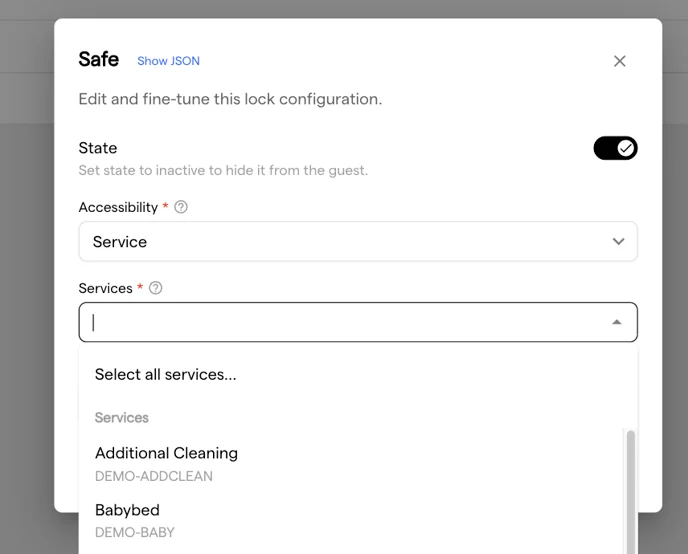
- The lock's Accessibility has to be set to Service in the Door Access configuration.
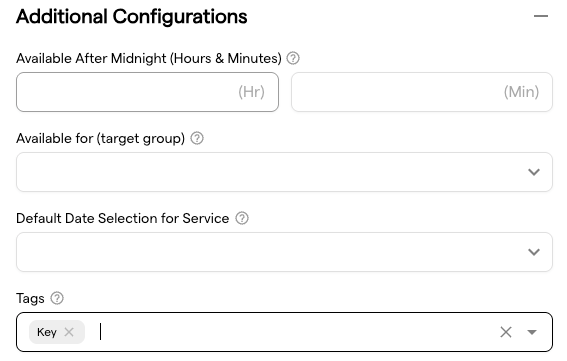
- Go to Settings → Services and create the required service if it does not already exist. In the service configuration, add the tag Key under Additional Configurations:
c) Other Door Locks
This allows you to control the display order of public or shared locks, such as main entrances or spa areas. For public doors, the view looks like this:
-
You can set the state to active or inactive. If inactive, the door will not be visible to the guest.
-
Under Accessibility, you can choose the access level (e.g. Public, Service, etc.).
-
The Sort Priority field lets you define the order in which the public doors will appear in the guest’s app.
- Lower numbers will be shown first among public locks.
- Private locks will always appear above public ones.
Important:
Once you have made your changes, click Publish configuration to apply them.

5. Sync Locks from Your Door Provider
When locks change in your door provider's system (locks added, renamed, or removed), LIKE MAGIC pulls those changes into the property's door configuration. Request the sync via a Support Ticket. The sync is run by LIKE MAGIC and not from a self-service button in the Operations Platform.
a) Request a Sync
- Report the change via a Support Ticket and name the locks that were added, renamed or removed.
- LIKE MAGIC merges your stored configuration with a fresh sync from your door provider and reviews the result with you. Nothing is stored until the merged configuration is published.
- After publishing, the new locks appear in your lock list. Set the Accessibility of new locks, assign Units to private locks and adjust the Sort Priority as described in section 3, then publish the configuration.
ℹ️ For Salto Space, the sync covers Lock Groups as well as individual locks.
b) When a Sync Is Possible
A sync is only possible when all of the following hold:
- Your lock system supports configuration sync. Not every provider does. With Salto KS and Codelocks, for example, lock changes cannot be pulled in this way and are set up manually instead. Request them via a Support Ticket.
- The provider connection is fully configured. The sync needs the provider credentials and, for some systems, parameters that are established during the very first sync. If your property's connection is not fully set up yet, request the setup via a Support Ticket.
- The current configuration has no unresolved conflicts. Resolve the conflicts shown on the page and publish first, then the sync can run.
6. Access Timing of public doors
Settings → Door Access Times controls when guests are allowed to enter the public areas of the property. To change the times, click Edit Times.

7. Connect Encoder Devices
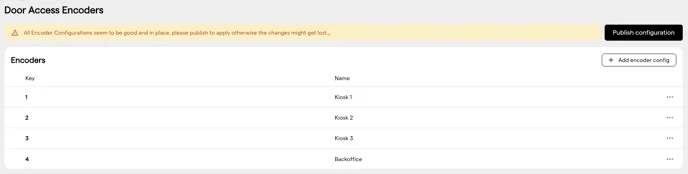
Settings → Door Access Encoders is where key card encoders are added, so that guests or the host team can encode cards on them. The required encoder key comes from your locking system partner or from the locking system software.
Where to find that value per lock system is described in our Door Access & Locks guides.
8. Door Access Checks

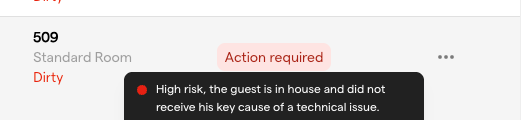
The Door Access Checks at the top of the Door Access page define whether private and public doors are in use, and therefore whether the platform monitors for each reservation that the keys were provisioned successfully. If they were not, the reservation is flagged with a state and colour in the reservation list:
9. Conclusion
Door Access centralizes how visibility and permissions are managed for every lock. Once the door provider is connected, set each lock’s Accessibility settings.
Encoding devices and the timing of keys for public areas are controlled in separate menus.