RemoteLock Integration
This is a technical guide for integrating the RemoteLock access control system with LIKE MAGIC
Introduction
On this page, you will find an overview of the integration between RemoteLock and our services, including the access modes available for guest access. We will outline how to connect your RemoteLock system through a secure authorization process, explain how LIKE MAGIC manages guest access throughout the stay, and show how your staff open RemoteLock doors from the Operations Platform.
Where RemoteLock is configured. RemoteLock has its own per-property configuration page under Settings → RemoteLock, separate from the general Door Access settings. This is where you run the authorization flow described below and manage the connection. The page is a per-property setting, visible to the Property Admin and Property Viewer roles, and it appears only once RemoteLock has been enabled for the property (request it via a Support Ticket). RemoteLock is also selectable as a lock provider within Door Access, but the account connection itself lives on the dedicated RemoteLock page.
1. RemoteLock Access Modes
Our integration with RemoteLock offers two ways of opening doors:
a) "Hold to unlock"
Guests open doors remotely through our web application. They press and hold the Hold to unlock control for the door, and the door unlocks.
b) PIN Code Access
Alternatively, guests can use PIN codes for door access, offering a traditional yet secure method of entry.
c) Hybrid Configuration
A property runs one of these combinations:
- Hold to unlock only: guests open doors through the web application only
- Hold to unlock and PIN: guests can choose between the web application and a PIN code
- PIN only: guests open doors with a PIN code only
The combination is set for the property by LIKE MAGIC on the first sync of your locks, not on a self-service page. To change it, request the change via a Support Ticket.
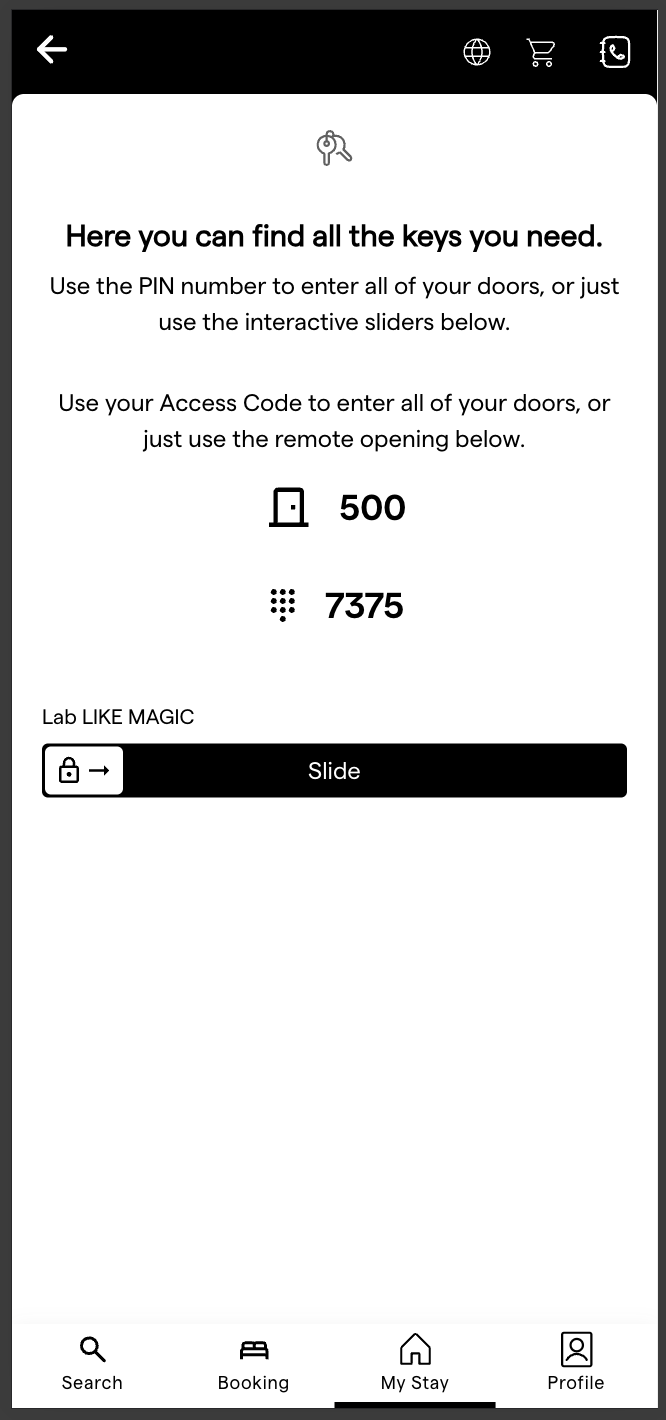
Please find here an example of the combined method, hold to unlock and PIN:
2. Connecting RemoteLock to LIKE MAGIC
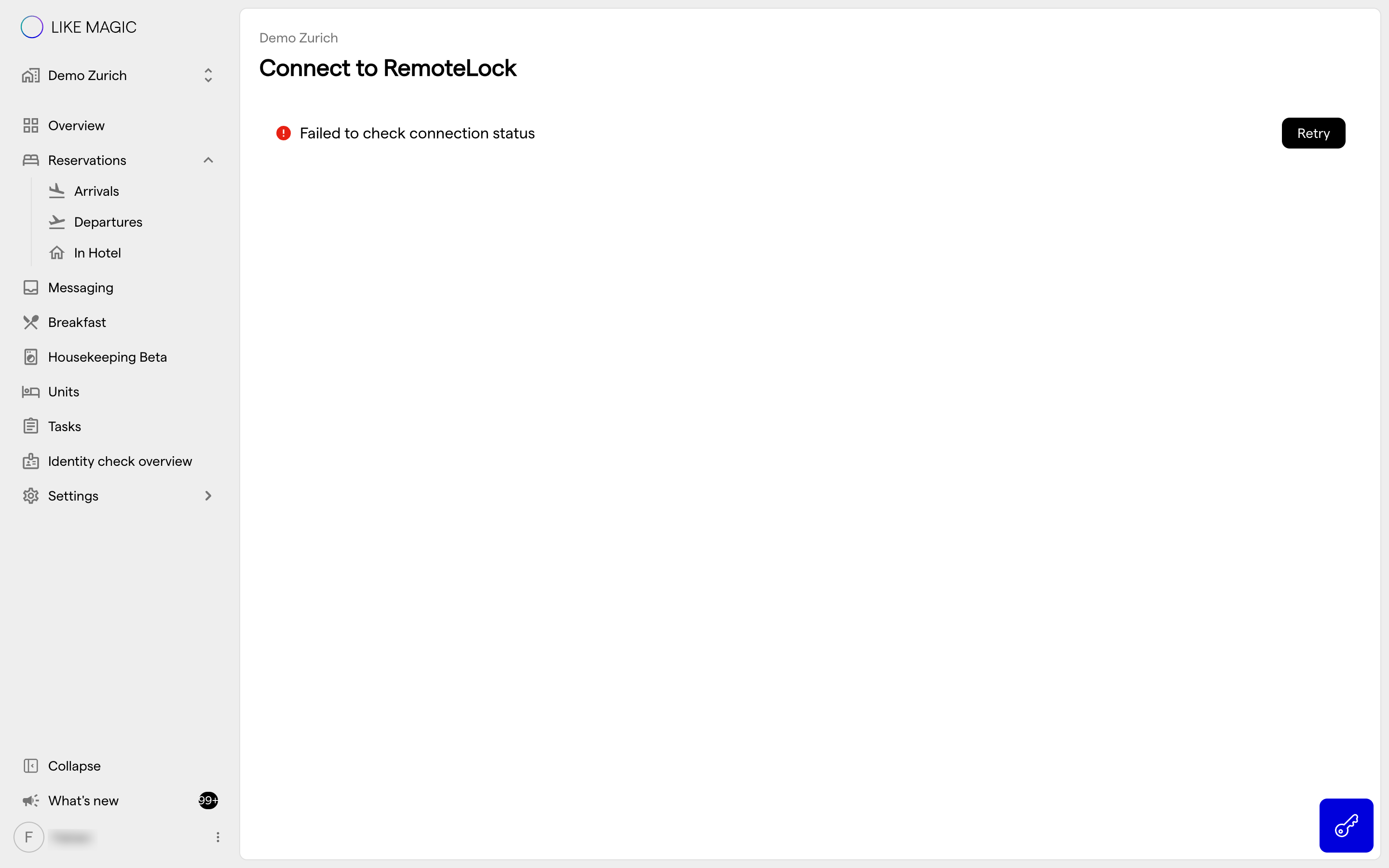
You connect your RemoteLock system to LIKE MAGIC through an authorization process in which you grant LIKE MAGIC access to manage your locks and guests.
Preparation
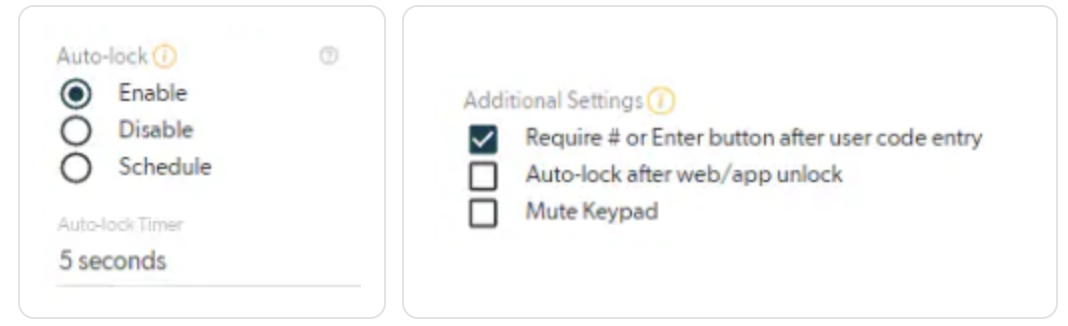
The Device Configuration within the Access Manager of RemoteLock must be set as follows:
Auto-lock=enabled
AdditionalSettings=Auto.lock after webApp unlock
Authorization Steps
Follow these steps to connect your RemoteLock account:
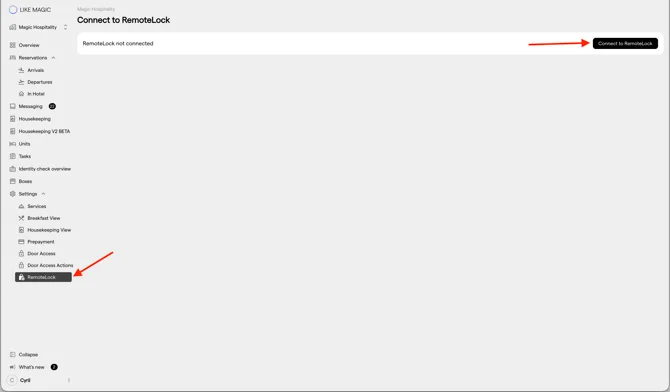
- Select RemoteLock: In the Operations Platform, choose RemoteLock to start the connection
- Initiate Connection: Click Connect to RemoteLock to start the authorization process.
- Log into RemoteLock: You will be redirected to RemoteLock's secure login page. Enter your RemoteLock credentials.

- Grant Access: Authorize LIKE MAGIC to access your RemoteLock account by clicking "Authorize". This gives LIKE MAGIC permission to manage door access for guests on your behalf.
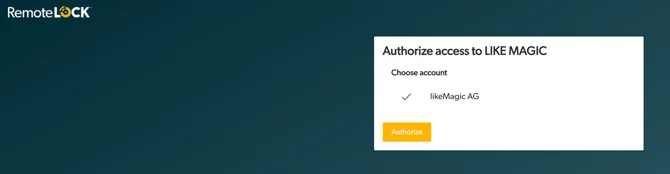
- Connection Complete: Once authorized, you'll be redirected back to LIKE MAGIC, and your RemoteLock system will be successfully connected. At any point in time you can also revoke the connection to RemoteLock.
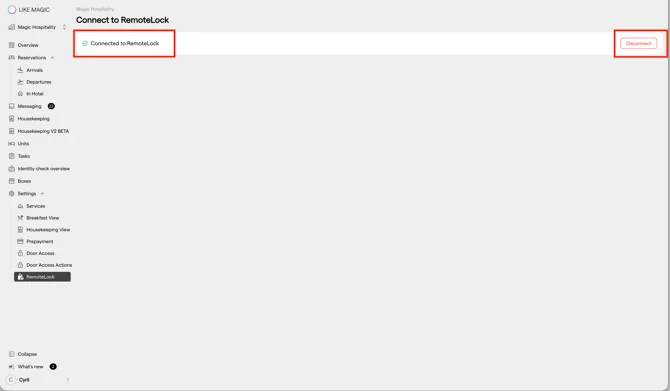
Security Note: The authorization process follows industry-standard OAuth protocols. LIKE MAGIC only requests the permissions needed to manage guest access and does not have access to your RemoteLock account credentials.
3. How LIKE MAGIC interacts with RemoteLock
Our integration with RemoteLock follows a dynamic guest and access management approach:
Guest Creation Process
For each reservation, LIKE MAGIC automatically:
- Creates a RemoteLock Guest named
Reservation - <reservation id> - LIKE MAGIC- Example:
Reservation - RES123456 - LIKE MAGIC
- Example:
- If PIN access is enabled for the property, RemoteLock issues an access code for the reservation and its format follows your RemoteLock configuration. The code is held in LIKE MAGIC and is not shown on the guest's keys page, so pass it to the guest through your own guest communication.
Dynamic Door Access Management
LIKE MAGIC manages access permissions in real-time:
- Access Granting: When a reservation becomes In-House, door access permissions are automatically added to the guest
- Access Removal: When a reservation is Checked Out, access permissions are dynamically removed
- Configuration-Based: Access permissions are applied according to the hotel's specific configuration and door setup
Real-Time Synchronization
- Access rights are updated immediately based on reservation status changes
- The system ensures guests only have access during their valid stay period
- All changes are logged and tracked for security and auditing purposes
4. Opening RemoteLock Doors from the Operations Platform
Your staff open RemoteLock doors in the Operations Platform with the same hold-to-unlock control that guests use on their keys page. This lets your team, including an external cleaning provider working in the Operations Platform, enter units and common areas without a separate PIN code for every door. Press and hold the control until it shows Unlocked, and the door unlocks.
a) Public Doors (Key Button)
The key button floats at the bottom right of the Operations Platform. It opens Public keys, the list of the property's doors that are not tied to a single unit (for example the main entrance). Each door shows its name and a Hold to unlock control.
The list contains every RemoteLock door whose accessibility in Door Access is Public, Public (In-House), Service or Operations Platform only. Doors set to Restricted do not appear. Who sees the key button, and on which pages, is set in Operations Platform Settings.
b) Doors of a Reservation (Keys Tab)
The Keys tab of the reservation detail drawer shows one control per door the reservation has access to, labelled with the door's name. Hold it to unlock that door, for example to let a guest into their unit.
The tab lists the doors LIKE MAGIC has granted to the reservation (see section 3). Until access has been granted, the tab shows This booking has no reservation keys available.
A staff unlock sends RemoteLock the same unlock command as a guest unlock. The door locks again according to the device's auto-lock settings in RemoteLock, so the Preparation settings in section 2 apply to staff unlocks as well.
5. Conclusion
By following the steps outlined in this guide, you have configured your RemoteLock system for integration with the LIKE MAGIC platform. Guests open doors by holding the unlock control on their keys page, and your staff open them the same way from the Operations Platform. Where PIN access is enabled, RemoteLock also issues an access code, which you pass to the guest yourself.
The integration process has three parts:
- Connect your RemoteLock account through the authorization flow
- LIKE MAGIC manages guest creation and access permissions automatically
- Guests keep door access for the duration of their stay