Mobile Key & Door Access for Guests
This guide is for operators. It explains how the guest mobile-key experience works and how you enable and configure it for a property. Guests do not configure anything. What they see depends on the property's door provider and on the settings described here.
Once a stay is active, a guest can open their door directly from their stay, in the web browser or in the property's mobile app. Depending on the property's door provider, the key is delivered in one of four ways.
For properties on Assa Abloy (Vostio or Visionline):
- With a key card only: encoded at a kiosk or at the front desk. No app is needed, and many properties choose this.
- With their smartphone, through Apple / Google Wallet: the guest adds the key from their stay in the web browser. No app is needed. This requires Vostio with the Assa Abloy vConnect connection and Wallet-capable lock hardware. Ask your Assa Abloy representative for the details.
- With their smartphone, through an app: only if Wallet keys are not possible. LIKE MAGIC then builds a native iOS and Android app published under your hotel's name, and the guest opens the door with an in-app mobile key.
| Setup | How guests open the door | Guest app | Assa Abloy system |
|---|---|---|---|
| Key card only | Key card | None | Vostio or Visionline |
| Smartphone (Wallet) | Apple / Google Wallet key added in the web browser, plus key cards if wanted | None | Vostio with vConnect |
| Smartphone (app) | In-app mobile key, plus key cards if wanted | Native app under your hotel's name | Vostio (API) or Visionline |
1. The Four Ways a Guest Opens a Door
| Delivery method | What the guest does | Supported when the door provider offers it |
|---|---|---|
| Open-door quick action | Taps a floating quick-action (speed-dial) button on the My Stay screen and picks a door | Any provider that supports remote/mobile opening |
| Apple / Google Wallet key | Adds a key to their phone's Wallet from the web browser and holds the phone to the reader | Wallet-capable providers only (for example dormakaba Wallet, Assa Abloy Vostio over vConnect) |
| In-app "hold near lock" | Opens the app and holds the phone close to the lock (Bluetooth) | In-app scan providers only (for example Salto Space mobile key, Assa Abloy Visionline / Vostio), in the property's mobile app only |
| Kiosk key card | Collects a physical key card dispensed at a self-service kiosk | Providers with card encoding at the kiosk |
ℹ️ Note: The available methods are decided by the property's door provider, not chosen per guest. A property on a Wallet-capable provider can offer Wallet keys; a property on a card-only provider cannot. If you are unsure which methods your provider supports, check via a Support Ticket before promising a method to guests.
2. Before You Start
Before the mobile-key experience can appear for a guest:
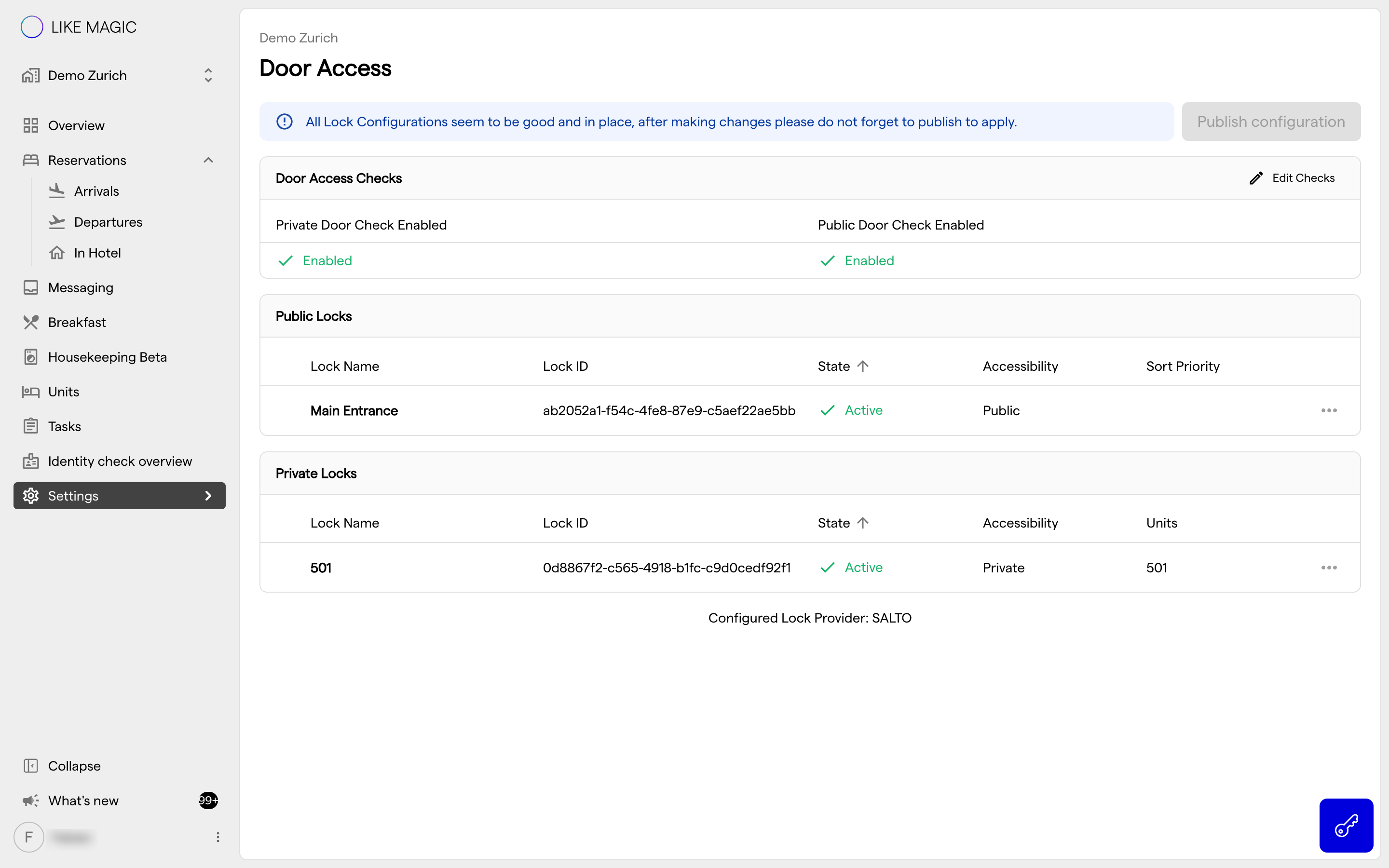
- Door access is set up. The property's door provider is connected and its locks are mapped in Settings → Door Access. See Door Access. Editing that page requires the Property Admin role; guests need no role.
- The guest-facing door features are set up for the property. The open-door quick action (section 3) is on by default and shows on mobile devices only. To have it switched off for a property, or switched back on, request the change via a Support Ticket.
This guide covers the guest-facing side that sits on top of the Door Access configuration.
3. The Open-Door Quick Action
The open-door quick action is the floating speed-dial button on the guest's My Stay screen that lists the doors they may open. It is on by default and shows on mobile devices only.
- When it is on, in-house guests see the quick action and can open any door their stay entitles them to.
- When it is off, doors are still assigned to the reservation but the quick action is hidden from the My Stay screen.
ℹ️ Note: If you want the quick action switched on or off for one property, or for all properties of your account, request it via a Support Ticket.
4. Wallet Keys, In-App Unlock and Kiosk Cards
Which of the remaining methods a guest can use is determined entirely by the property's door provider:
- Wallet keys: offered only by Wallet-capable providers. The guest adds an Apple or Google Wallet key from their stay in the web browser and taps the phone to the reader. Adding it from the mobile app is not supported. No app needs to be open at the door.
- In-app "hold near lock": offered only by providers that support in-app Bluetooth unlocking. The guest opens the property's mobile app and holds the phone close to the lock. This is a native iOS and Android app published under the hotel's name, which LIKE MAGIC distributes in the App Store and Google Play. It does not work in the web browser.
- Kiosk key card: where a self-service kiosk with an encoder is installed, the guest can collect a physical card instead of, or in addition to, a phone key. Card encoders are configured in Door Access (section Connect Encoder Devices).
For provider-specific setup, see the guide for your provider under Door Access & Locks: for example Assa Abloy (Vostio), which supports in-app, Wallet and card keys.
5. Hiding Private and Room Doors
Some properties do not want private/room doors to appear in the guest's door list (for example when guests only ever use a card for their room). LIKE MAGIC can hide private and room doors from the guest key list per property. Public and shared doors remain visible. This does not change who is entitled to a door; it only controls what appears in the app. Request this via a Support Ticket.
6. Key Assignment During Check-In
For providers that issue a key during the journey, the guest reaches a key-assignment step at the end of online or kiosk check-in. Whether this step appears, and what it does, depends on the door provider:
- Card providers dispense or encode a card at the kiosk.
- Mobile and Wallet providers issue the digital key to the guest's phone.
The step is part of the check-in flow configuration. See Configure the Purpose-of-Stay Step and the door provider's own guide for how the key is issued.
7. Verifying the Guest Experience
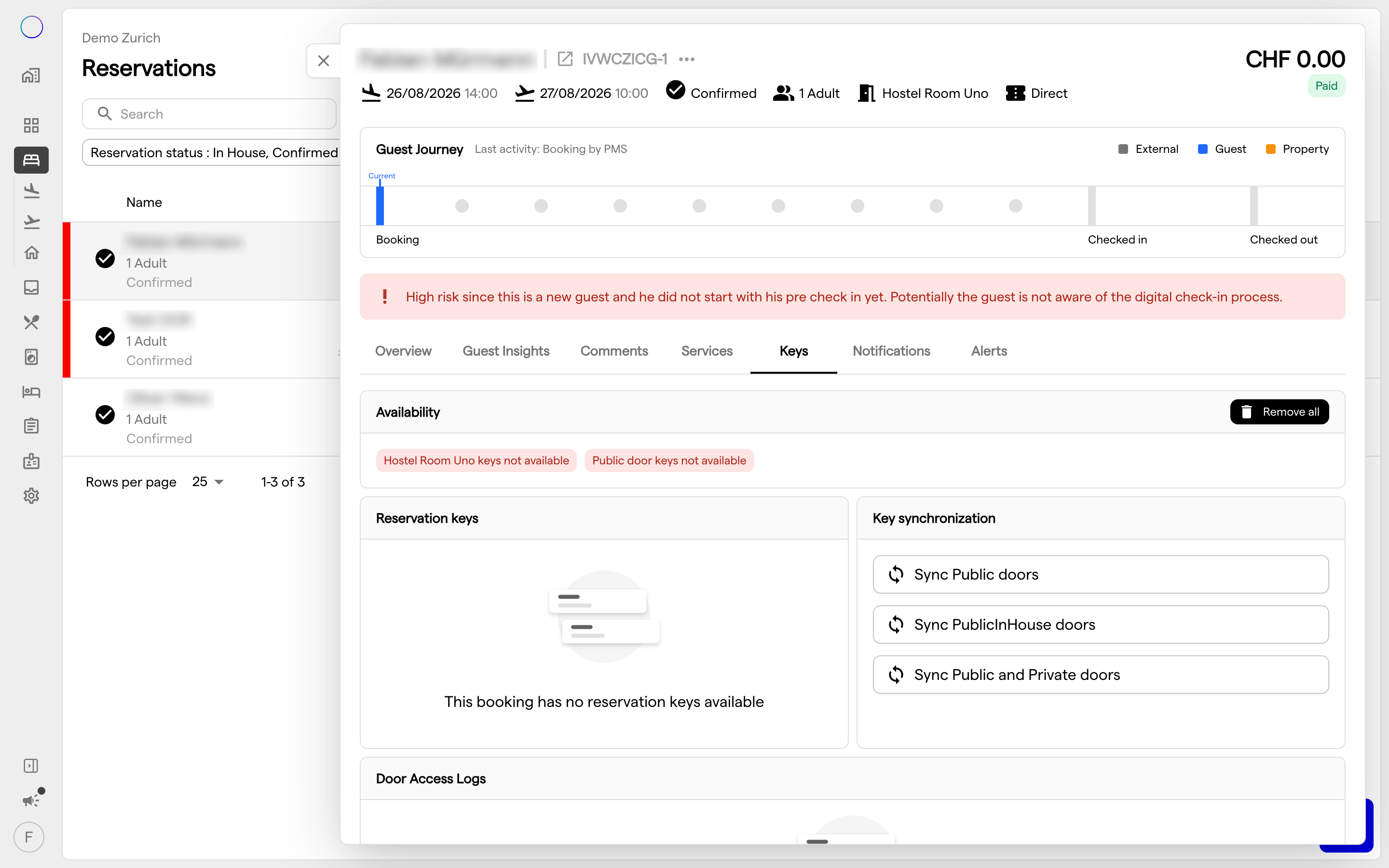
- On a test reservation, complete check-in through to the key-assignment step.
- Open My Stay on a mobile device and confirm the open-door quick action appears and lists the expected doors.
- Exercise the method the provider supports (add a Wallet key, hold the phone to a lock, or collect a kiosk card) and confirm the door opens.
- If a door is missing, check in this order: is the lock mapped and active in Door Access, are you testing on a mobile device rather than a desktop browser, and is the reservation checked in to a clean room?
8. Conclusion
The guest mobile-key experience is delivered in up to four ways: the open-door quick action, a Wallet key, in-app unlock and a kiosk card. Which of them apply is decided by the property's door provider. As an operator you map the locks in Door Access and confirm the provider supports the method you want to offer. Always verify a full open on a test reservation before a property goes live.