Offline PIN Integration
This is a guide for implementing Offline PIN Codes with LIKE MAGIC
On this page, we explain the implementation process for the access method "Offline PIN".
1. Manual PIN Usecase
The classic Offline PIN setup is used for properties with static PIN codes which aren't changed after every reservation (e.g. PIN changes every week). This method is oftentimes used for key lockers with physical keys.
The exception is Offline PINs that are manually changed for each reservation (e.g. Winkey PINs).
So Offline PINs are Access Codes which are changed manually and not automatically.
2. Requirements & Setup
Once all units are set up in your PMS, the property's Door Access configuration in the Operations Platform has to be completed. For that you need to know all PIN codes and door names.
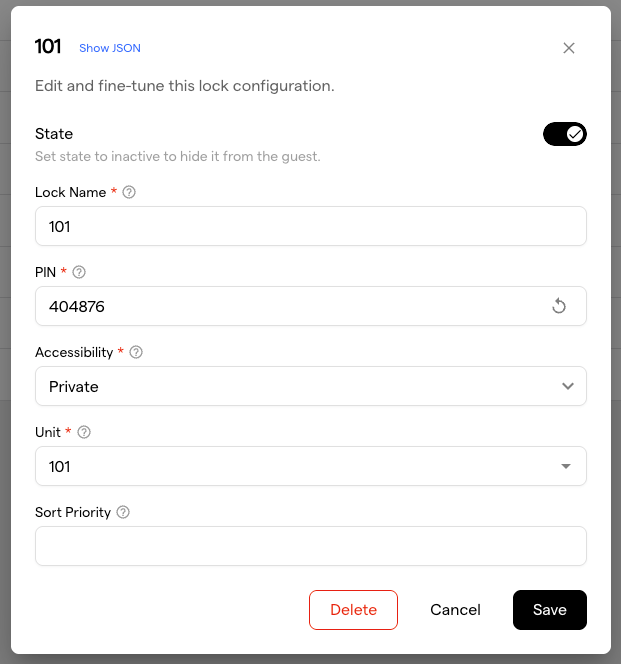
Open Settings → Door Access, edit each listed lock and bring it into an active state:
- set the State toggle to active
- enter the Lock Name
- generate or enter a PIN with a click on the circle-arrow icon
- assign the correct Unit, to connect the PIN with the unit from your PMS
- publish the configuration
The alternative (change PINs for each reservation)
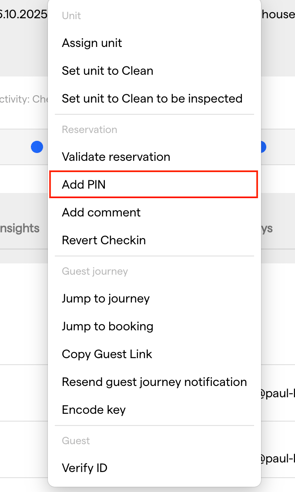
Add PIN appears on a reservation once a unit is assigned and the reservation is Confirmed or In house. It is available on properties running on Apaleo. No technical preparation is needed beyond the platform setup itself.
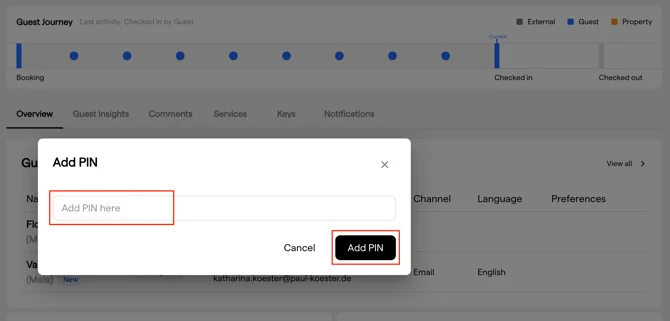
The PIN is then added per reservation with the Add PIN action in the Operations Platform. Guests see their access code as soon as they have checked in.
After clicking Add PIN, you can set the PIN in this view:
3. Language
Please note: The Offline PIN setup is only available in one language.
We recommend therefore to not use too much text and only the PIN Code in this field.
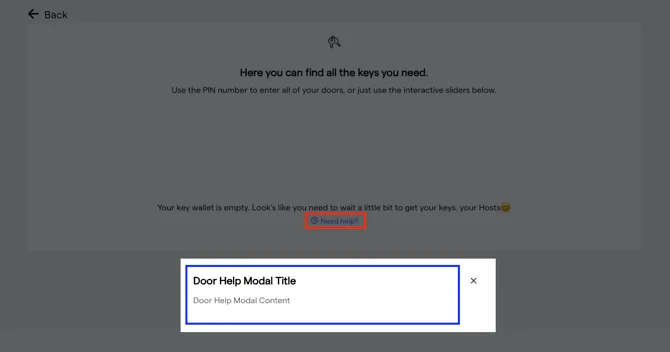
Add other door specific information in Prismic by using the Door help modal which you can find in the Property Specific: "Doors" section. Use "Door help modal title" and "Door help modal content" to provide the information you wish with a click on "Need help?"
Alternatively, the Key Page can carry information in its subtitle, which is set by the Subtitle label in Prismic under Common, "Titles & Subtitles": "Subtitle for key page".
4. Conclusion
The Offline PIN integration covers properties that manage access codes manually or use static PINs. Codes are not generated automatically for each stay.
Whether you use fixed or per-reservation PINs, the same Door Access configuration applies. For guest communication or extra door details, use Prismic to add the information guests need.