Configure Property Settings
The Property Settings page in the Operations Platform lets you view and adjust configuration that applies to a single Property: for example, which email addresses receive operational notifications, whether identity documents must be confirmed, and whether guests can check in before their Unit is clean. Changes are validated before they go live, so you can adjust settings without risking a broken configuration.
1. Who Can Use This Feature?
Property Settings is a Settings Section in the Operations Platform, and access depends on your role. Settings are scoped per Property, so you only see and manage the properties assigned to you.
- Property Admin: can view all settings, edit them, and publish changes.
- Property Viewer: can view all settings in read-only mode, but cannot edit or publish.
👤 If you expect to edit a setting but only see it in read-only mode, you are signed in with a Property Viewer role. Ask a Property Admin to make the change.
2. Feature Overview
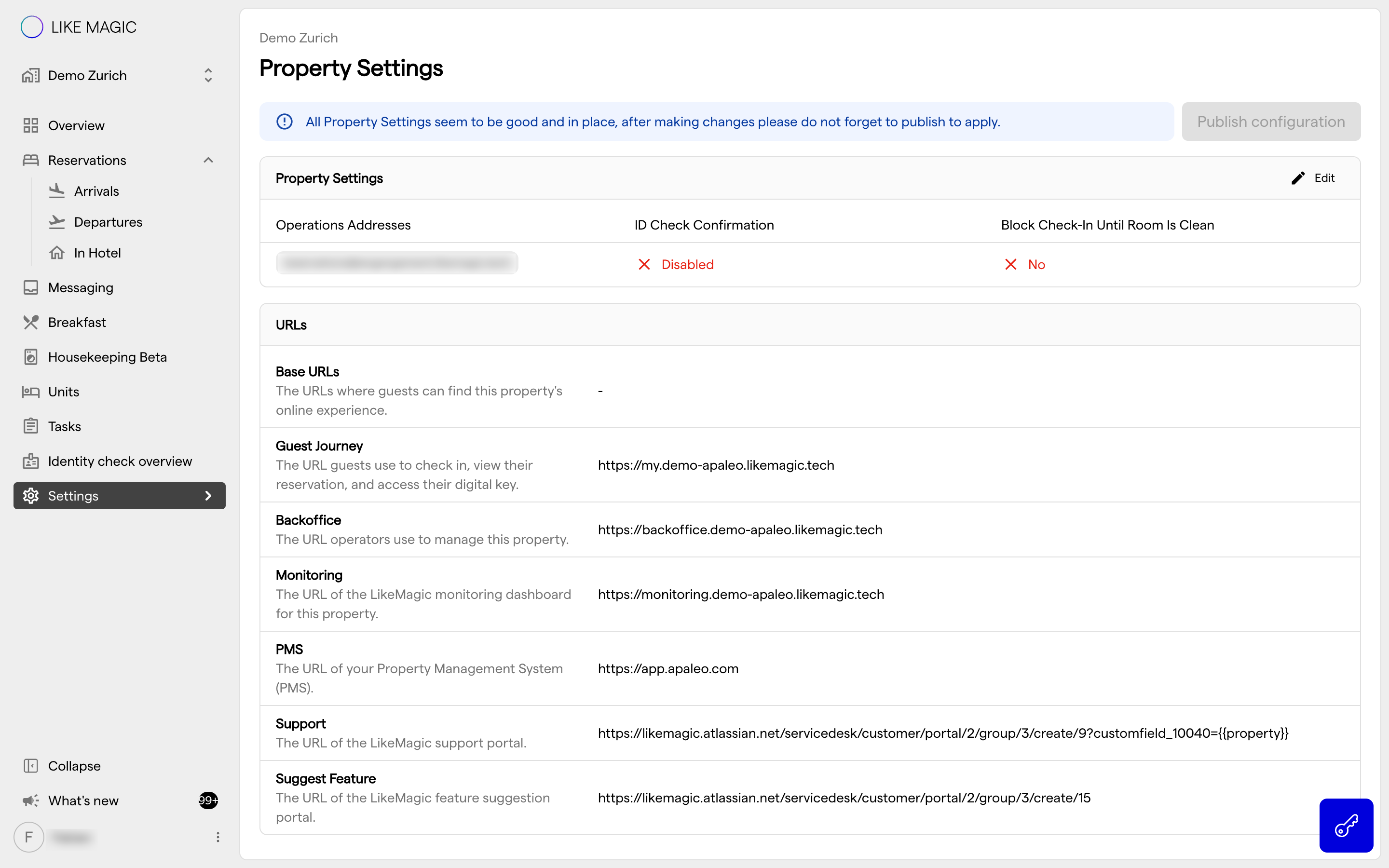
The Property Settings page brings your property-level configuration together in one place. It covers a small set of editable settings plus a read-only list of Property URLs for reference.
The platform automatically shows only the settings that are relevant to your setup. Some settings depend on which PMS your Property runs on:
- The Block check-in Until Room Is Clean setting appears for properties running on Apaleo.
- The Guest Flow Progress Check setting appears for properties on Mews and Opera Cloud.
If a setting described in this article is not visible on your page, it most likely does not apply to your Property's setup.
3. How the Edit and Publish Workflow Works
Property Settings uses a validate-before-publish workflow, so nothing changes for your guests or your team until you actively publish.
- Select Edit and adjust the settings you want to change.
- The platform automatically validates your changes and checks for conflicts.
- Review the result. If a conflict is detected, it is shown so you can resolve it before continuing.
- Select Publish configuration to make your changes live.
Validating is not the same as publishing. Until you select Publish configuration, your changes stay in a draft state and have no effect on live operations.
4. Configurable Settings
The following settings can be edited by a Property Admin. Depending on your setup, some of them may not appear on your page.
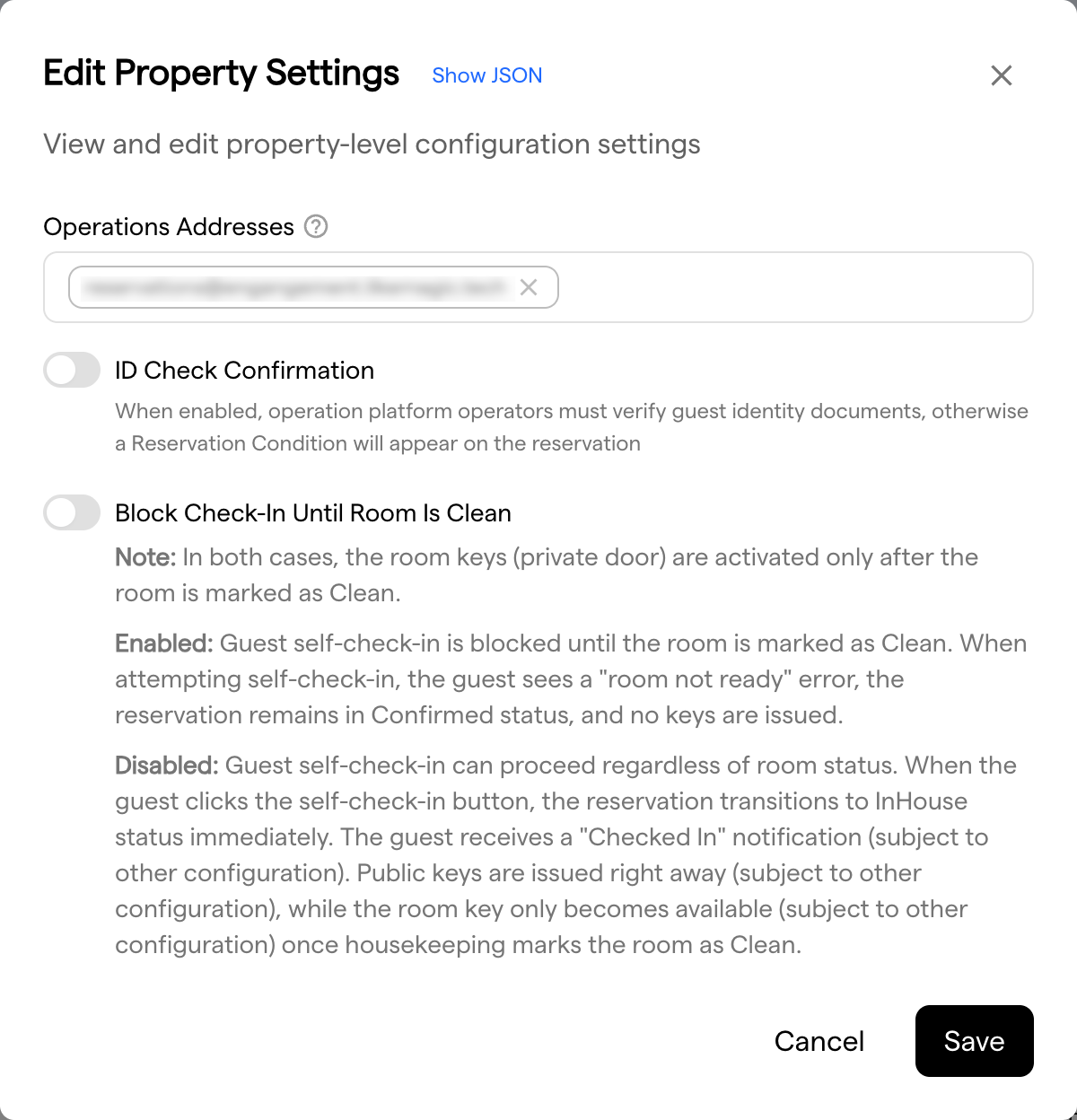
a) Operations Addresses
One or more email addresses that receive operational notifications for this Property. You can add several addresses; any entry that is not a valid email address is flagged so you can correct it before publishing.
b) ID Check Confirmation
When enabled, operators must confirm that the guest's identity documents have been verified. If that confirmation is missing, a Reservation Condition appears on the reservation. Use this at properties where a manual identity check is part of your front-office routine.
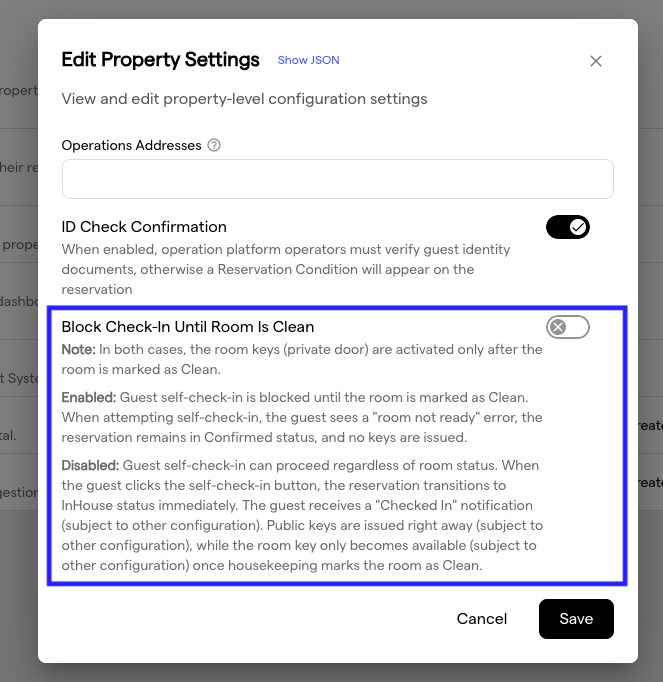
c) Block check-in Until Room Is Clean
Only available for properties running on Apaleo.
This setting controls whether a guest can complete self-check-in before Housekeeping has marked the Unit as Clean.
- Enabled: Guest self-check-in is blocked until the Unit is marked as Clean. The guest sees a "room not ready" error, the reservation remains Confirmed, and no Digital Keys are issued.
- Disabled: Guest self-check-in can proceed regardless of Unit status. The reservation moves to In-House immediately and public Digital Keys are issued right away (subject to your other configuration). The Unit key only becomes available once Housekeeping marks the Unit as Clean.
In both cases, the Unit keys (private door) are activated only after the Unit is marked as Clean. The setting decides whether the guest can already check in, not when the Unit key starts working.
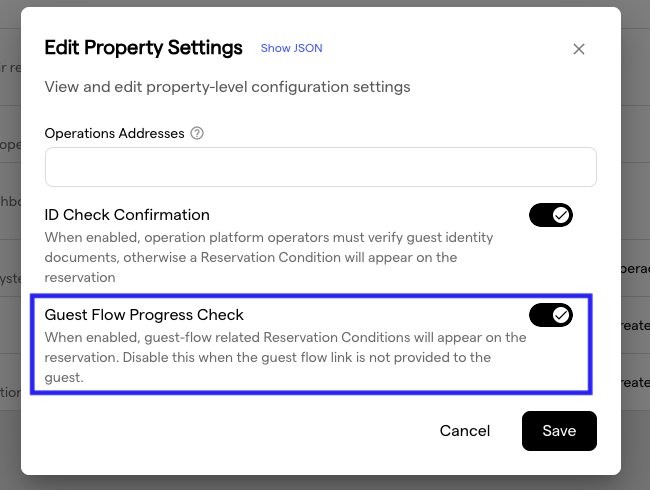
d) Guest Flow Progress Check
Available on Mews and Opera Cloud properties.
When enabled, Reservation Conditions about the guest's Pre-Check-In progress appear on the reservation, for example when a guest has not completed Pre-Check-In. Turn it off at properties where guests do not receive the Pre-Check-In link, so these conditions are not raised.
5. Read-Only Property URLs
Below the editable settings, the page shows a set of URLs that belong to this Property. These are displayed for reference only. You cannot edit them here.
They include the address of the guest-facing web application, the Operations Platform address, the monitoring dashboard, the address of your PMS, and the support and feature-suggestion links.
🧩 If one of these URLs looks wrong, do not try to change it elsewhere. Request a correction via a Support Ticket so it is fixed at the source.
6. Troubleshooting
My changes did not take effect.
Make sure you selected Publish configuration after editing. Validation alone does not apply your changes.
A setting described here is not visible on my page.
The page only shows settings relevant to your setup. For example, Block check-in Until Room Is Clean appears only on Apaleo properties, and Guest Flow Progress Check on Mews and Opera Cloud properties.
A conflict is shown when I try to publish.
Resolve the flagged conflict first, then publish again.
Staff check-in is blocked, not just guest self-check-in.
When Block check-in Until Room Is Clean is enabled, an operator-initiated check-in in the Operations Platform can also be blocked until the Unit is Clean. To check the guest in anyway, mark the Unit as Clean in Housekeeping, or switch the setting off.
7. FAQs
What is the difference between validating and publishing?
Validation previews your changes and checks for conflicts without saving them. Publishing writes the changes to your live configuration.
Who receives the operations notifications?
Everyone listed under Operations Addresses for this Property.
Why can I see the settings but not edit them?
You are signed in with a Property Viewer role, which is read-only. A Property Admin can make the changes.
Do these settings apply to every Property in my Account?
No. Property Settings are configured per Property, so you adjust each Property individually.
8. Conclusion
Property Settings holds the property-level configuration for a single Property. The validate-before-publish workflow means nothing reaches live operations until you publish it.
For related configuration guides, see the Configuration area, including Pricing Tiers. If a setting is missing or a Property URL looks incorrect, request a check via a Support Ticket.