How to Navigate through the Operations Platform
The sidebar, the property switcher and the general functions at the bottom of the navigation.
Introduction
The sidebar is the main navigation of the Operations Platform. It groups the screens you work in every day, for example Reservations, Arrivals, Housekeeping and Tasks, and it shows only the items your role gives you access to.
1. Key Functionalities
- Structured Menu: The navigation sits on the left side of the screen and groups the screens by area.
- Collapsible Navigation-Section: Users can expand or minimize the navigation bar for better space management.
- Status Indicators: A badge on the messages entry counts unread guest messages, and a badge on What's New counts unread release notes.
- Navigation Access: The sidebar shows only the items the user's access permissions allow.
- Property Selection: A dropdown at the top of the sidebar switches between the properties a user has access to.
- Multi-Property: For the roles that work across properties, an Account option in the same dropdown switches to a view across all properties at once. It is not in every user's dropdown.
Note: Which navigation items you see depends on your setup, for example on your PMS.
The property selector does more than change what you are looking at. It also decides which level you are configuring: your whole account, or a single property. For the full model, including which screens exist at each level and how a property setting overrides an account setting, see Account and Property Scope.
A few navigation items depend on which PMS the property runs. What Works on Which PMS has the list.
2. User Experience Core Components
Key aspects of the sidebar include:
a) Visual Hierarchy
- Active sections are highlighted, and nested items are clearly displayed.
- The badge on the messages entry shows the number of unread guest messages.
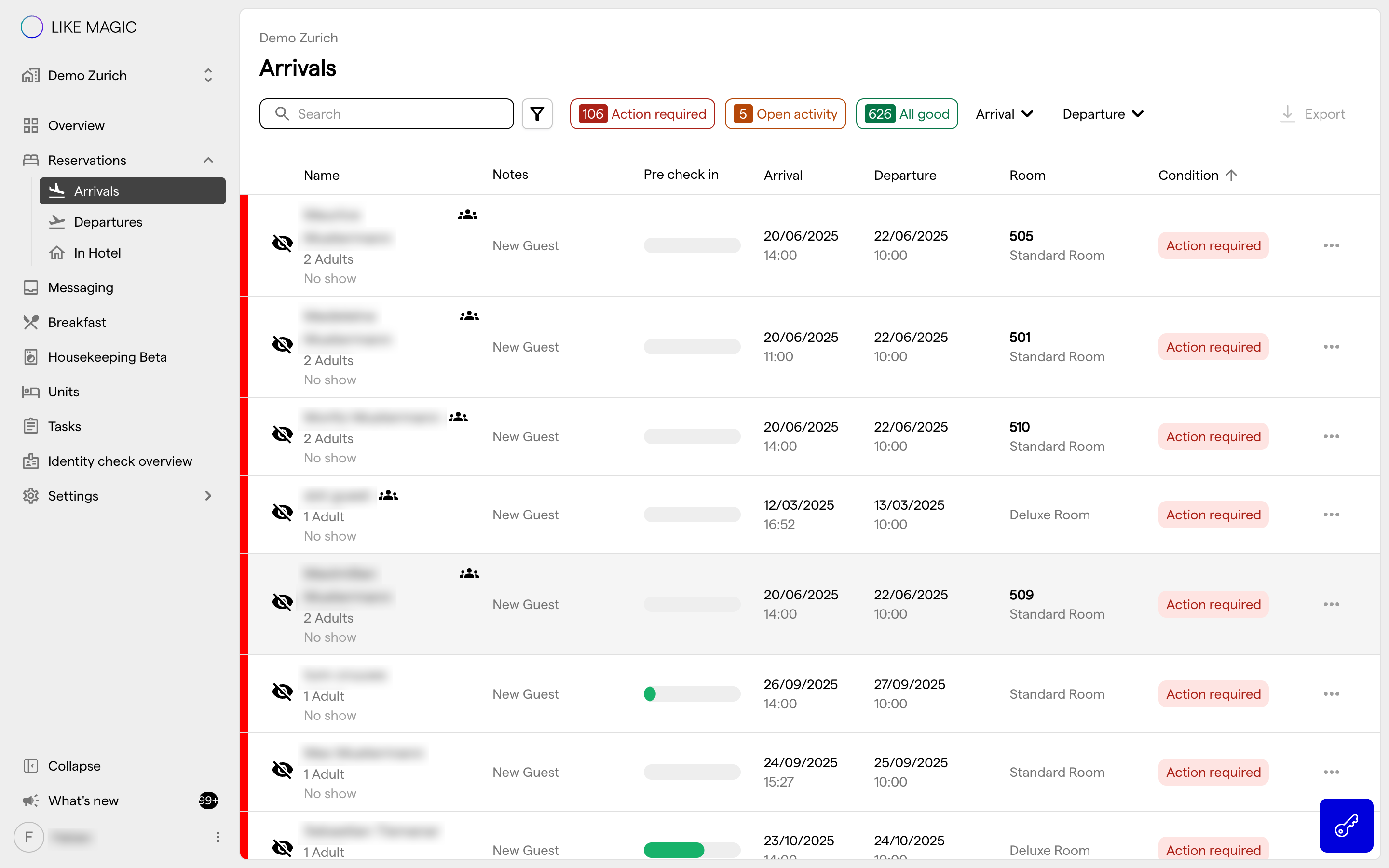
The sidebar navigation
b) Primary Functions
Includes sections like Reservations, Housekeeping, Tasks, and Messages.
Property Selection
-
Prominently displayed at the top of the sidebar
-
Dropdown functionality for quick property switching
-
Clear indication of current property being managed
-
'Account' option, where your role has it, for a consolidated view of all properties combined
-
Visual distinction between single property and account-wide views
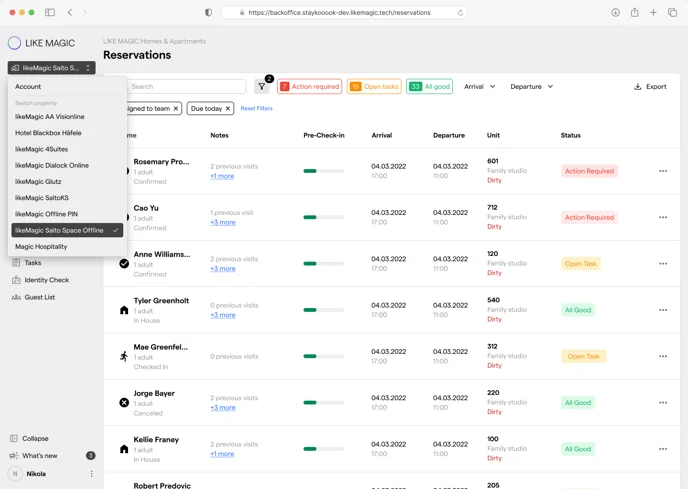
Selection of your property
c) General Functions
The general functions sit at the bottom of the navigation bar.
Collapse Navigation
- The navigation bar can be expanded or collapsed, which frees up space for the section you are working in.
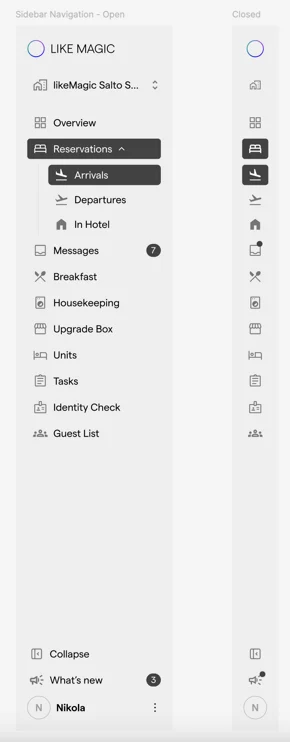
Collapsed and Opened Sidebar
Stay Informed
- The "What's New" item carries a badge with the number of new release notes.
- Selecting it opens the release notes on their own page.
Request Support
- Create a support ticket from the three-dot menu next to the username on desktop.
- On mobile, the same menu opens from the profile avatar.
Language Settings
- On desktop the same menu holds your personal language and format selection. It is stored on your user profile, so it follows you to any device.
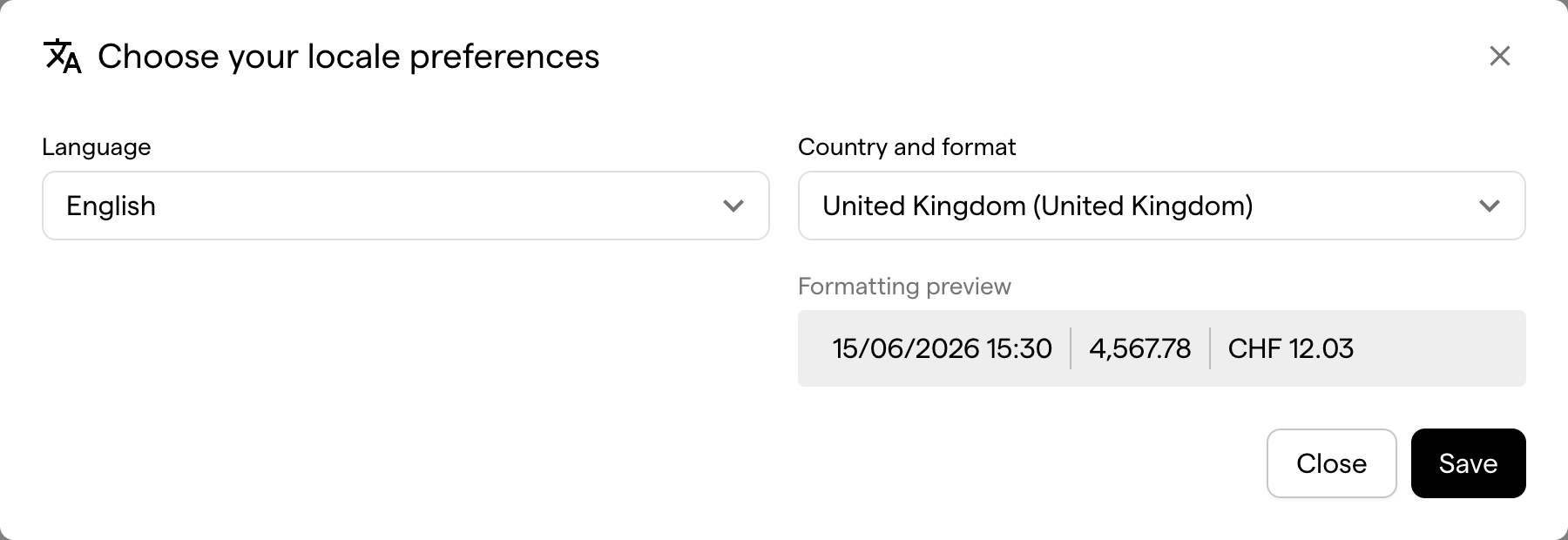
Language selector
Mobile
- The sidebar adapts to different screen sizes.
- General settings move into the header on small screens.
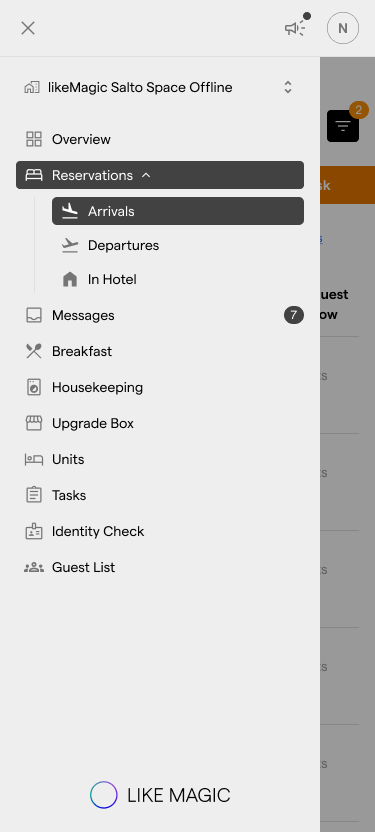
The sidebar on mobile
3. Conclusion
The sidebar groups the screens by area and shows only the entries your role admits. The property dropdown at the top switches property, and for the roles that work across properties it also carries the Account view. The general functions at the bottom hold What's New, the support request and, on desktop, your language and format.