Info Stay
Introduction
This article explains the Info Stay feature, which allows guests to access content from the Digital Guest Portal via QR code or link, without an active booking or login.
Not every guest has already made a booking but information such as spa offers, restaurant hours or upcoming events should still be easily accessible. Whether via a QR code at the reception, by email, or directly in a WhatsApp message: guests get instant access to the most relevant content for their decision-making or stay.
1. Who Can Use This Feature?
Sharing Info Stay links does not require any special permissions. Anyone on your team can copy and distribute them. Creating or changing Article aliases (see Set Up Article-Specific Links) requires access to your property's Prismic repository.
2. Feature Overview
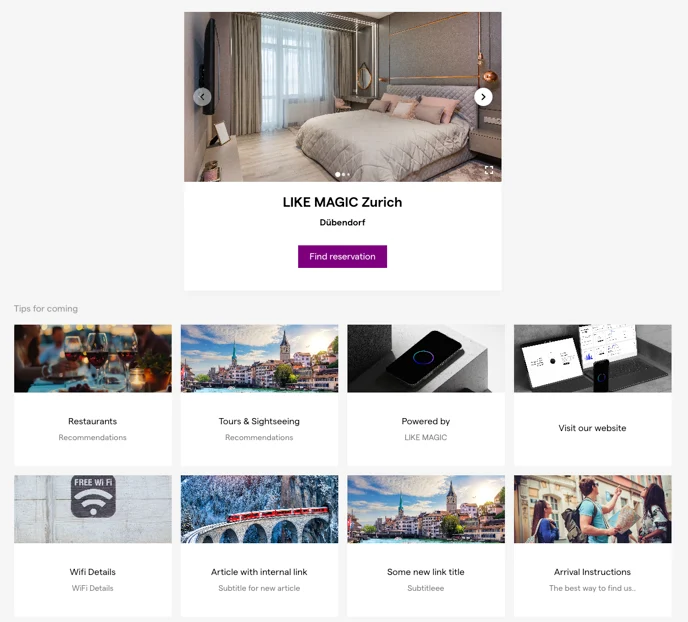
With the general Info Stay Link, guests can browse key information from the Digital Guest Portal: without having to log in.
- Guests land on a neutral version of the Digital Guest Portal.
- If not logged in: no booking data is shown, guests only see the information you provide on the Digital Guest Portal.
- If logged in: the full navigation is visible, guests see their usual, personalised view.
Example link: my.customerurl.com/info-stay?propertyId=PROPERTY1
💡 Tip: Perfect for general hotel information or as a digital concierge via QR codes on flyers or info screens.
3. Set Up Article-Specific Links
Instead of linking the entire Digital Guest Portal, you can share a specific Article directly: such as an event, spa offer, or restaurant menu.
This is how you proceed:
- Open the desired Article in Prismic.
- Assign an alias to the Article (e.g.
relax-spa). - Make sure the alias is identical across all language versions of the Article.
- Build the link using the format:
my.customerurl.com/info-stay/articles/[article-alias]
Example: A spa offer with the alias relax-spa is available via my.customerurl.com/info-stay/articles/relax-spa.
📝 See how to create an Article in Prismic.
💡 Great for direct marketing: send links to specific offers directly via WhatsApp or email or encode them in QR codes so guests can scan and go straight to that content.
4. Use Cases and Sharing Options
Whether it's a QR code in the room, a link in a pre-stay email, or a WhatsApp message, Info Stay is flexible and easy to use:
- Place QR codes at the reception, on room doors, in the breakfast area or at the spa entrance, so guests can scan and access the portal immediately.
- Pre-stay communication: automatically include the Info Stay Link in welcome messages.
- WhatsApp templates: send guests direct access to the breakfast menu, spa offerings, or event calendar.
- Social media or newsletters: share targeted content without access barriers.
💡 No app, no password, no booking required: just the link.
5. Troubleshooting
| Symptom | Likely cause and fix |
|---|---|
| An Article link shows an empty page or an error | The alias is missing or spelled differently in that language version. The alias must be identical across all languages - set it in Prismic and publish the Article again. |
| Content does not appear on Info Stay | The Article was not published in Prismic. Click Save, then Publish. Do you use Article Ordering? If yes, make sure, your content is also added there. |
| Guests do not see the Shop in the navigation | This is expected behaviour: the Shop only appears once a guest is logged in. |
6. Conclusion
Info Stay makes selected content from the Digital Guest Portal accessible: without login, without a booking, and without technical barriers. Guests simply scan a QR code or click a link to see the content you choose to share.
Useful links:
Content (Prismic):
- Content management with Prismic: overview
- See how to create an Article in Prismic
- See how to arrange content with Article Ordering
Related guest-journey flows the shared content appears in: