Automated Room Assignment
A reservation does not need a unit assigned in advance for the guest to check in. When a guest checks in (online, at the Self-Service Kiosk, or through staff in the Operations Platform) and no unit is assigned yet, LIKE MAGIC automatically has one assigned at that moment. No arrival is blocked just because nobody picked a room yet.
1. How It Works
- A guest (or staff member) starts the check-in for a reservation without an assigned unit.
- LIKE MAGIC asks your PMS to assign a unit from the reservation's booked Unit Group.
- The PMS picks an available unit according to its own assignment rules and returns it.
- Check-in continues with the assigned unit. It appears on the reservation in both systems, and door access is issued for it.
ℹ️ The selection logic lives in your PMS. Which unit is picked from the booked Unit Group follows your PMS's auto-assignment rules (for example preferring clean, available units). LIKE MAGIC triggers the assignment but does not override your PMS's choice.
2. Manual Assignment Always Wins
Automatic assignment only fills the gap. It never overrides a decision your team already made:
- A unit assigned in the Operations Platform (the Assign unit action on the reservation) stays.
- A unit assigned directly in your PMS stays.
If a unit is already assigned when check-in starts, no automatic assignment happens.
💡 For arrivals with special requirements (accessible units, connecting rooms, VIPs), assign the unit manually before arrival. Automation is there for the standard case, not the exceptions.
3. The Clean-Room Option
What happens when the assigned unit is not clean at check-in is controlled by the Block check-in Until Room Is Clean switch in the Operations Platform, under Settings → Property Settings. Open Edit on your property to change it. The switch is shown for properties running on Apaleo. On other PMS integrations the option is not shown.
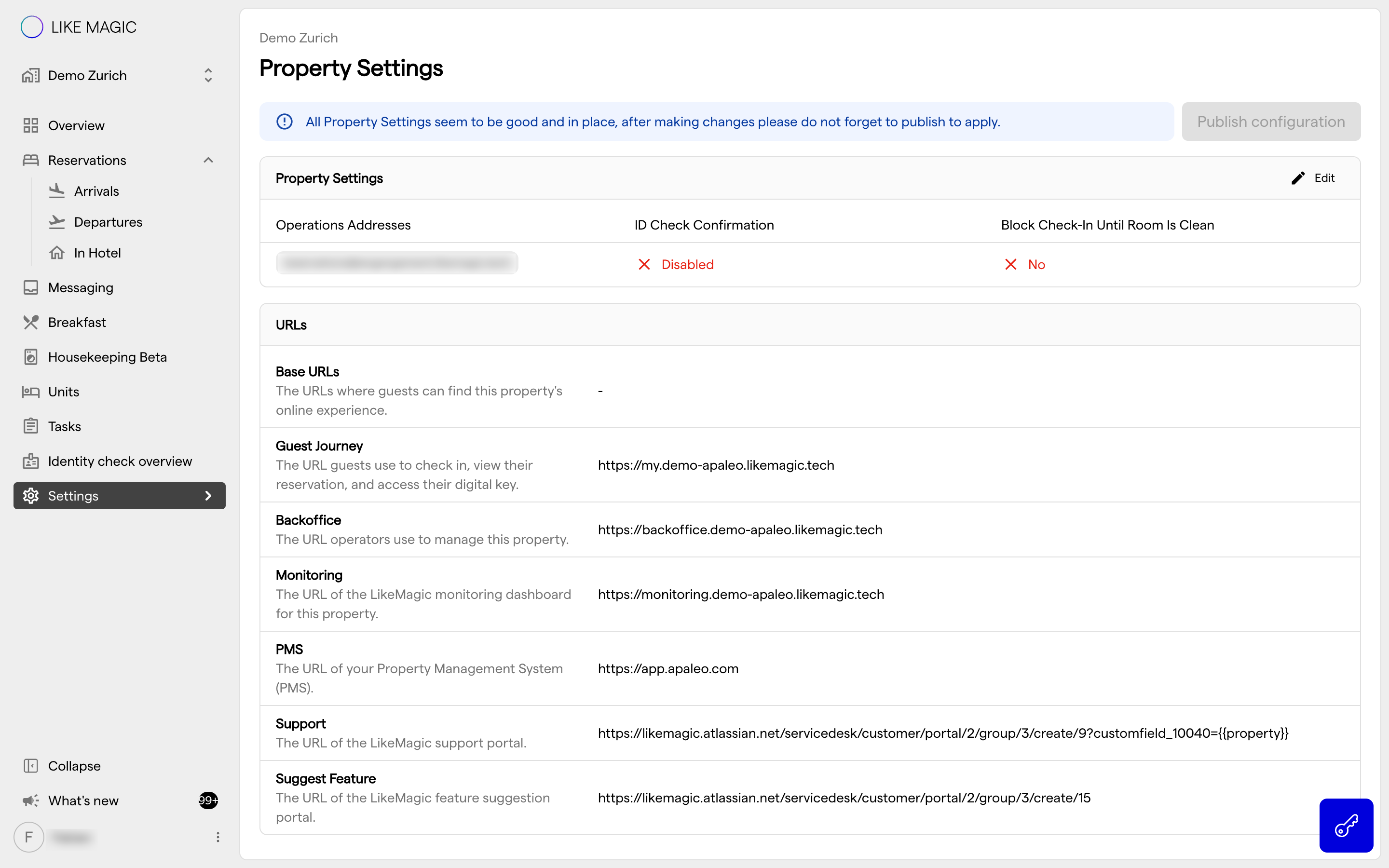
- Switch on: the check-in is stopped and the guest (or kiosk) sees that the unit is not yet ready. The reservation stays in Confirmed and no keys are issued. The check-in succeeds once Housekeeping has set the unit to clean, or once staff assign a clean unit manually.
- Switch off: the check-in completes regardless of the unit's housekeeping state. The reservation moves to In-House right away and public-door keys are issued immediately. Whether the unit was clean at check-in is recorded on the reservation, so your team keeps visibility.
ℹ️ In both cases the room key (the guest's private door) is activated only once the unit is marked clean. Keys for public doors follow your door-access configuration.
See Housekeeping View for how unit cleanliness is managed.
4. Troubleshooting
| Symptom | Likely cause |
|---|---|
| A guest reports the check-in says the room is not ready | Block check-in Until Room Is Clean is on and the assigned unit is not clean yet. Set the unit to clean in Housekeeping, or assign a clean unit manually |
| A guest got a different unit than expected | No unit was assigned before arrival, so the PMS auto-assigned one. Assign manually before arrival when the specific unit matters |
| Check-in fails and no unit is shown on the reservation | The PMS could not assign a unit (for example no availability in the booked Unit Group). Assign a unit manually in the Operations Platform or the PMS |
5. Conclusion
Automated room assignment keeps self-service check-in flowing: guests are never stuck because no room was picked, staff keep full control by pre-assigning where it matters, and the clean-room option decides how strictly housekeeping status gates the arrival.
Useful links:
- Configure the Check-In Flow: the steps of the check-in wizard, including Assign unit
- Configure Property Settings: the settings page where the clean-room switch lives
- Housekeeping View: managing unit cleanliness
- Front-Desk Daily Operations: working the arrivals list