Configure the Check-In Flow
The check-in flow is the step-by-step wizard a guest completes before or on arrival: from entering their personal data to receiving a room key. This article gives you the full picture of the steps and where the settings behind them live. Individual steps that warrant their own deep-dive (ID scan, purpose of stay, upsell) link out to dedicated articles.
This article is written for the administrator who configures the guest journey for a property.
1. Who Can Use This
Which steps a guest sees is set per property. A few of those settings have their own page in the Operations Platform, the rest are set per property by LIKE MAGIC (section 3).
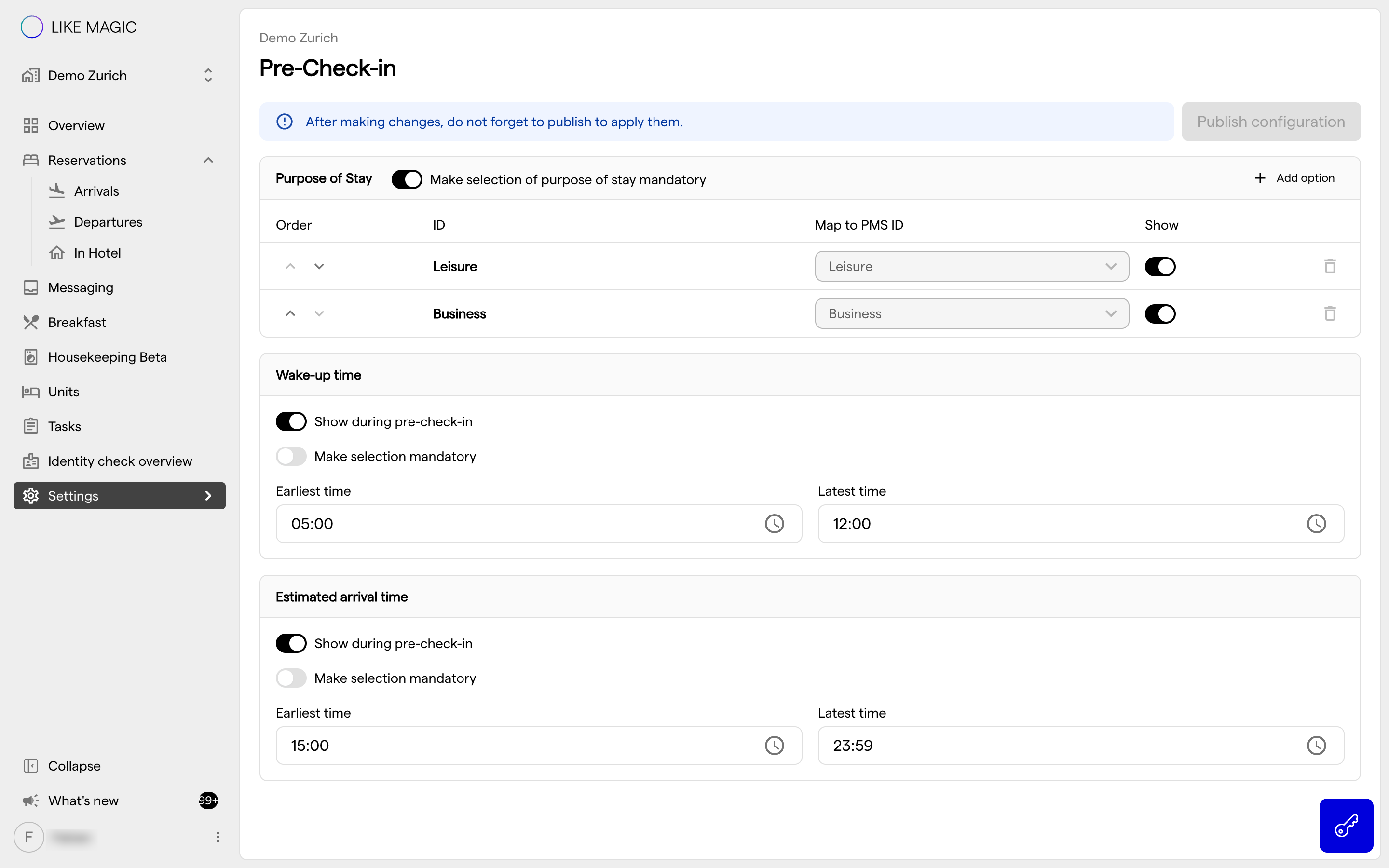
The settings you edit yourself live under Settings → Pre-Check-In for a selected property: Purpose of Stay, Wake-up Time and Estimated Arrival Time. Editing them requires Property Admin (property-admin) or Admin (admin); Property Viewer (property-viewer) sees them read-only.
2. The Check-In Steps
The wizard walks the guest through a fixed sequence of checkpoints. Not every step appears for every property (see section 3), but when present the order is:
| Step | What the guest does |
|---|---|
| Personal data | Name, date of birth, contact details; optionally a licence plate with country code. |
| Preferred channel | Chooses how they want to be contacted (email, SMS, or none). |
| Legal | Scans an ID or passport, signs, and completes the legal form. See ID Scan & Verification. |
| Address | Enters a home or billing address. |
| Services | Selects add-on services and extras. See Additional Services. |
| Upsell | Offered a room-category upgrade. See Upsell. |
| Overview | Reviews the charges and the summary before paying. |
| Payment | Pays via the configured payment provider. |
| Assign unit | The room or unit is assigned. Self-Service Kiosk only. |
| Assign key | A mobile key or card key is issued. Self-Service Kiosk only. |
| Confirmation | Check-in is complete. |
ℹ️ Note: A guest whose reservation already holds everything the data steps would ask for (personal details, preferred channel, legal data and address, plus any document upload and consent your property requires) gets a short review page instead of walking through those steps again. Steps with nothing to show are skipped, so guests always land on the right step for their reservation automatically.
3. Which Steps You Can Turn On or Off
The flow is always available. Several individual steps are switched on or off per property:
- Licence plate on the personal-data step: the licence-plate and country-code fields, for properties that need vehicle data (for example properties with parking).
- ID scan on the legal step: availability of document scanning and MRZ reading is a per-property setting. See ID Scan & Verification.
- Address step behaviour: the address step can be made optional, and the state/region field can be hidden where it does not apply.
- Purpose of stay: added on the personal-data step when you configure it. See Configure the Purpose of Stay Step.
- Upsell step: the room-category upgrade is available when upsell is switched on for the property.
- Payment at check-in: the payment step is available when pay-at-check-in is switched on.
- Key assignment: the assign-key step and its behaviour follow the property's configured door provider.
Purpose of Stay, Wake-up Time and Estimated Arrival Time are the settings you edit yourself, under Settings → Pre-Check-In. The rest of this list is set per property by LIKE MAGIC as part of the property setup. The step sequence itself is fixed and is not composed per property. None of these steps is something the guest chooses.
4. Where the Flow Runs
The same check-in flow renders on three surfaces:
- Digital Guest Portal: the guest completes pre-check-in on their own device before arrival.
- Self-Service Kiosk: the guest checks in at a lobby terminal, assisted where needed.
- Second Screen: a reception-facing display during an assisted check-in at the desk.
The same steps and settings apply on all three surfaces. The presentation differs, and the unit- and key-assignment steps belong to the Self-Service Kiosk flow.
5. Related Configuration
- ID Scan & Verification: the Legal step in detail.
- Configure the Purpose of Stay Step: the purpose-of-stay field on the personal-data step.
- Configure Guest Access to Pre-Check-In, My-Stay, Bookings: how a guest reaches the flow in the first place.
- Upsell: the upgrade step.
- Additional Services: the services step.
- Self-Checkout: the matching departure flow.
6. Conclusion
The check-in flow is a fixed sequence of steps. Which of them a guest sees is set per property: Purpose of Stay, Wake-up Time and Estimated Arrival Time under Settings → Pre-Check-In, the remaining step settings as part of the property setup. The flow runs on the Digital Guest Portal, the Self-Service Kiosk, and the Second Screen.