Configure Guest Access to Pre-Check-In, My-Stay, Bookings
Guest Access settings let you control how guests prove who they are before they reach their reservation: through a MagicLink in a notification, a one-time code (OTP) at the Self-Service Kiosk, or the Find Reservation form on your Digital Guest Portal and Info Stay. This guide explains each method and walks you through configuring them yourself in the Operations Platform.
1. Who Can Use This Feature
👤 Guest Access is configured per Property, under Settings → Guest Access. Property Admin (property-admin) and Admin (admin) can edit and publish it, and Property Viewer (property-viewer) sees the page read-only. Account Administrator (account-admin) cannot edit Guest Access. Changes take effect immediately for new guest sessions.
This article describes configuration in the Operations Platform. Guests never see these settings. They only experience the access methods you enable.
2. How Guests Access Their Reservation
LIKE MAGIC offers three ways for a guest to reach their reservation. You decide which are active and how strict they are.
- MagicLink: a secure link inside a pre-arrival email, SMS, or WhatsApp notification. By default it grants direct access with no extra step.
- One-time code (OTP): the guest enters their phone number or email at the Self-Service Kiosk, receives a code via SMS, WhatsApp, or email, and enters it to unlock their reservation. No confirmation number needed.
- Find Reservation form: the guest identifies themselves with their name plus one or more verification fields. Available on the Digital Guest Portal, Info Stay, and as a fallback on the Self-Service Kiosk, with the same verification mode on all three.
The table below summarizes where each method applies and whether you can configure it.
| Entry point | Method | How the guest is identified | Configurable |
|---|---|---|---|
| Notification | Click MagicLink | Trusted by default; optional verification | ✅ Yes |
| Digital Guest Portal / Info Stay | Find Reservation form | Name + verification field(s) | ✅ Yes |
| Self-Service Kiosk | OTP via phone or email | One-time code | ✅ Enable/disable |
| Self-Service Kiosk | Find Reservation form (fallback) | Name + verification field(s) | ✅ Yes |
The table describes the default configuration. If you switch on the External Reservation setting, guests whose reservation came from an external channel are identified by name and stay dates alone on every entry point. See External Reservation.
3. Open the Guest Access Settings
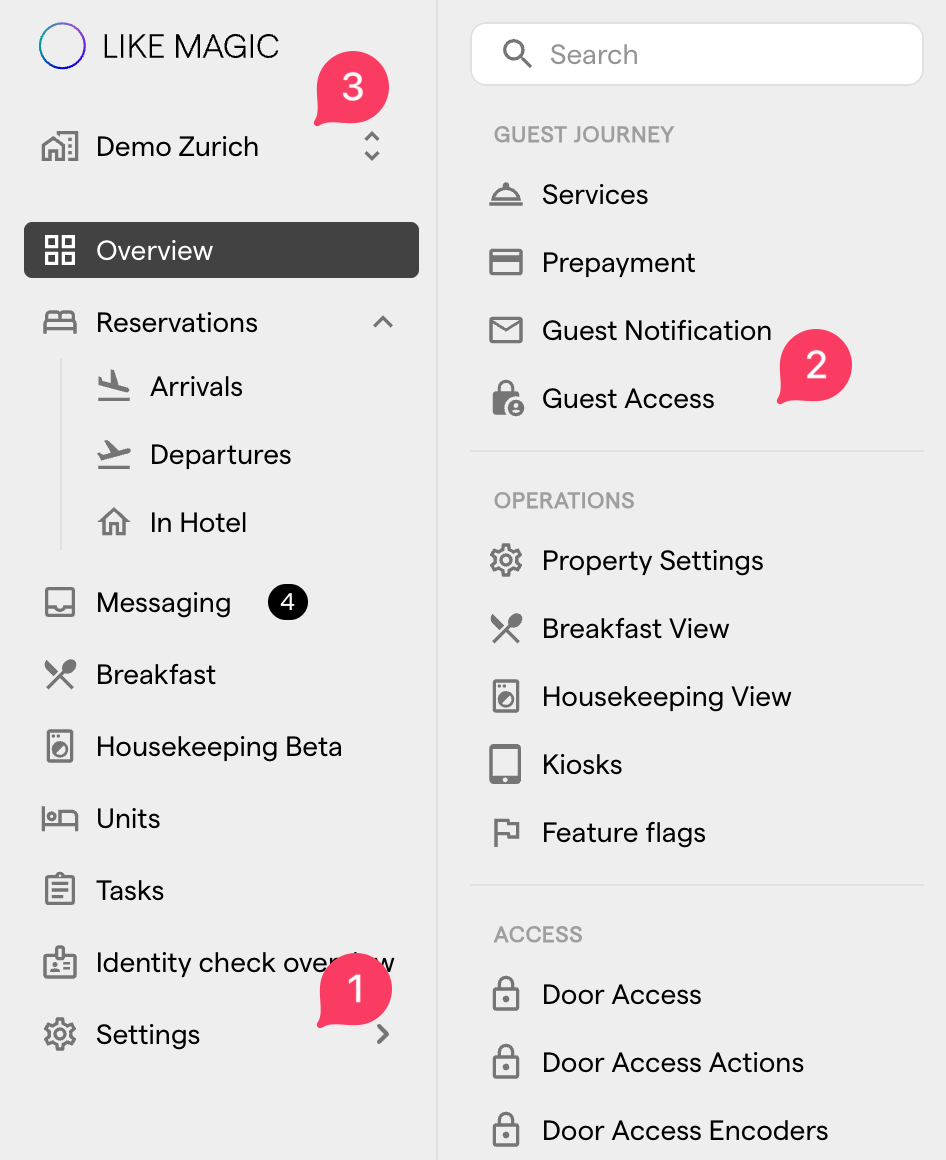
- Open the Operations Platform and go to Settings.
- Select the Guest Access section.
- Make sure the correct Property is selected before you make changes.
4. Find Reservation Form Verification (Unified Field Mode)
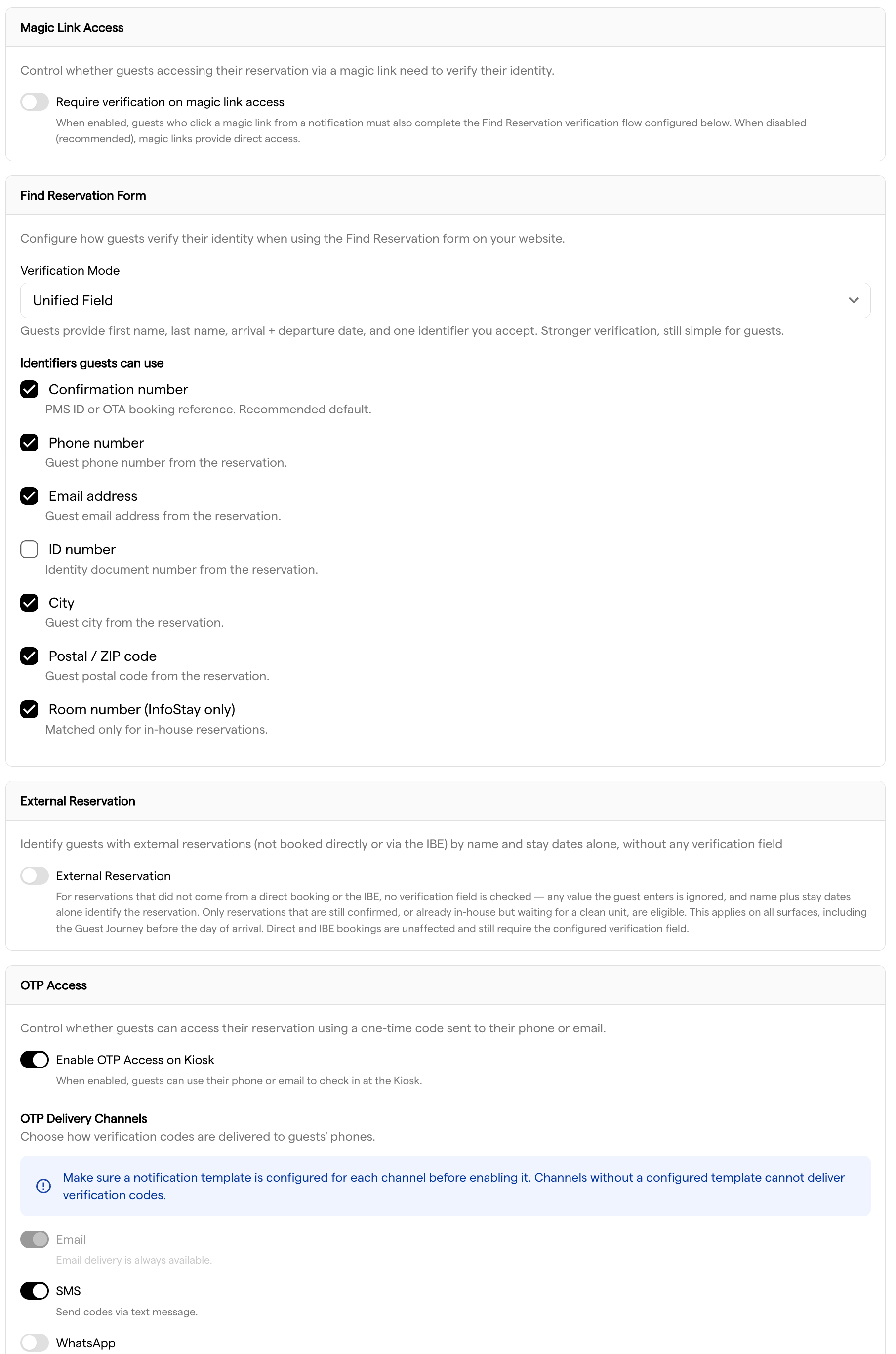
Select the verification mode per Property in the Verification Mode dropdown. Unified Field mode is stronger verification that is still simple for guests. Guests always provide their first name, last name, and arrival and departure dates, plus one identifier that you accept. The other selectable mode, Security Feature, asks for first name, last name and confirmation number instead. A Property that has never been configured shows a third entry, Security Feature Off (discontinued), and keeps its previous verification setup; once you pick one of the two modes and save, you cannot switch back to it.
When you select Unified Field mode, choose which identifiers a guest may use. The guest only needs to match any one of the identifiers you enable:
- Confirmation number: the booking confirmation, also matching OTA references where available (see PMS and OTA Notes).
- Phone number: the phone number on the reservation.
- Email address: the email on the reservation.
- ID number: the guest's identification number.
- City: the guest's city.
- Postal / ZIP code: the guest's postal code.
- Room number (InfoStay only): matches only while the reservation is In-House. Before arrival it never matches, so enable it alongside another identifier.
💡 Unified Field mode is ideal when guests may not have a confirmation number. A corporate Account, for example, can accept the company email as the identifier instead.
5. Magic Link Access
The Magic Link Access section controls whether guests who arrive through a MagicLink need to verify themselves.
- Require verification on magic link access: toggle. Until you set it, it follows the verification your Property already used, so read the toggle rather than assuming it is off.
- When OFF (recommended), MagicLinks in notifications provide direct access to the reservation.
- When ON, guests who click a MagicLink must also complete the Find Reservation verification configured above before they reach their reservation.
The default behaviour, direct access from notification links, is unchanged. Enable verification only if your Property requires the extra step.
6. External Reservation
Reservations that reach your Property through an external channel (a channel manager, an OTA, or a GDS) often arrive with nothing but a guest name and the stay dates. The External Reservation section lets those guests reach their reservation on name and stay dates alone, with no verification field checked at all.
- External Reservation: toggle, default OFF.
While the setting is on, anyone who knows a guest's name and stay dates can open that guest's external reservation. Switch it on only where the reception load from guests who cannot identify themselves outweighs that.
a) What Changes for the Guest
When the setting is on and the reservation came from an external channel:
- No verification field is evaluated. Whatever the guest types is ignored. First name, last name, and the arrival and departure dates alone identify the reservation.
- ⚠️ This also covers reservations that do carry a confirmation number. If the stored number and the guest's entry contradict each other, the guest still reaches the reservation. That is intended behaviour, not a fault.
- The guest is still asked for a verification field on the form. The platform cannot tell whether a reservation is external until it has searched, so the field stays in the flow and the value is discarded.
- If more than one reservation matches the name and stay dates, the guest picks the right one from a list of all matches.
b) Which Reservations Are Eligible
The relaxed lookup applies only when the reservation came from an external channel and its status is one of:
- Confirmed: booked, not yet checked in.
- In-House while the assigned Unit is not yet clean (the guest has checked in but is still waiting for access).
A Checked-Out reservation, and an In-House reservation whose Unit is ready, are never eligible. The stay dates must always match.
Bookings that came through your Booking Engine or were entered directly are unaffected in both states of the setting. They always require the verification field you configured for the Find Reservation form.
c) Where It Applies
The setting governs every place a guest looks up a reservation (the Digital Guest Portal, Info Stay, and the Self-Service Kiosk), and in the Guest Journey it applies before the day of arrival as well. The Self-Service Kiosk is not treated differently from the other entry points.
ℹ️ While the setting is off, every reservation must pass the verification field configured for the Find Reservation form, including reservations from external channels at the Self-Service Kiosk.
7. OTP Access and Delivery Channels
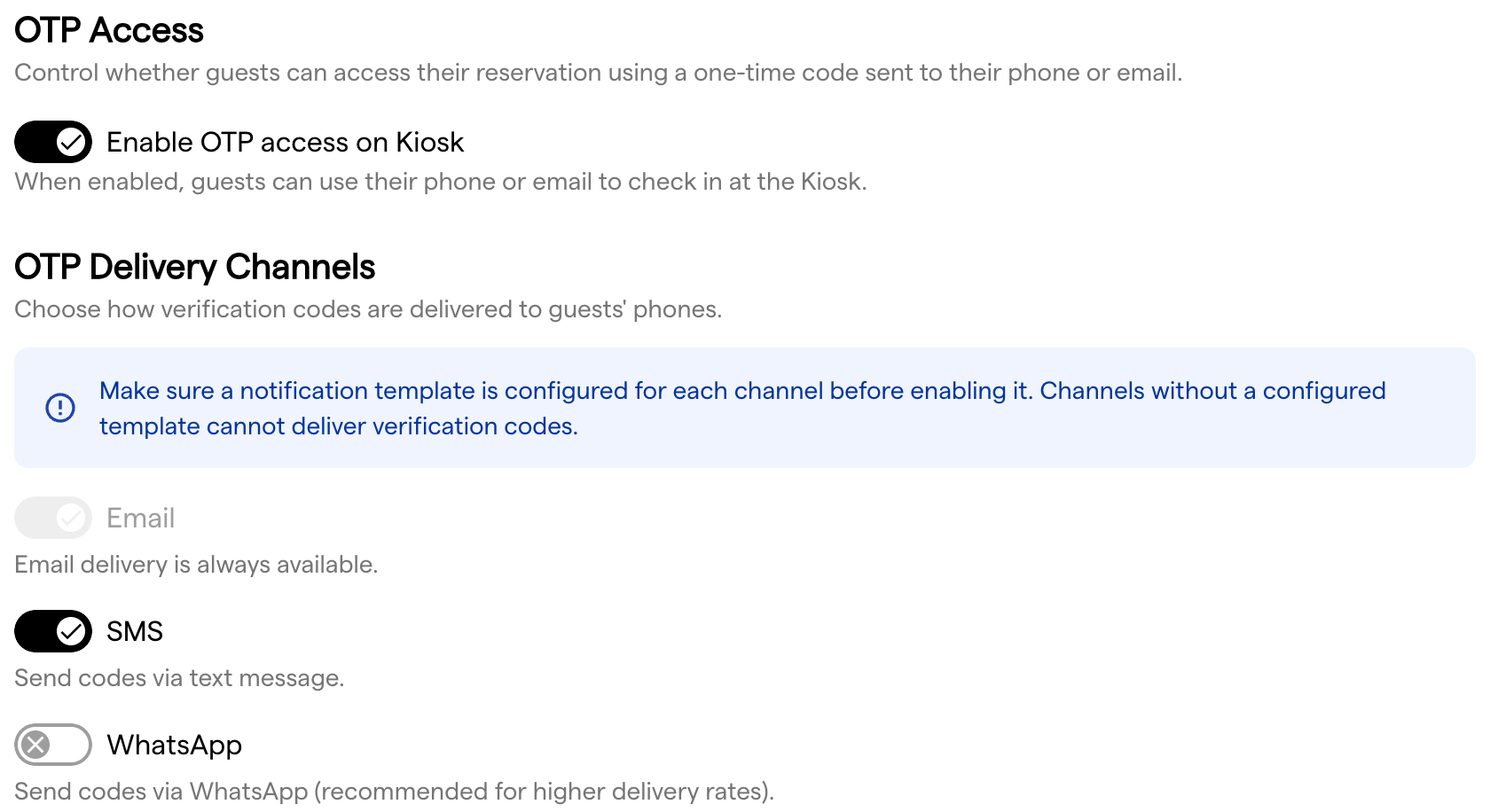
The OTP Access section controls one-time-code access at the Self-Service Kiosk, and how codes are delivered.
-
Enable OTP Access on Kiosk: toggle, default OFF. When enabled, guests can use their phone or email to check in at the Self-Service Kiosk, and the delivery channels below appear.
-
OTP Delivery Channels: choose how codes are sent:
- SMS: toggle, default ON.
- WhatsApp: toggle, default OFF. Recommended for higher delivery rates.
Email delivery is always available and cannot be turned off, so guests can always receive a code by email.
⚠️ Each channel needs a notification template before you enable it. A channel without a configured template cannot deliver verification codes.
8. Configuration Warnings and Conflicts
The Operations Platform shows a warning when a combination of settings could limit guest access. You can still save in each case. The choice stays with your Property.
- ⚠️ No identifiers selected in Unified Field mode. At least one identifier is required. Saving is blocked until you select one.
- ⚠️ Magic link verification on, but no identifiers configured. If verification is required but Unified Field mode has no identifiers, MagicLinks will still provide direct access.
- ⚠️ Both SMS and WhatsApp disabled. Guests can then only receive codes by email, and phone-based verification is unavailable.
9. Best Practices
- 💡 Switch OTP access on to cut reception traffic. Guests who lost their confirmation email can still reach their reservation.
- 💡 Leave magic link verification OFF unless your Property has a specific security requirement, so notification links stay frictionless.
- 💡 Leave External Reservation OFF unless guests from external channels genuinely cannot identify themselves. Try widening the identifiers in Unified Field mode first. That keeps a verification step in place.
- ✅ Keep at least one phone delivery channel (SMS or WhatsApp) enabled alongside email.
- ✅ Test your configuration with a test reservation before rolling it out to guests.
10. FAQs
Do guests still need a confirmation number?
No. With OTP access or Unified Field mode, guests can reach their reservation using their phone number or email instead.
What happens if I disable both SMS and WhatsApp?
Guests can only receive one-time codes by email. The platform warns you, but allows the setting.
Can a guest use their Booking.com confirmation number?
Yes, if the PMS provides the OTA reference. The confirmation number field matches both the LIKE MAGIC reservation and supported OTA references.
A guest didn't receive their code. What should they do?
Ask them to check the spam or junk folder, confirm the phone number on the reservation, check WhatsApp, and wait about 60 seconds before requesting a new code.
A guest entered the wrong code too many times.
Access is blocked for a short cool-down period. The guest can use the Find Reservation form as an alternative, or contact reception if it is urgent.
A guest with an OTA or channel-manager booking cannot be found at all.
Their reservation may have arrived without an email address, phone number, or confirmation number to match against. Switching on External Reservation lets these guests through on name and stay dates alone. Read the trade-off in that section first. Staff can always look the reservation up in the Reservations Overview and check the guest in manually.
A guest reached an external reservation even though they typed the wrong confirmation number.
That is how External Reservation works: while it is on, no verification field is evaluated for reservations from external channels, even when a confirmation number is stored. Switch the setting off if you need every guest to pass the verification field.
Do changes affect existing bookings?
Configuration takes effect immediately for new guest sessions after you save.
11. PMS and OTA Notes
🧩 When a guest enters a confirmation number, the platform first matches it against the PMS reservation ID, then falls back to external references such as Booking.com, Expedia, or other OTA booking IDs, provided the PMS supplies those references. This lets guests use the confirmation number they already have, whatever channel they booked through.
12. Conclusion
You can now tailor how guests access their reservations across notifications, the Self-Service Kiosk, the Digital Guest Portal, and Info Stay, all from the Operations Platform. Start with the recommended defaults, adjust per Property as needed, and test with a test reservation before going live.
Related articles:
- Configure the Check-In Flow: what the guest completes once they have reached their reservation.