Breakfast Management
The Breakfast board is the operational view your team uses at breakfast service. It shows, for one day at a time, which guests are entitled to or booked for breakfast, and it lets a staff member check each guest off as they are served. An administrator switches the board on and picks which services count as breakfast, from a separate configuration screen.
This article is written for the front-desk or Breakfast Operator who works the board, and for the administrator who sets it up. There is no guest-facing screen here. Whether a guest is entitled to breakfast is decided by their reservation; this board is how your team acts on it.
1. Who Can Use This
Whether the Breakfast board is available to a given user depends on your pricing, your property setup, your role and your PMS:
- Your pricing. The board and its configuration section require Platform pricing. On the Core tier both are shown locked with an upgrade prompt. See Pricing Tiers.
- Your property setup. The board only appears once Breakfast View Enabled is switched on for the property (section 4). Until then there is no Breakfast entry in the sidebar.
- Your role. The operational board is open to the Host role and to the dedicated Breakfast Operator role, which is intended for kitchen and breakfast staff who need the board but nothing else in the Operations Platform. Configuring the view is a Property Admin responsibility, and a Property Viewer can see the configuration read-only.
- Your PMS. The board lists guests only on properties running on Apaleo. On other PMS connections it stays empty.
🔑 The Breakfast Operator role exists for exactly this job. If a team member only needs to work the breakfast board, assign them the Breakfast Operator role rather than a broader one. See Role and Access Management.
2. Reading the Breakfast Board
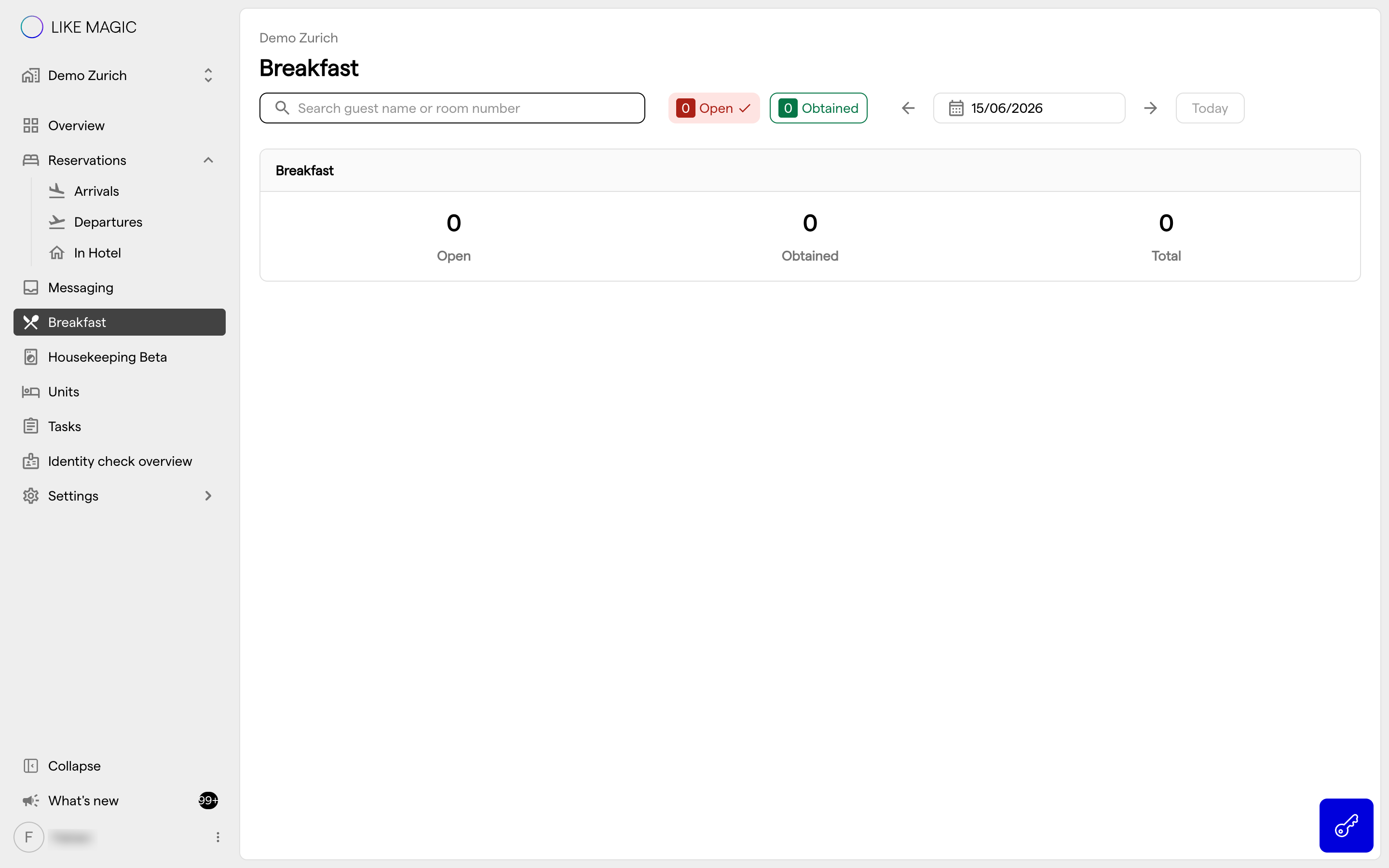
Open Breakfast from the Operations Platform sidebar. The board lists the guests relevant to the selected day's breakfast service, one card per guest, with the guest's name and their room.
You work the board with three controls:
- the date picker, which selects the day the board covers,
- the Open and Obtained quick filters, each showing how many breakfasts fall into that state,
- the search field, which matches a guest name or a room number.
3. Checking Guests Off at Service
As a guest is served, check them off on the board. LIKE MAGIC asks you to confirm the change, then moves the guest from Open to Obtained, so the rest of the team can see at a glance who has already been served and who is still expected. Checking a guest back off works the same way and returns them to Open.
This is the board's core day-to-day job: a shared, live view of the service that everyone working breakfast reads from the same source.
4. Configuring the Breakfast View (Administrator)
The board is controlled from the Breakfast View Configuration section of the property's Operations Platform settings page, under Settings → Operations → Operations Platform. The section is shown on properties running on Apaleo. There are two settings:
- Breakfast View Enabled: whether the Breakfast board exists for this property at all.
- Breakfast Services: the PMS services that count as breakfast. Only guests carrying one of the selected services appear on the board. A maximum number of services is supported, and the page flags the configuration as conflicting if you exceed it.
Changes stay unpublished until you click Publish configuration.
This section is a Property Admin responsibility; a Property Viewer can see the configuration read-only. Changes here decide what every Breakfast Operator sees on the board in section 2.

5. Where the "Entitled to Breakfast" Data Comes From
The list of guests on the board, and whether each is entitled to breakfast, is derived from the reservation, not entered on the board itself. Reservations are generated by the property's PMS (Property Management System) connection.
If a guest who should have breakfast is not appearing on the board, check first whether the property runs on Apaleo, then the reservation and whether the guest's service is one of the configured Breakfast Services. Check the reservation and the configuration before assuming the board is wrong.
6. Conclusion
The Breakfast board is where your team runs the actual service. Read who is entitled on the selected day, then check guests off as they are served. Assign the Breakfast Operator role to staff who only need this board, let a Property Admin switch the view on and select the breakfast services, and remember that the guest list itself comes from reservations via your PMS connection.
For role assignment, see Role and Access Management.