Download the Registration Form (Meldeschein)
Many countries require properties to collect and retain a guest registration document at check-in. LIKE MAGIC provides a built-in registration form feature for properties in countries with this requirement. In Germany the form is called the Meldeschein; the name and required fields vary by country, but the workflow is the same everywhere.
The registration form lets you produce a legally compliant, country-specific guest registration document as a PDF directly from a reservation. The PDF is generated in your browser and downloads instantly, with the guest's master data and captured signature already pre-filled.
1. Who Can Use This Feature?
| Task | Intended access |
|---|---|
| Download the registration form from a reservation | Any front-desk (Host) staff |
| View and edit the registration form settings | Property Admin (edit) / Property Viewer (read) |
ℹ️ The registration form is configured per Property. If you work at Account level, switch to a specific Property to see the Registration Form entry in the Settings navigation.
ℹ️ Note on access: Editing the registration form configuration requires the Property Admin role (or the legacy Admin role). A Property Viewer sees the configuration read-only. Manage roles under Role and Access Management.
2. Feature Overview
Many countries require properties to produce and retain a guest registration document at check-in. The required fields and legal notices vary by country.
LIKE MAGIC lets each Property configure its own registration form once in Settings. Staff then download a pre-filled PDF for a reservation with a single click. Key capabilities:
- Per-Property field configuration. Choose exactly which fields appear on the form
- Custom form title, legal intro and outro text
- Client-side PDF generation, so no document is sent to or stored on a server
- Field labels rendered in the Property's language (not the staff member's interface language)
- Guest signature embedded together with its capture date
ℹ️ Customisation: The form title, legal intro and outro text, and the set of exported fields are configurable per property, so each property can adapt the form to its country's legal requirements and house style.
3. Download the Registration Form
The Download registration form action is available in two places.
ℹ️ The action appears once the guest's master data is available: after the guest has completed the Pre-Check-In Flow, or once the reservation is In-House or Checked-Out.
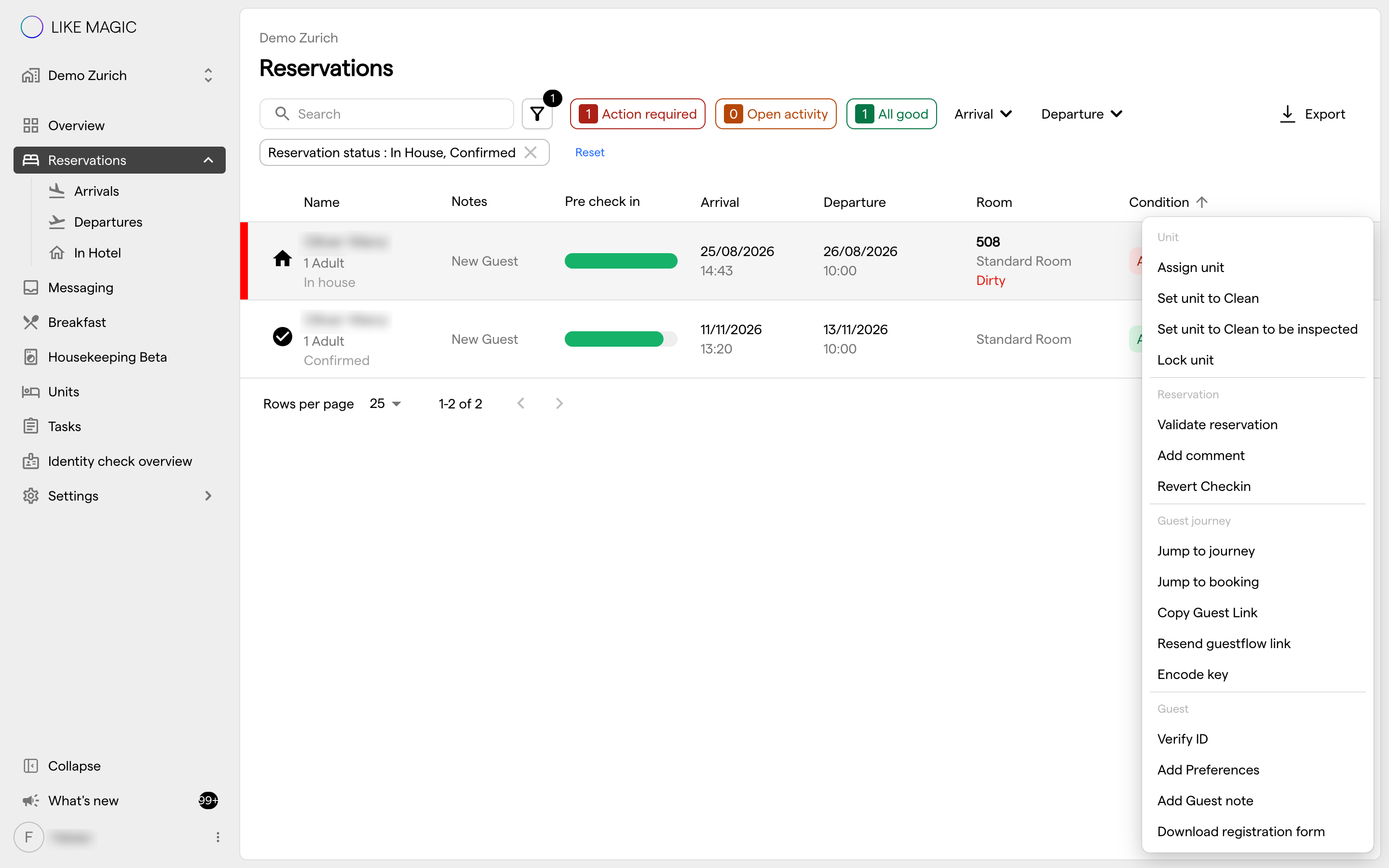
a) From the Reservations Overview
- Find the reservation in the Reservations Overview.
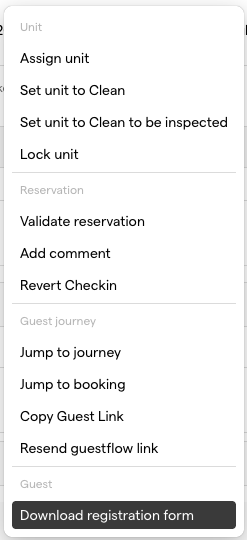
- Click the ⋮ Action Menu at the end of the reservation row.
- Select Download registration form.
The PDF downloads automatically. If the reservation details are not yet loaded, LIKE MAGIC fetches them first and then starts the download.
b) From the Reservation Details Page
- Open the reservation on its Reservation Details Page.
- Click the ⋮ Action Menu in the header area.
- Select Download registration form.
ℹ️ The downloaded file is named <reservation-number>_<last-name>_<first-name>_registration-form.pdf.
4. Configure the Registration Form
⚙️ Navigate to Settings → Operations → Registration Form for the Property you want to configure.
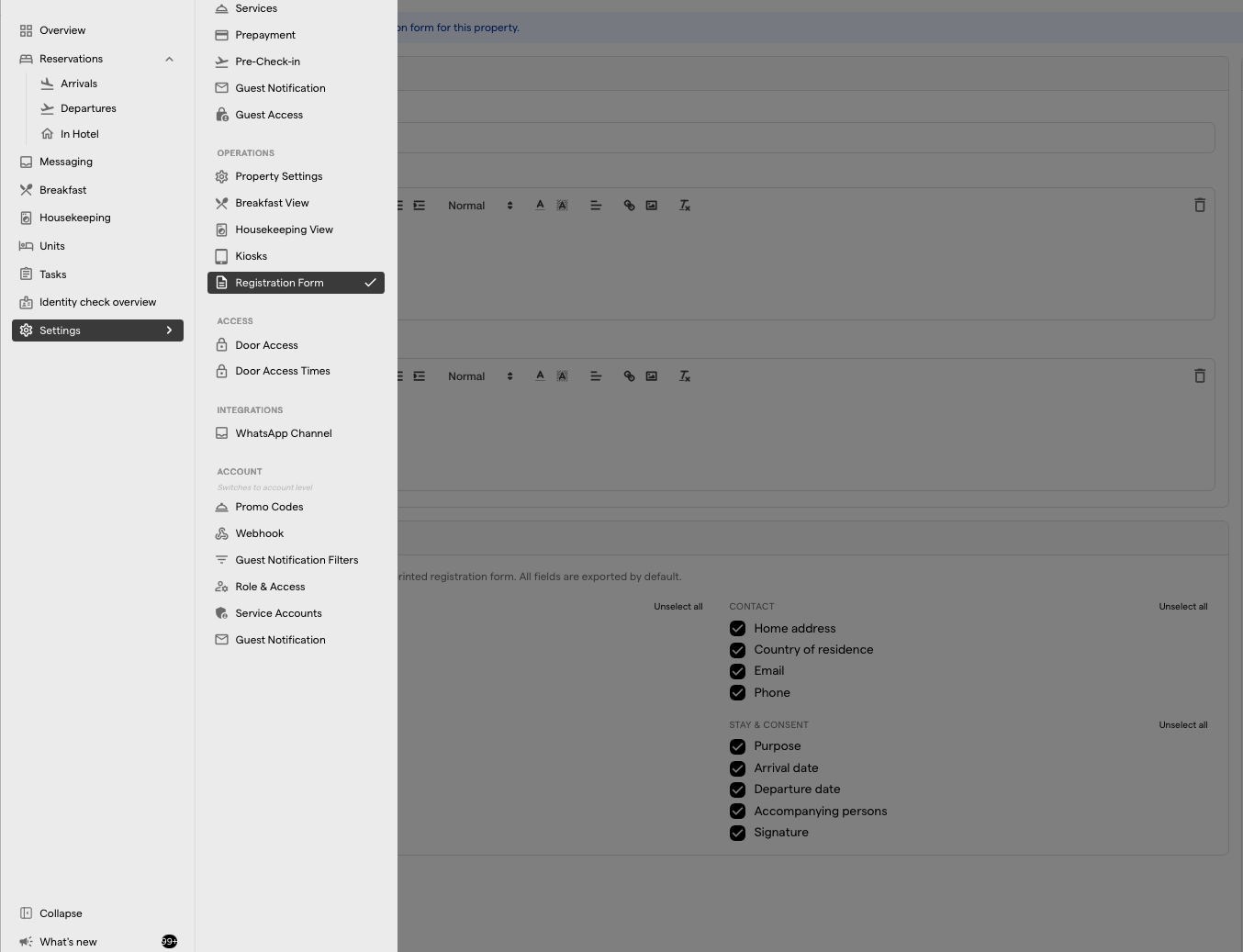
Your changes stay unpublished until you click Publish configuration. The page reminds you as long as unpublished changes exist. Unpublished changes never affect the downloaded PDF.
a) Form title
Enter a custom title that appears at the top of the PDF. Leave the field empty to generate the PDF without a title.
b) Legal text
Add a Legal Intro Text (rendered before the fields) and a Legal Outro Text (rendered after the fields). Both support rich text formatting.
c) Exported fields
Select which fields appear on the printed registration form. All fields are exported by default. Enabled fields always print their label. When the guest's value is empty, the field stays blank so it can be completed by hand.
The fields are organized in three groups, matching the layout of the PDF:
Identity
| Field | Notes |
|---|---|
| Surname | - |
| First name | - |
| Date of birth | - |
| Place of birth | - |
| Gender | - |
| Nationality | - |
| ID document type | - |
| ID document number | - |
Contact
| Field | Notes |
|---|---|
| Home address | - |
| Country of residence | Pre-filled with the guest's nationality |
| - | |
| Phone | - |
Stay & consent
| Field | Notes |
|---|---|
| Purpose | Always printed without a value, to be completed by hand |
| Arrival date | - |
| Departure date | - |
| Accompanying persons | Adds a separate field section for each accompanying person |
| Signature | Shows the captured signature with its capture date ("Captured on …"), or an empty signature line when no signature has been collected |
Use Select All / Unselect all to toggle all fields of a group at once.
d) Live preview
The Preview panel renders the PDF with sample guest data and updates automatically a moment after each change, so you can verify the form layout before publishing.
Once you are satisfied, click Publish configuration to apply your changes.
5. What the PDF Contains
Each downloaded PDF merges three sources:
| Source | What it contributes |
|---|---|
| Property configuration | Form title, legal intro and outro text, enabled field set |
| Guest master data | Pre-filled values for all enabled fields |
| Captured signature | Signature image and capture date ("Captured on …") |
Elements added automatically:
- Header: Property name, company name and the reservation number
- Field labels: rendered in the Property's first configured language, with English as the fallback
- Main guest and accompanying persons: when Accompanying persons is enabled and the reservation has companions, the main guest's section is headed Main guest and each accompanying person gets their own section titled with their name (accompanying persons carry no signature field)
- Generation timestamp and page numbers: shown in the footer ("Generated …")
ℹ️ The PDF is generated entirely in your browser. No rendered document is stored on LIKE MAGIC servers.
6. Conclusion
The registration form (Meldeschein) PDF eliminates manual templates and pre-fills guest data automatically. Configure the form once under Settings → Operations → Registration Form, then download it from a reservation via the ⋮ Action Menu.
Although "Meldeschein" is a German term, the form itself is not Germany-specific. Each Property chooses its own title, legal texts and field set, so the same feature produces a compliant registration document for any country.
ℹ️ Where the pre-filled data comes from: the guest's master data and signature are captured during the pre-check-in / check-in flow.
Related articles: