Front-Desk Daily Operations
The front-desk surfaces are the screens a receptionist works in during a shift. They organise the day around the guest lifecycle: who is arriving, who is leaving, who is currently in-house, and an at-a-glance cockpit that ties it all together. This article explains each screen and how they fit into the reception workflow.
These are operator screens for staff with the Host role. For the per-reservation workspace they all lead into, see the Reservation Detail Drawer.
1. Who Can Use This
All four screens are front-desk operational surfaces that require the Host role, and none of the screens themselves is tied to a pricing tier. The Condition column and its filter inside the lists do require Platform pricing. Arrivals, Departures and In Hotel sit under Reservations in the navigation. With Account selected in the property switcher, these lists show the reservations of every property you have access to; see Find Reservations Across Your Properties. The Overview is a top-level entry on properties running on Apaleo; elsewhere it is not shown and opening it takes you to Arrivals.
2. Overview (the Daily Cockpit)
The Overview is the daily cockpit. It gives the shift a single view of the selected day:
- Arrivals and Departures for the day, split by reservation status.
- Guest counts: Primary Guests, Travel Buddies, adults and children.
- Tiles for In Hotel, Scheduled Cleanings, No-Shows and Identities.
Most tiles drill through into the screen behind them. Click the Arrivals tile to jump to the Arrivals list, the Scheduled Cleanings tile to jump to Units, and the Identities tile to jump to Identity check overview. The Overview itself is not tied to a pricing tier.
3. Arrivals
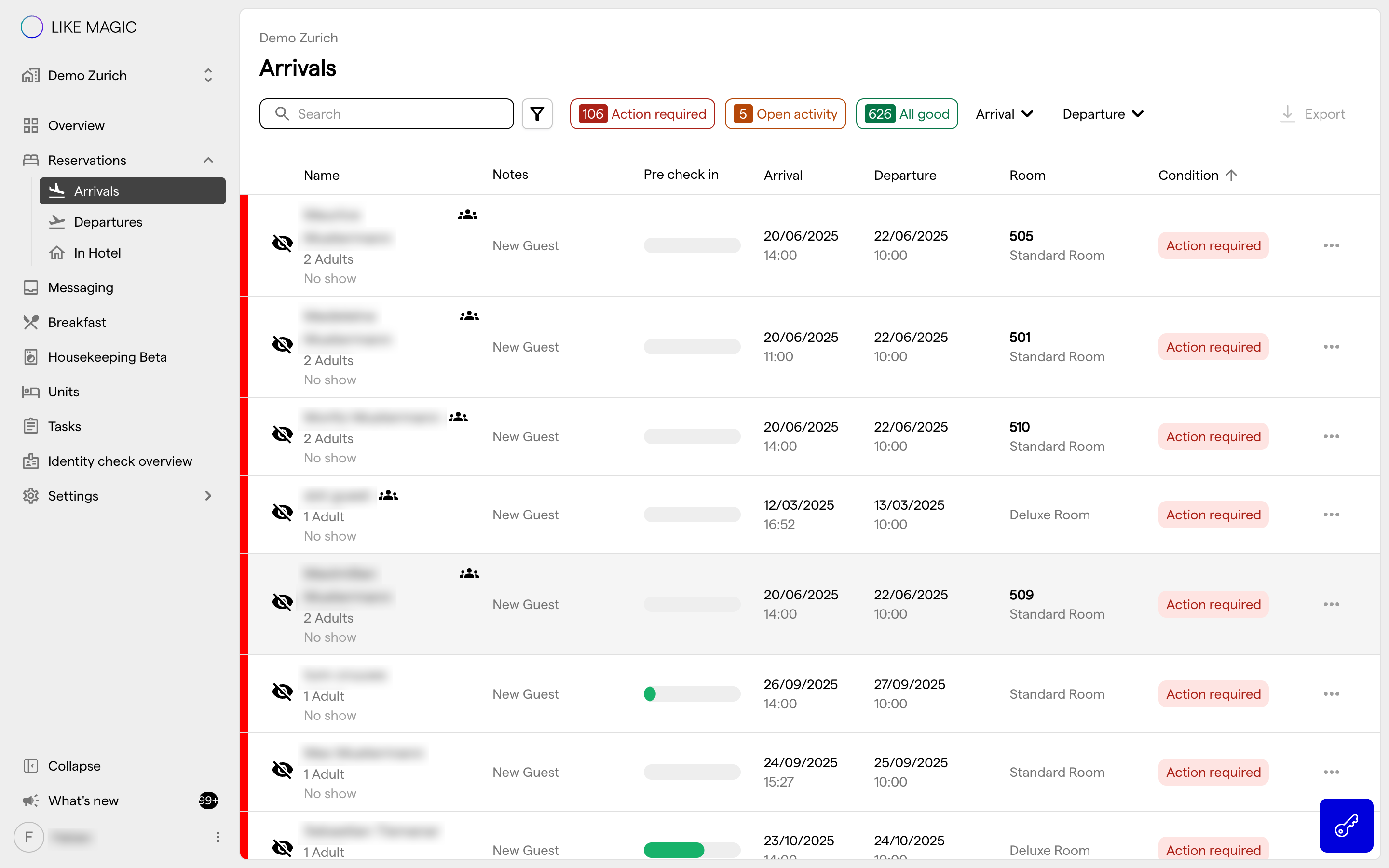
The Arrivals screen lists today's arrivals, filtered to the reservation statuses Confirmed and In house. Use it to prepare and process check-ins:
- See each arriving reservation with its Pre-Check-In progress, its assigned Room and its Condition.
- Narrow the list with the Condition filters Action required, Open activity and All good.
- Start the Check-In Wizard from a reservation row when a guest arrives at the desk.
From any row you can open the Reservation Detail Drawer to see the full reservation.
4. Departures
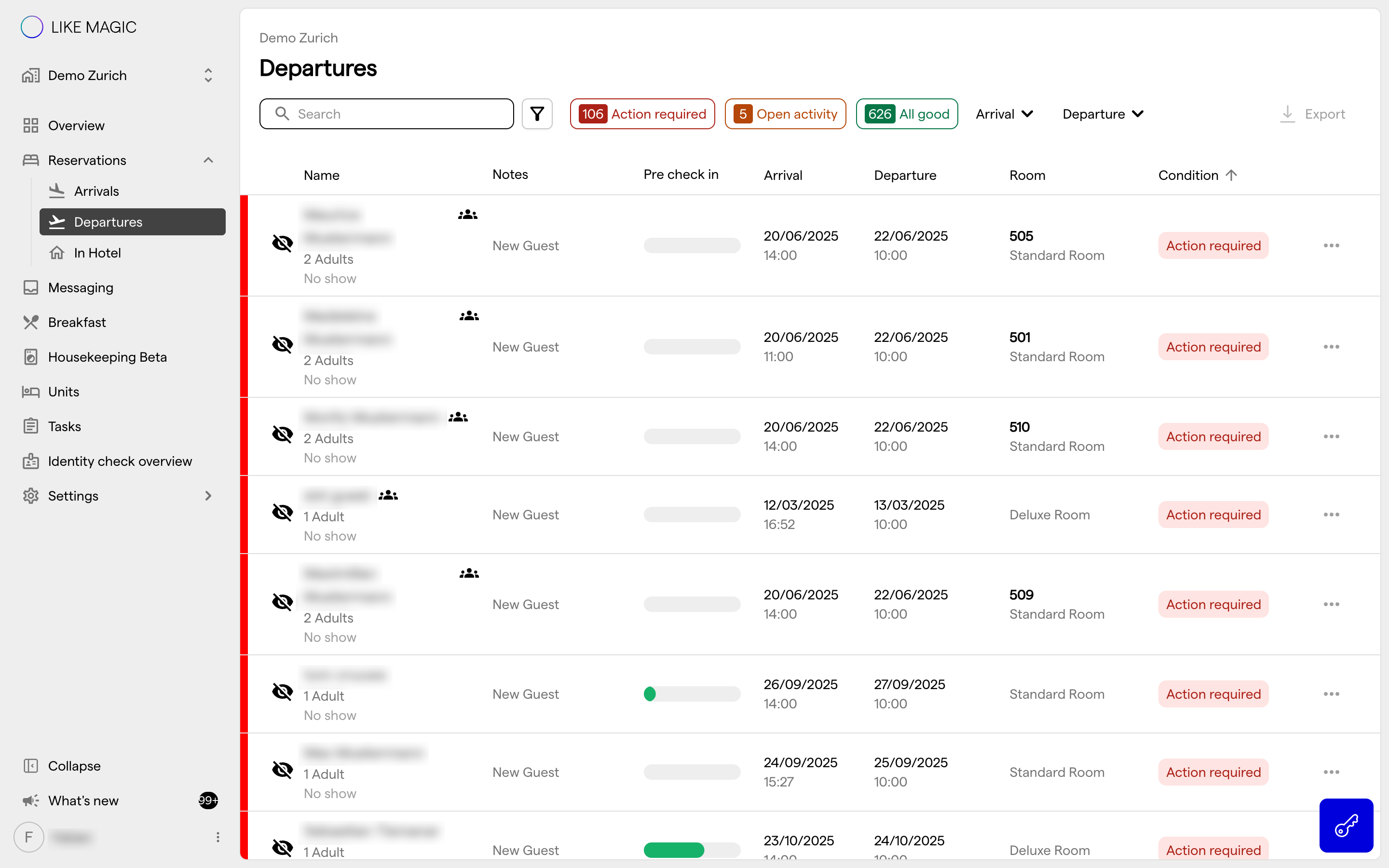
The Departures screen lists today's departures, filtered to the reservation statuses In house and Checked out. Use it for the checkout workflow:
- See each departing reservation with its status and its Condition.
- Spot open balances. The Condition flags an unpaid balance before departure, on the day of departure and after check-out. The folio itself lives on the reservation's Billing tab.
5. In Hotel
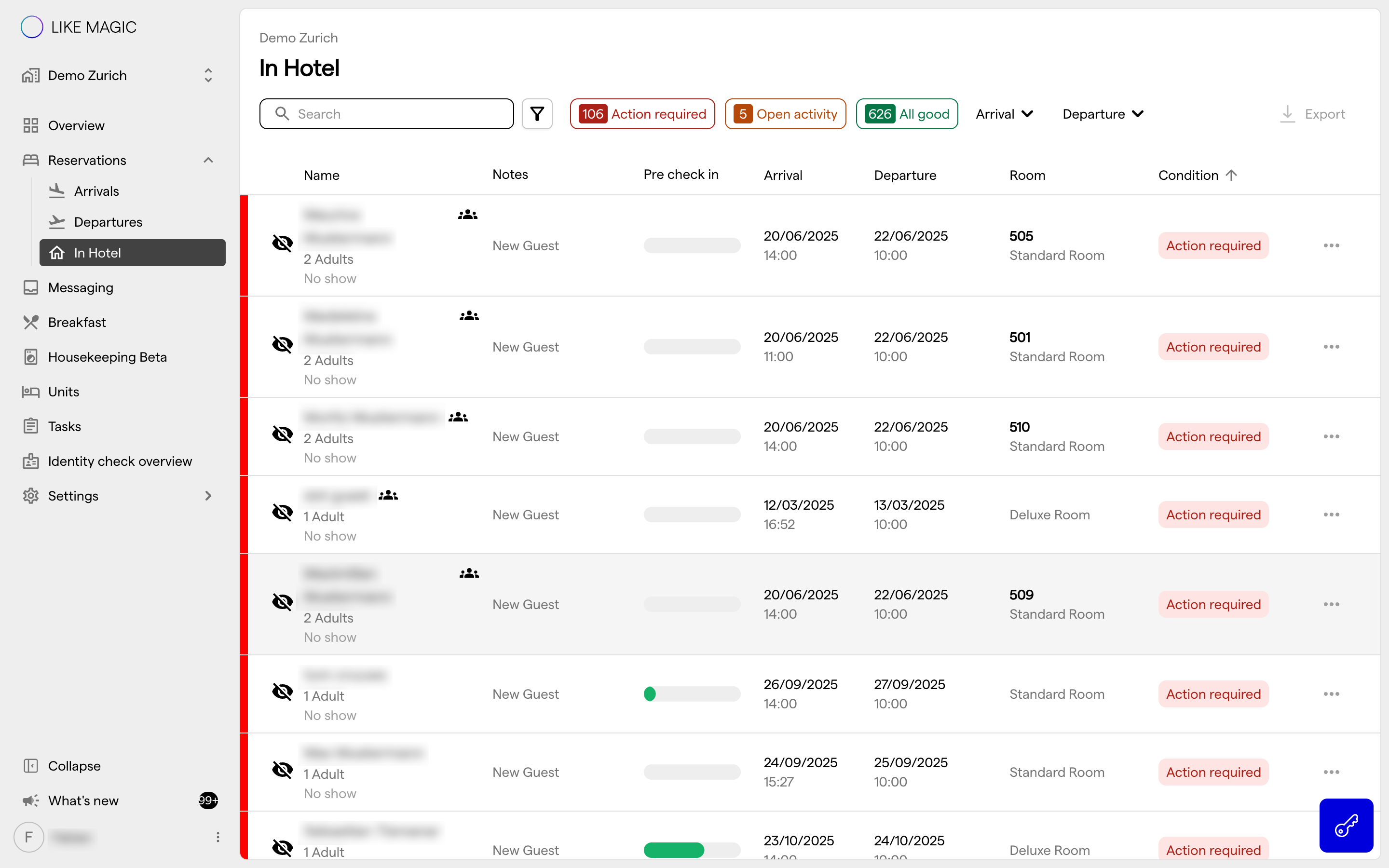
The In Hotel screen lists the reservations with the status In house, so the guests currently staying with you. Use it to:
- See who is on-property right now, with room and stay details.
- Reach a guest quickly. Open the reservation and send a message from its Notifications tab.
6. Conclusion
The front-desk screens turn the day into a workflow: the Overview frames the shift, Arrivals and Departures move guests through check-in and checkout, and In Hotel keeps track of everyone currently on-property. Each one leads into the Reservation Detail Drawer for the full picture of a single reservation.