Housekeeping View
How to configure the Housekeeping View in the Operations Platform according to your needs
Introduction
The Housekeeping View configuration lets a Property Admin choose which housekeeping board is active for a property and define how cleaning tasks are generated. This article covers both the configuration you control and the boards your team uses day to day.
1. Feature Overview
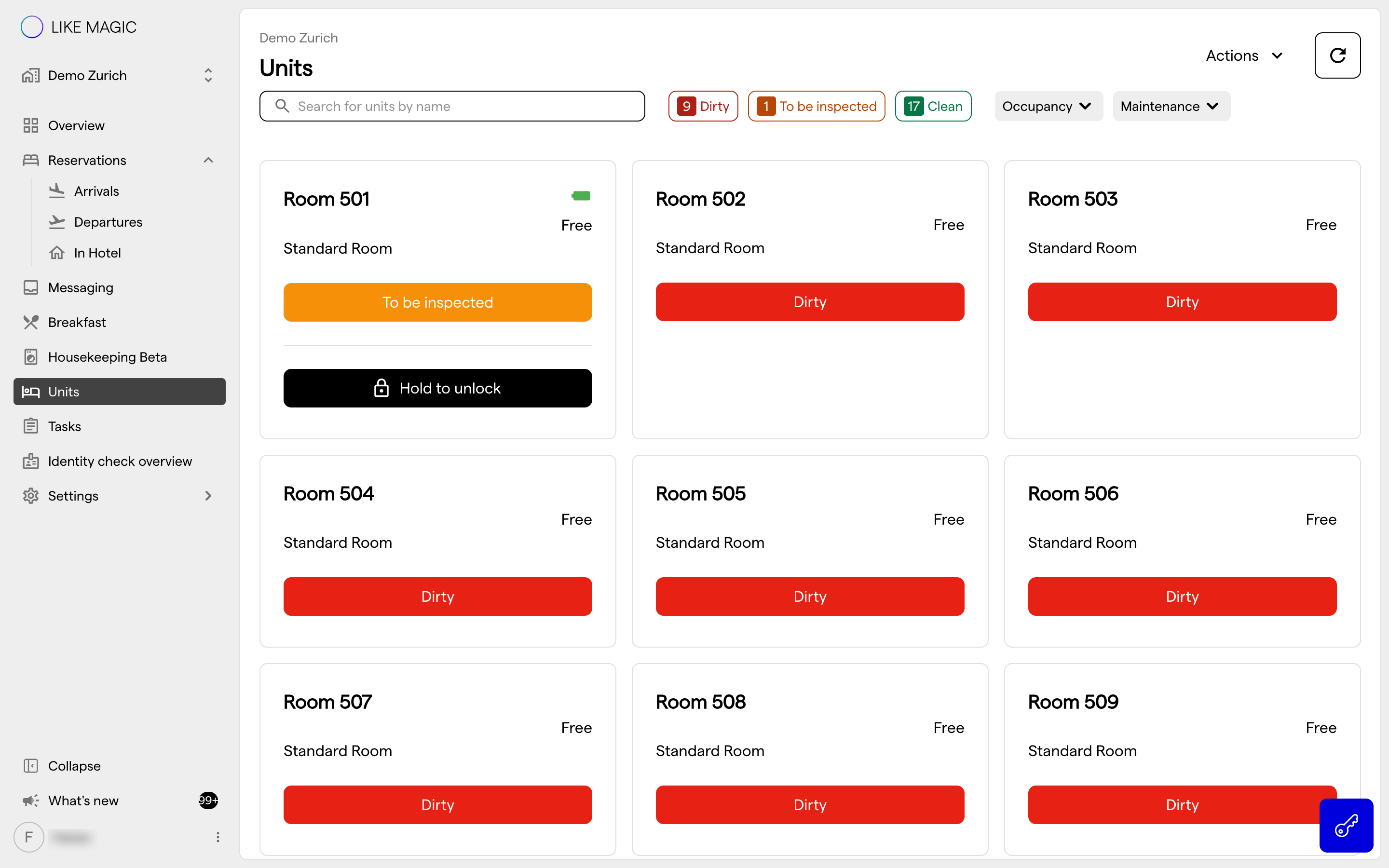
The Housekeeping View lets your housekeeping team manage room status updates for both departure and stay-over cleanings.
Two board versions exist, and they can coexist while a property migrates:
- Housekeeping V1: a simple overview of the rooms to be cleaned each day, plus a 14-day forecast on properties running on Apaleo.
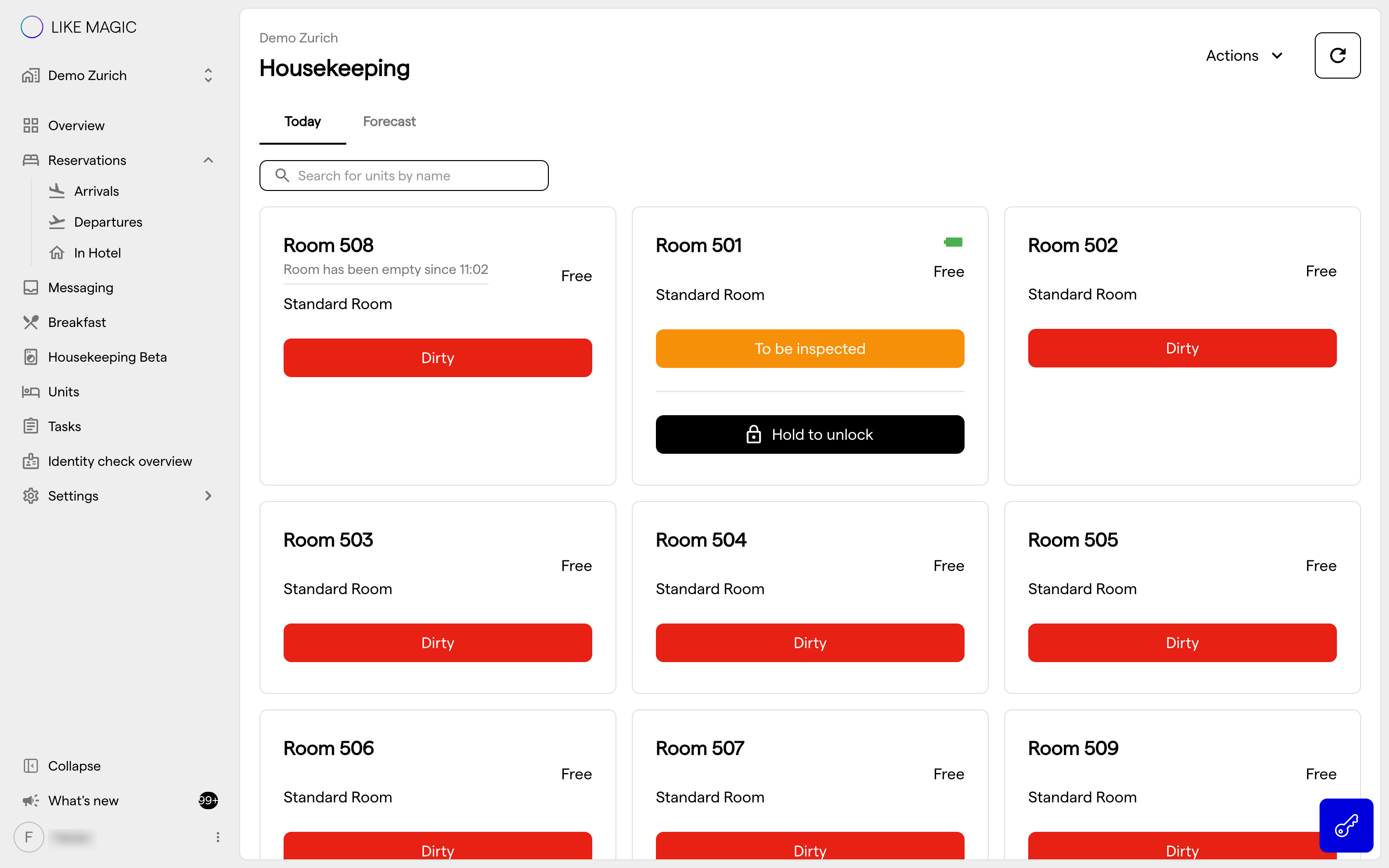
- Housekeeping V2: a task-based system where an automatic task is generated for each cleaning. Once the task is completed, the corresponding room status updates automatically. This version also shows additional tasks (guest rooms, reservations, or tasks assigned to the Housekeeping group) and a 14-day forecast, including additional housekeeping-related services (e.g. baby cots, extra pillows). In the product this board is labelled Housekeeping Beta.
The Housekeeping View Configuration section of the property's Operations Platform settings page (section 3 below) is where a Property Admin picks between V1 and V2 and sets the cleaning-task defaults.
2. Who Can Use This
Whether the housekeeping boards are usable at a property depends on your pricing, your property setup and your role:
- Your pricing. The housekeeping boards and the Housekeeping View Configuration section require Platform pricing. On the Core tier both are shown locked with an upgrade prompt. See Pricing Tiers.
- Your property setup. A Property Admin chooses between V1 and V2 in the Housekeeping View Configuration section (section 3).
- Your role. The boards are used by the Housekeeping role (
house-keeper); the Housekeeping View Configuration section is a Property-level configuration edited by a Property Admin and viewable by a Property Viewer.
3. Configuring the Housekeeping View
To configure your preferred Housekeeping View:
- Navigate to Settings → Operations → Operations Platform in the Operations Platform and scroll to the Housekeeping View Configuration section.
- Change the settings described below. A Property Viewer sees the section read-only and cannot change it.
a) Housekeeping View V1
Housekeeping V1 is the simpler setup and covers basic housekeeping management. Switch on Housekeeping View V1 Enabled. This switch is shown on properties running on Apaleo.
Once you activate this option:
- No additional configuration is required.
- After publishing and reloading the Operations Platform, Housekeeping appears in the sidebar.
- You will see all departure cleanings (as defined in your PMS), as well as rooms marked for Free Cleaning and Additional Cleaning (based on your Services configuration).
b) Housekeeping V2
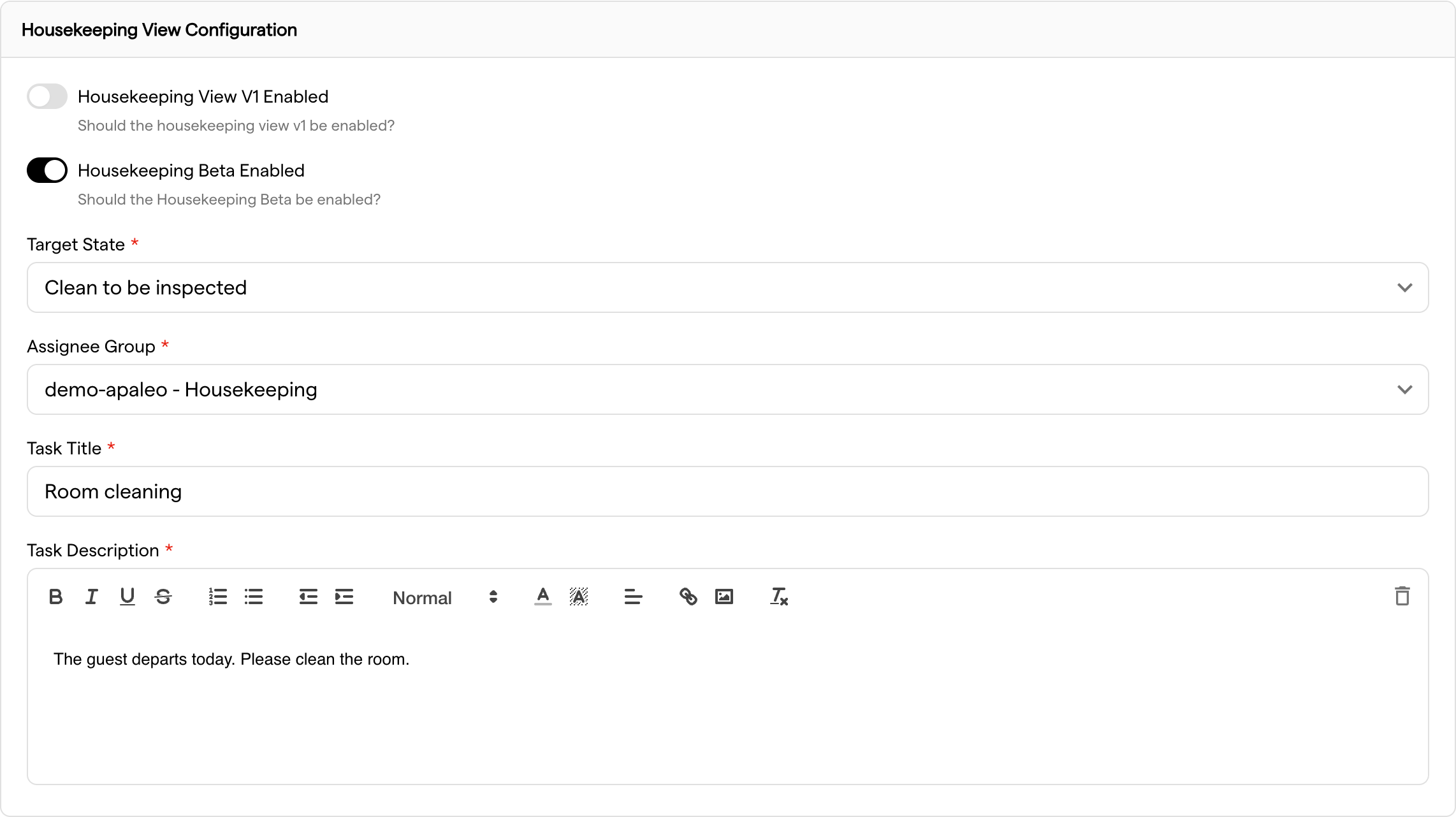
When you switch on Housekeeping Beta Enabled, you can define detailed automation settings and room status behavior.
- Target State: choose what the room status should be once the cleaning task is marked as completed:
- Clean: the guest can check in immediately.
- Clean to be inspected: the room requires inspection before being set to Clean.
- Assignee Group: select the user group responsible for the tasks (typically your housekeeping group).
- Task Title and Task Description: the text that appears on every departure cleaning task.
- Publish and reload: click Publish configuration at the top of the page and reload the Operations Platform. The Housekeeping Beta board is then available in the sidebar.
Important: ensure that your Free Cleaning and Additional Cleaning services also have Auto-create Task When Booked enabled in their Services configuration. Only then do these cleanings appear correctly on the Housekeeping Beta board.
Tip: when enabling Housekeeping V2 for the first time, request via a Support Ticket that automatic task creation is also set up for all existing bookings.