Reservation Actions
Almost everything your team does to a single reservation runs through one control: the Action Menu (⋮) on the reservation. It offers up to about thirty entries (assign a unit, check a guest in, resend the guest link, correct a mistake), and it changes shape from one reservation to the next.
This article is the reference for that menu: what each action does, when it appears, and why an action you expect is locked or missing.
1. Who Can Use This
The Action Menu is a front-desk surface, available to staff with the Host role (front desk / reception) and to property and account administrators.
Which entries you actually see is decided by four things, in this order:
- The reservation's state. Each action has its own conditions: status, arrival or departure day, whether a unit is assigned, whether the guest submitted their documents. Most entries are simply absent when the reservation does not qualify.
- Your plan. Beyond a small core set, the actions require Platform pricing. Outside your plan they stay visible but locked (see section 9).
- Your property set-up. The set of actions offered can be restricted per property by LIKE MAGIC.
- The property's PMS. A few actions exist only for certain PMSs, and a few carry different conditions, noted per action below.
2. Where to Find the Action Menu
The same menu is reachable from three places:
- On a reservation row in the Reservations Overview, via the ⋮ button at the end of the row.
- In the reservation detail drawer, via the ⋮ button in the drawer header (see Reservation Detail Drawer).
- On mobile, the ⋮ button opens the actions as a drawer sliding up from the bottom, with the same entries.
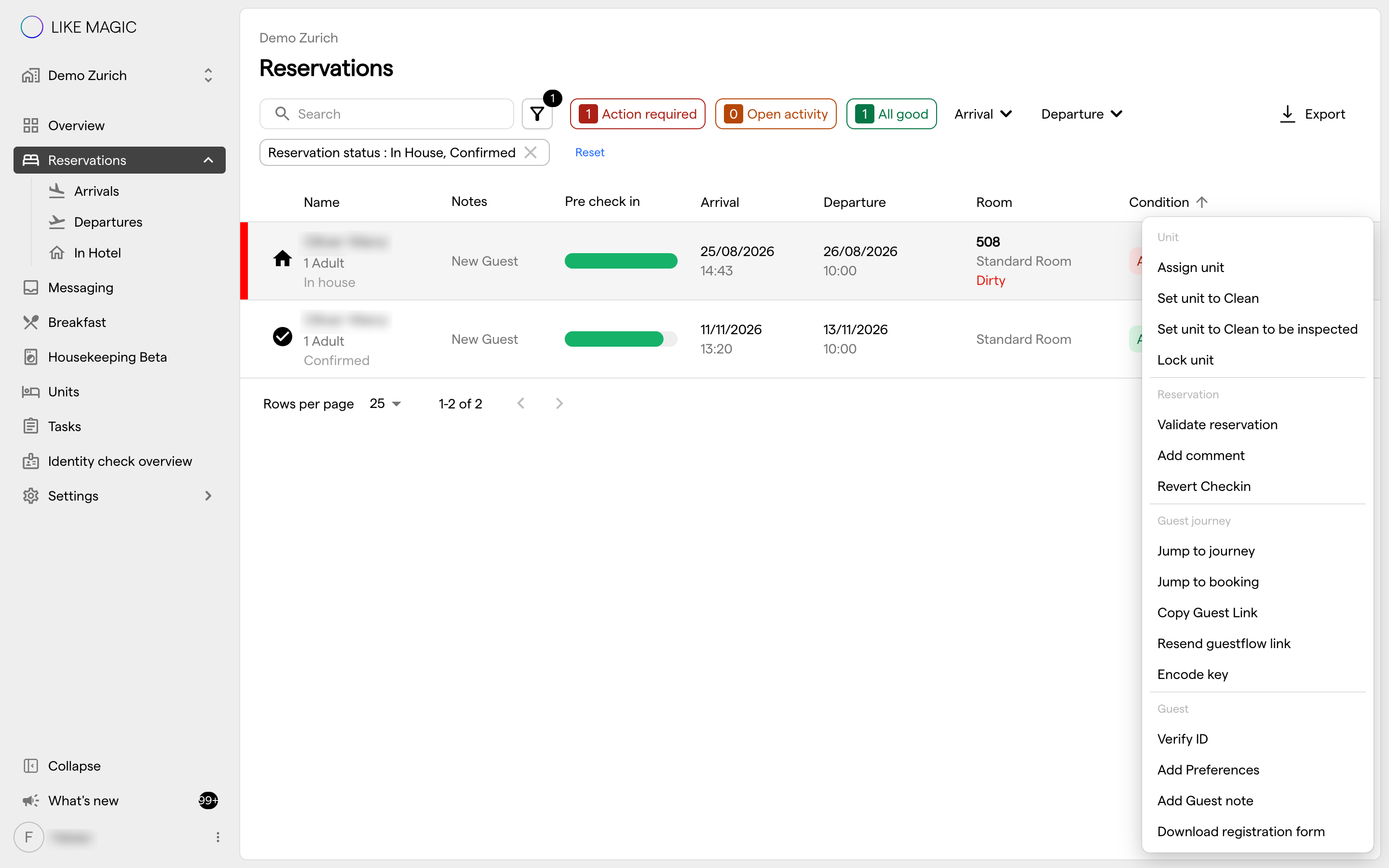
3. How the Menu Is Organised
Entries are grouped under four headers, always in this order. A header only appears when at least one of its actions is available for that reservation, which is why the menu can look short on one reservation and long on the next.
| Header | Covers | Section |
|---|---|---|
| Unit | The assigned unit and its housekeeping condition | Section 4 |
| Reservation | Status changes, check-in, check-out, comments, PIN | Section 5 |
| Guest journey | The guest link, the guest journey, key cards | Section 6 |
| Guest | Identity check, preferences, notes, registration form | Section 7 |
ℹ️ Note: Sending a notification for a reservation is not in this menu. It lives in the reservation's Notifications tab (section 8).
4. Unit Actions
| Action | What it does | When it appears |
|---|---|---|
| Assign unit | Assigns a unit to the reservation, or moves the guest to a different one. Warns you when the chosen unit belongs to a different unit group than the one booked. | Reservation is Confirmed or In-House, and the unit assignment is not locked |
| Set unit to Dirty | Sets the assigned unit's housekeeping condition to dirty. | Reservation is Confirmed or In-House, a unit is assigned, and the unit is not already dirty |
| Set unit to Clean | Sets the assigned unit's housekeeping condition to clean. | As above, and the unit is not already in that condition |
| Set unit to Clean to be inspected | Marks the unit as cleaned but still awaiting inspection. | As above, and the unit is not already in that condition |
| Add to housekeeping queue | Puts the reservation into the housekeeping queue so the unit is prioritised for the arriving guest. | Only for properties on Opera Cloud; reservation is Confirmed, arrival is today, and it is not already queued |
| Remove from housekeeping queue | Takes the reservation back out of the queue. | Only for properties on Opera Cloud, and the reservation is currently queued |
| Lock unit | Freezes the unit assignment - the reservation can no longer be moved to a different unit. | A unit is assigned, it is not already locked, and the reservation is Confirmed or In-House |
| Unlock unit | Releases the freeze so the reservation can be moved again. | A unit is assigned, it is locked, and the reservation is Confirmed or In-House |
Each of these asks for confirmation before it runs, and a banner confirms the result.
a) Locking a Unit Assignment
Lock a unit when the assignment must not change (a guest with an accessibility need, a room prepared for a VIP, a maintenance-sensitive unit). While the assignment is locked:
- Assign unit disappears from the menu for that reservation.
- Only Unlock unit brings the assignment back into play.
💡 Before unlocking, check the guest preferences and the reason the unit was locked in the first place. The lock usually encodes a decision someone made on purpose.
ℹ️ Note: Lock unit and Unlock unit are offered on every PMS. On Apaleo and Mews properties they are there while the reservation is
ConfirmedorIn-House. On Opera Cloud properties they are there only while it isConfirmed, not after check-in.
The Assign unit dialog carries a switch of its own, Lock Unit Assignment, which locks the new assignment in the same step. On properties running Opera Cloud, that switch is hidden once the reservation is In-House. Assign unit itself stays in the menu, so you can still move the guest to another unit, but you cannot lock the new assignment from LIKE MAGIC at that point. On Apaleo and Mews properties the switch is always there.
b) Housekeeping Queue
The housekeeping queue is an arrival-day tool: it flags a reservation whose unit needs to be turned around now, so housekeeping can prioritise it. Because the queue lives in the PMS, the two actions appear only on properties running Opera Cloud, and only for reservations arriving today.
5. Reservation Actions
| Action | What it does | When it appears |
|---|---|---|
| Check-In Wizard | Opens the staff-assisted check-in flow, starting at the registration form. | Reservation is Confirmed or In-House, and the wizard is enabled for the property by LIKE MAGIC. Hidden while the wizard is already open |
| Check in | Sets the reservation to In-House directly, without the wizard. | Reservation is Confirmed. On Apaleo properties additionally: arrival is today. On Mews properties additionally: today falls between arrival and departure, a unit is assigned, and that unit is Inspected |
| Check out | Sets the reservation to Checked-Out. | Reservation is In-House and the departure day has been reached or has passed |
| Cancel | Cancels the reservation. | Reservation is Confirmed and the arrival day has not yet passed |
| Set to No-Show | Marks the reservation as No-Show. | Reservation is Confirmed and the arrival day has already passed |
| Add PIN | Sets the PIN code the guest enters on the door keypad - see Door Access. | A unit is assigned and the reservation is Confirmed or In-House |
| Add comment | Adds an internal staff comment to the reservation. | Always available |
| Revert Check-In | Undoes a check-in and puts the reservation back to Confirmed - see Fixing a Mistake on a Reservation | Reservation is In-House, and the property does not run on Mews |
| Validate reservation | Re-reads the reservation from the PMS and recalculates which actions it currently allows. | Always available |
a) Cancel and No-Show Both Charge
⚠️ Cancel and Set to No-Show are the two entries in this menu with a direct financial effect: depending on the rate booked, cancellation or no-show fees can be charged automatically. The confirmation dialog says so, and there is no undo (see Fixing a Mistake on a Reservation).
The two are mutually exclusive by design and split on the arrival day: up to and including the arrival day you Cancel; once the arrival day has passed, Set to No-Show replaces it.
b) Check Out and the Folio
Where folio management is active for the property, Check out first asks what to do with the folio: jump to the folio to settle an open balance, or complete the check-out as it stands. Without folio management it is a plain confirmation dialog.
c) When to Use Validate Reservation
Validate reservation is the menu's self-repair entry. It re-reads the reservation from the PMS and recomputes the action list. Use it when the menu and reality have drifted apart (for example the PMS shows a unit assigned but Encode key is still missing, or an action you just used is still offered). If the menu is still wrong afterwards, the reservation data itself is out of sync; raise a Support Ticket.
6. Guest Journey Actions (the Guest Link)
| Action | What it does | When it appears |
|---|---|---|
| Jump to journey | Opens this reservation's guest journey in a new browser tab, exactly as the guest sees it. | Always available |
| Jump to booking | Opens the booking-level guest journey - the whole booking rather than the single reservation. | Always available |
| Copy Guest Link | Copies the guest's personal journey link to your clipboard. A banner confirms the copy. | Always available |
| Resend guestflow link | Sends the guest their journey link again, to the contact details on the reservation. | Reservation is Confirmed or In-House, and the primary guest has an email address or a phone number on file |
| Encode key | Opens the key-card encoder dialog for the reservation - see Door Access. | A unit is assigned, the reservation is Confirmed or In-House, and the property has key-card encoders set up |
a) Copy the Link or Resend It
Both actions deal with the same guest link, and the choice between them is about who delivers it:
- Copy Guest Link puts the link on your clipboard, so you deliver it (pasting it into a live chat, an email you are already writing, or a Communication Hub conversation). It works on any reservation, whatever its status, and it never sends anything to the guest.
- Resend guestflow link has LIKE MAGIC deliver it, to the email address or phone number stored on the reservation. It asks for confirmation first, and a banner tells you it went out.
🛎️ Reach for Resend guestflow link in the everyday case (the guest deleted the email, or never opened it). Reach for Copy Guest Link when you are already talking to the guest on another channel, or when resend is not offered.
b) When Resend Is Not Offered
Resend guestflow link is absent in two situations, and both are fixable:
- The reservation has no contact details. No email address and no phone number on the primary guest means there is nowhere to send it. Add the missing contact detail to the guest, then reopen the menu.
- The reservation is already
Checked-Out,No-Showor cancelled. The link is only resent while the journey is live (that is, while the reservation isConfirmedorIn-House).
Use Copy Guest Link as the fallback in both cases: it stays available and you can hand the link over yourself.
c) Encoding a Key Card
Encode key opens the encoder dialog, where you pick the encoder station and place the key card on the reader.
⚠️ On a reservation that is still Confirmed (the guest has not checked in yet), the action first warns you and asks for confirmation. Encoding a card before check-in is intentional in some workflows and a mistake in others, so the dialog makes you decide rather than doing it silently.
7. Guest Actions
| Action | What it does | When it appears |
|---|---|---|
| Verify ID | Opens the identity-check dialog to confirm or reject the guest's submitted documents - see Identity Check. | The guest has submitted a signature (and, where document upload is active for the property, an identification document), and the check is still open for editing |
| Add Preferences | Records structured guest preferences on the reservation. | The reservation or its booking is linked to a guest profile. On the CORE plan this is read-only |
| Add Guest note | Adds a free-text note about the guest. | Same condition as Add Preferences. On the CORE plan this is read-only |
| Download registration form | Downloads the digital registration form (Meldeschein) as a PDF. | The guest has completed the pre-check-in flow, or the reservation is In-House or Checked-Out |
ℹ️ Note: Verify ID disappears once the identity check has been confirmed. It is offered while the check is still open or was re-uploaded. To reopen a confirmed check, see Fixing a Mistake on a Reservation.
8. Sending a Notification for This Reservation
Two notification actions belong to the reservation but are not in the Action Menu (⋮). They live in the reservation detail drawer's Notifications tab, next to the list of Sent Notifications.
a) Send New Notification
The Send New Notification button opens a form with four fields:
- Template: which notification to send. The list holds the templates available for this reservation.
- Recipient: which guest profile receives it. Picking a template pre-fills the recipient, channel, language and contact details from the reservation; you can change any of them.
- Channel: email, SMS or WhatsApp, limited to the channels enabled for the property.
- Language: one of the property's configured languages.
Depending on the channel you then confirm or correct the email address or the phone number. Send dispatches it and a banner confirms.
👤 Use this when a guest needs a specific notification out of sequence: a confirmation that never arrived, a pre-arrival message for a late booking, payment instructions before the guest travels.
b) Resend an Already-Sent Notification
Every entry in Sent Notifications offers Resend. It reuses that notification's template and pre-fills the language, channel and recipient it originally went to, so the common case (same message, corrected email address) is two clicks. Change the channel and the address field switches with it.
ℹ️ Note: Both buttons are greyed out when the reservation does not allow them. If Send New Notification stays disabled on a reservation that clearly needs a message, check that notifications are enabled for the property and see section 9.
9. Why an Action Is Missing or Locked
Four different mechanisms remove an action from the menu, and they look different on screen.
a) Locked (Your Plan Does Not Include It)
A small core set stays available on every plan:
- Jump to journey
- Jump to booking
- Copy Guest Link
- Resend guestflow link
- Download registration form
Everything else requires Platform pricing. Without it, the entry is still listed but carries a lock icon, is not clickable, and its tooltip reads "Available on Platform - upgrade to unlock". Nothing is hidden from you. See Pricing Tiers.
b) Absent (the Reservation Does Not Qualify)
This is by far the most common case, and it looks like nothing at all: the entry is simply not in the list. Every action carries its own conditions (sections 4 to 7): status, arrival or departure day, whether a unit is assigned, whether the unit is locked, whether the guest submitted documents. Check the condition for that action first; Validate reservation (section 5c) resolves the rest.
c) Absent (Restricted for Your Property)
The set of actions the menu offers can be restricted per property by LIKE MAGIC. If an action is missing on every reservation at one property but present at another, this is the likely reason. Request activation via a Support Ticket.
d) Absent (the PMS Does Not Support It)
Some actions depend on the property's PMS:
- Add to housekeeping queue and Remove from housekeeping queue exist only for Opera Cloud.
- Revert Check-In is not offered on Mews properties.
- Lock unit and Unlock unit are limited to
Confirmedreservations on Opera Cloud. - Check in has PMS-specific conditions. On Apaleo the arrival must be today. On Mews today must fall between arrival and departure, and a unit must be assigned and Inspected.
For these same differences across the rest of the Operations Platform, not just the action menu, see What Works on Which PMS.
10. Troubleshooting
| What you see | Why | What to do |
|---|---|---|
| The menu has only three or four entries | The reservation is Checked-Out, No-Show or cancelled - most actions apply to live reservations | Nothing to fix; use the navigation and link actions that remain |
| An entry shows a lock icon | Your plan does not include it | See Pricing Tiers |
| Assign unit is gone | The unit assignment is locked | Use Unlock unit first (section 4a) |
| Encode key is missing | No unit assigned, or the property has no key-card encoders set up | Assign a unit; otherwise see Door Access |
| Resend guestflow link is missing | No email address and no phone number on the primary guest, or the reservation is no longer live | Add contact details, or use Copy Guest Link (section 6b) |
| Check in is missing on arrival day | On Mews properties the unit must be assigned and Inspected | Assign a unit and set it to Inspected with Set Unit to Inspected, then reopen the menu |
| Set to No-Show is missing | The arrival day has not passed yet | Use Cancel instead - it is the pre-arrival equivalent |
| An action fails with an error banner | The reservation changed since the menu was built, or the PMS rejected the change | Run Validate reservation and retry; if it fails again, raise a Support Ticket |
| An action is missing at one property but present at another | The action set is restricted for that property, or the two properties run different PMSs | Compare the PMS first (section 9d), then request activation via a Support Ticket |
11. Conclusion
The Action Menu (⋮) is the single control surface for a reservation, and its shifting shape is deliberate: it offers what this reservation can actually do right now. When an entry is missing, the reason is one of four: the reservation's state, your plan, your property's action set, or the property's PMS (section 9).
For the surface the menu opens from, see Reservation Detail Drawer; for correcting an action you should not have run, see Fixing a Mistake on a Reservation.