Reservation Detail Drawer
The reservation detail drawer is the per-reservation workspace you open from the Reservations overview. It slides in over the reservation table and gives front-desk staff everything about a single reservation (guests, services, folio, keys, messages and alerts) in one place, organised into tabs.
This article is a reference for operators: what each tab is for, and, just as important, why a tab may be missing, locked, or read-only for a given property or user.
1. Who Can Use This
The drawer is a front-desk operational surface for staff with the Host role (front-desk / reception). Which tabs you see inside it depends on three things:
- Your pricing. Most tabs require Platform pricing. A tab your pricing does not include stays visible but locked, with an upgrade prompt. See Pricing Tiers.
- Your property setup. The Billing, Upgrade, Restaurant, F&B Orders and Alerts tabs are enabled per property by LIKE MAGIC. If one of them is missing entirely (not locked), request activation via a Support Ticket.
- Your PMS. Billing, services, keys and alert data come from the property's PMS, so the exact fields and actions on those tabs can differ between properties (see section 4).
2. Opening the Drawer
- Open the Reservations overview.
- Find the reservation (search, filter or sort the table).
- Click the reservation row: the detail drawer opens on the right.
From the drawer you can also run the reservation actions, for example Jump to journey, Jump to booking or Copy Guest Link. A message to the guest is sent from the Notifications tab. The drawer always opens on the Overview tab.
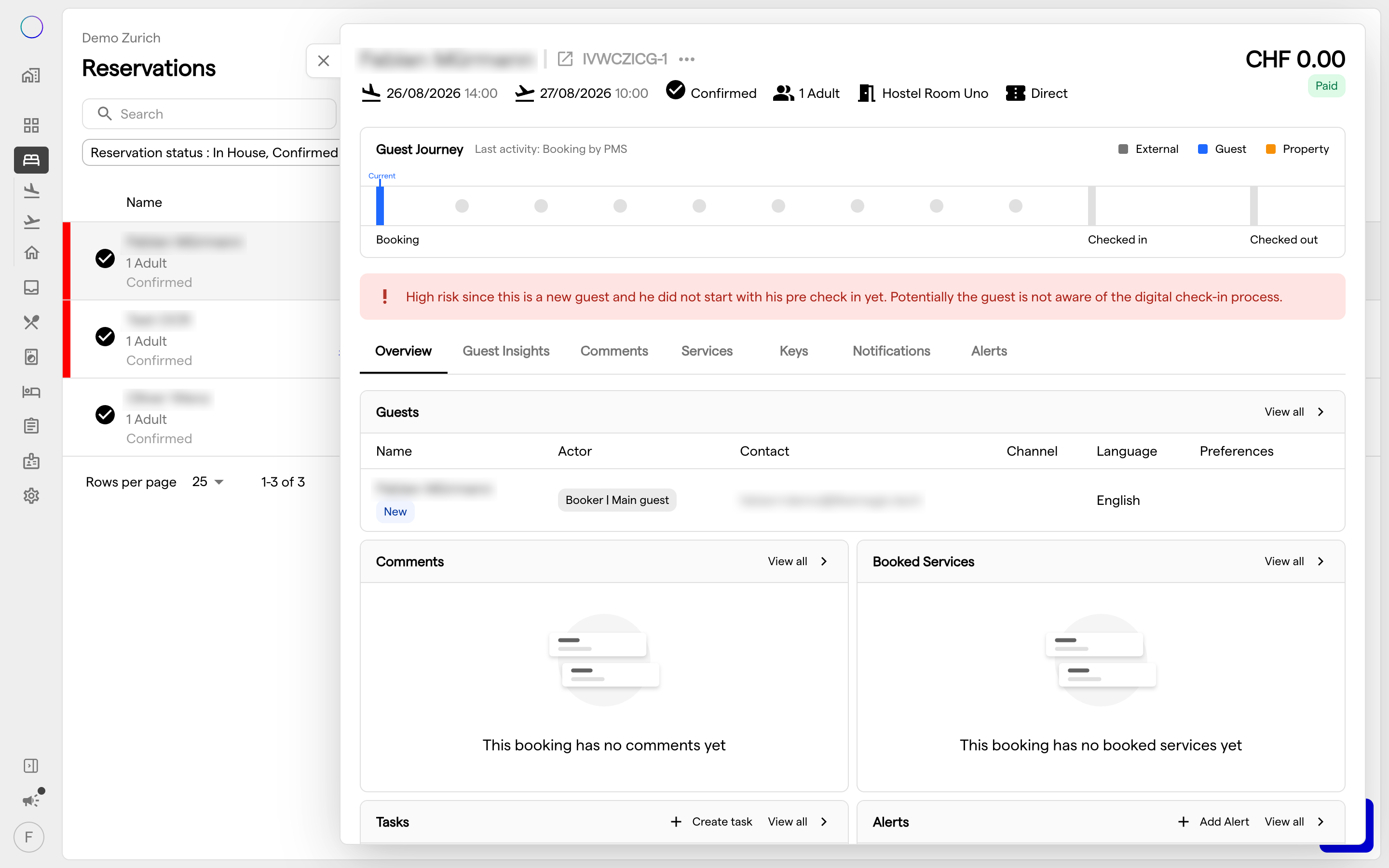
3. The Eleven Tabs
The drawer renders up to eleven tabs, in this order. Most require Platform pricing (see section 4); one, Keys, is always available.
| # | Tab | What it shows |
|---|---|---|
| 1 | Overview | The reservation at a glance - guests, booked services, active alerts and a comments summary. This is the drawer's landing tab. |
| 2 | Guest Insights | Profile-level insight for the guest(s) on the reservation - history and context that help you personalise the stay. |
| 3 | Comments | Internal staff comments on the reservation. |
| 4 | Services | Services booked or addable to the reservation. |
| 5 | Upgrade | Unit-group upgrade offers you can apply to the reservation (for example moving the guest to a higher room category). |
| 6 | Keys | Digital and physical key state for the reservation. Always available - this tab is never locked by pricing. |
| 7 | Notifications | The messages and notifications sent to the guest for this reservation. |
| 8 | Billing | The reservation folio - charges, payments and open balance. |
| 9 | Restaurant | Restaurant reservations linked to the stay. |
| 10 | F&B Orders | Food and beverage orders placed against the reservation. |
| 11 | Alerts | Staff reservation alerts attached to this reservation. |
ℹ️ Note: A Tasks view exists in the platform but is not one of the eleven drawer tabs. Operational tasks are managed from the Tasks board surfaces, not from inside the drawer.
4. Why a Tab Is Locked, Hidden, or Read-Only
Each tab (except Keys) has its own pricing gate. When your pricing does not include a tab, the tab stays visible but shows a lock, and opening it presents an upgrade prompt rather than hiding the feature entirely. This is deliberate. The lock tells you the capability exists and can be unlocked.
A few specific behaviours to expect:
- Keys is never locked by pricing: every tier can see key state.
- Some tab behaviour is PMS-coupled: billing, services, keys and alert data originate in the property's PMS, so the exact fields and actions can differ between two properties. If a billing or key action behaves differently at two properties, check each property's PMS first.
If a tab you expect is locked, your pricing does not include it. See Pricing Tiers. If it is missing entirely, it has not been enabled for your property yet. Request activation via a Support Ticket. If it is there but behaves differently from another property, check the property's PMS first.
5. Guest Journey Monitoring
Above the tabs sits the guest journey timeline for the reservation. It surfaces the live state of the guest's journey (for example where the guest is in pre-check-in or check-in) and requires Platform pricing. Where the pricing does not include it, a Guest Journey Monitoring upgrade prompt takes its place.
6. Conclusion
The reservation detail drawer collects a whole reservation in one place, across up to eleven tabs. When a tab is locked, missing or behaves unexpectedly, the reason is your pricing, your property setup, your role or the property's PMS (section 4). For the overview list the drawer opens from, see Booking Management; for what each tier includes, see Pricing Tiers.