Spot Group Bookings on the Reservations Overview
This article shows you how to identify which reservations belong together within a group booking for easier arrival management, guest relations, or performing housekeeping tasks.
1. Feature Introduction
The Group Booking Indicator lets front-desk teams, property managers and housekeeping see which reservations are part of a group booking, directly on the Reservations Overview.
Key functionalities on the reservation overview
-
Visual Indicator: Reservations that are part of a group are marked with a group icon next to the guest’s name.
-
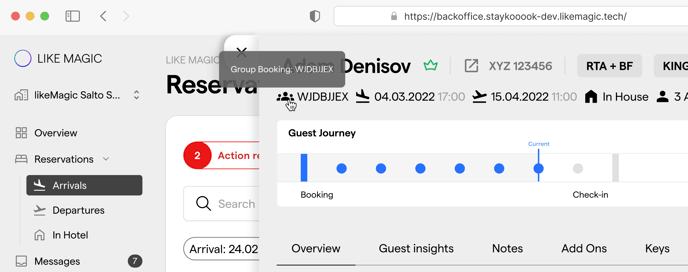
Hover Interaction: When hovering over the icon, a tooltip displays:
- Group Name, the name of the group booking
- Booking#, the PMS booking ID (e.g. WJDBBJEX)
- a Filter button that filters the table by that Booking ID
ℹ️ The group icon shares its place with the other reservation markers: a VIP crown, the back-to-back marker, and one icon per guest segment the reservation carries. They sit in the same cluster next to the name, so hover the icon to read what it means before acting on it.
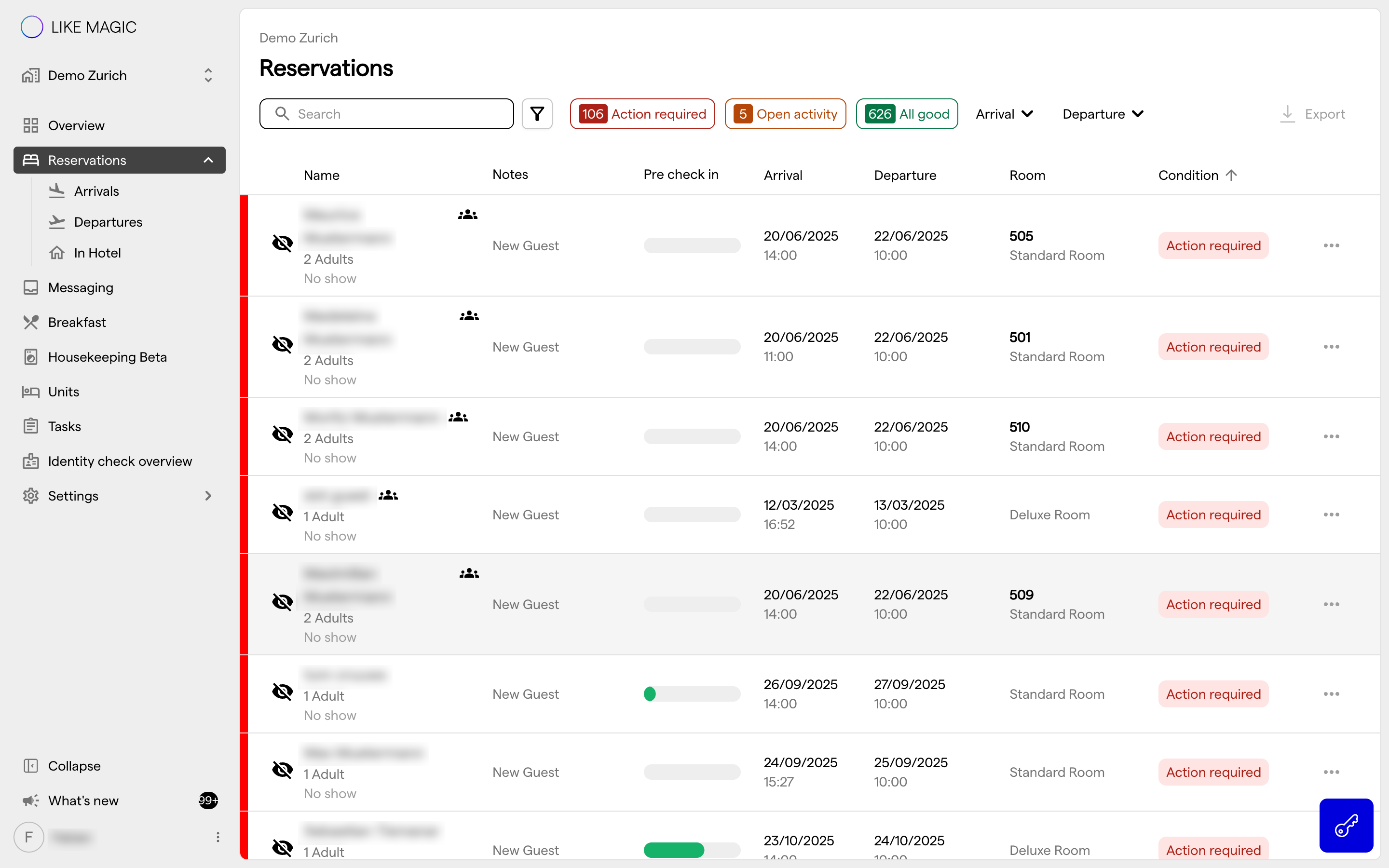
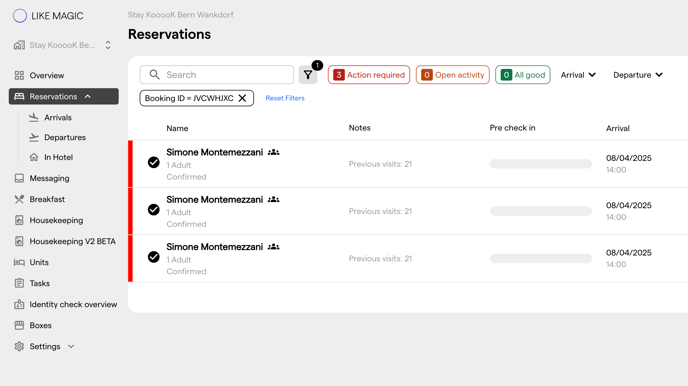
Filtered reservation table by a specific group booking
2. Reservation Detail Page
Once inside an individual reservation that belongs to a group:
-
A group booking tag is shown directly under the guest’s name and next to their primary booking details.
-
Further tags sit next to it:
- Booking ID (e.g.
WJDBBJEX), the PMS booking ID - Booking Dates
- Booking status
- Number of guests and units
- Channel (booked from)
- Booking ID (e.g.
Where the reservation carries guest segments, the header also lists them under Guest Segments, one named chip per segment.
3. Conclusion
The Group Booking Indicator shows the group relationship in both the reservation list and the detail view, so staff can see which reservations belong together and filter the table down to one group booking in a single click.