Task Management (Mobile View)
Working with tasks on a phone: the mobile task list, swipe-to-act quick actions, the task detail view, and filtering on a small screen.
Staff who work tasks are on the floor, not at a desk. Tasks is therefore built for a phone as well as for a screen: the same board described in The Tasks Board, laid out so it can be read and worked with one hand.
1. Who Can Use This Feature
Task Management requires Platform pricing. On the Core tier it is hidden entirely, sidebar entries and configuration page included, rather than shown locked (see Pricing Tiers). Where it is available, access is by role: the task surfaces are open to the Host and Housekeeping roles. Which task lists appear is then driven by the property's task configuration.
2. Working with Tasks on Mobile
The Task Management module is built for mobile devices, so staff can work it one-handed while on the move.
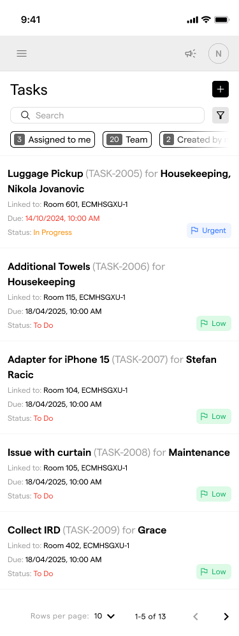
1. Improved Task List Layout
- Grid-like structure:
- Tasks are visually grouped in a denser, clearer format
- Tags (e.g. "Urgent", "Low") are more prominent
- Vertical spacing is optimized for easier scanning
- Improved tag visibility:
- Statuses like
To do,In progress, andDoneare clearly labeled - Priority indicators (
Low,Urgent) are accessible at a glance
- Statuses like
New Tasks Overview Page
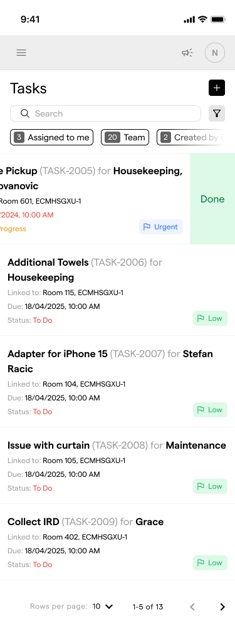
2. Swipe to Reveal Quick Actions
- Quick action: Swiping a task row to the right reveals context actions (e.g. mark as done)
- Purpose: Enables fast interaction with tasks without opening them
- Usage example: A user swipes on a row and taps "Done" to instantly mark a task as completed
3. Task Detail View Changes
More vertical space: the task form expands higher on the screen, and content fields have more breathing room.
New button alignment: action buttons (Cancel, Save) are pinned at the bottom for thumb reach.
Description area: shows 3 visible lines by default, scrollable if text exceeds 3 rows.
Swipe down to dismiss: users can swipe from top to bottom to close the task modal, in addition to the "X" button in the top-right.
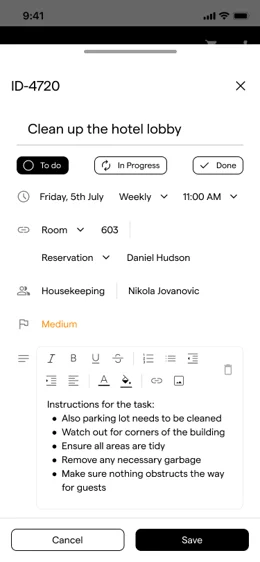
Task Details Modal: Opened
4. Filtering on a Phone
The filters are the same ones described in The Tasks Board, reached through a drawer that slides up from the bottom of the screen instead of a modal. Reset, Cancel and Apply sit side by side at the bottom of that drawer, in thumb reach.
The three quick filters (Assigned to me, Created by me, Assigned to my teams) stay above the list and scroll sideways, so all three and their counts stay reachable on a narrow screen.
A new task is created from the + button next to the page title.
3. Conclusion
On a phone, Tasks is the same board with the same filters, laid out for one hand: a denser list with status and priority readable at a glance, a swipe to complete a task without opening it, a task form built for thumb reach, and the filters in a bottom drawer. The quick filters and their counts are what carry the triage on the floor.