The Tasks Board
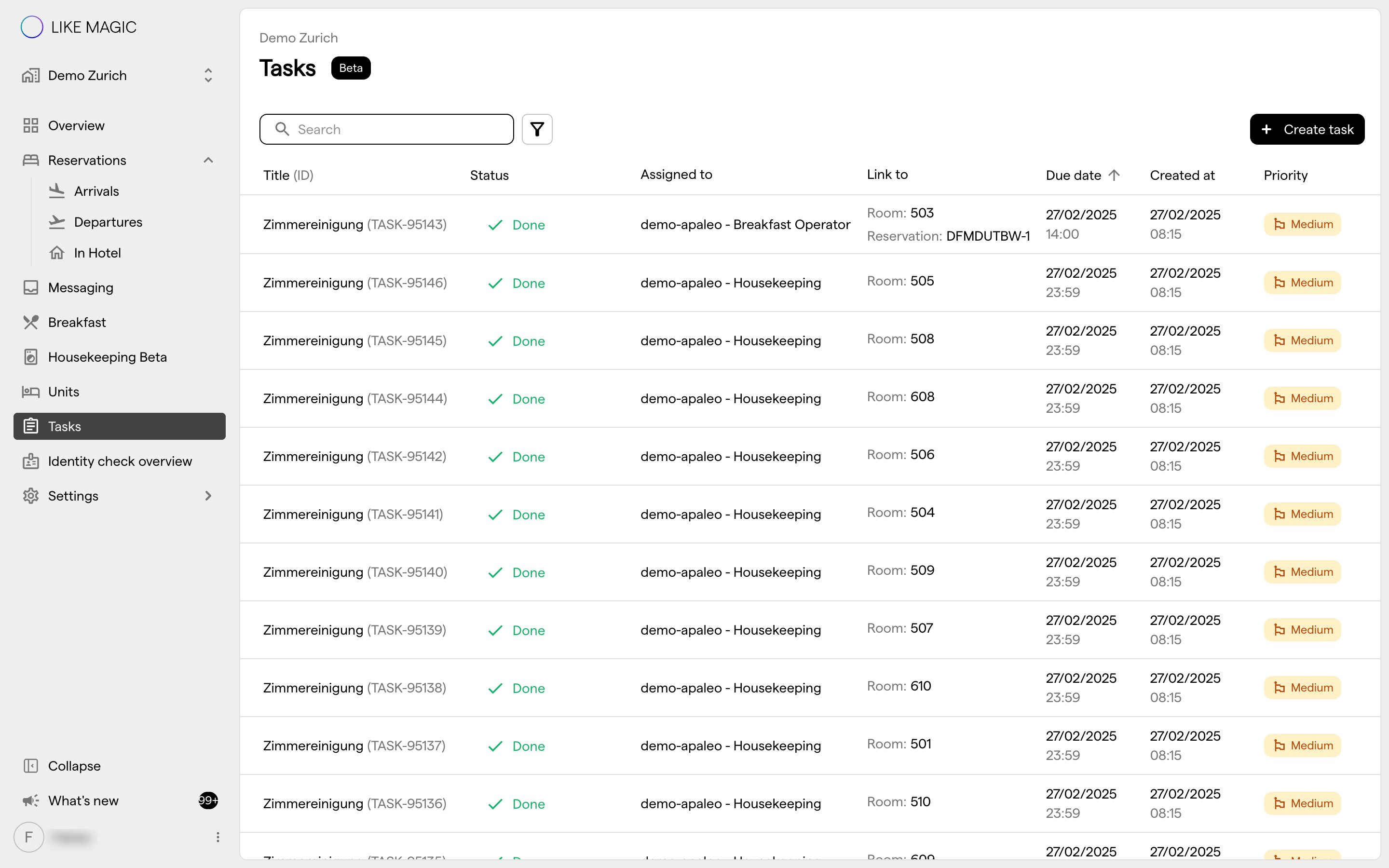
Tasks is the shared board for a property's operational work. One list holds everything a shift has to get done: a job somebody raised by hand, a service a guest booked, a request that came in from the guest journey, and (on properties that run them) food & beverage and shop orders.
The board is built for a single question: what do I have to deal with now? It answers it by opening on a filtered list rather than on everything, and by keeping three counters at the top that tell you how much of the work is yours.
This article covers the desktop board. For the same board on a phone, see Working with Tasks on Mobile.
1. Who Can Use This
Tasks requires Platform pricing. Where your pricing does not include it, the entry is not shown at all. See Pricing Tiers.
Where the plan includes it, access is by role: the board is open to the Host and Housekeeper roles. Which colleagues you can filter by or assign to comes from the property's staff and staff groups. See Role and Access Management.
ℹ️ Note: The page carries a Beta label next to its title. The board is in productive use; the label marks it as still evolving.
2. The View the Board Opens On
Opening Tasks from the sidebar does not show you every task the property has. It opens a deliberately narrowed list:
- Only open work: status Todo and In Progress. Tasks already marked Done are filtered out.
- Only the task types a shift acts on: Manual, Service, Automated, Guest and Shop order tasks, plus Food and Beverage on properties where F&B is switched on. Cleaning tasks are left out, because they are worked in the Housekeeping View rather than here.
- Assigned to my teams: the third quick filter starts switched on, so you land on your own team's open work rather than the whole property's.
On some properties the board additionally opens on Overdue and Today only. That is set up per property by LIKE MAGIC. If you want it for yours, request it via a Support Ticket.
💡 The count in the toolbar's filter badge tells you how many filters are currently narrowing the list. If a task you expect is missing, that badge is the first place to look. Most "the task is gone" reports are a filter, not a missing task.
3. The Three Quick Filters and Their Counts
Three chips sit above the list, each with a number on it:
| Quick filter | Shows |
|---|---|
| Assigned to me | Tasks whose assignee is you personally |
| Created by me | Tasks you raised - useful for chasing something you handed over |
| Assigned to my teams | Tasks assigned to a staff group you belong to, rather than to one named person |
Each chip toggles: click to add that condition, click again to drop it. They combine with each other and with everything in the filter modal.
The numbers are live, and they respect the rest of your filters. They are not "all tasks ever assigned to me". They count within the list you are currently looking at. Narrow the board to Urgent and Overdue, and Assigned to me immediately shows how many of those are yours. That is what makes the chips a triage tool rather than a decoration.
4. Filtering the Board
The Filters button opens the filter modal. It has two parts.
a) By person
Two people pickers, both filled from the property's staff list:
- Assigned to: who has to do it
- Reported by: who raised it
b) Other filters
Four checkbox groups, all multi-select:
| Group | Options |
|---|---|
| Status | Todo, In Progress, Done |
| Priority | Low, Medium, High, Urgent |
| Due date | Overdue, Today, Tomorrow, Next 7 days, After 7 days |
| Task Type | The task types available on your property - see The Eight Task Types |
c) Applying, cancelling and resetting
Nothing you tick takes effect until you press Apply. The modal holds your changes so you can build a combination in one go. Cancel discards them. Reset returns the board to the view it opens on, described in section 2.
On the desktop board, the filters you have applied are also listed as chips underneath the toolbar, and each chip can be removed on its own without reopening the modal.
ℹ️ Note: Applying a filter always takes you back to the first page of results, so a narrowed list never leaves you stranded on page 7 of a list that now has two pages.
5. The Columns, Sorting and Paging
The board shows seven columns:
| Column | What it holds | Sortable |
|---|---|---|
| Title | The task title, with the task ID underneath | Yes |
| Status | Todo, In Progress or Done | Yes |
| Assigned to | The person or the staff group | No |
| Link to | The room and the reservation the task belongs to - see section 6 | No |
| Due date | When it is due | Yes |
| Created at | When it was raised | Yes |
| Priority | Low, Medium, High or Urgent | Yes |
The board is sorted by Due date, soonest first, until you change it. Click a sortable column heading to sort by it; click the same heading again to reverse the direction.
At the bottom, the list pages in 25, 50 or 100 rows.
6. What the Link Column Tells You
Most tasks belong to something. The Link to column shows what:
- the room the work is in, and
- the reservation it concerns.
On a turnover the column can name two reservations (the departing one and the arriving one) because a task sitting between two stays legitimately belongs to both.
Reservation numbers in this column are clickable: selecting one opens that reservation's detail drawer without leaving the board, so you can check the stay behind a task and come straight back.
7. A Filtered Board Survives a Reload and Can Be Sent to a Colleague
The filters you apply are held in the page address, not in a hidden session. Two consequences worth knowing:
- Reload, or come back later in the shift, and your filter set is still there. Nothing to rebuild.
- The address is shareable. Copy it out of the browser and send it to a colleague, and they open exactly the list you were looking at: the same statuses, priorities, due window and people. This is the fastest way to hand over "these seven things still need doing before you leave".
Sorting and page size are not part of the address: they return to Due date and 25 rows when the page is opened fresh.
8. Creating a Task from the Board
Create Task at the top right of the board opens an empty task. On a phone the same thing sits as a + button next to the page title.
Everything you raise this way is a Manual task. The other seven types arrive on the board on their own. That is the subject of The Eight Task Types.
9. Conclusion
The Tasks board is one shared list per property, opened on purpose in a narrowed state: open work only, your team's work first, cleaning excluded. Three counted chips let you cut it to what is yours, the filter modal covers status, priority, due window, type and people, and because the whole filter set lives in the page address, a useful view can be reloaded, bookmarked or handed to the next shift as a link.
If the board looks emptier than you expect, check the filter badge before anything else. If Tasks is missing from your sidebar entirely, check that your plan includes it and that your role is Host or Housekeeper.