Understanding Reservation Conditions
Reservation Conditions are automatic status flags that LIKE MAGIC places on a reservation whenever something needs your attention: for example an unconfirmed identity check or an open balance. This article explains what the conditions mean, where they appear, and which of them you can switch on or off in your property settings.
1. Who Can Use This Feature?
Every staff member who works in the reservations overview sees Reservation Conditions automatically. No setup is required to view them. The Condition column and its filter require Platform pricing.
Changing which condition checks are active is a Settings task. The checks in section 4 are property-level settings: Property Admin (property-admin) and Admin (admin) can edit them, while Property Viewer (property-viewer) only sees them. The Booking Created notification behind the confirmation conditions exists per property (property-admin) and per account (account-admin). If you cannot see or change a setting described below, ask an administrator for your property.
👤 Front-desk staff can rely on the conditions as a daily worklist, while administrators control which checks appear.
2. What Reservation Conditions Are
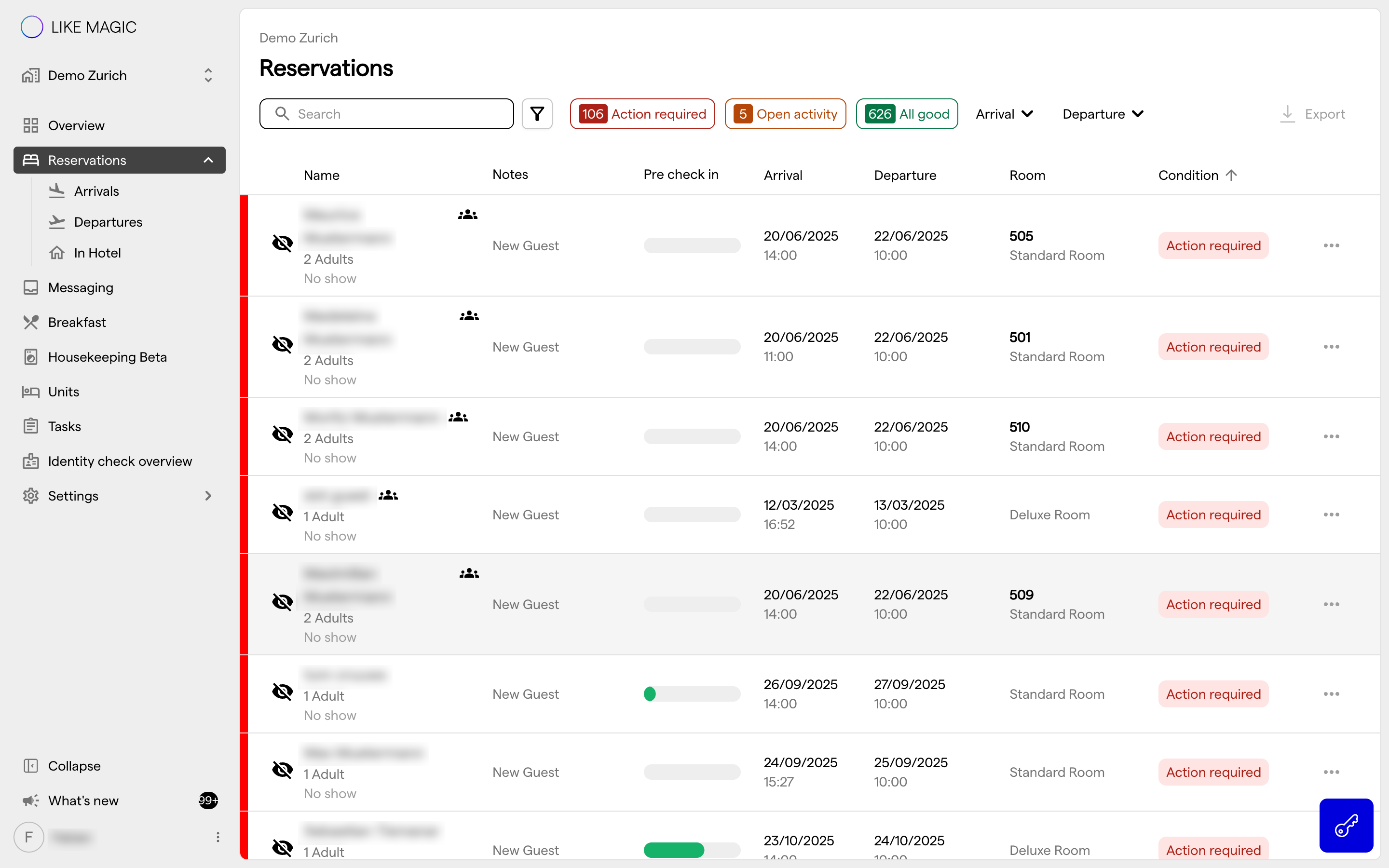
A Reservation Condition is a short status label that the platform adds to a reservation when it detects something worth reviewing. Each condition shows as a chip with a tooltip that explains the reason. You will find them on the reservation row in Reservations and in the reservation detail drawer, where critical conditions appear above the tabs.
Conditions are derived automatically from the state of the reservation. You do not create them by hand. The platform adds and removes them as the situation changes. For example, once an identity check is confirmed, the related condition disappears on its own.
Conditions come in two severity levels:
- ⚠️ Critical: high-risk situations that need prompt attention, such as an open balance on the day of departure or a declined identity check.
- ℹ️ Minor: lower-risk situations worth monitoring, such as a returning guest who has not yet started the Pre-Check-In Flow.
- ✅ The healthy default is no condition at all. When a reservation shows no conditions, everything is on track and nothing requires your attention. This is the normal state for a well-progressing reservation.
Reservation Conditions are automatic and system-generated. They are not the same as manually written reservation alerts that staff create themselves.
3. Which Conditions You May See
The platform can show around 30 different conditions. Rather than list every one, here are the main groups so you can recognise them at a glance.
| Topic | Reason | State |
|---|---|---|
| Pre-Check-In progress | a guest has not started, or has not completed, the Pre-Check-In Flow. Severity depends on how close arrival is and whether the guest is new or returning | minor to Critical |
| Identity check | the Digital Registration Form is not yet confirmed, was declined, or was re-uploaded and needs a fresh review | minor to Critical |
| Booking and reservation confirmation | the booking or reservation confirmation message has not been sent yet, or the booker has been sent it but has not yet invited the guests | Mostly Critical |
| Payment and balance | the reservation has an open balance (before departure, on arrival, on the day of departure, after check-out, or on a cancelled or No-Show reservation), or a card still needs to be tokenized before check-in. | Mostly Critical |
| Door access and keys | the guest has no public Digital Keys for the building, or is In-House without a private room key (for example because the Unit is still being cleaned, or due to a technical issue) | Critical |
| Room readiness | the Unit is still dirty on the day of arrival. | Critical |
| Tasks and services | an urgent Task is pending, or a Service request needs approval. | Critical |
| Guest on the Blocklist | the primary guest was recognised from the Blocklist and their Pre-Check-In was blocked. | Critical |
💡 Hover over any condition chip to read the full explanation of why it appeared.
4. Turning Condition Checks On or Off
Some condition checks can be enabled or disabled per property. When a check is enabled, the related condition can appear; when it is disabled, that condition is suppressed. The options below are the ones available in the Operations Platform.
Many conditions cannot be switched off. See the note at the end of this section.
a) Guest Flow Progress Check (Pre-Check-In conditions)
This setting controls whether Pre-Check-In Flow conditions appear on a reservation.
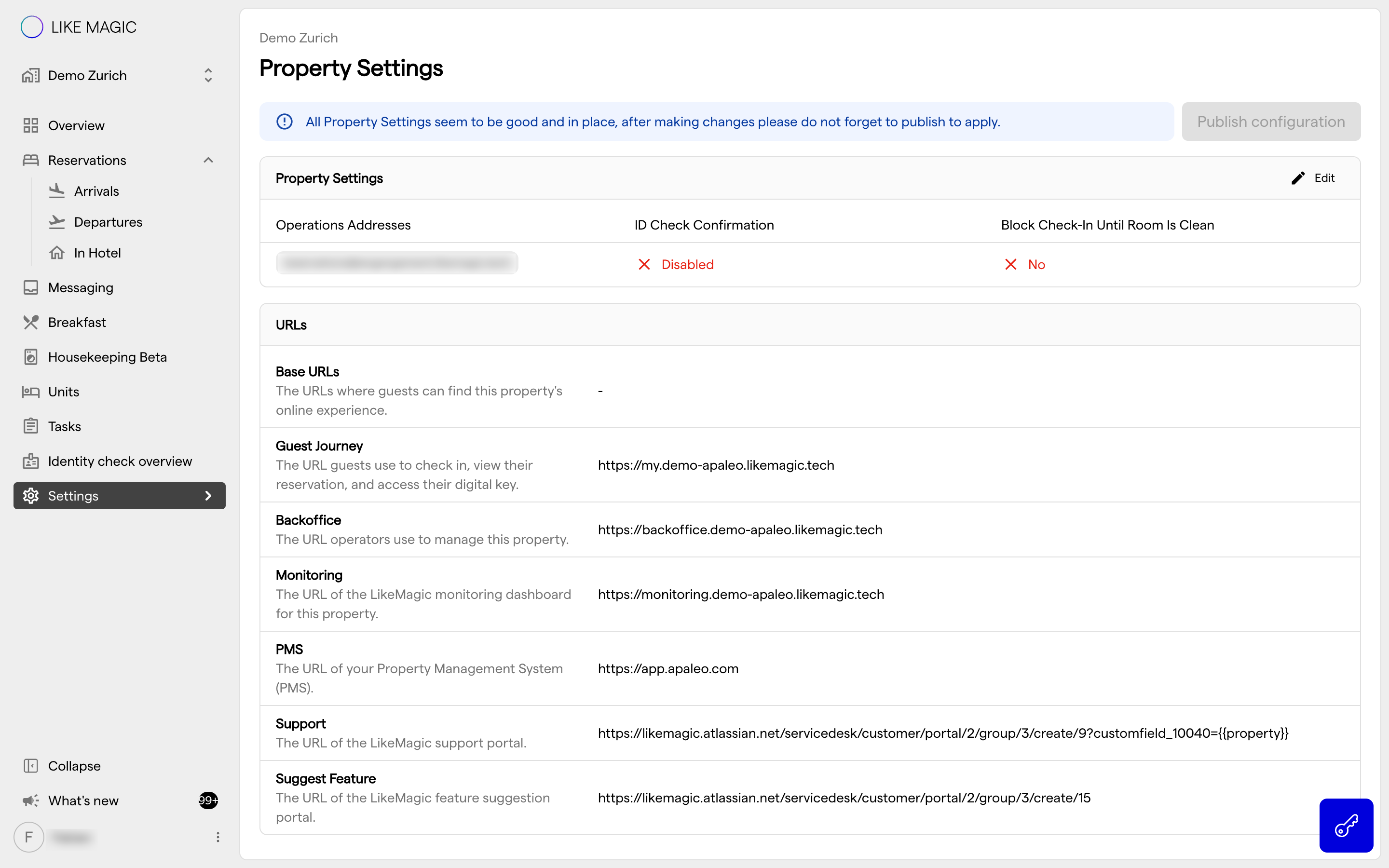
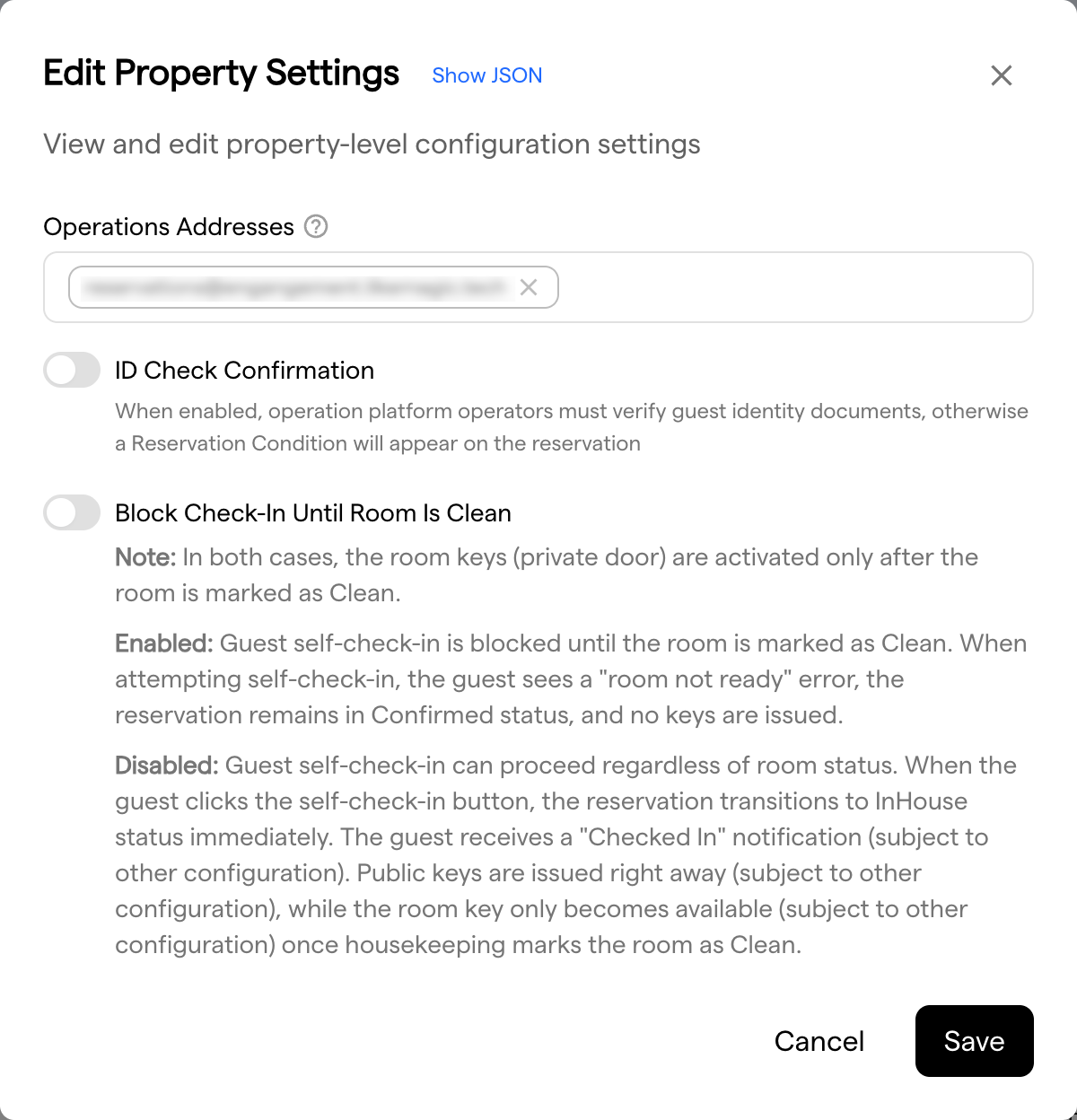
⚙️ Go to Settings → Property Settings, open the edit modal, and switch Guest Flow Progress Check on or off.
In the product, this option is described as: when it is on, guest-flow-related Reservation Conditions appear on the reservation; turn it off when the guest journey link is not provided to the guest. Disable it if you do not send guests the Secured Access to Guest Journey link, so you are not alerted about a step your guests never receive.
b) ID Check Confirmation
This setting controls the condition that appears when a guest's identity documents still need to be verified.
⚙️ Go to Settings → Property Settings, open the edit modal, and switch ID Check Confirmation on or off.
In the product, this option is described as: when it is on, staff must verify guest identity documents, otherwise a Reservation Condition appears on the reservation. With the check on, a reservation whose identity documents are not yet confirmed keeps showing the identity-check condition until a staff member confirms them.
c) Door Access Checks (public and private door)
These settings control the conditions related to Digital Keys and door access.
⚙️ Go to Settings → Door Access and open Door Access Checks with Edit Checks. The modal offers two switches:
- Public Door Check Enabled: flags reservations where the guest has no access to the building's public doors.
- Private Door Check Enabled: flags reservations where an In-House guest has no private room key.
The modal describes these as checks regarding door access that are reflected on the reservation overview.
Tip: Leave these on if your property uses Digital Keys, so staff are warned when a guest cannot get in. Switch them off when you use key cards or physical keys instead.
d) Booking Created Notification
The booking- and reservation-confirmation conditions are linked to your Booking Created guest notification, so they do not have a separate on/off switch of their own.
⚙️ If the Booking Created notification is disabled under Settings → Guest Notification, the related confirmation conditions no longer appear, because the platform does not flag a confirmation message that you have intentionally chosen not to send.
Conditions that cannot be switched off: Payment and open-balance conditions, urgent tasks, service approvals, a declined or re-uploaded identity check, a dirty Unit on arrival, and a guest on the Blocklist are always-on safeguards. They appear whenever the situation occurs and cannot be disabled in the settings.
5. Troubleshooting
- A condition keeps appearing even though I fixed the issue: Conditions refresh from the current reservation state. Reopen the reservation and confirm the underlying data is correct: for example that the identity check is confirmed or the balance is settled.
- I turned a check off but the condition is still there: Confirm you toggled the setting for the correct property and that you hold the Property Admin role. Remember that some conditions cannot be disabled at all (see section 4).
- I don't see the Guest Flow Progress Check switch: This option is not available on every property. See Known Limitations below.
- A guest can't access the building: A door-access condition points to missing Digital Keys. Check the guest's keys and the Door Access setup for the property.
6. Known Limitations
Apaleo properties cannot disable Pre-Check-In conditions.
If your property runs on the Apaleo PMS, the Guest Flow Progress Check switch is not shown, and Pre-Check-In Flow conditions always appear on reservations. This is intentional, not a fault. All other condition settings described in section 4 work the same way regardless of your PMS.
7. FAQs
Do I have to acknowledge or clear conditions manually?
No. Conditions clear themselves once the underlying situation is resolved.
Will disabling a check hide a real problem?
Disabling a check only hides that condition's warning; it does not change the underlying situation. Only turn a check off when the condition genuinely does not apply to how your property operates: for example, disabling the Guest Flow Progress Check when you never send the guest journey link.
Where exactly do conditions appear?
On the reservation row in Reservations and in the reservation detail drawer. Hover over a chip to see the explanation.
Can two conditions show at once?
Yes. A reservation can carry several conditions at the same time: for example an open balance together with an unconfirmed identity check.
8. Conclusion
Reservation Conditions give your team an at-a-glance worklist of everything that needs attention before, during and after a stay. A clean reservation with no conditions is your signal that all is well. Use the settings in section 4 to tailor which checks fit your property's workflow, and leave the always-on safeguards in place to protect payments, access, and compliance.
📝 For more on the areas mentioned here, see the Door Access Overview, Automated Guest Notifications, and Guest Access to Pre-Check-In, My Stay and Bookings.