Prepayment Configuration
How to configure the prepayment logic in the Operations Platform in order to benefit from the feature Smart Guest Payments
Introduction
The Prepayment configuration enables a Property Admin to configure which charges must not be paid by the guest within the Digital Guest Journey because the related charges are already paid / guaranteed to be paid by someone else.
1. Feature Overview
Smart Guest Payments limits what a guest pays in the Pre-Check-In Flow to the amount actually due. Using it requires configuration, known as the Prepayment Configuration.
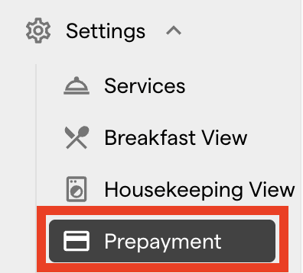
As a Property Admin, you can access the Prepayment Configuration in the Operations Platform settings.
Within the user interface, you can either add a new prepayment configuration or edit an existing one using the action options on the right-hand side.
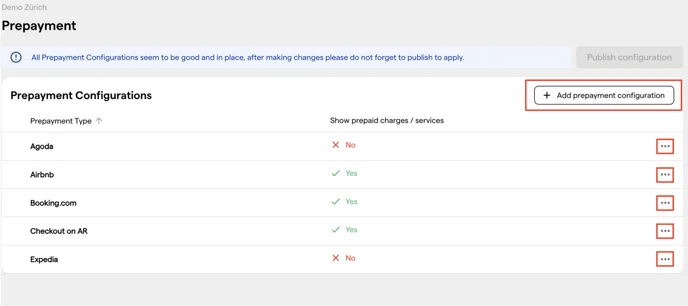
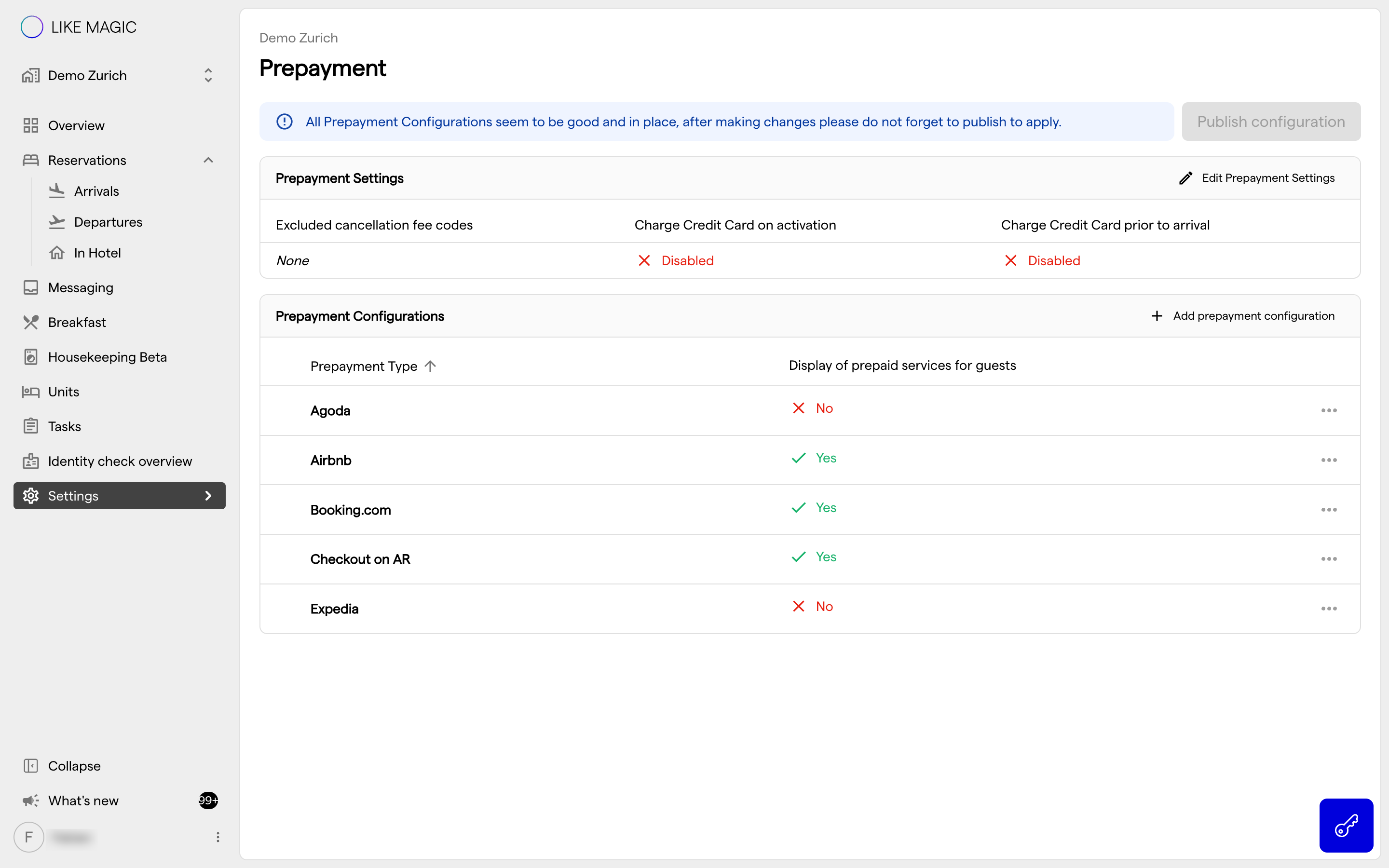
This overview also displays all active prepayment types, along with an indicator showing whether charges are visible to the guest.
a) Prepayment Types
The standard prepayment types (our most used OTAs + the Checkout on AR Feature) include:
- Agoda
- Airbnb
- Booking.com
- Checkout on AR
- Expedia
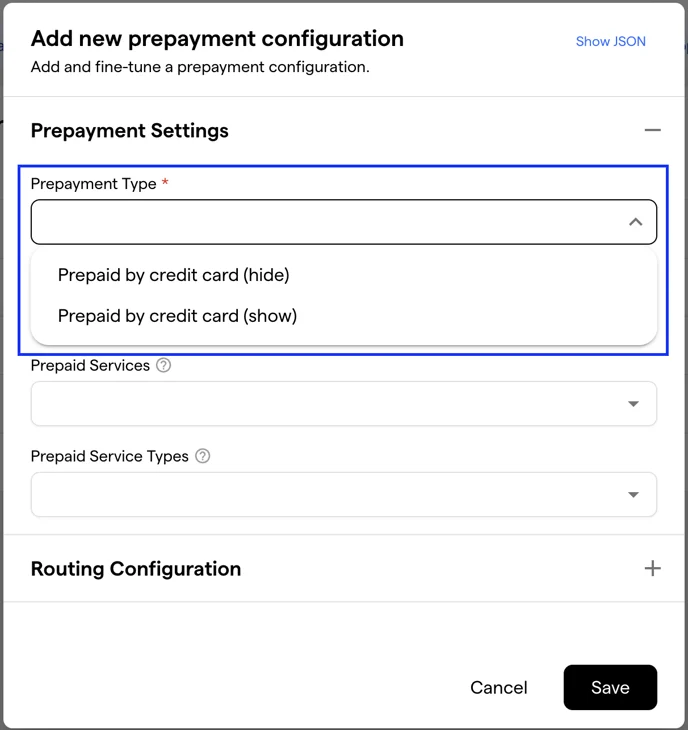
Which further types Add prepayment configuration offers depends on the property's prepayment setup and its PMS:
- Prepaid by credit card (hide) and Prepaid by credit card (show), on properties whose prepayment setup carries them.
- Prepaid, on the others.
- Check-Out on AR (Customer) on Mews, and Ctrip, Hotelbeds, Generic OTA, Not determinable and None on Opera Cloud.
If a type you need is not in the list, request it via a Support Ticket.
Recognizing Prepayments via Credit Card Holder Name
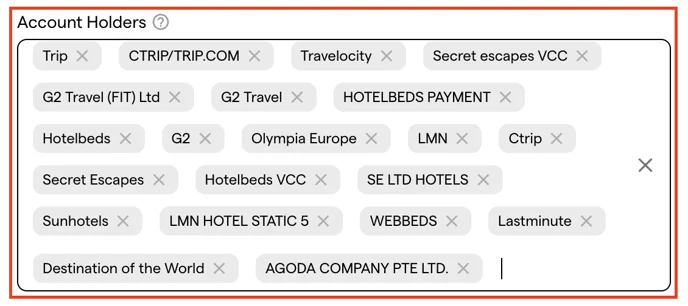
With “Prepaid by credit card (hide)” and “Prepaid by credit card (show)”, there is an additional option to recognize prepayments based on the account holder name of a credit card or virtual credit card (e.g., Hotelbeds).
The account holder name is the name of the owner of the credit card.
If an OTA does not provide a (virtual) credit card stored in the PMS, Smart Guest Payments cannot recognize it.
In the settings, you must enter the exact account holder name as it is transmitted with the booking to ensure accurate prepayment recognition. Enter the name and press Enter to save it. Here are some examples:
b) Display Settings
For each prepayment type, you can define whether the guest sees the prices of charges using the Display of prepaid services for guests toggle.
- Enabled: the guest sees the prices and receives an invoice as a PDF.
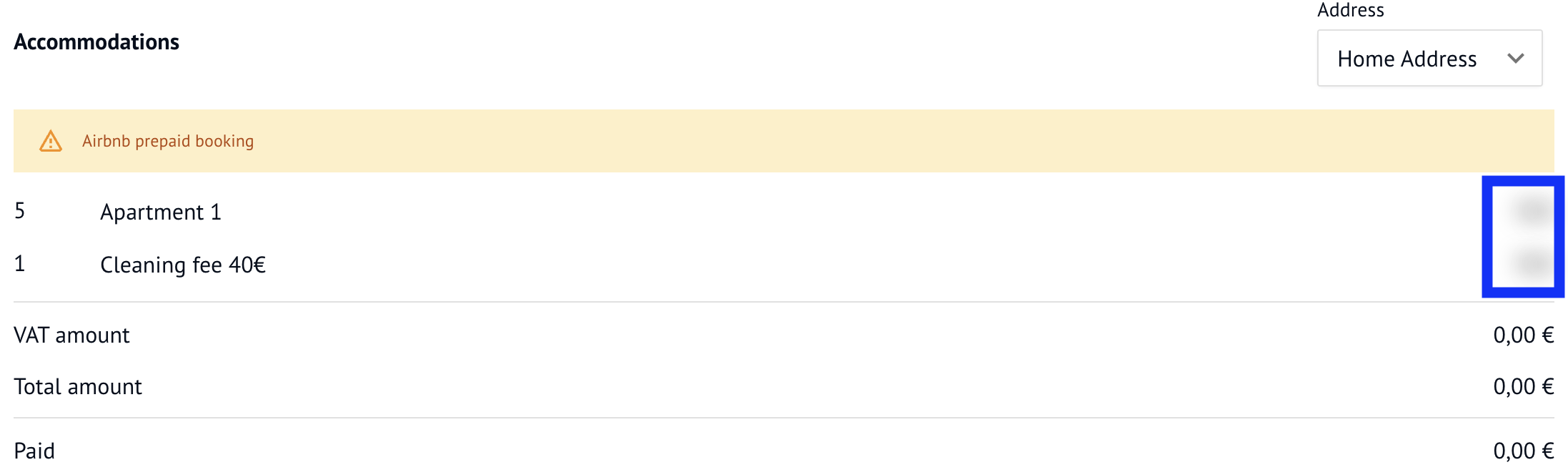
- Disabled: the charge stays on the guest's list but its price is blurred out, and no invoice PDF is sent.
Examples:
- Guest view with Display of prepaid services for guests enabled

- Guest view with Display of prepaid services for guests disabled
c) Included Services
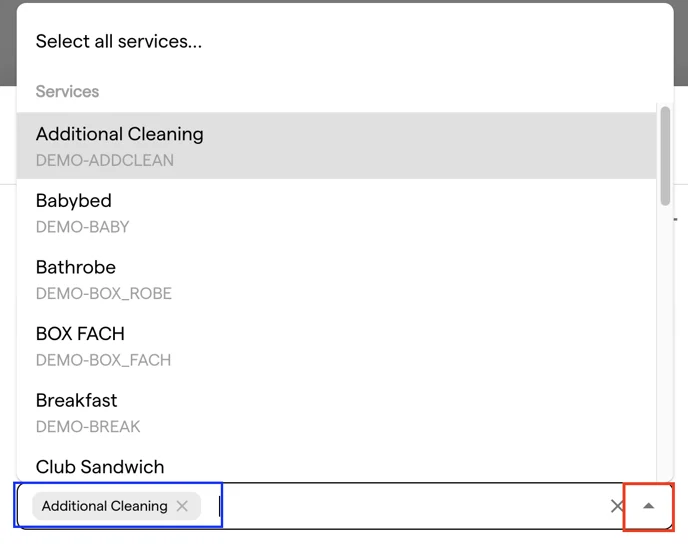
You can also specify which Charges should not be paid by the guest using the “Prepaid Services” setting. Simply select the Included Services from the PMS via the dropdown menu to indicate, that the prepayment amount on the VCC contains these charges.
E.g. "Additional Cleaning":
d) Migrated Reservations with a Virtual Credit Card (Apaleo)
When reservations are migrated into Apaleo from another system, a virtual credit card (VCC) arrives in Apaleo as an ordinary credit card. Without a hint, Smart Guest Payments treats it as the guest's own card, and the guest is asked to pay charges the OTA has already paid.
To prevent this, add a marker to the comment of every migrated reservation that is paid by a VCC:
| Marker | Use it when |
|---|---|
MAGIC_MIGRATION_HINT==PREPAYED_HIDE | the guest should not see the prices of the prepaid charges |
MAGIC_MIGRATION_HINT==PREPAYED_SHOW | the guest should see the prices of the prepaid charges |
The marker can stand anywhere in the reservation comment, so existing comment text stays as it is. Use one marker per reservation: if a comment contains both, the PREPAYED_SHOW marker applies. A marker takes precedence over every other prepayment type, so the reservation is no longer recognized as Booking.com, Expedia or a guest's credit card.
For a reservation with a marker, LIKE MAGIC does not charge the card, and the guest does not see the card details.
Both markers only take effect once they are set up for the property. Request the setup via a Support Ticket before the migration starts, and state which charges the VCC covers. Without it, a marked reservation is treated as having no prepayment, and the guest pays all charges.
2. Service Types and Folio Routing
Two further fields appear where the property's prepayment setup carries them. If you need one and it is missing, request it via a Support Ticket.
Service Type Prepayment
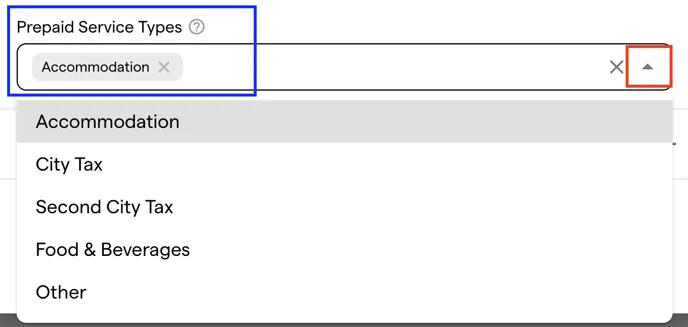
You can select entire Service Types that the guest should not pay for. Any Order Item within these types will automatically be recognized as prepaid.
The field offers Accommodation, City Tax, Second City Tax, Food & Beverages and Other. On Opera Cloud it offers Accommodation alone.
Routing Configuration
You can route specific Service Types or Charges to the second Folio.
Why would you do this? Some Hoteliers want to provide a better overview for OTA guests.
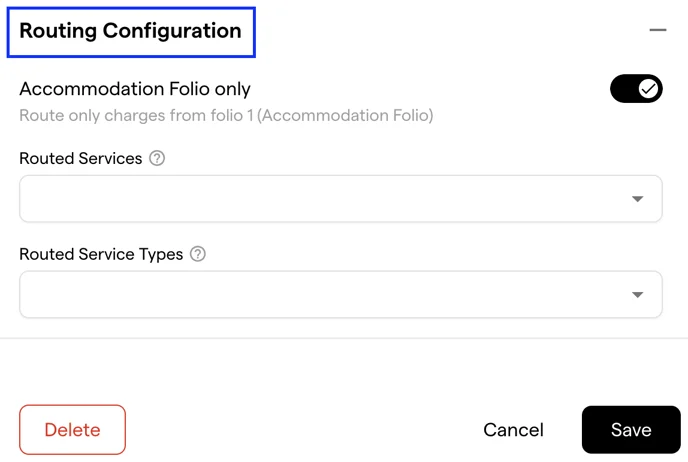
Just as in the prepayment settings, you can select either:
- Specific Services from the PMS, or
- All items within a Service Type from Apaleo
These will then be routed to a secondary folio as defined in your configuration.
3. Conclusion
The Prepayment Configuration defines, per prepayment type, which charges are covered, whether they are visible to the guest, and how they are handled across booking channels. On Apaleo, you additionally control folio routing and prepayment at the Service Type level.