Adyen Setup
Adyen is one of the payment service providers LIKE MAGIC connects to. This guide covers the Adyen-specific part of a property's payment configuration, so guest and staff payments are processed and returned to the folio. The shared part is described in Payment Configuration.
Neither part is editable in the Operations Platform. LIKE MAGIC holds the values, so every change here is a Support Ticket.
1. Prerequisites
- A live Adyen account for the property or Account.
- The Adyen values the connection needs, prepared as in section 2.
- The property's PMS connected, because a payment ends up on the folio in the PMS.
ℹ️ Note: An Account runs on one enabled provider at a time. Use this guide when the Account is on Adyen; use the Datatrans or Worldline guide otherwise.
2. Preparing Your Adyen Account
Some of the values the connection needs exist only once you create them in the Adyen Customer Area. Do the steps below for each merchant account the property uses. A property that takes payments at a terminal has a POS merchant account next to its e-commerce one, and each needs credentials of its own.
a) API Credentials
-
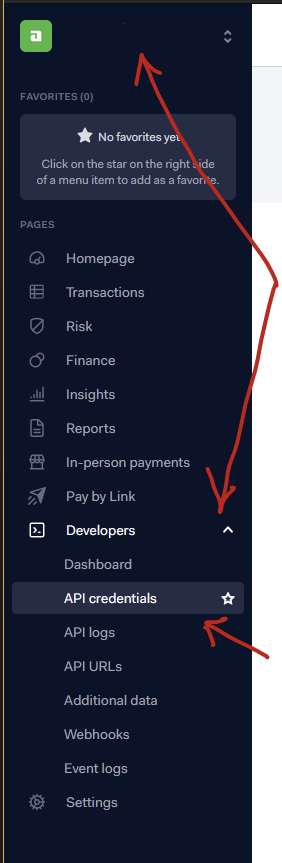
Select the merchant account.
-
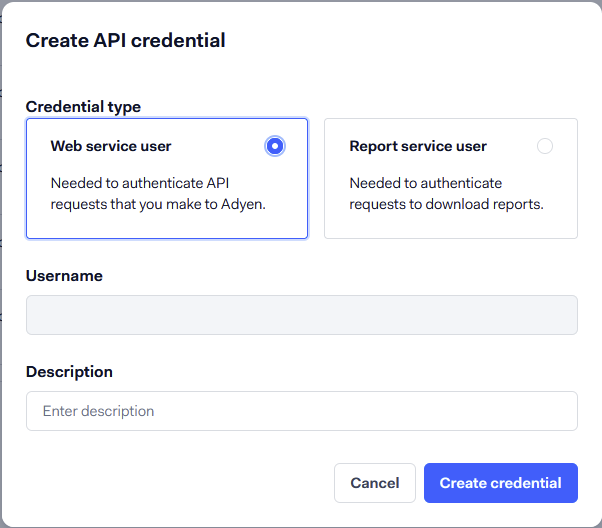
Go to Developers > API credentials and click Create new credential.

-
Keep the default type Web service user and enter a description.
-
Under Server settings > Authentication, copy the API key with the copy button and keep it in a secure place. Adyen shows the key only once, and a key selected by hand often misses characters.

-
Under Client settings, click Generate client key and add the property's guest journey address (for example
https://my.guest.example.com) as an allowed origin. The client key stays visible later. Skip this step for a POS merchant account.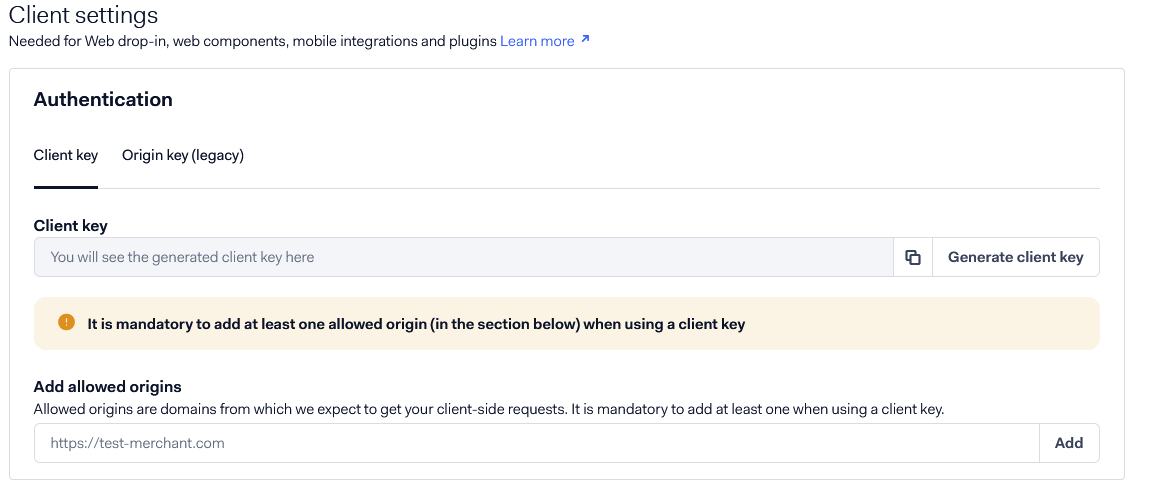
-
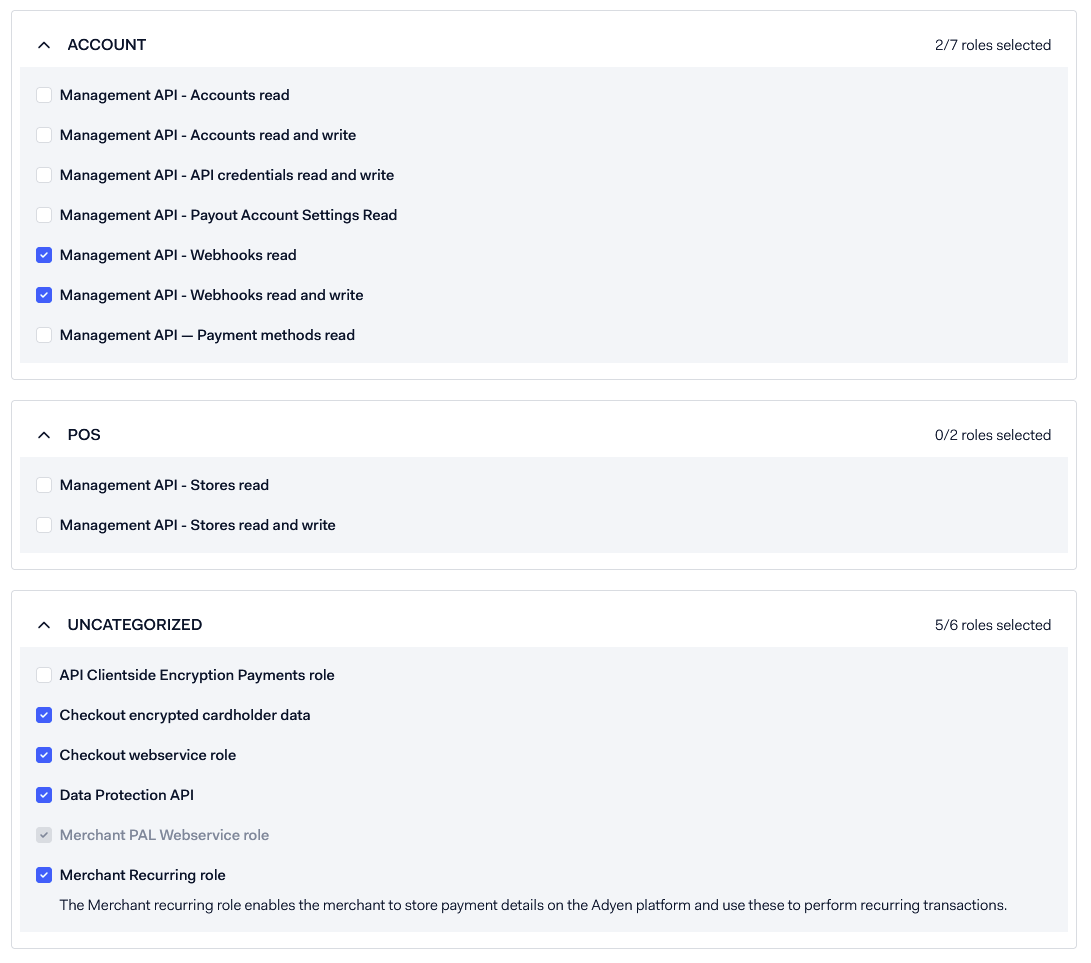
Under Roles, select the roles below. Merchant PAL Webservice role is preselected.
- "Management API - Webhooks read"
- "Management API - Webhooks read and write"
- "Checkout encrypted cardholder data"
- "Checkout webservice role"
- "Data Protection API"
- "Merchant Recurring role"
-
Save the changes.
⚠️ Warning: The API key authorises payments on the merchant account. If it leaks, revoke it in Adyen at once, create a new one and send the new key to LIKE MAGIC.
b) Webhook
-
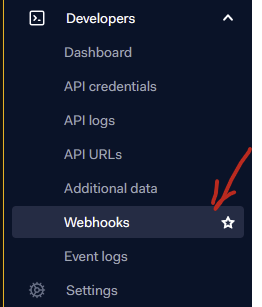
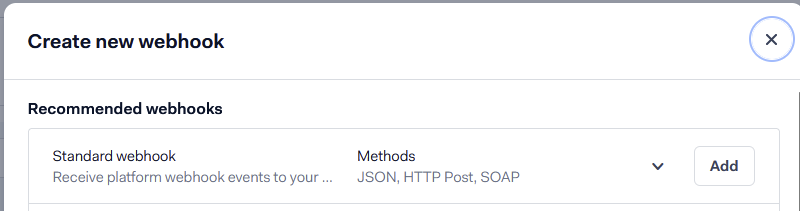
Go to Developers > Webhooks, click + Webhook and add a Standard webhook.

-
Enter a description under General.
-
Under Server configuration, enter the webhook URL LIKE MAGIC gives you for your Account. Leave the other settings unchanged.
-
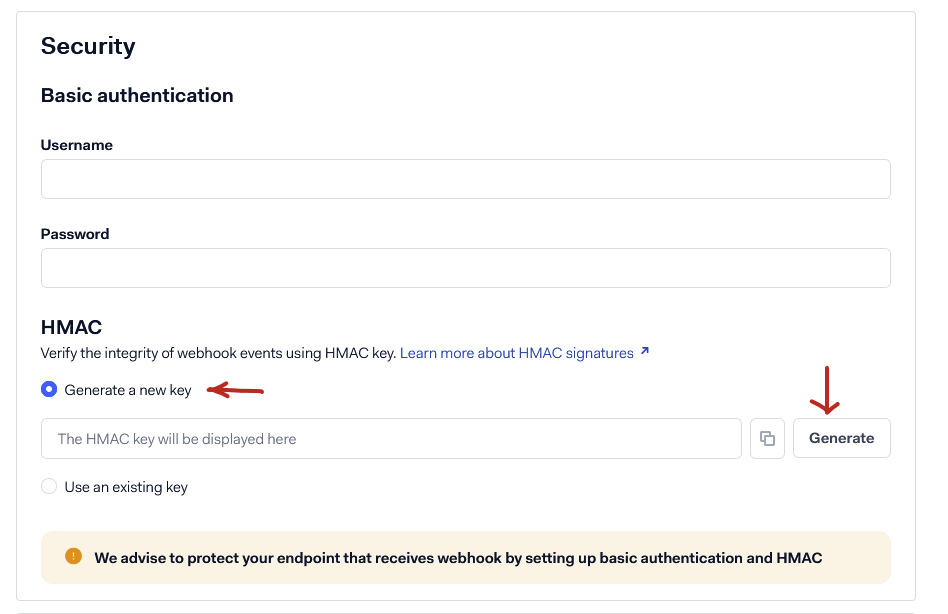
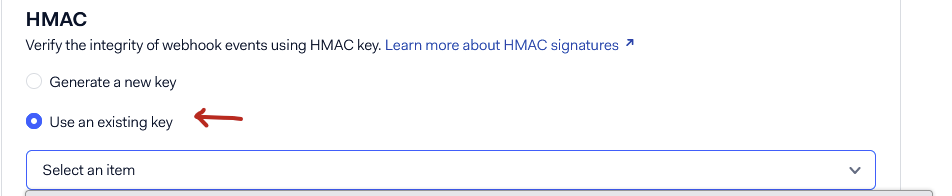
Under Security > HMAC, generate a new key for the first webhook and keep it in a secure place. For every further merchant account, choose Use an existing key and select the same key (the list names each key by its key check value, KCV).
-
Click Save configuration.
c) Additional Data
Go to Developers > Additional data, select the options below and click Save configuration. They make Adyen send the card and surcharge details LIKE MAGIC records with each payment.
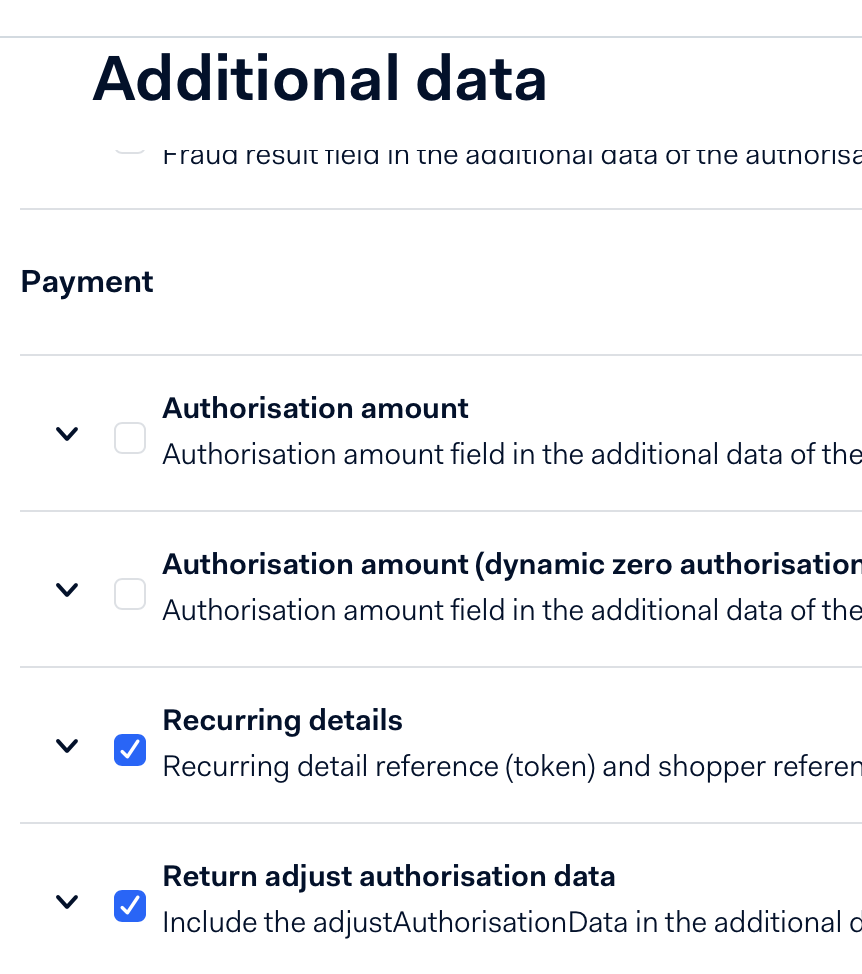
- Card holder name
- Card summary
- Expiry date
- Variant
- Card bin
- Issuer bin
- Issuer country/region
- Card bin details
- Payment account reference
- Card bin payout details
- Recurring contract information
- Include alias info
- Return adjust authorisation data
- Include Extra Costs
- Include Extra Costs Gratuity
- Include Extra Costs Surcharge
- Surcharge amount
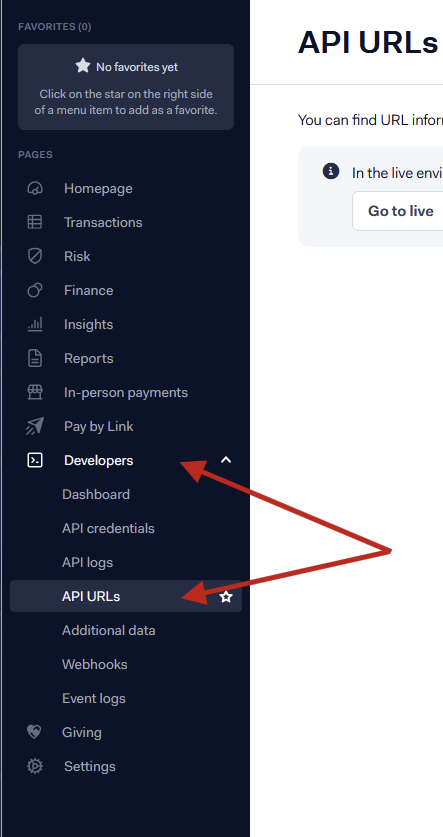
d) API URL Prefix
Go to Developers > API URLs and note the prefix shown there. LIKE MAGIC needs it to reach your live account.
e) Payment Terminals
For a property that takes payments at an Adyen terminal (for example at the Self-Service Kiosk):
-
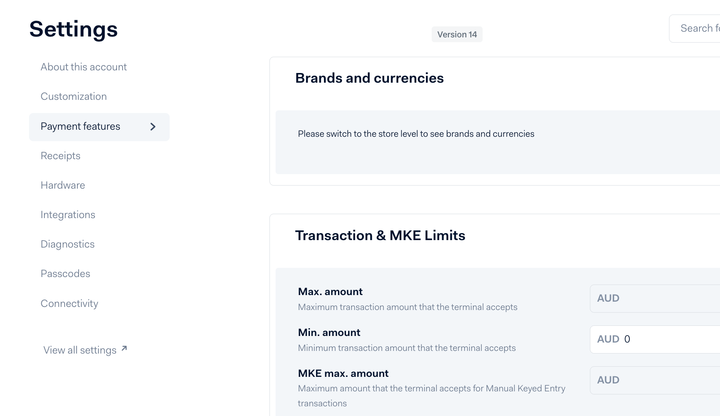
In the Terminal settings, enable WebSockets in the Integrations section.

-
Set the Min. Amount of the POS merchant account to 0.00.
-
If the property surcharges card payments, ask Adyen to enable surcharging on the terminal. Adyen sets this on the terminal itself.
3. Connecting Adyen
The connection is assembled by LIKE MAGIC. Request it via a Support Ticket and hand over the values you prepared in section 2.
At Account level the connection holds the Adyen merchant account, the API credentials, the client key, the HMAC key that Adyen's notifications are verified against, and the environment (test or live).
Per property it holds the merchant account (with a sub-merchant id where one is used), the country code, the default currency, and the list of allowed payment methods with a separate list for the Self-Service Kiosk.
4. Notifications
Adyen posts notifications back to LIKE MAGIC, for example the results of authorisation and capture. Each notification is verified against the HMAC key held in the Account's Adyen configuration, and the result is then reflected against the reservation and its folio.
ℹ️ Note: A wrong or rotated HMAC key makes LIKE MAGIC reject the notifications, so an authorised payment never posts to the folio. If payment results are not appearing, the notification path is the first thing to have checked, via a Support Ticket.
5. Payment Methods
The payment methods a property accepts through Adyen are part of its Adyen configuration, as an explicit allow-list. The Self-Service Kiosk carries a list of its own, so a method can be offered in the guest journey and withheld at the kiosk, or the other way round. Which methods are possible at all depends on what the property's Adyen account supports, and how each one posts to the folio comes from the mapping described in Payment Configuration.
To change a list, request it via a Support Ticket and name the property, the methods, and whether the change also applies to the kiosk.
6. Verifying the Connection
- Run a test payment through the guest journey or a staff-side charge.
- Confirm the payment is authorised by Adyen.
- Confirm it appears on the reservation's folio (see Billing and Folio).
⚠️ Note: Verify a full round-trip (the payment and the notification that posts it to the folio) before the property goes live. An authorised payment that never posts to the folio points at the notification path.
7. Conclusion
You create the API credentials, webhook and HMAC key in Adyen for each merchant account. The connection then holds the merchant account, credentials, client key, HMAC key and environment at Account level, and the merchant account, country, currency and allowed payment methods per property. LIKE MAGIC maintains all of it, so request a change via a Support Ticket and verify a payment reaches the folio end-to-end before going live.