Worldline Setup
Worldline is one of the payment service providers LIKE MAGIC connects to. This guide covers the Worldline-specific part of a property's payment configuration, so guest and staff payments are processed and returned to the folio. The shared part is described in Payment Configuration.
Neither part is editable in the Operations Platform. LIKE MAGIC holds the values, so every change here is a Support Ticket.
1. Prerequisites
- A live Worldline account for the property, on the Saferpay platform.
- The Worldline values the connection needs, prepared as in section 2.
- The property's PMS connected, because a payment ends up on the folio in the PMS.
ℹ️ Note: An Account runs on one enabled provider at a time. Use this guide when the Account is on Worldline; use the Adyen or Datatrans guide otherwise.
2. Preparing Saferpay
The values the connection needs come from the Saferpay Backoffice.
a) Terminal ID
Per property, LIKE MAGIC needs the terminal ID (TID). The customer ID does not have to be sent separately. It is part of the JSON API credentials below, whose username has the form API_<customerId>_<userId>.
b) JSON API Credentials
- Create a JSON API user with basic authentication, as described in Saferpay's guide.
- Create credentials for each terminal and send them to LIKE MAGIC together with the terminal ID.
c) Apple Pay
For a property that offers Apple Pay on the Saferpay payment page:
-
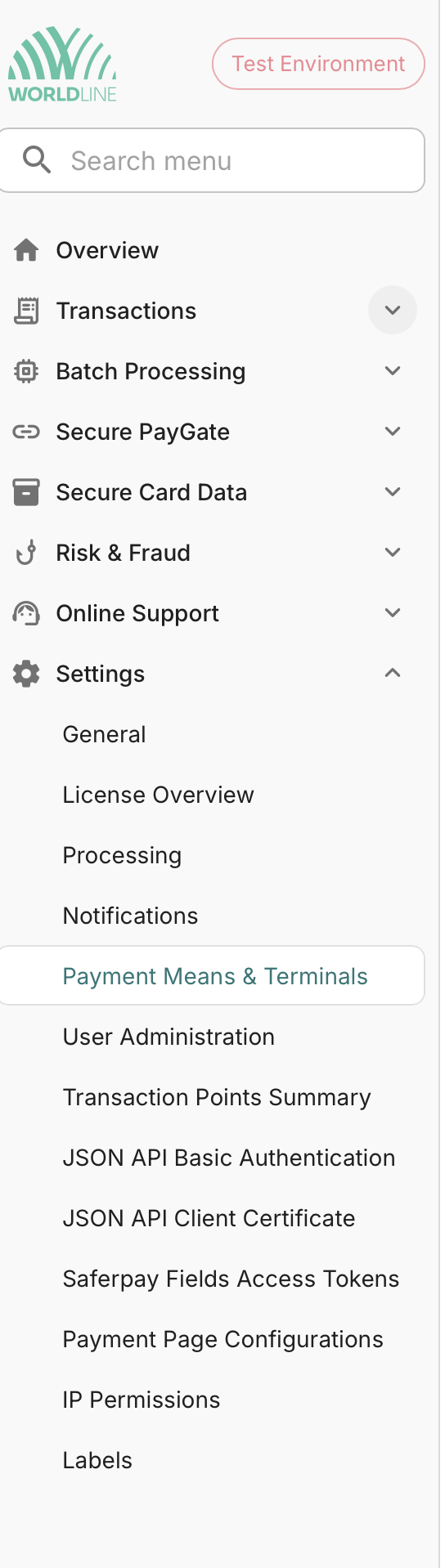
Go to Settings > Payment Means & Terminals and scroll to Apple Pay.
-
Enable the Payment Page and click Configure.

-
Enter the hostname of the property's guest journey under Hostname (for example
my.guest.example.com) and save.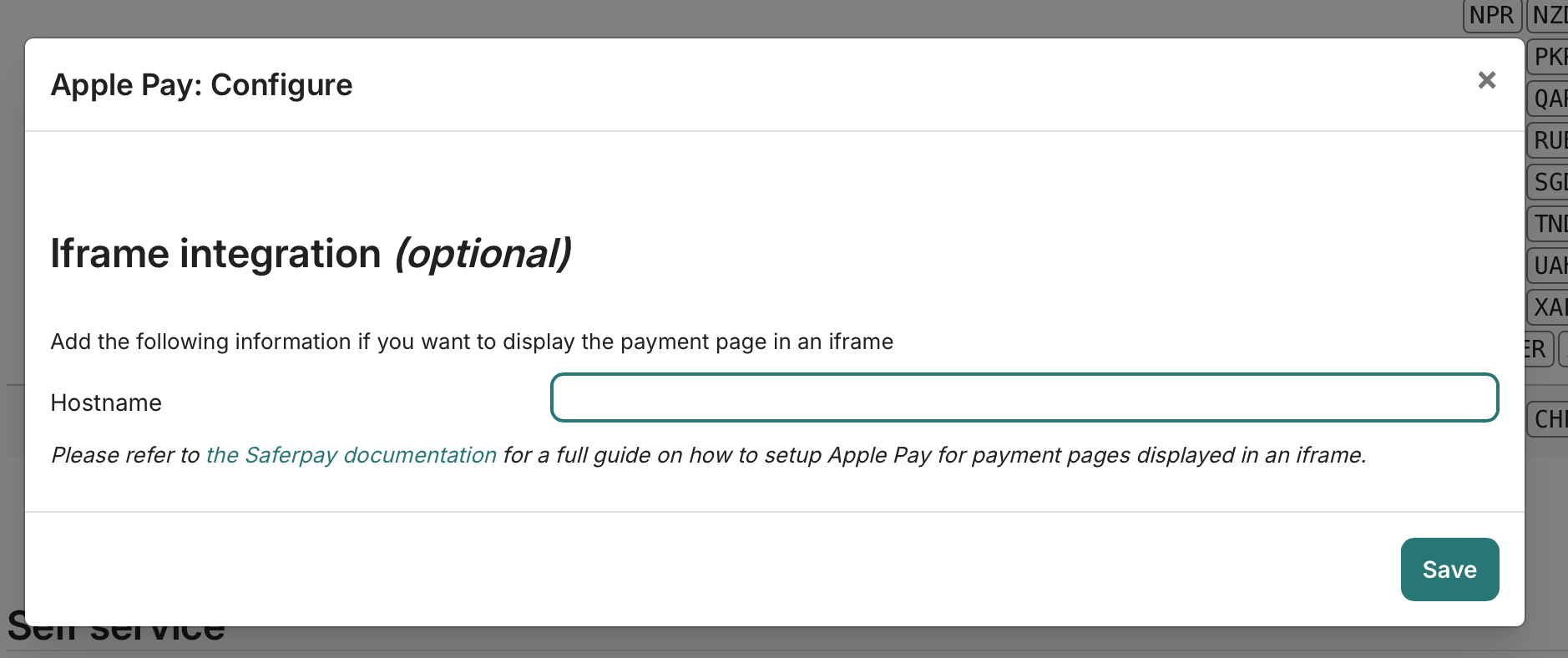
-
Repeat the steps for each terminal.
3. Connecting Worldline
The connection is assembled by LIKE MAGIC. Request it via a Support Ticket and hand over the values you prepared in section 2.
At Account level the connection holds the environment (test or live) and the switch that makes Worldline the Account's active provider.
Per property it holds the customer id and the merchant account that identify the property at Worldline, the credentials the requests are authenticated with, the country code, the default currency, the terminal id that Worldline expects on every payment request, and the list of allowed payment methods with a separate list for the Self-Service Kiosk.
4. Notifications
Worldline posts notifications back to LIKE MAGIC, for example the result of a payment. The result is then reflected against the reservation and its folio.
ℹ️ Note: If an authorised payment never appears on the folio, the notification path is the first thing to have checked, via a Support Ticket.
5. Payment Methods
The payment methods a property accepts through Worldline are part of its Worldline configuration, as an explicit allow-list. The Self-Service Kiosk carries a list of its own, so a method can be offered in the guest journey and withheld at the kiosk, or the other way round. Which methods are possible at all depends on what the property's Worldline account supports, and how each one posts to the folio comes from the mapping described in Payment Configuration.
To change a list, request it via a Support Ticket and name the property, the methods, and whether the change also applies to the kiosk.
6. What the Connection Covers
Beyond a guest paying in the guest journey, the Worldline connection carries the payment operations staff rely on:
- Payments in the guest journey and the Booking Engine, through a hosted payment page.
- Card on file, so a stored card can be charged later.
- Refunds against a payment that already went through.
7. Verifying the Connection
- Run a test payment through the guest journey, or charge a stored card from the reservation.
- Confirm the payment is authorised by Worldline.
- Confirm it appears on the reservation's folio (see Billing and Folio).
⚠️ Note: Verify a full round-trip (the payment and the notification that posts it to the folio) before the property goes live. An authorised payment that never posts to the folio points at the notification path.
8. Conclusion
You send LIKE MAGIC the terminal ID and the JSON API credentials for each terminal. The connection then holds the environment and the active-provider switch at Account level, and the customer id, merchant account, credentials, country, currency, terminal id and allowed payment methods per property. LIKE MAGIC maintains all of it, so request a change via a Support Ticket and verify a payment reaches the folio end-to-end before going live.