Understanding Prepayment with Opera Cloud and Mews
Prepayment decides who pays for a reservation and what your guest is asked to pay during online check-in, at the Self-Service Kiosk or at check-out. This article explains how LIKE MAGIC makes that decision in two clear steps (detection and application), and gives you the reference tables your team needs in daily operations.
This article applies to properties on Mews and Opera Cloud. Properties on Apaleo use additional prepayment types that are not covered here.
Prepayment vs. collecting the payment. This article is about detection and application: deciding who pays for a reservation and which charges are covered. Actually charging the guest for whatever is left to pay (during online check-in, at the Self-Service Kiosk or at check-out) is handled separately, by your property's configured payment service provider (PSP). Which PSP collects the payment does not change the prepayment logic described here: the two-step detection and application below works the same regardless of PSP. To set up how the guest is charged, see Payment Configuration.
1. Who Can Use This Feature?
👤 Understanding how prepayment works is relevant for all operational Staff, especially Front Office. Reading the prepayment type on a reservation requires no special permissions.
⚙️ Changing the prepayment configuration (covered charges, keywords, accounting codes, payment methods) happens in the Operations Platform under Settings → Prepayment, per property, and requires the Property Admin (property-admin) role. Property Viewer (property-viewer) sees the page read-only.
2. The Big Picture (Two Steps)
Every time a reservation is created or changed in your PMS, LIKE MAGIC runs through two separate steps. Keeping them apart makes the whole topic much easier to understand:
Step 1, Detection. LIKE MAGIC looks at the reservation (channel, travel agency, comments, payment methods) and answers one question: who pays for this stay? The result is a prepayment type such as BOOKING_DOT_COM, PREPAID or NONE.
Step 2, Application. For each prepayment type, your property has a configuration that answers a second question: which charges does that payer cover, and should the guest see them marked as prepaid or not see them at all?
Only what is left after both steps is shown to the guest as the amount to pay.
🛎️ The detection runs automatically on every reservation update coming from the PMS. If a comment is added later (for example a billing comment in Opera Cloud), the type is corrected on the next update. There is no manual refresh.

3. How the Prepayment Type Is Detected
LIKE MAGIC evaluates the following signals on the reservation:
- Booking channel (for example Booking.com, Expedia, Airbnb, Agoda, Trip.com)
- Travel agency profile attached to the reservation (for example "BOOKING.COM VCC", "Expedia", "Hostelworld Group", "Hotelbeds")
- Comments on the reservation and the booking: both automatic OTA comments and billing comments entered by your team
- Accounting code on the guest profile (for invoice customers, Mews only)
- Payment methods on the folio windows (Opera Cloud only)
- Your property configuration, which defines the keywords, accounting codes and payment methods to react to
a) The Order of Checks (OTA First, Billing Comments Second)
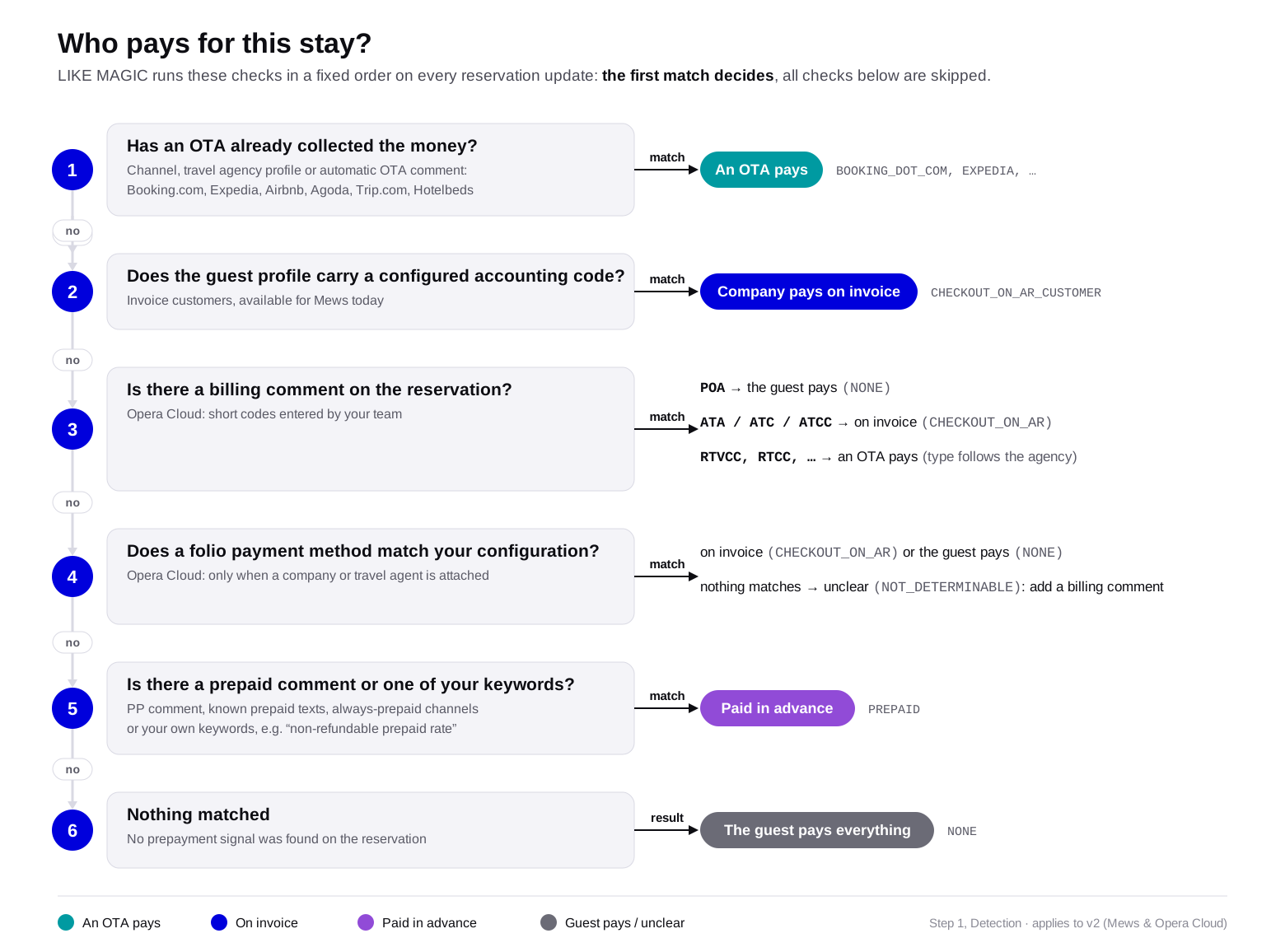
When several signals are present on the same reservation, the checks run in a fixed order and the first match decides:
- OTA signals. Channel, travel agency profile and automatic OTA comments are checked first. If the reservation is recognized as prepaid by Booking.com, Expedia, Airbnb, Agoda, Trip.com or Hotelbeds, that type wins and nothing else is evaluated.
- AR accounting code. If the guest profile carries one of the configured accounting codes, the type is
CHECKOUT_ON_AR_CUSTOMER. - Billing comments (Opera Cloud). Only now are billing comments evaluated. Within this group,
POAwins over everything else (guest pays, typeNONE). Next,ATA,ATCandATCCsetCHECKOUT_ON_AR. Then the room routing comments (RTVCCand similar) set the OTA type matching the travel agency. - Folio payment methods (Opera Cloud, company or travel agent attached). If no billing comment decided, the payment methods on the folio windows are compared against your configuration and set
CHECKOUT_ON_ARorNONE. If nothing matches, the result isNOT_DETERMINABLE. - Prepaid comments and your keywords. Last, LIKE MAGIC looks for known prepaid comments, the
PPbilling comment, always-prepaid channels and your configured keywords. A match setsPREPAID. - Nothing matched. The type is
NONEand the guest pays everything.
⚠️ Two practical consequences of this order:
- A billing comment cannot override a recognized OTA prepayment. Once a reservation is identified as OTA prepaid, billing comments (including
POA) are no longer evaluated. - On an Opera Cloud reservation with source "OTA", adding any billing comment switches the decision from automatic OTA detection to the billing comment logic. The comment then steers the outcome.
b) The Prepayment Types in Plain Words
| Prepayment Type | In Plain Words | Typical Trigger |
|---|---|---|
NONE | The guest pays everything. | No prepayment signal was found, or a comment explicitly says the guest pays (for example POA). |
BOOKING_DOT_COM | Booking.com has already collected the money and pays with a virtual credit card. | Booking.com channel plus a virtual credit card comment, or the Booking.com VCC agency profile. |
EXPEDIA | Expedia has already collected the money ("Expedia Collect"). | Expedia channel plus an "Expedia Collect" or virtual card comment. |
AIRBNB | Airbnb always collects the money for the stay. | Airbnb channel or agency profile. |
AGODA_VCC | Agoda has collected the money and pays with a virtual credit card. | Agoda channel. |
CTRIP | Trip.com has collected the money. | Trip.com channel. |
HOTELBEDS | The bedbank Hotelbeds pays for the room. | Hotelbeds agency profile. |
GENERIC_OTA | An OTA pays for the room, but LIKE MAGIC could not identify which one. | OTA source or a room routing comment without a recognized agency name. |
PREPAID | The stay was paid in advance (prepaid rate or deposit). | A known prepaid comment, one of your configured keywords or an always-prepaid channel. |
CHECKOUT_ON_AR | The bill goes to a company or travel agent on invoice (accounts receivable). | Billing comment ATA, ATC or ATCC, or a matching folio payment method (Opera Cloud). In Mews, a folio that belongs to a company and is marked as invoiceable is treated the same way. |
CHECKOUT_ON_AR_CUSTOMER | A specific company account pays on invoice. | The main guest's PMS profile carries one of the configured accounting codes (Mews only today). |
NOT_DETERMINABLE | A company or agent is involved, but LIKE MAGIC cannot safely tell who pays what. | Opera Cloud reservation with a company or agent attached, but no clear billing comment and no matching payment method. |
When the type is NOT_DETERMINABLE, no charges are marked as covered automatically. To resolve it, add a billing comment (see 5. Comments You Can Set) or check the payment methods on the reservation in Opera Cloud.
4. How the Configuration Is Applied
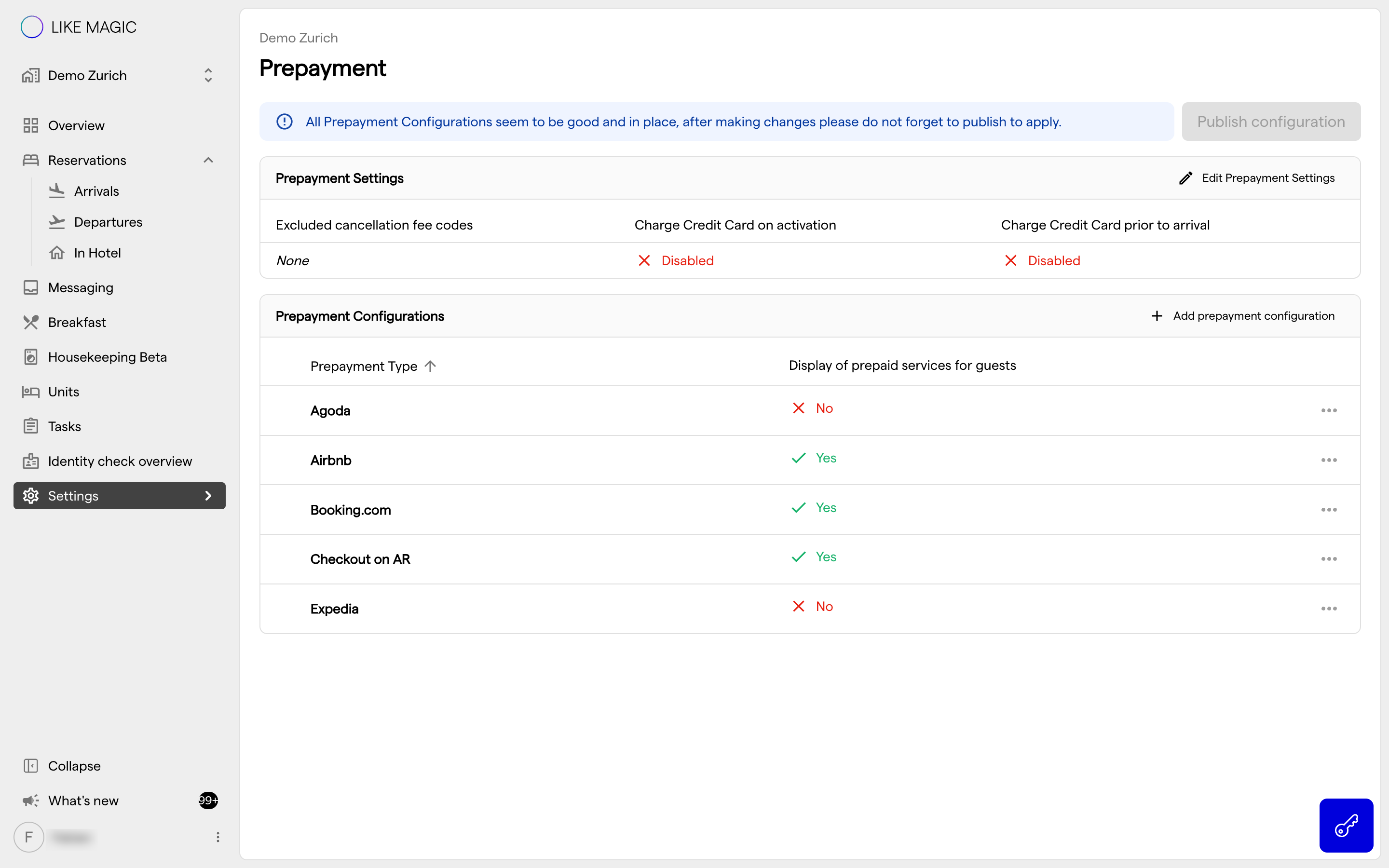
Knowing the type is not enough. A Booking.com virtual card usually covers the room and included meals, but never the minibar. This is exactly what the per-type configuration describes: for each prepayment type, your property defines which charges are covered and how they are displayed. The configuration is maintained in the Operations Platform under Settings → Prepayment.
a) Configuration Settings
| Setting | What It Does | Used With |
|---|---|---|
| Covered charges by category | Marks whole charge categories as covered, for example accommodation or city tax. | All types |
| Covered charges by transaction code | Marks specific PMS transaction codes (services) as covered. Use this when only certain items are paid by the OTA or company. | All types |
| Hide covered charges | If enabled, covered charges are completely invisible to the guest. If disabled, the guest sees them marked as prepaid but cannot pay them. Works for both Mews and Opera Cloud. | All types |
| Keywords | Free-text words that LIKE MAGIC searches for in reservation and booking comments (not case sensitive). A match sets the type to PREPAID. | PREPAID |
| Accounting codes | The "Accounting code" field on the guest or company profile in the PMS - a debtor number used for invoice customers. The code can be a real debtor number (for example 1000600) or an agreed marker word your team types into the profile. Available for Mews today; Opera Cloud does not deliver this field, so invoice cases on Opera Cloud are handled via billing comments and payment methods instead. | CHECKOUT_ON_AR_CUSTOMER |
| Payment methods | Opera Cloud payment methods that route a folio to invoice (or explicitly back to the guest). Checked on the reservation and on each folio window. | CHECKOUT_ON_AR, NONE |
| City tax transaction codes | Transaction codes that are additionally marked as covered when the reservation carries a CTAX billing comment. | Property-wide setting |
b) Worked Example
A guest books through Booking.com with a virtual credit card.
- Step 1 sets the type to
BOOKING_DOT_COM. - Step 2 applies your configuration for that type: accommodation and breakfast are covered, and "hide covered charges" is off.
🛎️ Result: during online check-in the guest sees room and breakfast marked as prepaid and is asked to pay only the city tax and the parking spot they added. Nothing changes on the folio in your PMS, LIKE MAGIC never modifies your folios.
5. Comments You Can Set
Comments are the most direct way for your team to steer the prepayment logic per reservation. LIKE MAGIC reads comments on both the reservation and the booking.
a) Billing Comments in Opera Cloud
These short codes must be entered as a comment with the classification Billing in Opera Cloud. Matching is "contains", so a comment like "RTVCC Booking.com" works too.
| Comment | Stands For | What LIKE MAGIC Does |
|---|---|---|
POA | Pay on arrival | The guest pays everything (type NONE). Wins over all other billing comments. |
ATA | All charges to travel agent | The whole bill goes on invoice (CHECKOUT_ON_AR). |
ATC | All charges to company | The whole bill goes on invoice (CHECKOUT_ON_AR). |
ATCC | All charges to credit card | The whole bill goes on invoice (CHECKOUT_ON_AR). |
RTVCC | Room to virtual credit card | The room part is covered. The type follows the travel agency (for example BOOKING_DOT_COM, otherwise GENERIC_OTA). |
RTCC | Room to credit card | Same as RTVCC. |
RTA | Room to travel agent | Same as RTVCC. |
RTPM | Room to paymaster | Same as RTVCC. |
RTGM | Room to group master | Same as RTVCC. |
RBondMPTCC | Room bond to credit card | Same as RTVCC. |
PP | Prepaid | The stay is treated as paid in advance (PREPAID). |
CTAX | City tax prepaid | The configured city tax transaction codes are additionally marked as covered. |
This list is complete and fixed in the platform. Codes that are not listed have no effect: for example RTC (room to company) is currently not recognized. Supporting an additional code needs a change request to LIKE MAGIC; it cannot be configured per property.
b) Comments Set Automatically by Channels
These texts arrive with the booking. Your team does not need to enter them, but it helps to recognize them:
| Source | Comment Text | Effect |
|---|---|---|
| Booking.com | "payment_on_Booking.com", "You have received a virtual credit card for this reservation" (also in German) | BOOKING_DOT_COM |
| Expedia | "Expedia Collect", "Expedia Virtual Card will be activated from the day of Check-in" | EXPEDIA |
| Expedia | "Hotel Collect" | Explicitly not prepaid - the guest pays. |
| Mews | ** THIS RESERVATION HAS BEEN PRE-PAID ** | Prepaid. The type follows the channel. |
| Hostelworld | "This booking was guaranteed by deposit." | PREPAID |
c) Your Own Keywords
On top of the fixed codes above, you can configure free-text keywords for the PREPAID type. LIKE MAGIC searches for them in all reservation and booking comments (not only billing comments), ignoring upper and lower case. This is useful for rate plans or internal wordings specific to your property, for example "non-refundable prepaid rate".
⚙️ Property Admins maintain keywords themselves in the Operations Platform: go to Settings → Prepayment, open the PREPAID prepayment type and add the keywords there. A new keyword takes effect for a reservation the next time that reservation is updated in the PMS.
Keywords work for both Mews and Opera Cloud. One exception on Opera Cloud: keywords are the last check in the detection order, so if a company or travel agent is attached to the reservation, the company and agent logic decides first and the keyword check is never reached for that reservation. Keywords therefore work best for direct bookings, for example prepaid rate plans.
Before relying on a keyword on an Opera Cloud property, verify it with a test reservation: add the keyword as a reservation comment and check that the prepayment type switches to
PREPAID.
6. Opera Cloud (Where the Amount to Pay Comes From)
a) Rate Breakdown vs. Folio Display
Opera Cloud has a special characteristic: charges are only posted to the folio during the nightly end-of-day run (the Night Audit). Before arrival and during the arrival day, the folio is empty or incomplete: even though the guest already wants to check in and pay.
LIKE MAGIC therefore uses two different sources for the amount to pay, depending on the moment:
- Before the Night Audit of the arrival day: the amount is calculated from the rate breakdown, the nightly prices of the rate plan. Positions marked as covered are excluded and payments already on file (for example a deposit) are deducted.
- After the Night Audit: the folio becomes the source of truth. It contains the real posted charges and payments, and the covered charges from Step 2 are excluded.
b) Why This Is Tricky
- The two sources know different things. The rate breakdown only contains the room price and included packages. Charges posted manually in Opera Cloud only exist on the folio. Neither view is complete on its own.
- Deposit matching happens automatically: there is no manual step. The hotel posts the deposit as usual (in Opera Cloud as a deposit on the reservation, in Mews as a payment on the folio). LIKE MAGIC then compares the payments on file with the part of the stay that is marked as covered. If they match exactly, the guest is asked to pay only the remaining part.
- Payment methods are checked twice on purpose: once on the reservation, so the pre-arrival amount from the rate breakdown is correct, and once per folio window, so the folio view after the Night Audit is correct.
- One configuration drives both views. There is only one prepayment configuration per property. One subtlety: the room night in the rate breakdown carries no transaction code and is matched via its category (for example accommodation), while positions with a transaction code (packages and posted charges) are matched via the transaction code.
Important for your Prepayment Configuration:
💡 Select both the categories and the specific transaction codes in your covered-charges configuration, so both views mark the same charges as covered and the guest sees the same amount before and after the Night Audit.
7. Troubleshooting
If a reservation shows a wrong amount to pay, check in this order:
- The prepayment type on the reservation. Does it match who actually pays? Remember: the first match in the detection order decides.
- The comments in the PMS. Is an automatic OTA comment overriding your billing comment? Is a billing comment missing or misspelled? Matching is "contains" and not case sensitive.
- The covered-charges configuration of that type. Are the right categories and transaction codes selected under Settings → Prepayment? On Opera Cloud, are both the category and the transaction codes configured so the pre- and post-Night-Audit views match?
Common situations:
- A guest is asked to pay a stay that Booking.com already collected. Check whether the virtual credit card comment or the VCC travel agency profile arrived on the reservation. If neither is present, the OTA detection cannot trigger.
- The type is
NOT_DETERMINABLE. A company or travel agent is attached, but no billing comment and no matching payment method was found. Add a billing comment (ATA,ATC,ATCCorPOA) or verify the payment method on the reservation. - City tax still shows as open although it is prepaid. City tax is only treated as covered when both conditions are met: the reservation carries the
CTAXbilling comment and the city tax transaction codes are configured for the property. - A fix in the PMS does not show up. The type is recalculated on the next reservation update. Adding or changing a comment triggers this automatically: no manual refresh exists or is needed.
8. FAQs
Can a billing comment override a Booking.com virtual credit card?
No. OTA signals are checked first, and the first match decides. Once a reservation is identified as OTA prepaid, billing comments, including
POA, are no longer evaluated.
Does LIKE MAGIC change the folio in my PMS?
No, never. The prepayment logic only controls what the guest sees and is asked to pay. Your folios in Mews or Opera Cloud stay untouched.
How do I remove a charge from the guest's view?
There are exactly two ways: enable "hide covered charges" (this only affects charges that the matched prepayment type marks as covered), or move or route the charge to a different folio in the PMS.
Why does the guest see a different amount before and after the Night Audit (Opera Cloud)?
Before the Night Audit the amount comes from the rate breakdown; afterwards it comes from the folio. If the two views disagree, your covered-charges configuration is likely missing either the category or the transaction code: configure both.
Can I add my own billing comment codes, like RTC?
No. The billing comment list is fixed in the platform. A new code requires a Feature Request to LIKE MAGIC. Your own free-text keywords, however, can be configured per property for the
PREPAIDtype.
Do keywords work on Opera Cloud?
Yes. Test it with a test reservation before relying on it, and keep in mind that keywords are the last check, so they are bypassed when a company or travel agent is attached.
9. Conclusion
Prepayment in LIKE MAGIC always follows the same two-step logic: detect who pays, then apply what that payer covers. When an amount looks wrong, walk through the same two steps (first the type, then the comments, then the configuration) and you will find the cause in most cases within minutes.
📝 Useful next steps:
- Review your covered-charges setup in the Operations Platform under Settings → Prepayment: on Opera Cloud, make sure both categories and transaction codes are selected. Relevant documentation: Prepayment Configuration
- Share the billing comment table with your Front Office team so everyone uses the same codes.
- If a prepayment case cannot be resolved with the steps above, open a Support Ticket with the reservation number and the expected outcome.