Apaleo (Settings for LIKEMAGIC)
These are the settings you need in Apaleo so the LIKE MAGIC integration works.
Introduction
This article lists the settings in Apaleo that the LIKE MAGIC integration depends on. Configure them before you go live, otherwise parts of the Digital Guest Journey will not work as described.
Overview:
- Conceptual Settings
- Extras/Services
- Rate Plans
- Conclusion
1. Conceptual Settings
At the property level, under Settings, you will find the following options:
Automation
- Check-In: Handled by the LIKE MAGIC guest flow by default. Guests manually check in on the day of arrival via the MyStay interface.
- Check-Out: Automatically managed by LIKE MAGIC. Guests either manually check out before the official departure time, or after the official checkout time, the LIKE MAGIC automation handles it without intervention from the host team or the guest.
- Night Audit: Not relevant for LIKE MAGIC. Choose a time that suits your operations.
- NoShow Checkbox: This is an important process-related consideration. If this box is active, all guests who haven't checked in by the end-of-day (as defined by the night audit time) are automatically marked as "NoShow" and thus denied access to their reserved hotel room. Carefully consider whether this automation is beneficial or if it might lead to increased workload and potential conflicts with your guests.

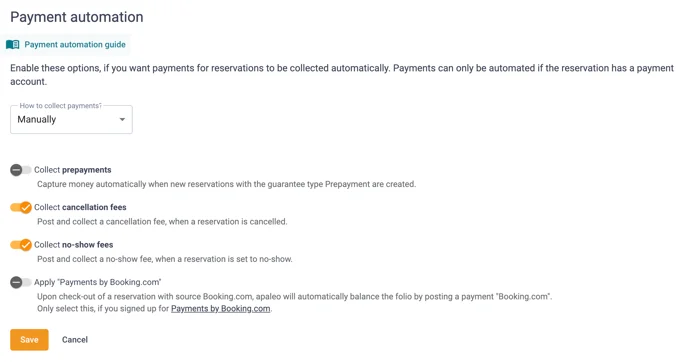
Payment Processing
- It is mandatory to set the first option to Manual.
- Ensure that Collecting prepayments is turned off, otherwise it may lead to double bookings of services.
- Activate Payments via Booking.com only if the payment method for prepaid bookings is set to Bank Transfer instead of virtual credit cards (VCCs).
- Collecting cancellation fees and no-show fees is optional. We recommend activating it so cancellation and no-show charges are posted automatically:
2. Extras/Services
Included Room Cleaning
To automatically calculate included room cleaning and manage it from a Housekeeping perspective on the Operations Platform, we need to set up a service.
We recommend the following wording for the Service-ID:
FREECLEAN
Please do not set any special checkboxes and do not change basic settings. For the channel, please check IBE.
General Services
If services are to be offered to guests via LIKE MAGIC, the following rules apply:
- Availability: Set to Daily and Every Day, as detailed settings are managed via LIKE MAGIC. If these settings contradict the PMS, the guest will not be able to book the service.
- Service Limitations: Please do not set these in Apaleo. The inventory (maximum) is managed at the LIKE MAGIC level. If active in Apaleo as well, it will lead to issues.
- Distribution: Please check IBE here if the service is to be offered via LIKE MAGIC.
- Posting Definition: Please do not select Accommodation (lodging), as this can lead to conflicts in the prepayment settings because all lodging charges are always treated as prepaid by LIKE MAGIC. Instead, select either Food & Beverage or Other.
3. Rate Plans
Rates must have the IBE channel if they are to be offered via the IBE.

Note that promotional and corporate rates intended to be bookable via the IBE must also be marked with IBE. We support Apaleo's promo codes on our IBE.
Regarding content: the minimum guarantee and the cancellation policies, along with all pricing settings and restrictions, are adopted directly for the LIKE MAGIC IBE. Rate titles and the cancellation-policy texts, as well as the room categories, are maintained in Prismic (content management).
4. Conclusion
With the settings above in place, automation, services and rate plans behave the same in Apaleo and in LIKE MAGIC, from booking to check-out.
That prevents duplicate bookings, payment errors and access problems, and it keeps manual corrections off your team's desk.