Opera Cloud Integration
This article is a step-by-step guide to connecting LIKE MAGIC with Opera Cloud. The steps differ depending on whether the hotel uses the OCIM (modern) or the SSD (legacy) version.
In data exports and API payloads, Opera Cloud reservations and profiles appear under the OHIP origin (there is no separate "Opera" origin). For how a property's PMS can affect guest-facing behaviour, see PMS Overview.
Introduction
This guide walks you through the steps required to authorize our connection to your Opera Cloud environment.
The process depends on which version of the Opera Cloud identity system you use. Start by identifying which version you have.
Step 1. Identify your Opera Cloud Version
Please log into your Opera Cloud PMS and look at the web address (URL) in your browser's address bar.
-
If the URL contains
OPERA9, you are using the SSD version.Example:
https://xxxxx.oracleindustry.com/OPERA9/opera/operacloud/ -
If the URL does not contain
OPERA9, you are using the OCIM version.Example:
https://xxx-1.ocs.oraclecloud.com/OCR4ENT/operacloud/
Once you know your version, please follow the corresponding instructions below.
Step 2. Connect LIKE MAGIC to Opera Cloud
Follow the instructions for the version you identified in Step 1.
Instructions for OCIM (Modern Version)
This approval process runs through your Oracle Cloud portal.
Part A. Information we need from you
To begin, please provide our team with the following details from your Opera Cloud account:
- Your Enterprise ID
- Your Chain Code
- Your Hotel ID or IDs
- Your Oracle Cloud Region (e.g., US-ASHBURN-1)
- Confirmation that your property has an active Oracle OPERA Cloud Foundations license.
Part B. Your action, Approve our request
- Once we have your information, we will initiate a connection request to your environment.
- Your system administrator will receive an email notification from Oracle about a pending request from LIKE MAGIC.
- Please log into the Oracle OPERA Cloud Customer Developer Portal.
- Find our request and click to review it.
- Approve the request and select the specific hotel(s) you authorize us to access.
Once you approve the request, our system is notified automatically and the connection becomes active.
Instructions for SSD (Legacy Version)
This process involves your Chain Administrator approving a user for our application.
Part A. Information we need from you
To begin, please provide our team with the following details from your Opera Cloud account:
- Your Identity Manager URL
- Your Chain Code
- Your Hotel ID
- Your Oracle Cloud Region (e.g., US-ASHBURN-1)
- Confirmation that your property has an active Oracle OPERA Cloud Foundations license.
Part B. Your Action, Approve the Integration User
- Using the details you provide, we will initiate a request to create an integration user in your system.
- Your Chain Administrator will receive an email notification from Oracle.
- The administrator must open the request and approve it.
- During the approval, the administrator must assign the
WSACCESSrole at the chain level. This is required for the initial connection setup.
Part C (Optional but recommended). Refining Permissions
After we confirm the connection is active, your administrator can increase security by limiting our access to specific hotels.
- Log into the Identity Manager.
- Find the integration user created for LIKE MAGIC.
- Remove the chain-level
WSACCESSrole. - Assign a new
WSACCESSrole specifically for each hotel property you want us to connect to.
Step 3. Share Opera Cloud Configuration
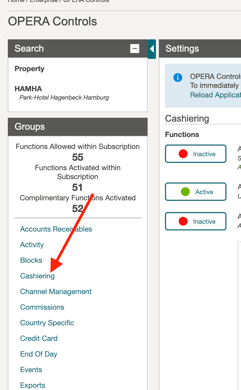
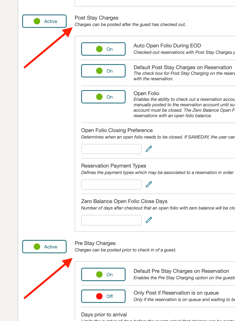
a) Pre / Post stay Charging
Make sure that the pre-stay and post-stay charging configuration is enabled before you migrate data into Opera Cloud.
Otherwise a manual process is needed to ensure that the reservations have the flag set.
Share any possible adaptions you might have done to this with us.
This is found under OPERA Controls > Cashiering.
b) Payment Methods
Share the setup of the payment methods with us. Please share it as an Excel File or in a similar format.
The configuration is found under Administration > Financial > Transaction Management > Payment Methods.

c) Guarantee Codes
Share the setup of the guarantee codes with us, as an Excel file or in a similar format.
It is found under Administration > Booking > Booking Rules and Schedules > Reservation Types.

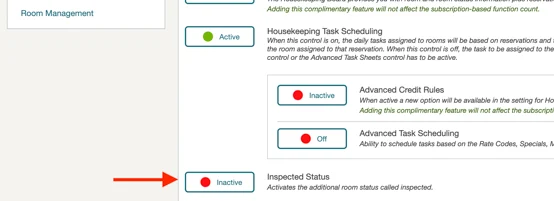
d) Room Status
Share with us whether you have the status Inspected enabled. It is found under OPERA Controls > Room Management and is necessary for the automated guest experience.
Step 4. Create new Cashier User
Create a new Cashier User and make sure it is of type Interface Cashier. It is added under Administration > Financial > Cashiering Management > Cashiers.
Please then share the Cashier ID with LIKE MAGIC.

Step 5. Approve Streaming Integration
LIKE MAGIC integrates with your Opera Cloud environment through the Streaming approach. This again runs through the Oracle OPERA Cloud Customer Developer Portal.
Our team informs you once we have triggered the request during the onboarding process.
Make sure the user who confirms the request has the WSACCESS role.
Please inform us once the request is approved.
Step 6. Configure Publishers
After the Streaming Integration is in place, all necessary publishers have to be added to the External System. Our external system is called OHIP3690.
Configure the publishers under Administration > Interfaces > Business Events > External Systems.
Click the … to the right of the External System and select Publishers.

Make sure you add every other external system that creates, modifies or cancels reservations as a publisher, for example your Channel Manager (such as Siteminder).
7. Conclusion
Once you have completed all the steps above, Opera Cloud is connected and configured with LIKE MAGIC ✅
Reservation, folio and room data are then synchronized between the two systems.